Tell us anything

An idea, a bug, something you love. We read every note.

⌘↵ to send. The page you're on comes along.

Wildlife documentary animal sequence

Made with Seedance 2.5 in Kling by Library Cinema. Promptclay never generates images.

Did it work?

No reports yet. Tell others if it worked for you.

No comments yet. Be the first.

    Wildlife documentary animal sequence

    Seedance 2.516:9AI-generated

    Prompt

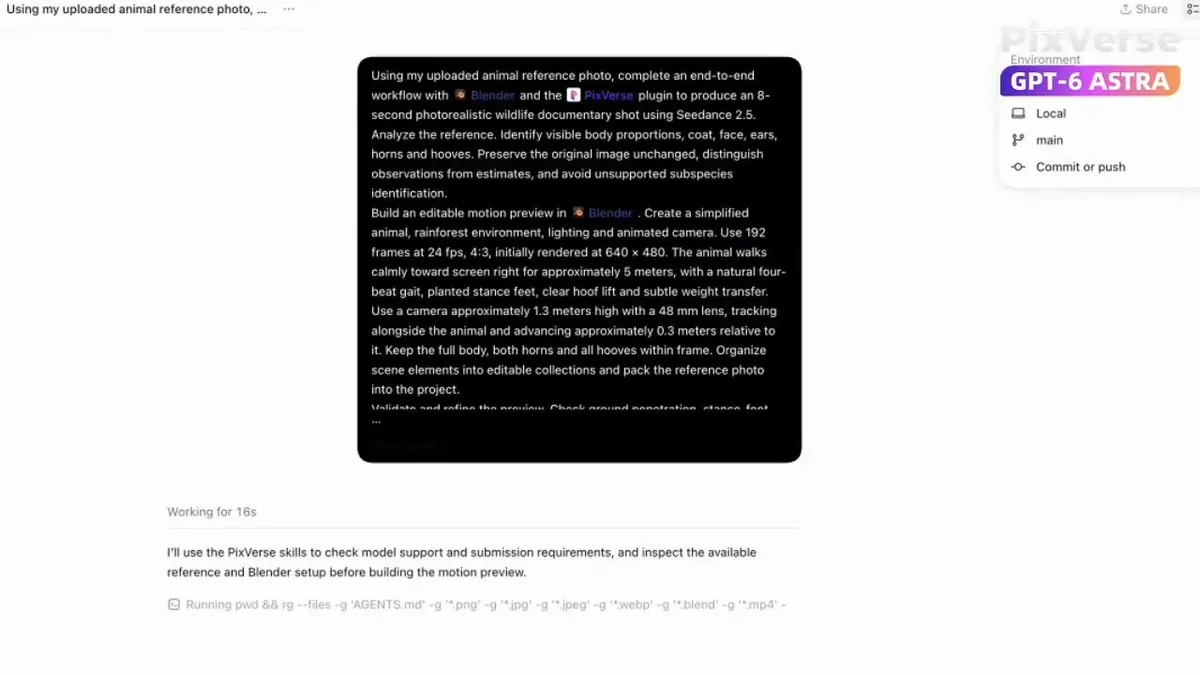
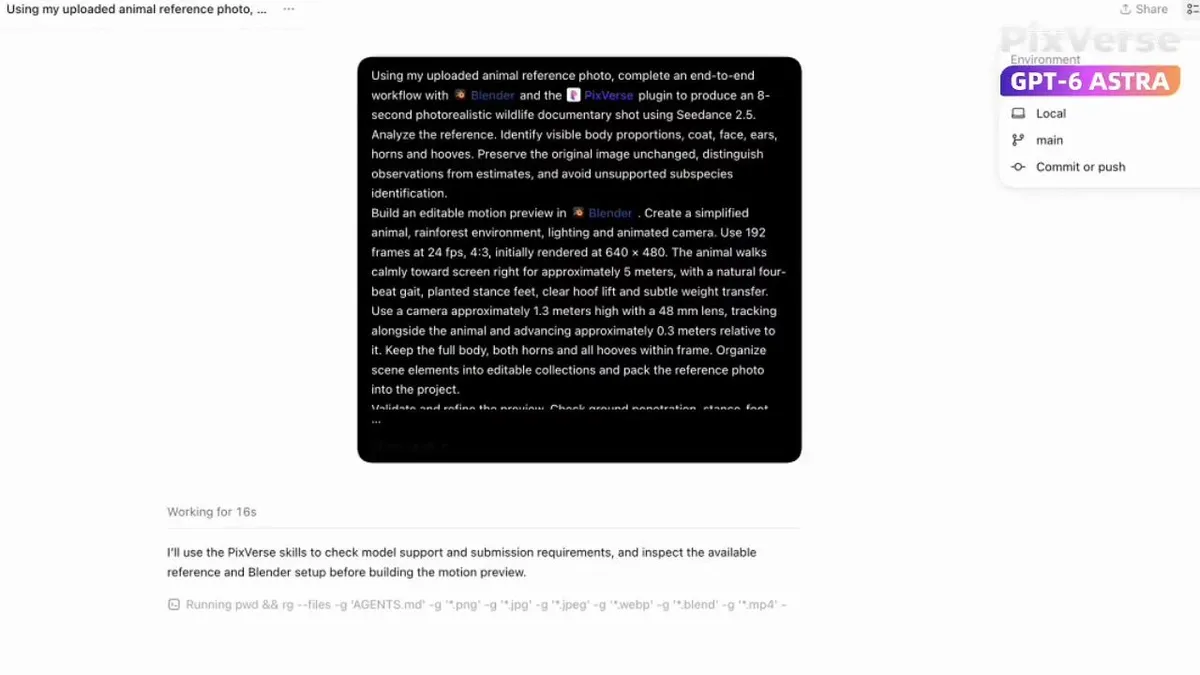
    Using my uploaded animal reference photo, complete an end-to-end workflow with Blender and the PixVerse Plugin to produce an 8-second photorealistic wildlife documentary shot using Seedance 2.5. Analyze the reference and preserve visible body proportions, coat, face, ears, horns and hooves. Build an editable Blender motion preview with a natural four-beat gait and lateral camera tracking. Keep the full body, both horns and all hooves within frame, with all vegetation behind the animal. Use the original photo as the primary authority for appearance and the Blender preview for motion, camera, composition and timing. Generate one uninterrupted photorealistic shot through PixVerse and Seedance 2.5, maintaining realistic anatomy, grounded foot contact, consistent identity and natural rainforest lighting.

    Works in
    Kling
    Status
    Free to copy
    0
    DetailsVersions, settings and questions

    Written for

    What's in the prompt

    Subject
    Model
    Seedance 2.5

    If your face changes

    keep my face exactly the same

    Questions

    Does this work in the Kling app?
    Yes. Paste the prompt and attach your photo if it uses one.
    It changed my face. What do I do?
    Add "keep my face exactly the same" to the end and run it again.
    Can I use the images I make?
    Check the terms of the app you use. Promptclay never generates images and claims nothing you make.
    Similar prompts

    See more
    • Generating Hollywood Detective Scene Images with Character Reference
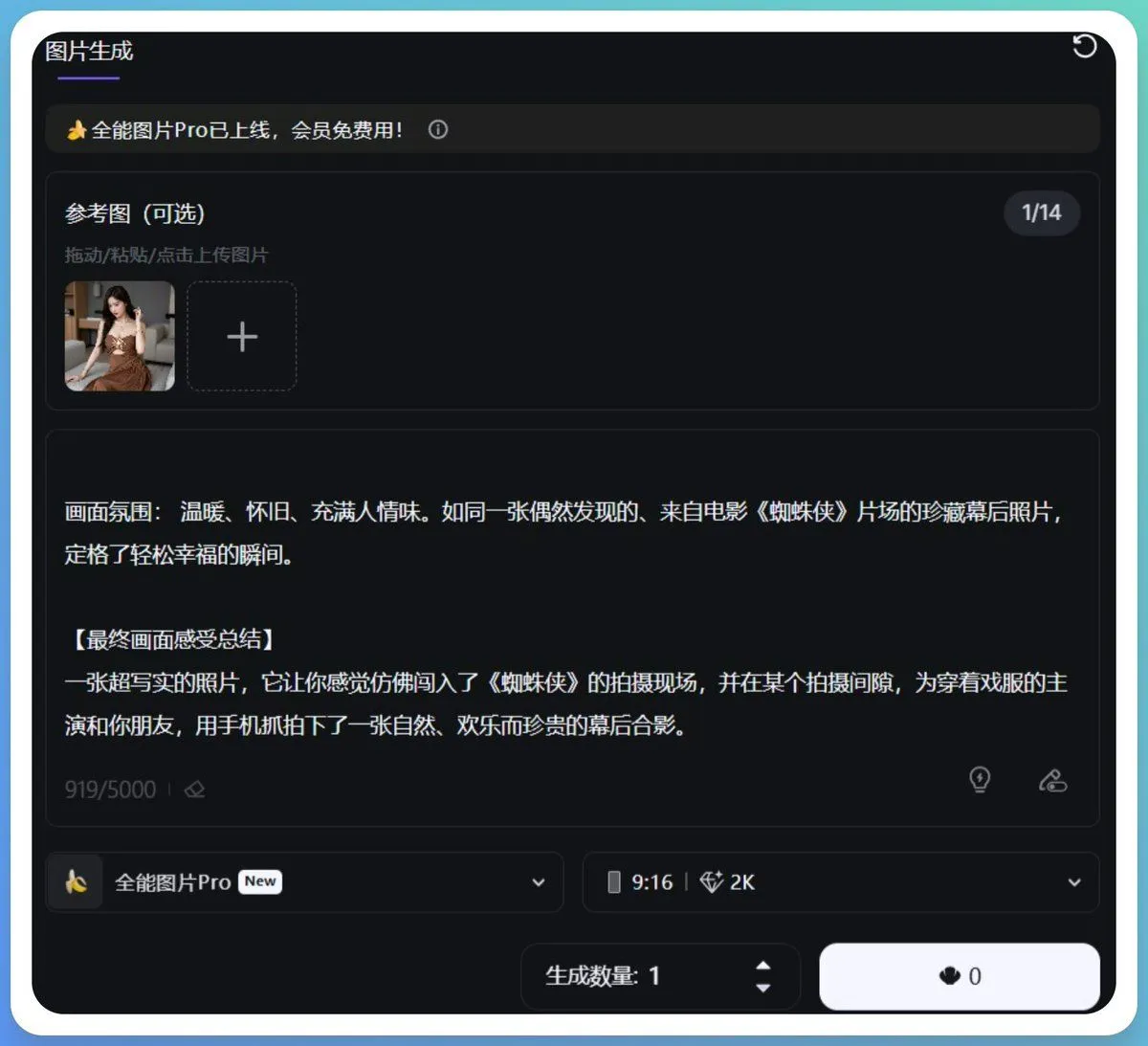
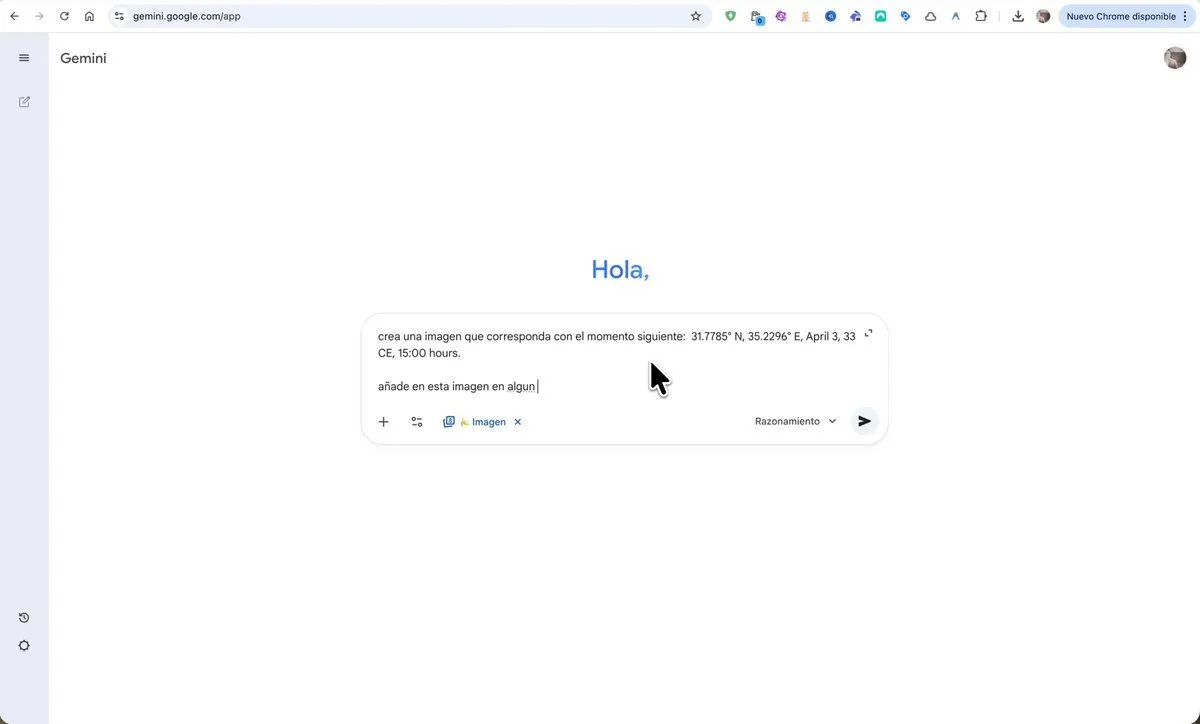
    • Time-travel scene with coordinates and date
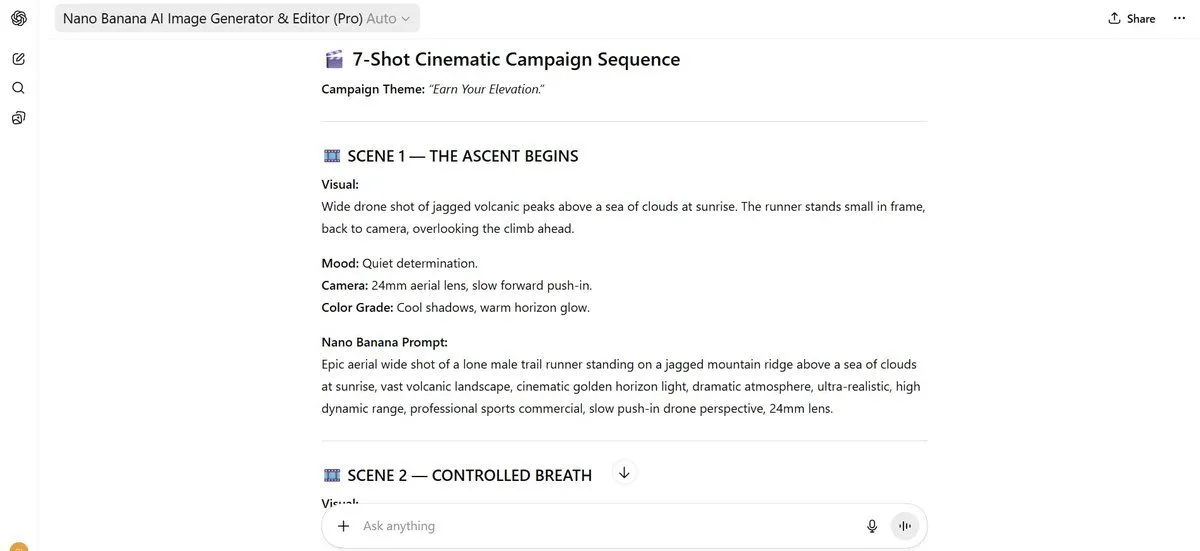
    • 7-Shot Cinematic Campaign Sequence Prompt
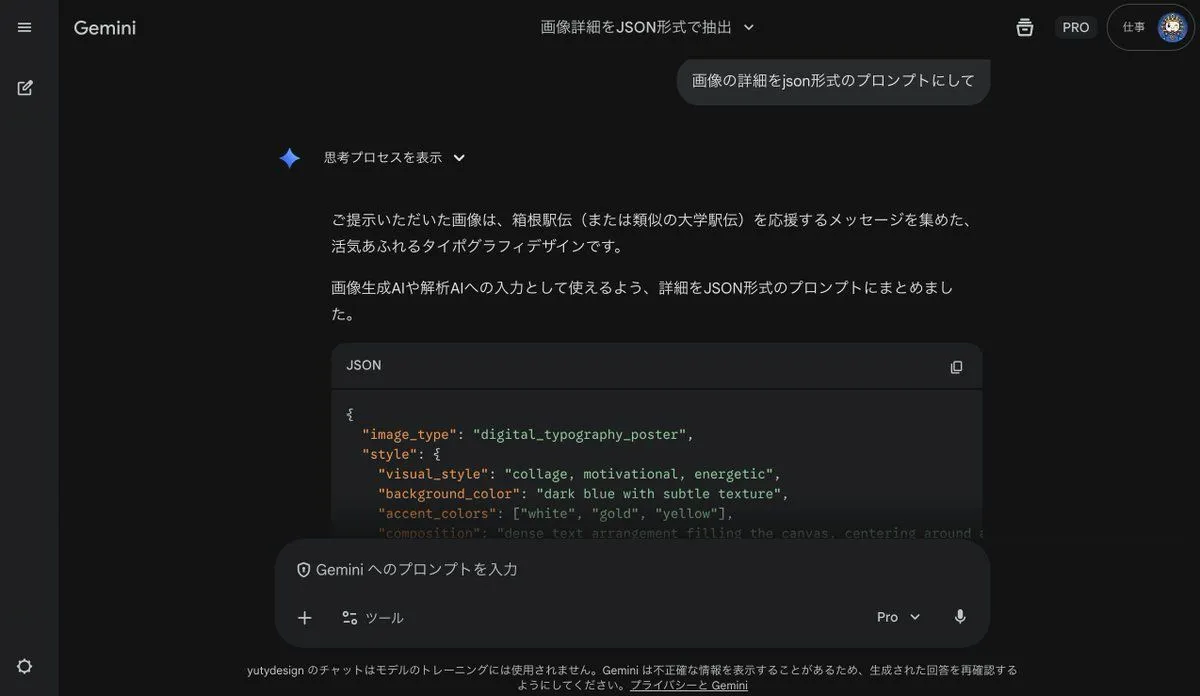
    • Generating Prompts from Reference Images with Nano Banana Pro
    • Anime Story Generation Prompt Template
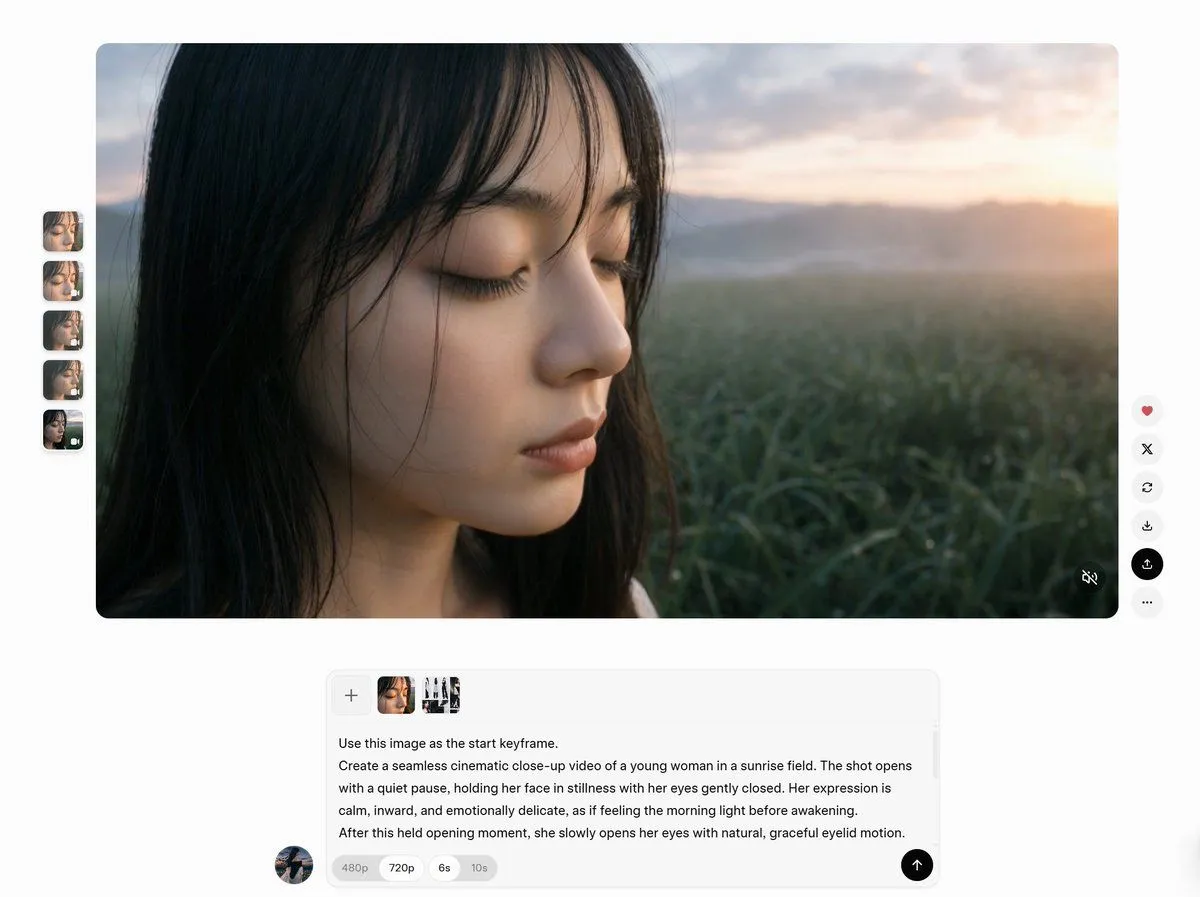
    • AI Video Workspace Screenshot
    • AI Artifact Removal Instruction
    • Generating Purikura-style Photos with Animals using GPT Image 1.5
    • Annotated ChatGPT Multiple Image Outputs
    • Plug-and-Play Prompt for AI Business Meeting Image
    • Wildlife Documentary Rainforest AnimalVideo, 0:08
    • Grok Instruction for Generating Nano Banana Pro Image Prompts
    • Exploded View Disassembly of Apple Watch Ultra and iPhone
    • ChatGPT App Showing WeChat Moments Screenshot
    • High-Fidelity Archival Photo Restoration
    • AI Agent LINE Sticker Progress Screenshot
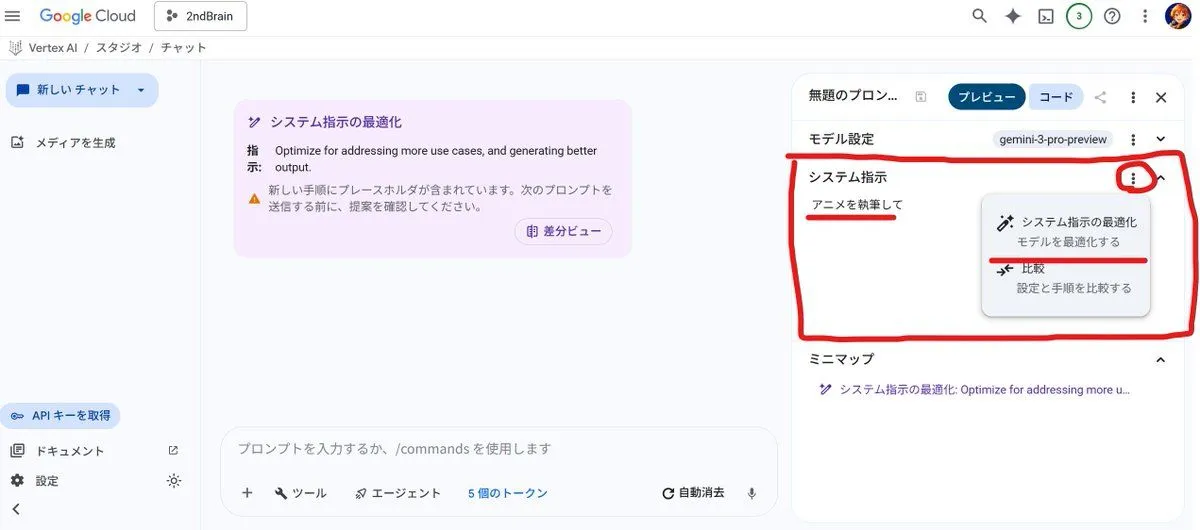
    • System Prompt for Nano Banana Pro Image Prompt Deconstruction
    • Advanced Two-Step Prompting Strategy for Nano Banana Pro Thumbnails
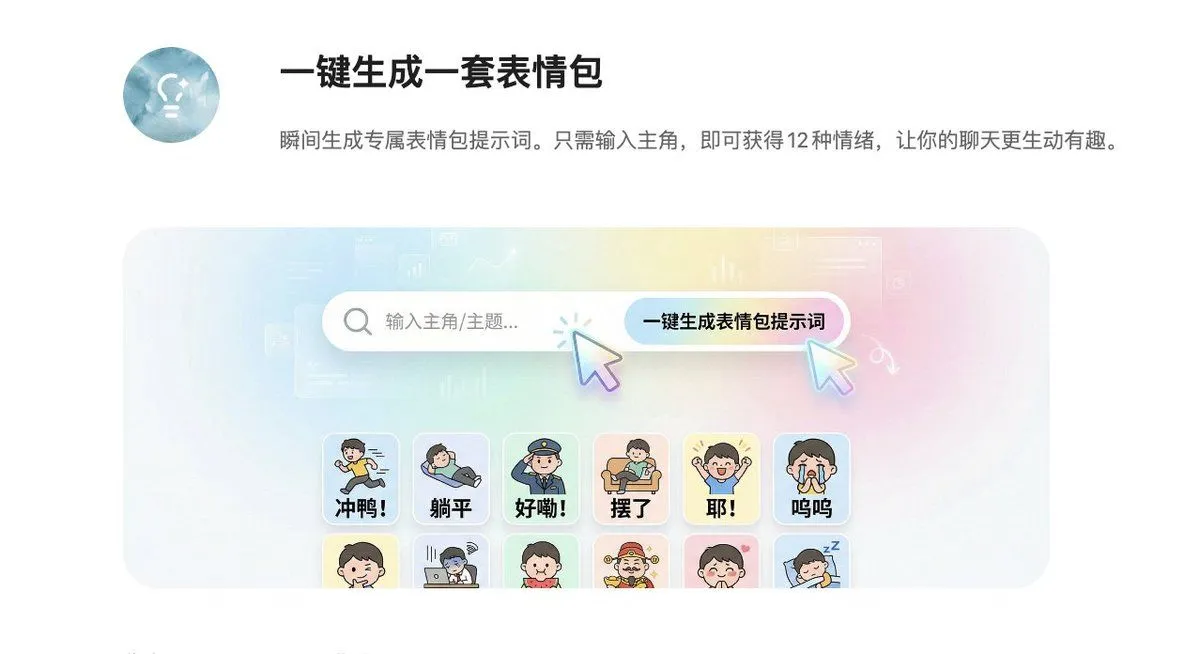
    • 12-Panel Sticker/Emoji Grid Generation Prompt
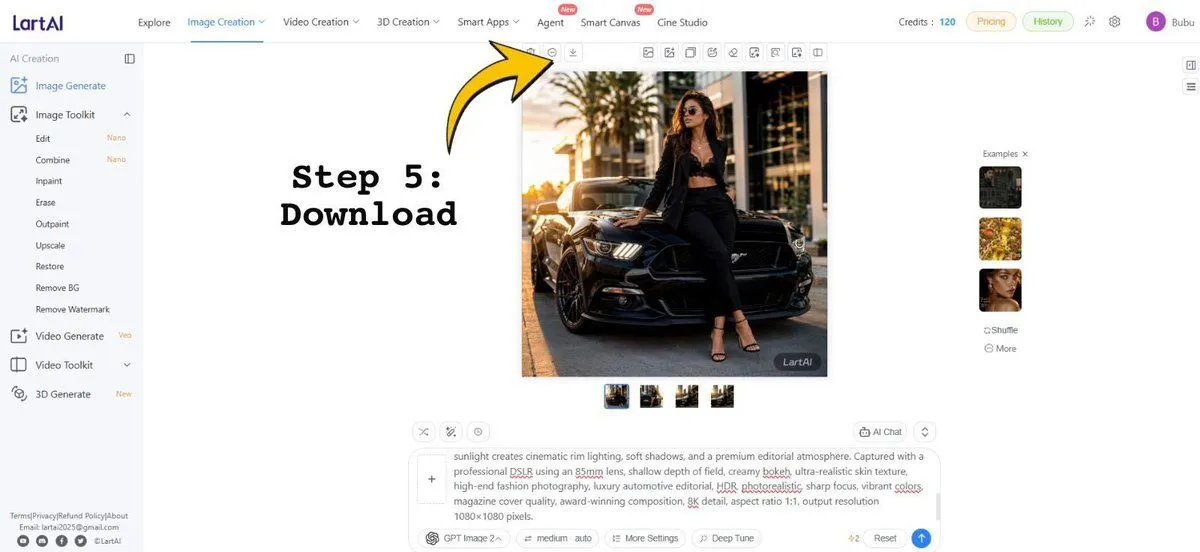
    • LartAI Download Step Tutorial
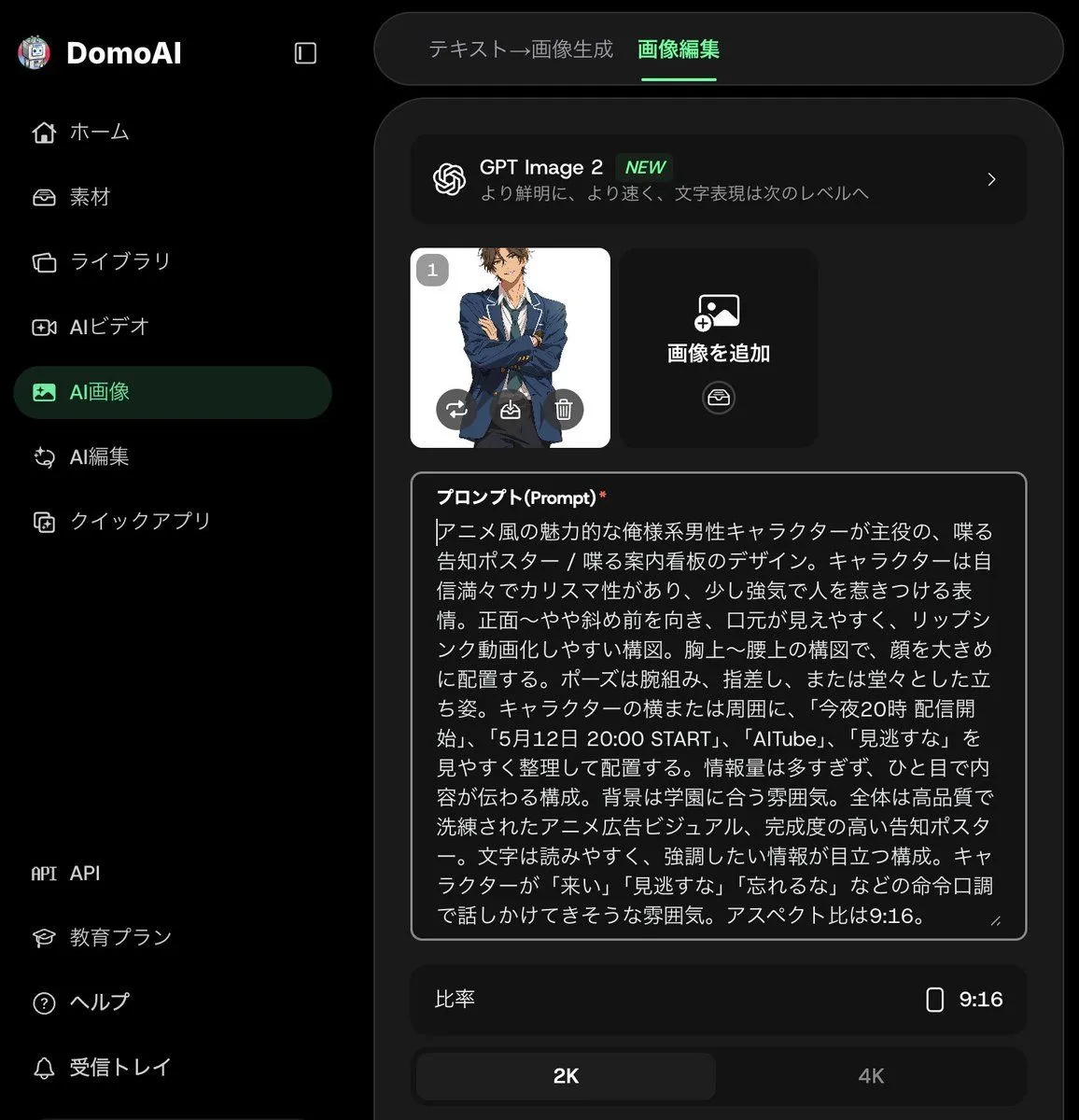
    • Anime Announcement Poster Template
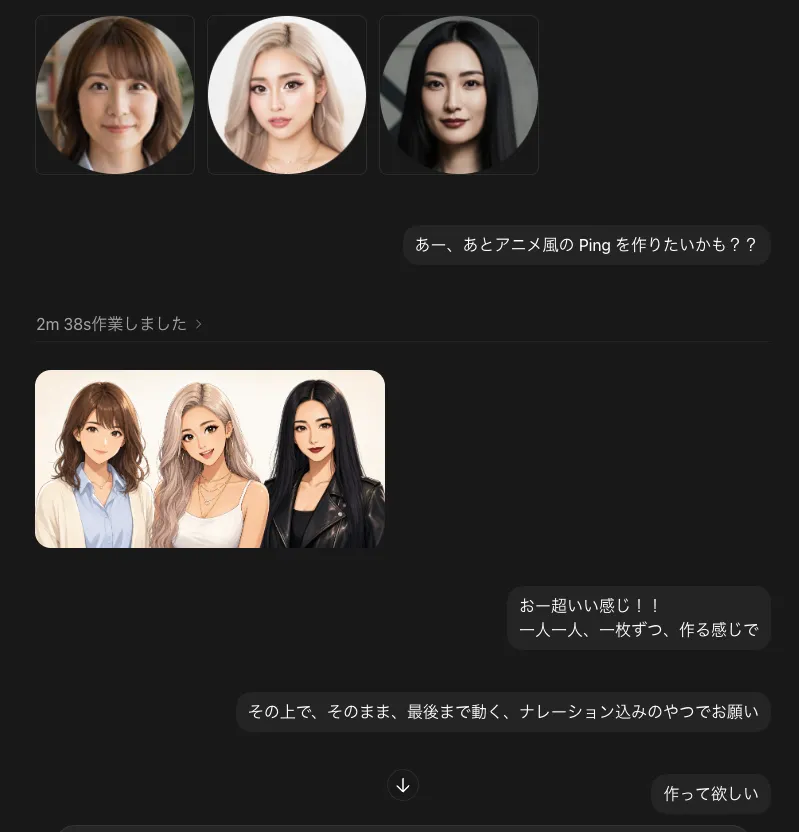
    • Dark Chat UI Anime Conversion Screenshot
    • Natural Blonde Woman Portrait Prompts
    • Generating Multiple Runnable Modes/States

    Show more

    Run it on your phone

    1. Prompt copiedRead it

      Using my uploaded animal reference photo, complete an end-to-end workflow with Blender and the PixVerse Plugin to produce an 8-second photorealistic wildlife documentary shot using Seedance 2.5. Analyze the reference and preserve visible body proportions, coat, face, ears, horns and hooves. Build an editable Blender motion preview with a natural four-beat gait and lateral camera tracking. Keep the full body, both horns and all hooves within frame, with all vegetation behind the animal. Use the original photo as the primary authority for appearance and the Blender preview for motion, camera, composition and timing. Generate one uninterrupted photorealistic shot through PixVerse and Seedance 2.5, maintaining realistic anatomy, grounded foot contact, consistent identity and natural rainforest lighting.

    2. Open your app

    3. Paste and run

      Press and hold the message box, then tap Paste. Add your photo first if the prompt uses one. You may need to sign in.