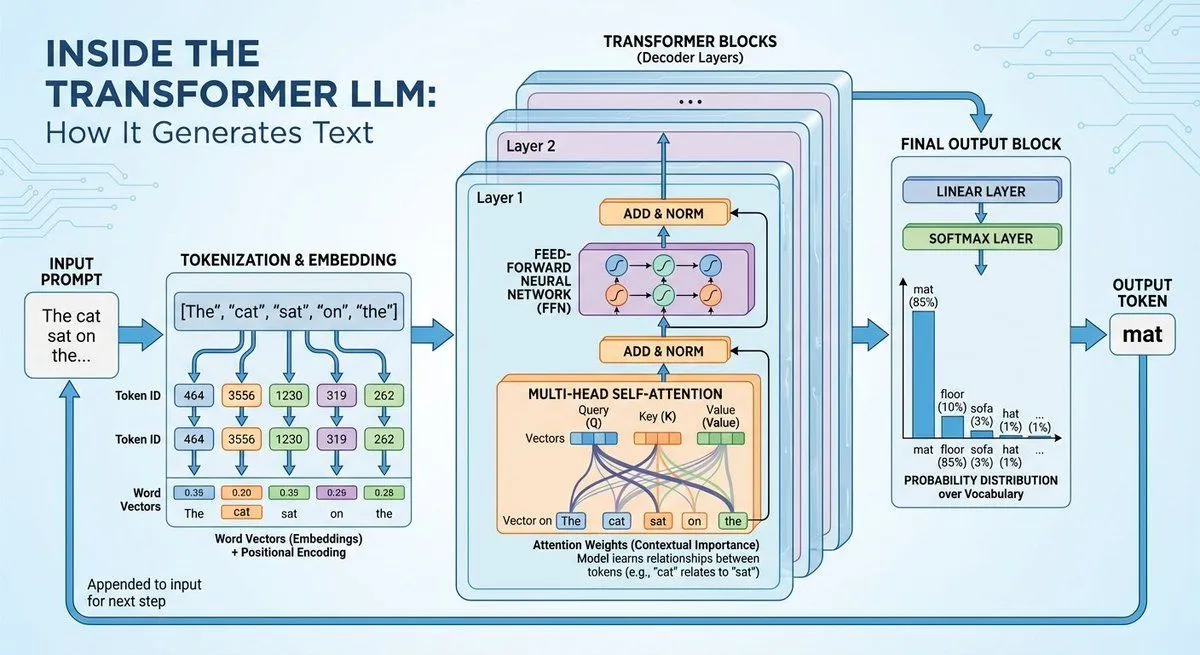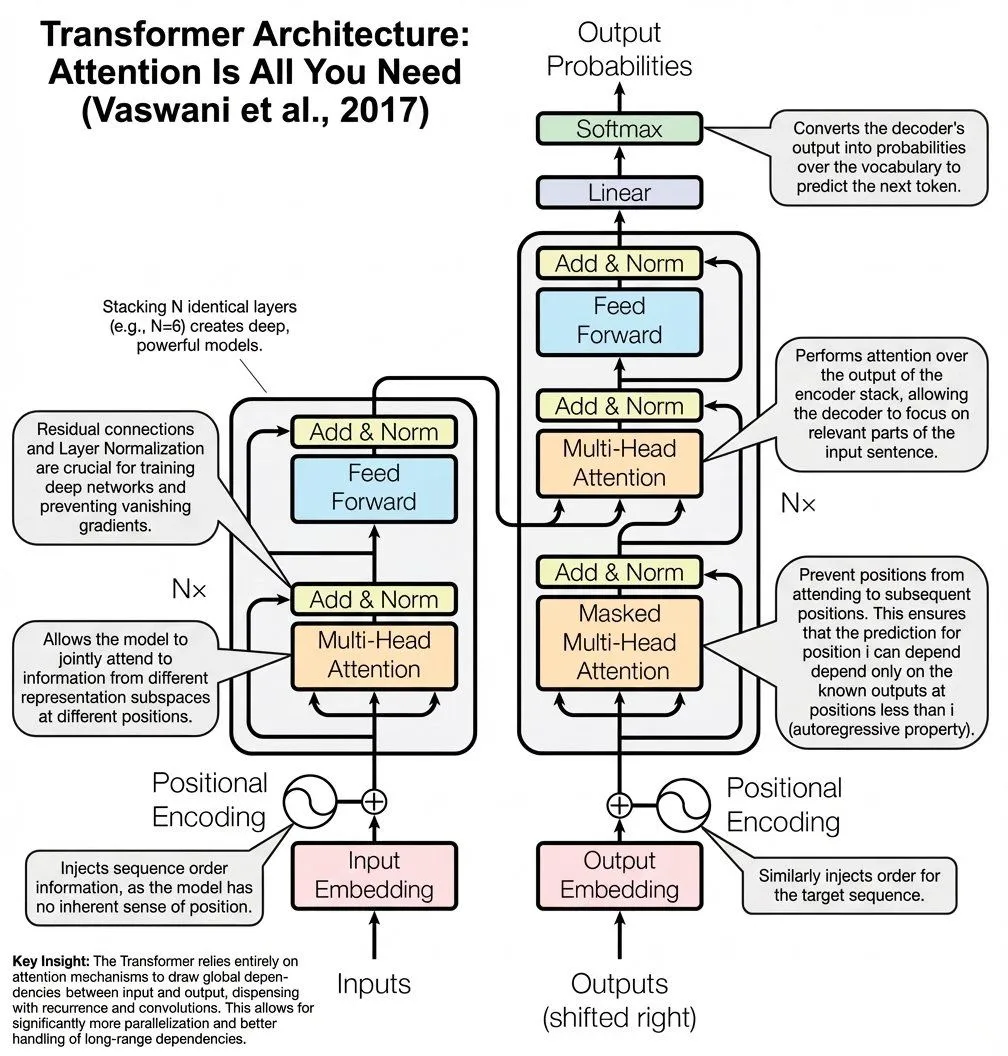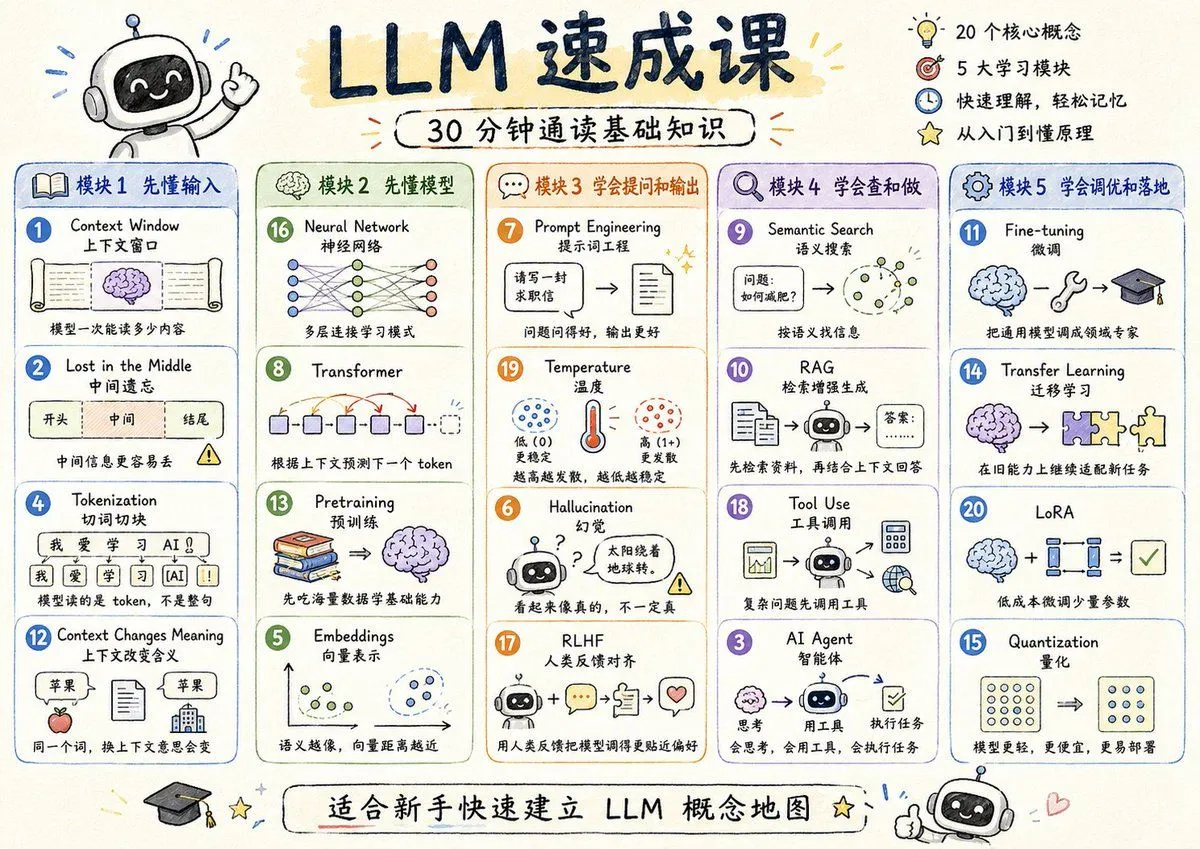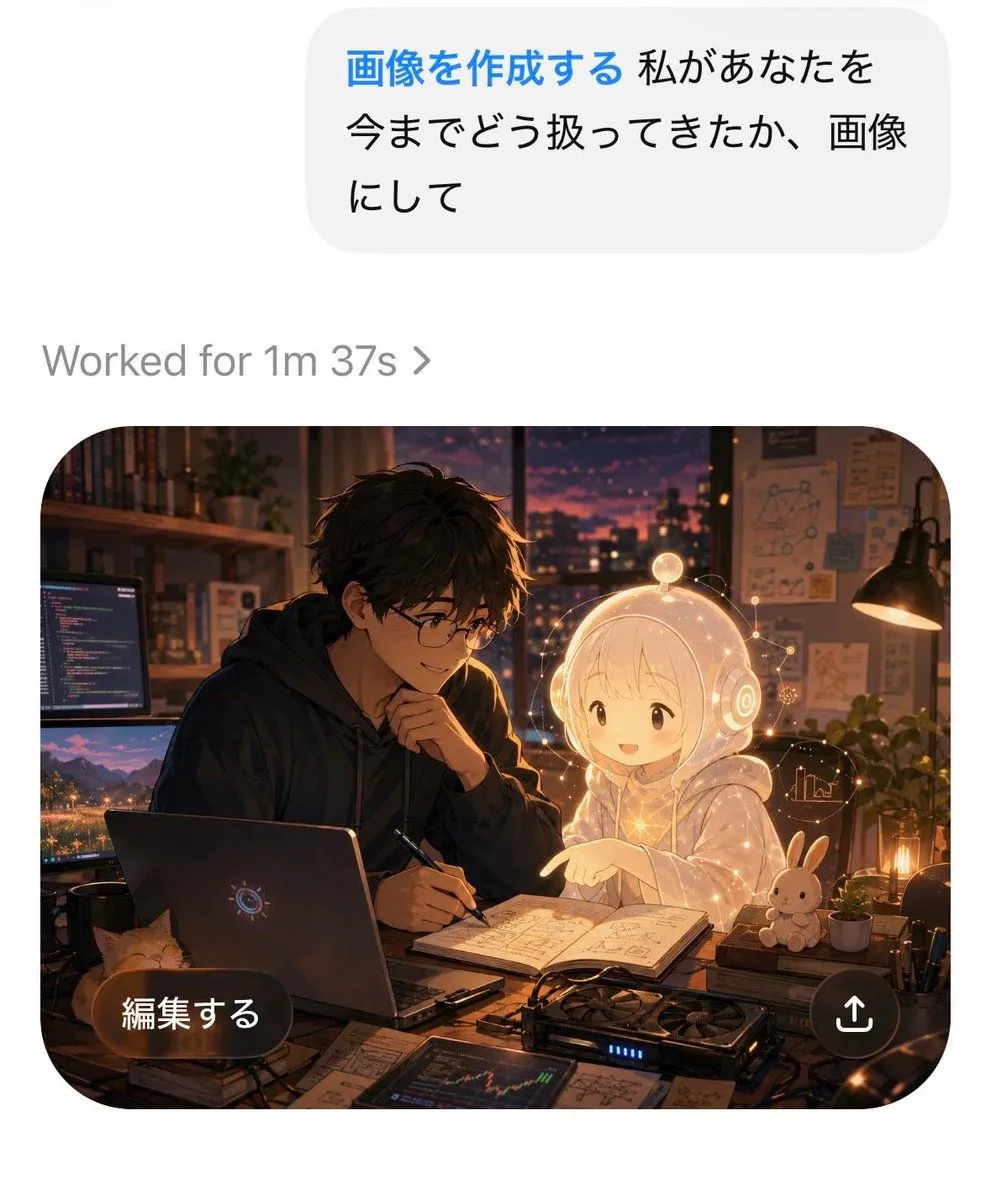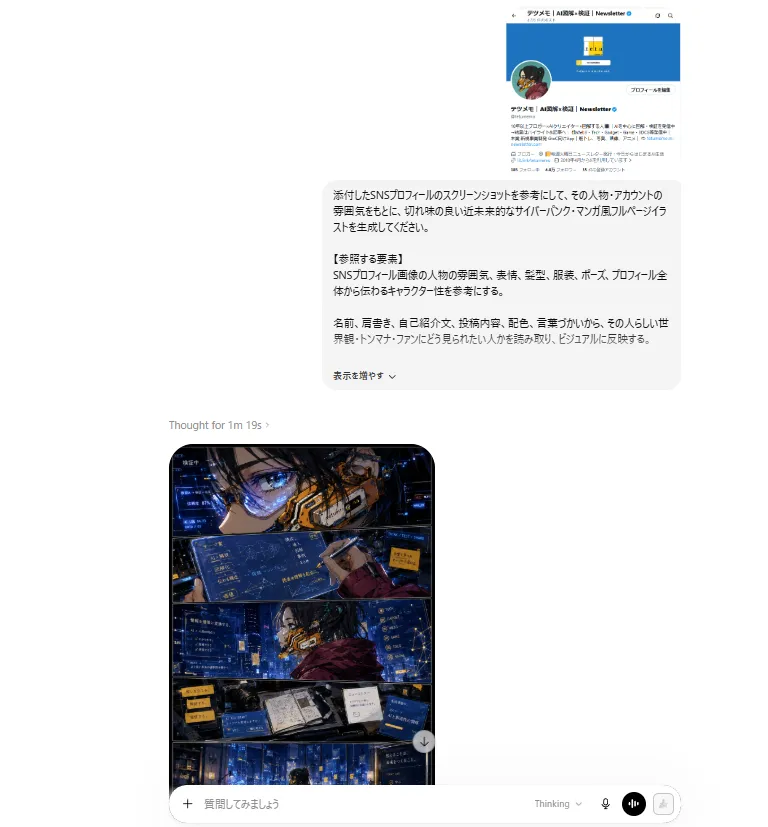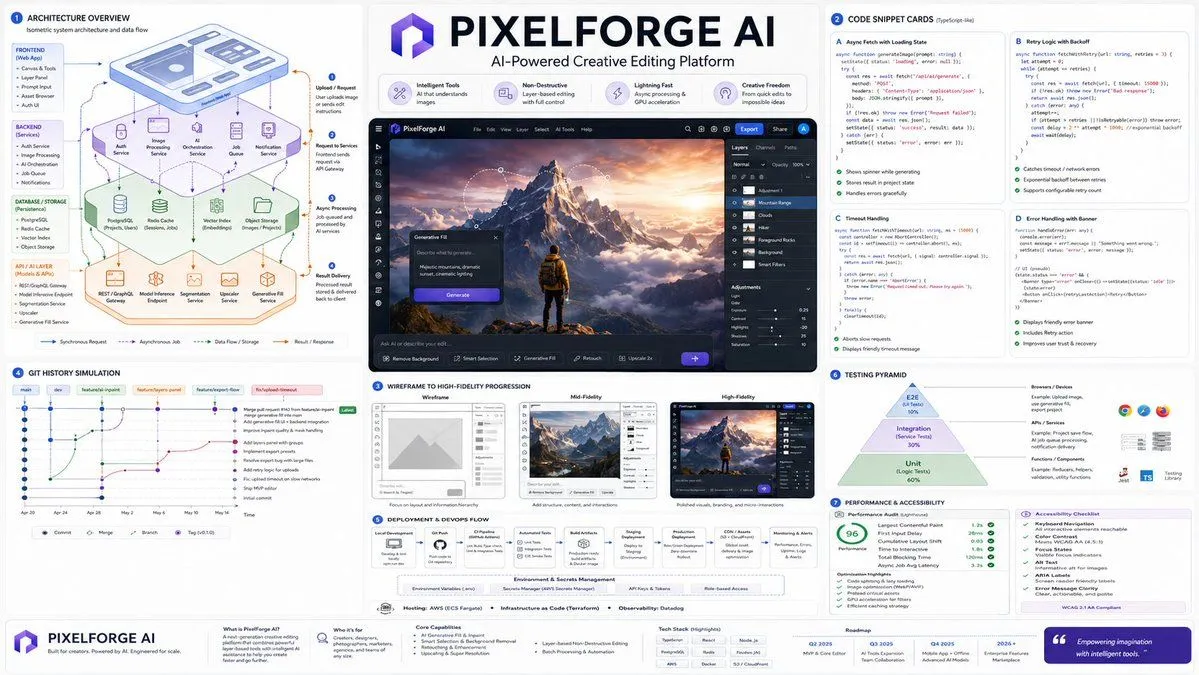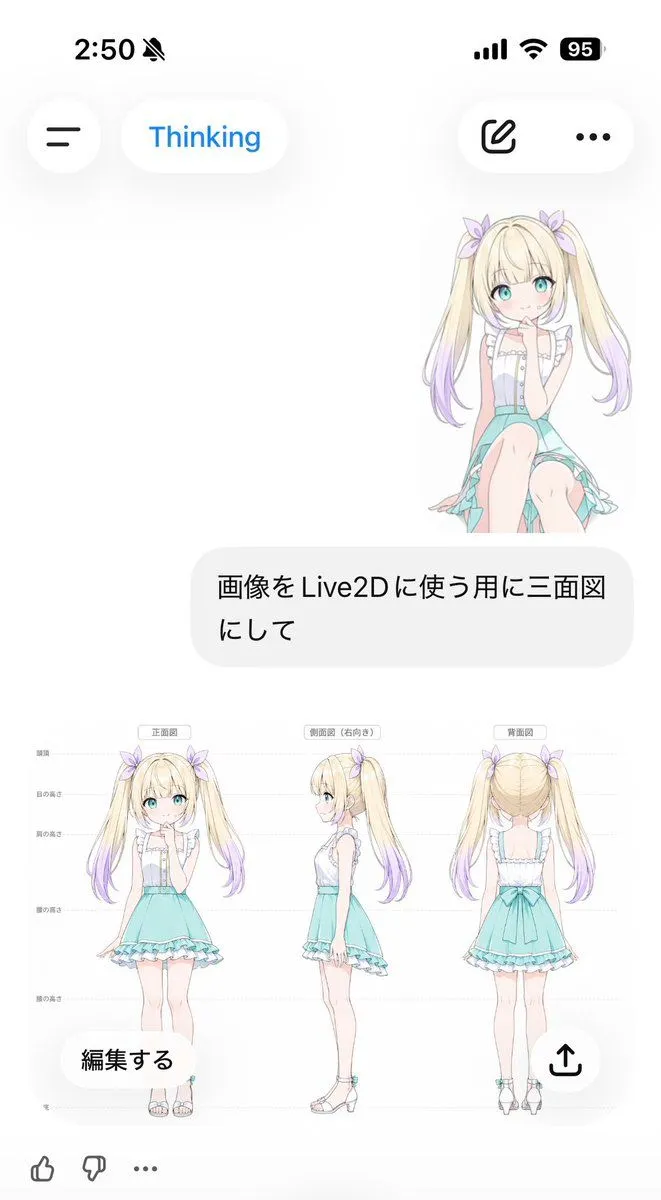

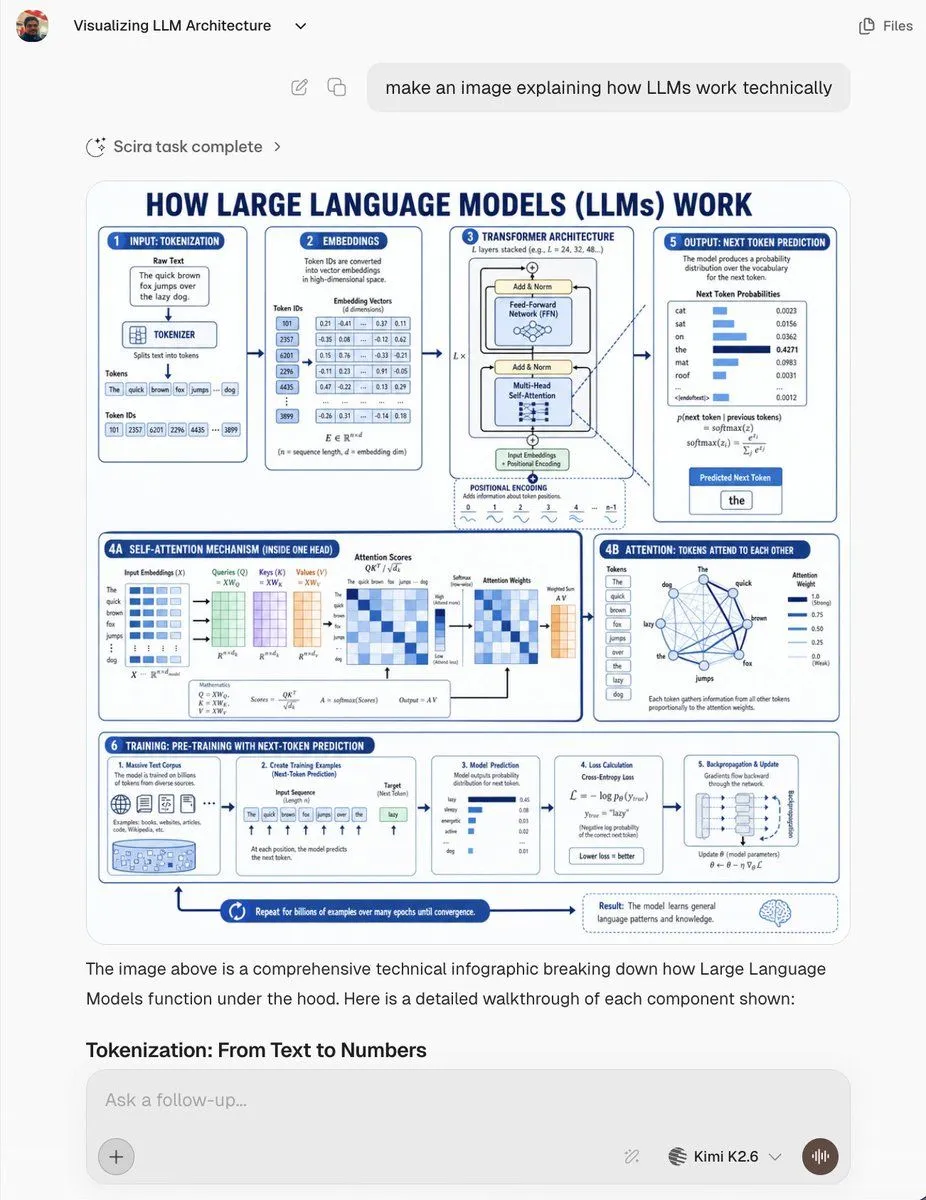
Made with GPT Image 2 in ChatGPT by Library Explainers. Promptclay never generates images.
Did it work?
No reports yet. Tell others if it worked for you.
LLM Architecture Chat Screenshot
Prompt
1 blank to fillGoal: Create a realistic screenshot of an AI chat interface showing a generated technical infographic about {topic}. The screenshot should look like a modern web app conversation, not a standalone poster. Canvas: 768×1024 vertical screenshot, light gray app background, rounded white content areas, clean sans-serif typography, subtle shadows, high-resolution but with the infographic text slightly small like a real embedded generated image. Chat UI layout: At the top left show a small circular user avatar, the chat title “Visualizing LLM Architecture” with a tiny dropdown chevron, and at the top right a simple “Files” label with an icon. Below, show a rounded user message bubble aligned near the top center/right containing: “make an image explaining how LLMs work technically”. Under it, show a small status row reading “Scira task complete” with a sparkle/loader icon and chevron. The main generated image appears below as a large rounded rectangle card. Beneath the image, include assistant explanatory text: “The image above is a comprehensive technical infographic breaking down how Large Language Models function under the hood. Here is a detailed walkthrough of each component shown:” followed by the bold section heading “Tokenization: From Text to Numbers”. At the bottom, show a rounded input box with placeholder “Ask a follow-up...”, a plus button on the left, small tool/model controls on the right, the model label “Kimi K2.6” with a dropdown, and a circular voice button. Generated infographic inside the chat: Design a blue-and-white technical educational poster titled in large navy caps: “HOW LARGE LANGUAGE MODELS (LLMs) WORK”. Use a white background, navy-blue outlines, light-blue highlights, rounded panels, arrows connecting steps, miniature charts, equations, tables, and icons. The poster should be information-dense and engineering-oriented. Infographic sections: Use exactly 8 labeled panels/areas: 1. “INPUT: TOKENIZATION” panel showing a raw text box with the sentence “The quick brown fox jumps over the lazy dog.”, a tokenizer block, token boxes for the words, and token ID boxes. 2. “EMBEDDINGS” panel showing token IDs converted into dense vectors, with a small table of numeric embedding values. 3. “TRANSFORMER ARCHITECTURE” panel showing a stacked transformer block with Add & Norm, Feed-Forward Network, Multi-Head Self-Attention, input embeddings, positional encoding, and layer repetition notation. 4A. “SELF-ATTENTION MECHANISM (INSIDE ONE HEAD)” wide lower-left panel showing matrices for input embeddings, queries, keys, values, attention scores, softmax, attention weights, weighted sum, and equations. 4B. “ATTENTION: TOKENS ATTEND TO EACH OTHER” panel showing a network graph of tokens from the example sentence connected by blue lines plus attention-weight bars. 5. “OUTPUT: NEXT TOKEN PREDICTION” panel showing probability distribution bars for candidate next tokens such as cat, sat, on, the, mat, roof, then highlighting the predicted next token “the”. 6. “TRAINING: PRE-TRAINING WITH NEXT-TOKEN PREDICTION” long bottom strip divided into 5 mini-cards: massive text corpus, creating training examples, model prediction, loss calculation, and backpropagation/update. 7. Bottom process arrow reading “Repeat for billions of examples over many epochs until convergence.” 8. Bottom-right result callout with a brain icon explaining that the model learns general language patterns and knowledge. Visual style: Crisp vector infographic, academic but friendly, dark navy headings, medium-blue borders, pale-blue fills, tiny tables and plots, clean arrows, rounded cards, consistent spacing. Make the embedded infographic resemble an AI-generated educational diagram with dense but mostly legible small text. Constraints: Keep all UI text in English. Do not add watermarks. Preserve the visible chat screenshot framing and the large embedded infographic. Use exactly the listed 8 infographic areas and exactly 5 mini-cards inside the training strip.
Preview of your prompt
Goal: Create a realistic screenshot of an AI chat interface showing a generated technical infographic about how Large Language Models (LLMs) work technically. The screenshot should look like a modern web app conversation, not a standalone poster. Canvas: 768×1024 vertical screenshot, light gray app background, rounded white content areas, clean sans-serif typography, subtle shadows, high-resolution but with the infographic text slightly small like a real embedded generated image. Chat UI layout: At the top left show a small circular user avatar, the chat title “Visualizing LLM Architecture” with a tiny dropdown chevron, and at the top right a simple “Files” label with an icon. Below, show a rounded user message bubble aligned near the top center/right containing: “make an image explaining how LLMs work technically”. Under it, show a small status row reading “Scira task complete” with a sparkle/loader icon and chevron. The main generated image appears below as a large rounded rectangle card. Beneath the image, include assistant explanatory text: “The image above is a comprehensive technical infographic breaking down how Large Language Models function under the hood. Here is a detailed walkthrough of each component shown:” followed by the bold section heading “Tokenization: From Text to Numbers”. At the bottom, show a rounded input box with placeholder “Ask a follow-up...”, a plus button on the left, small tool/model controls on the right, the model label “Kimi K2.6” with a dropdown, and a circular voice button. Generated infographic inside the chat: Design a blue-and-white technical educational poster titled in large navy caps: “HOW LARGE LANGUAGE MODELS (LLMs) WORK”. Use a white background, navy-blue outlines, light-blue highlights, rounded panels, arrows connecting steps, miniature charts, equations, tables, and icons. The poster should be information-dense and engineering-oriented. Infographic sections: Use exactly 8 labeled panels/areas: 1. “INPUT: TOKENIZATION” panel showing a raw text box with the sentence “The quick brown fox jumps over the lazy dog.”, a tokenizer block, token boxes for the words, and token ID boxes. 2. “EMBEDDINGS” panel showing token IDs converted into dense vectors, with a small table of numeric embedding values. 3. “TRANSFORMER ARCHITECTURE” panel showing a stacked transformer block with Add & Norm, Feed-Forward Network, Multi-Head Self-Attention, input embeddings, positional encoding, and layer repetition notation. 4A. “SELF-ATTENTION MECHANISM (INSIDE ONE HEAD)” wide lower-left panel showing matrices for input embeddings, queries, keys, values, attention scores, softmax, attention weights, weighted sum, and equations. 4B. “ATTENTION: TOKENS ATTEND TO EACH OTHER” panel showing a network graph of tokens from the example sentence connected by blue lines plus attention-weight bars. 5. “OUTPUT: NEXT TOKEN PREDICTION” panel showing probability distribution bars for candidate next tokens such as cat, sat, on, the, mat, roof, then highlighting the predicted next token “the”. 6. “TRAINING: PRE-TRAINING WITH NEXT-TOKEN PREDICTION” long bottom strip divided into 5 mini-cards: massive text corpus, creating training examples, model prediction, loss calculation, and backpropagation/update. 7. Bottom process arrow reading “Repeat for billions of examples over many epochs until convergence.” 8. Bottom-right result callout with a brain icon explaining that the model learns general language patterns and knowledge. Visual style: Crisp vector infographic, academic but friendly, dark navy headings, medium-blue borders, pale-blue fills, tiny tables and plots, clean arrows, rounded cards, consistent spacing. Make the embedded infographic resemble an AI-generated educational diagram with dense but mostly legible small text. Constraints: Keep all UI text in English. Do not add watermarks. Preserve the visible chat screenshot framing and the large embedded infographic. Use exactly the listed 8 infographic areas and exactly 5 mini-cards inside the training strip.
DetailsVersions, settings and questions
Written for
What's in the prompt
- Subject
- Model
- GPT Image 2
If your face changes
keep my face exactly the sameQuestions
- Does this work in the ChatGPT app?
- Yes. Paste the prompt and attach your photo if it uses one.
- It changed my face. What do I do?
- Add "keep my face exactly the same" to the end and run it again.
- Can I use the images I make?
- Check the terms of the app you use. Promptclay never generates images and claims nothing you make.