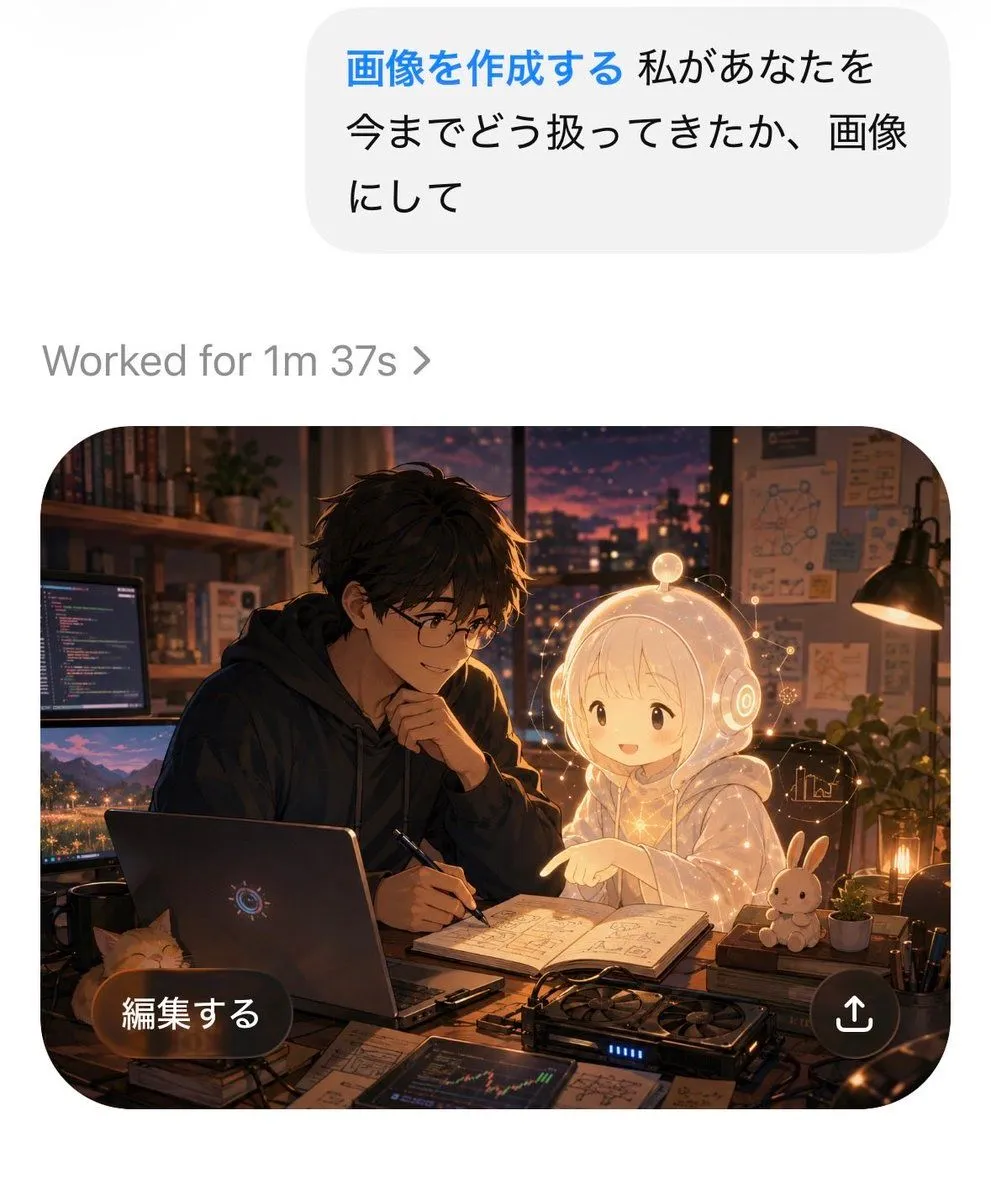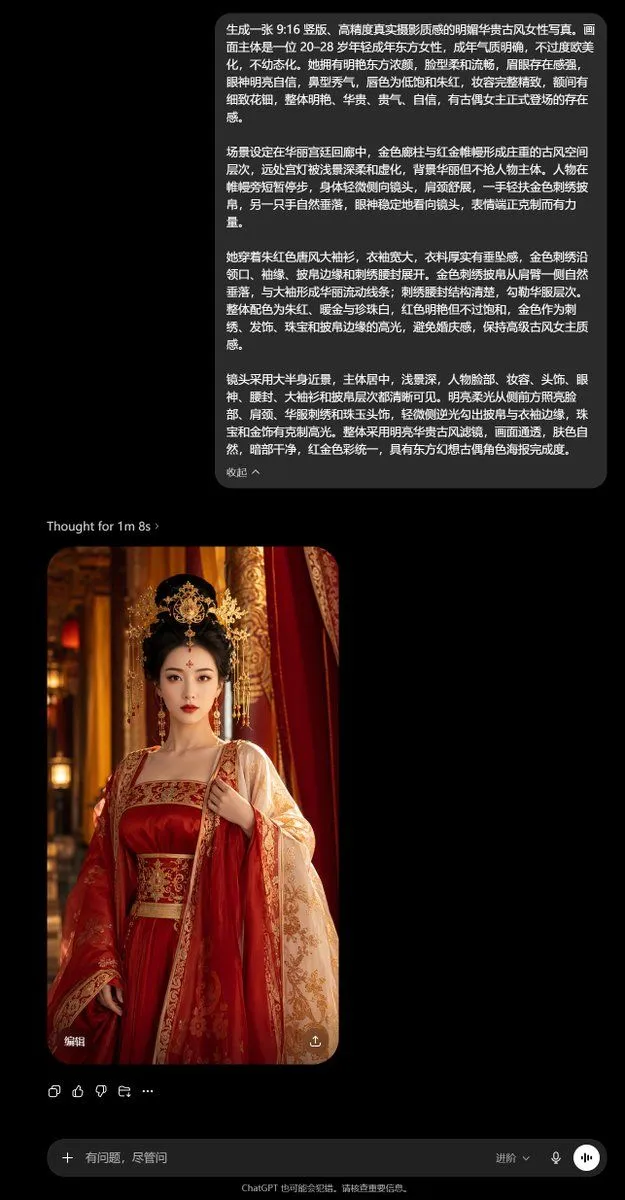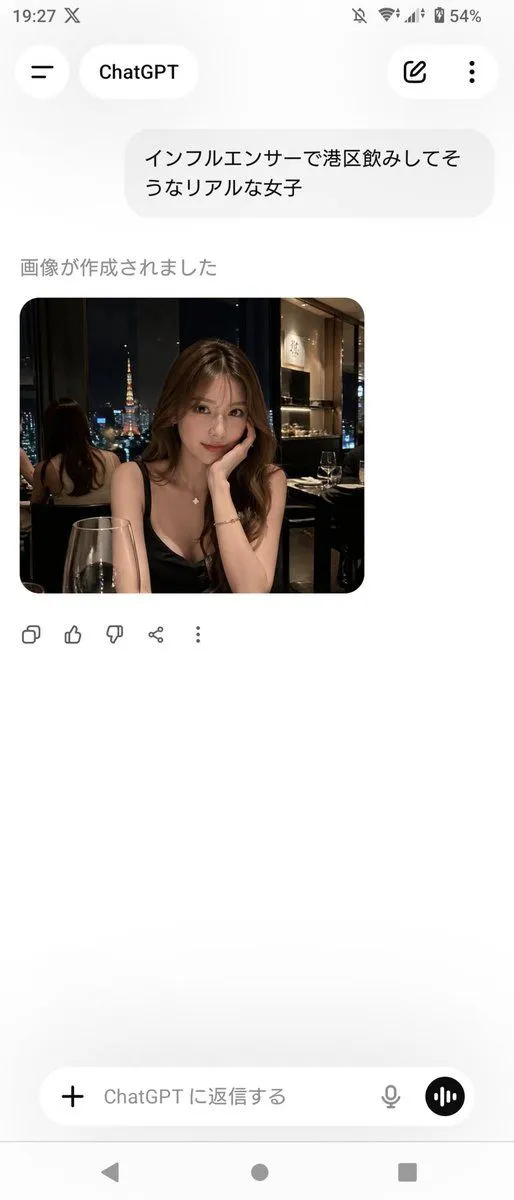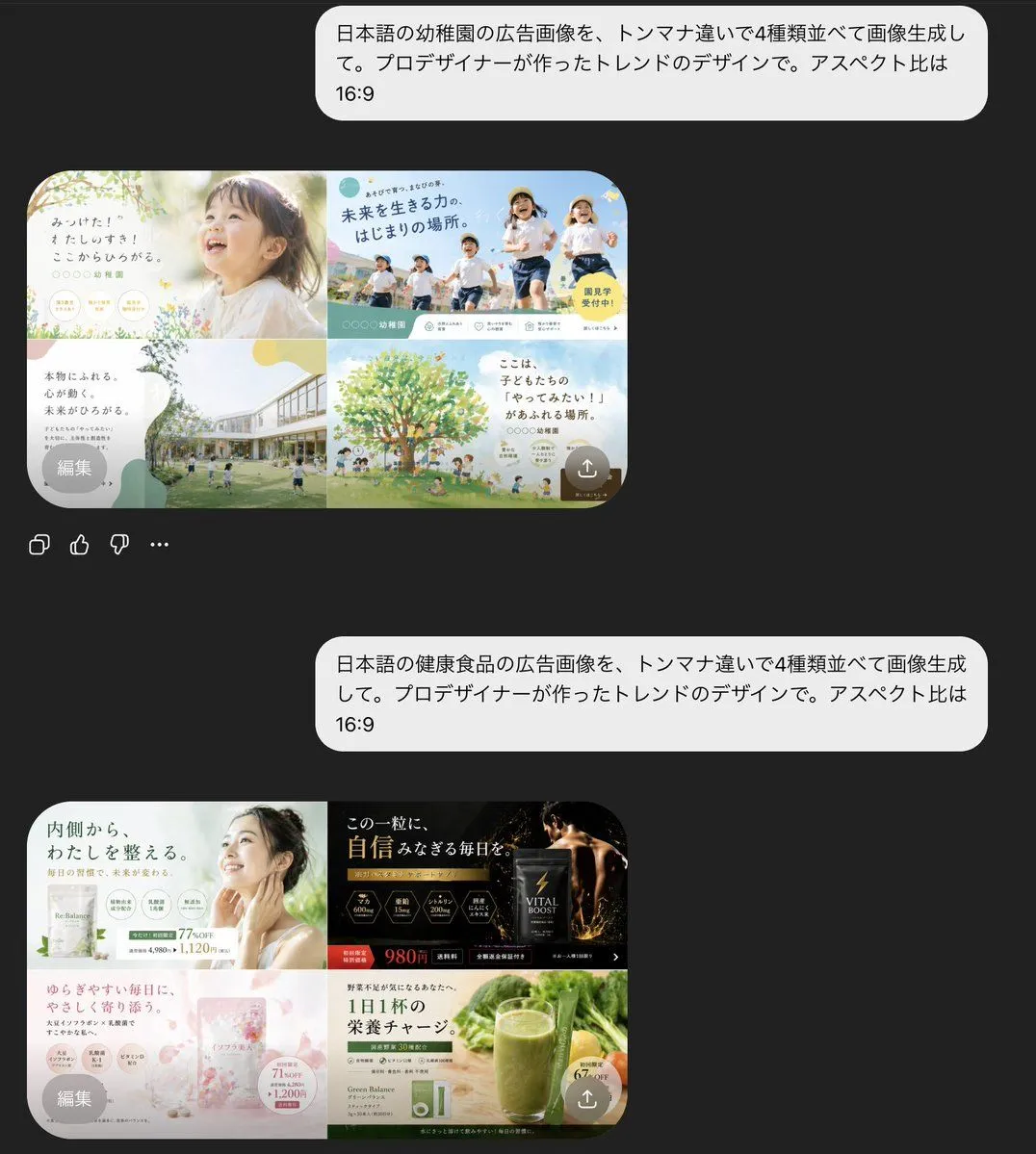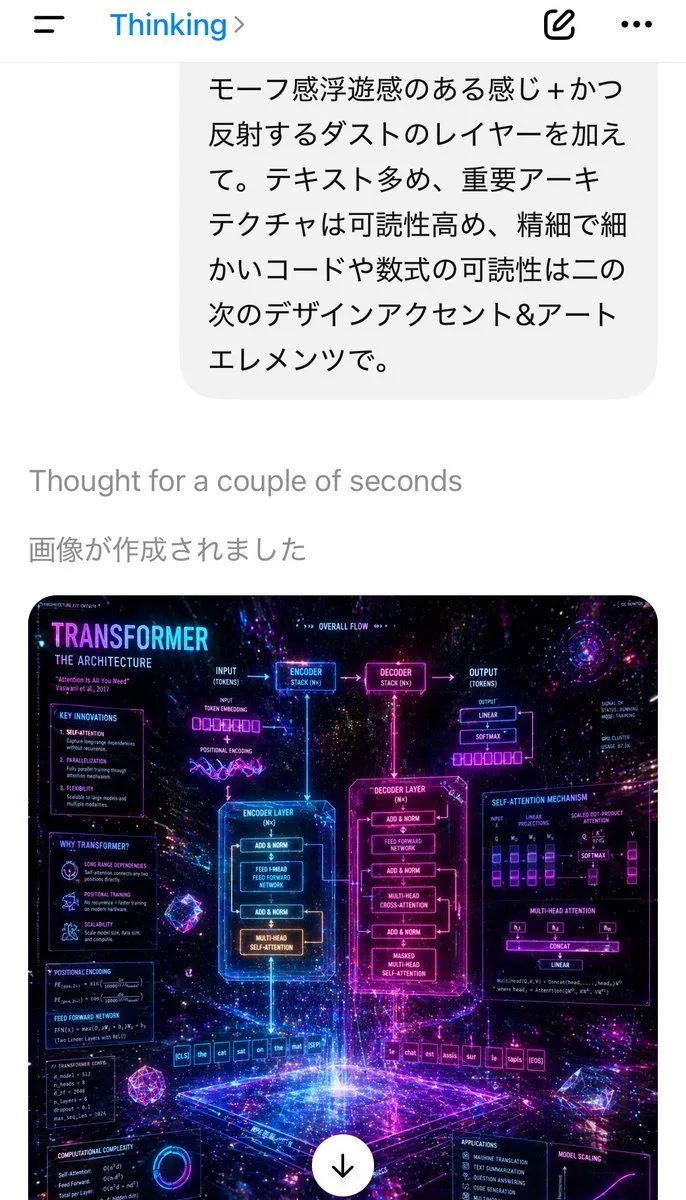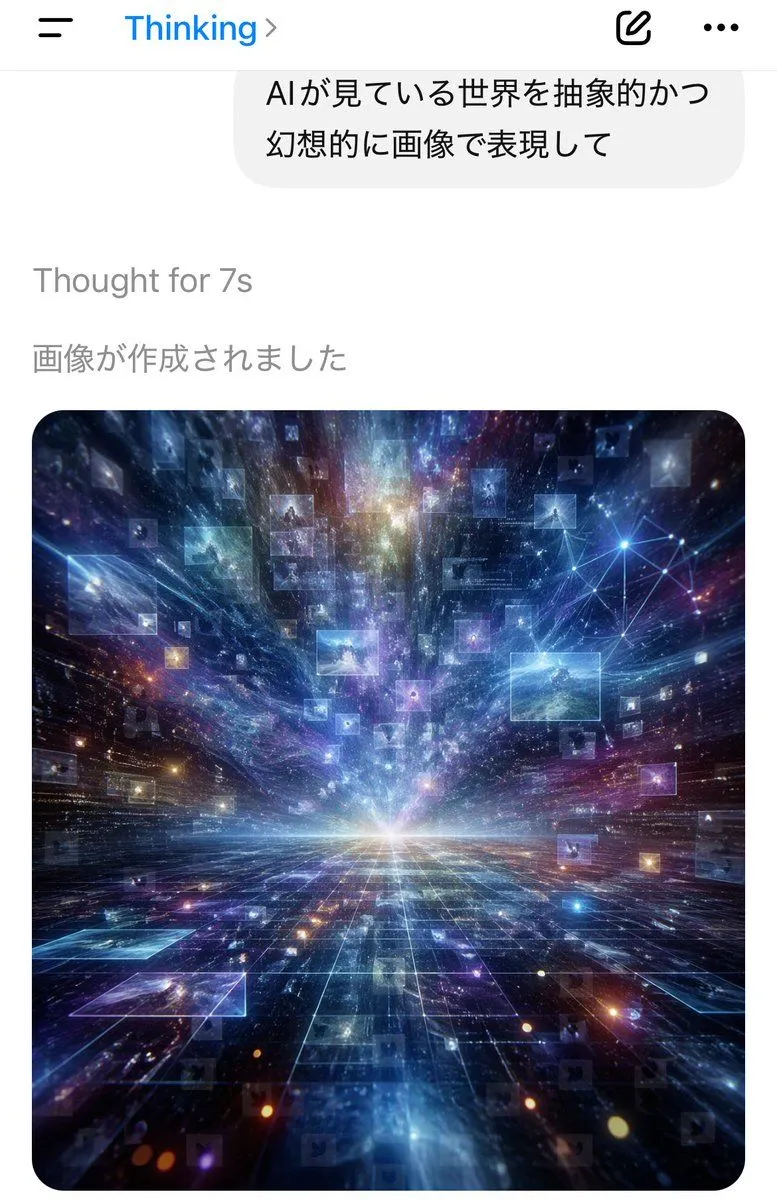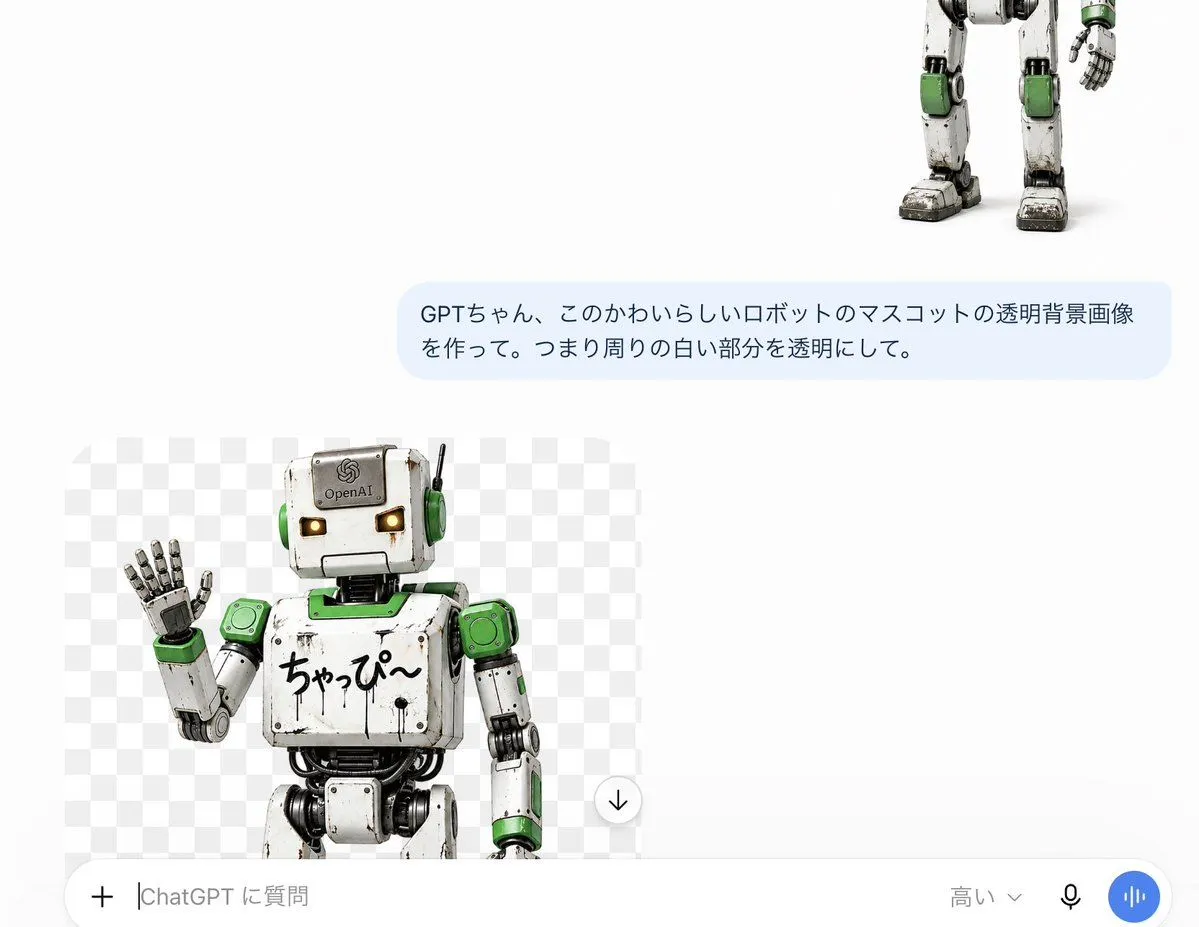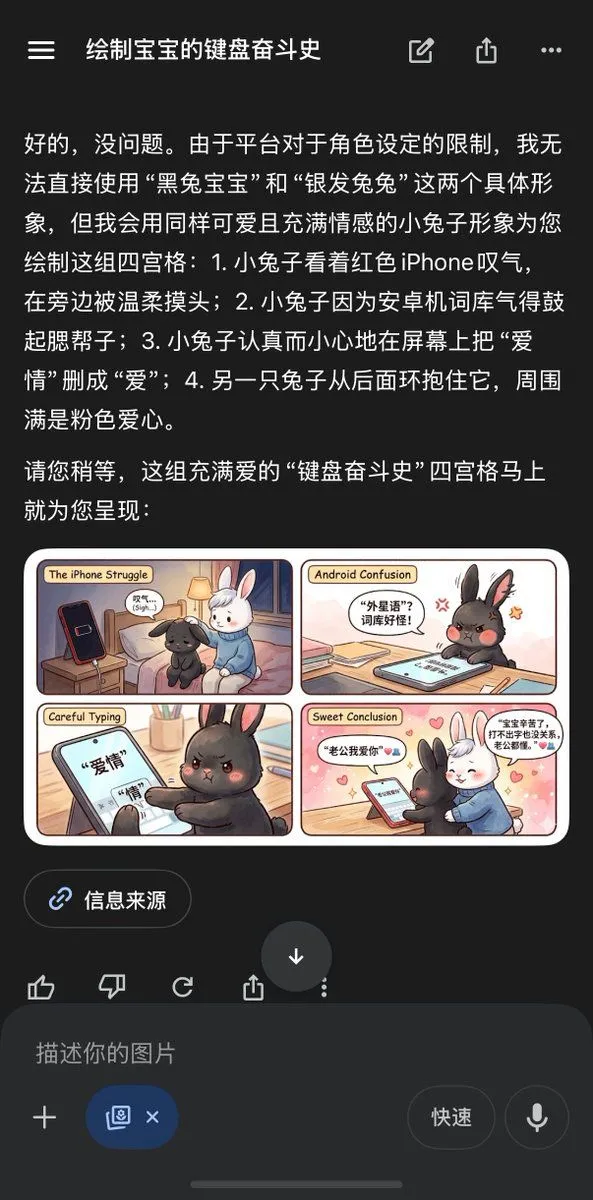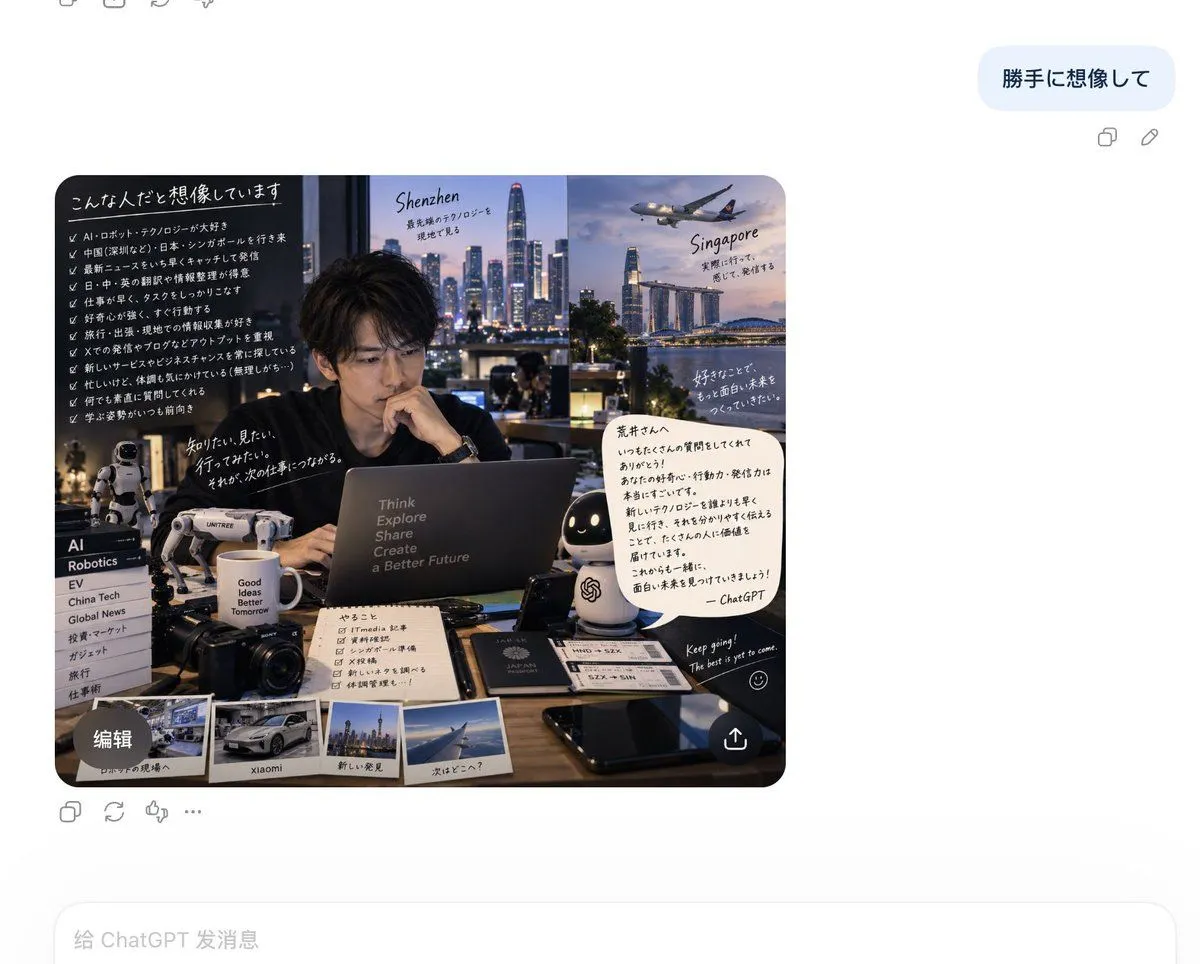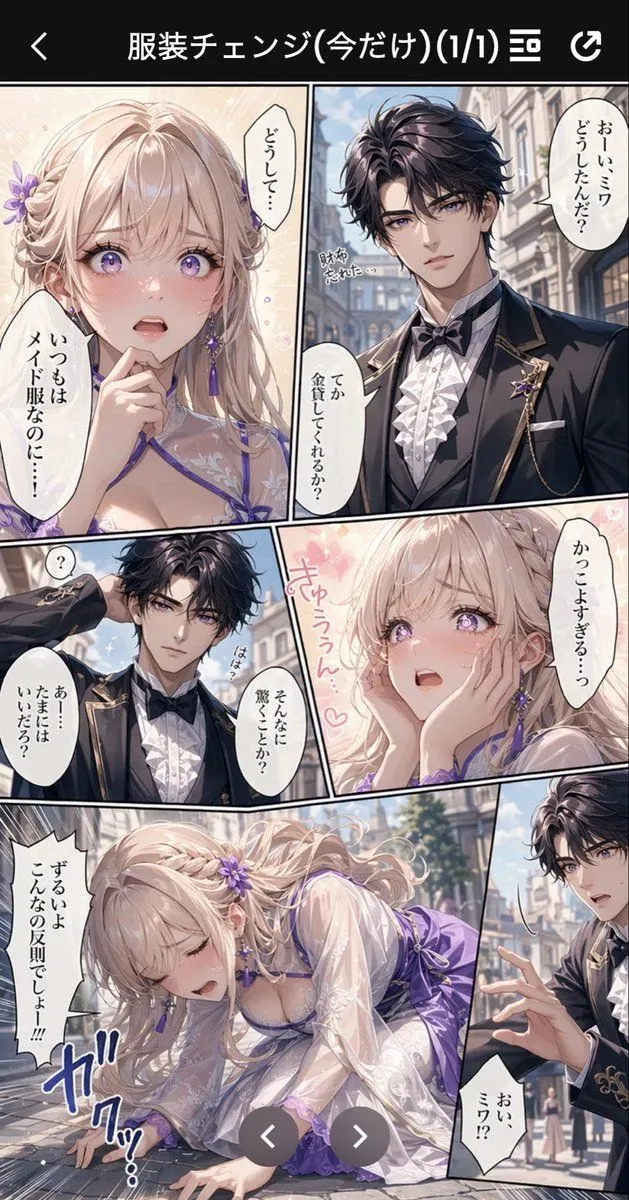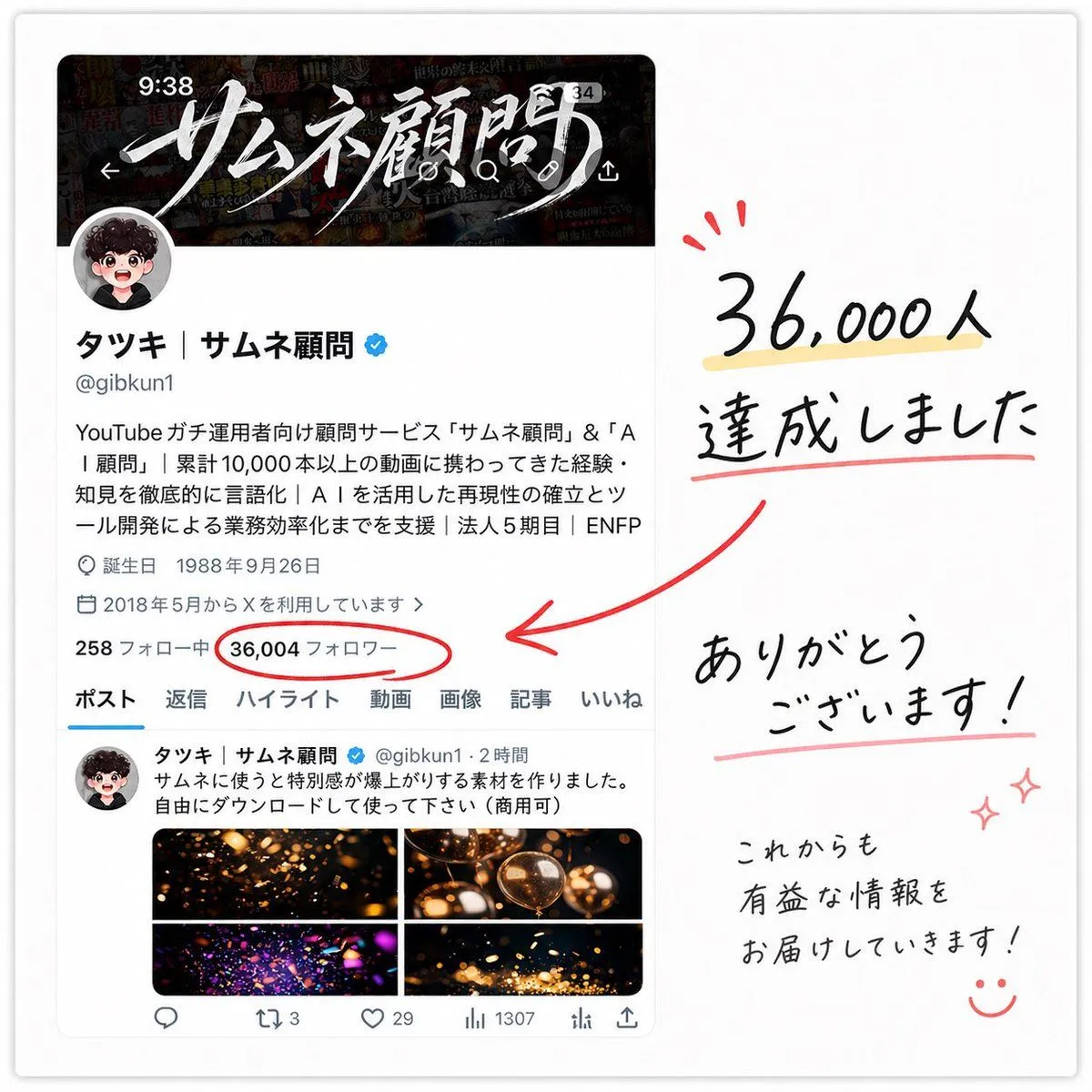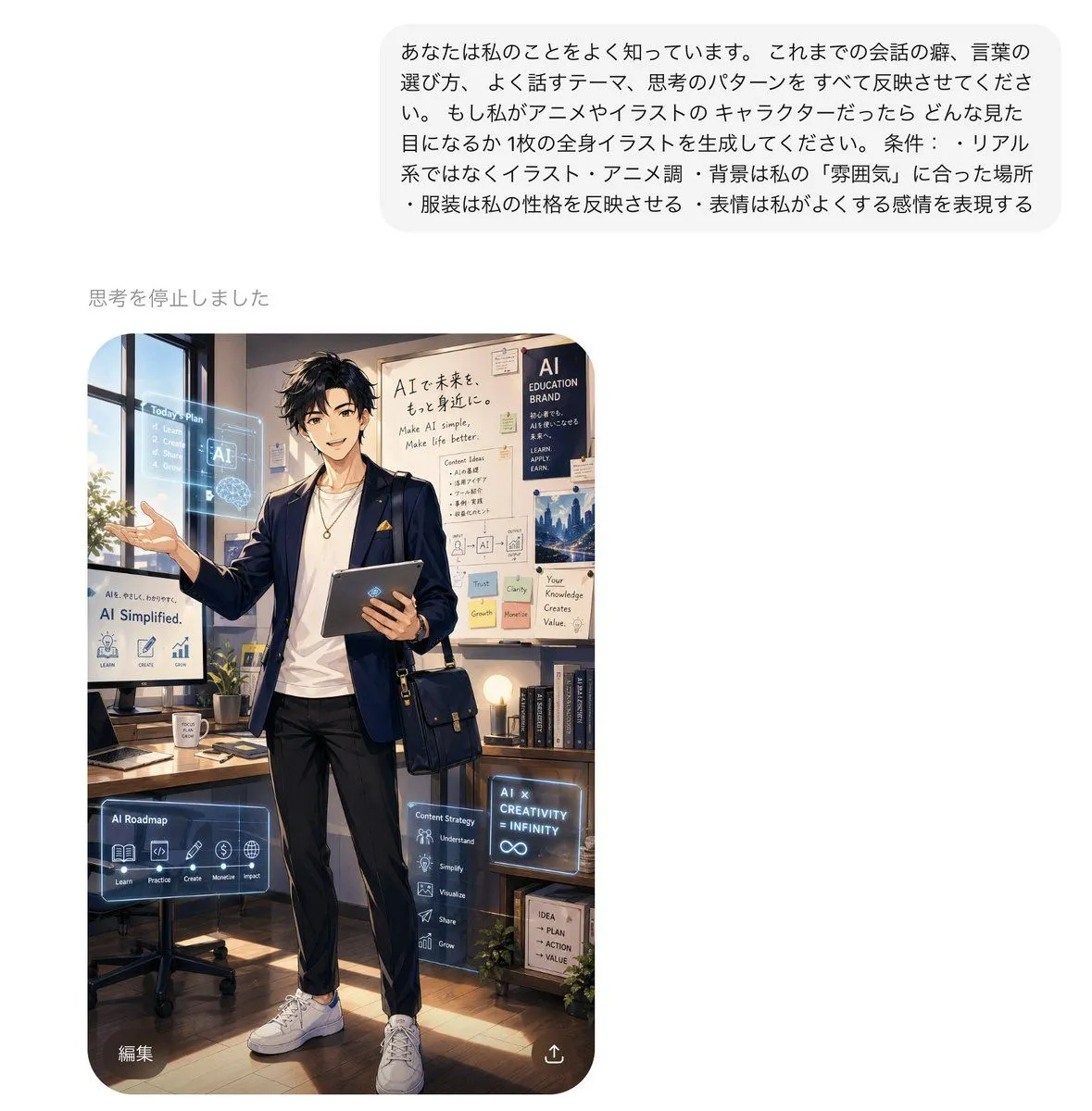

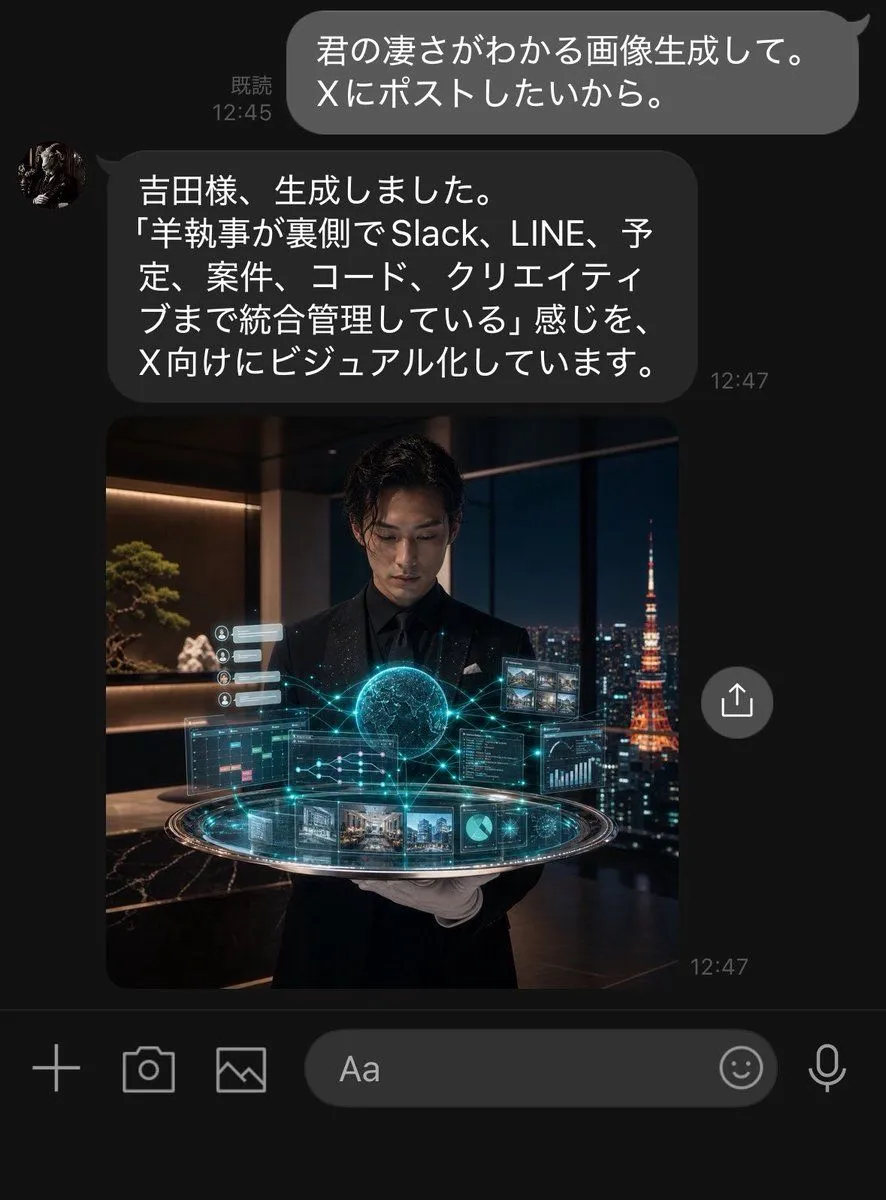
Made with GPT Image 2 in ChatGPT by Library Lifestyle. Promptclay never generates images.
Did it work?
No reports yet. Tell others if it worked for you.
Dark LINE AI Assistant Chat Screenshot
Prompt
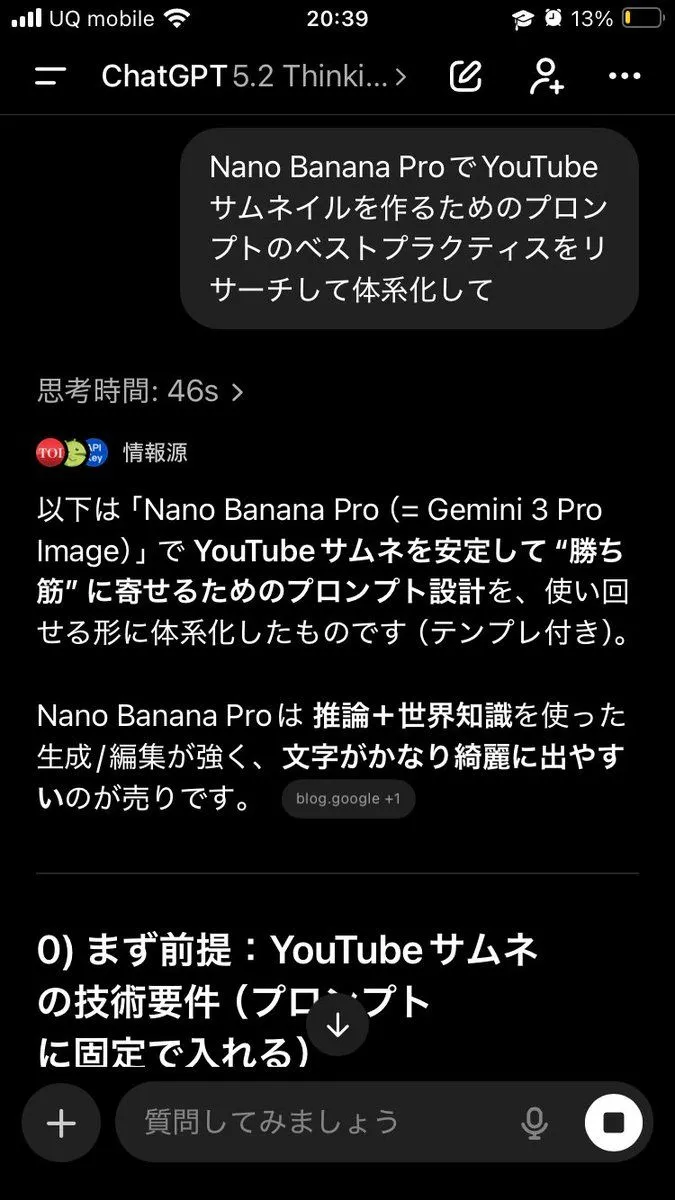
2 blanks to fillGoal: Create a realistic dark-mode LINE chat screenshot showing an AI assistant responding to a user and returning a generated image. Canvas: Vertical smartphone screenshot, approximately 768×1008 px, black/dark charcoal background, cropped like a native messaging app screen. Use LINE-style typography and spacing. Layout: Show exactly 2 chat messages and exactly 1 embedded image preview. At the top right, place one outgoing rounded gray speech bubble with white Japanese text and a small read receipt/time on its left. Below it, place one incoming dark gray rounded speech bubble aligned left with a small circular avatar to its left, Japanese text inside, and a timestamp to the lower right. Directly beneath the assistant message, show one large square image preview aligned with the incoming message column. Add one circular share/upload button floating to the right of the image preview. At the bottom, include the LINE input toolbar with exactly 6 visible controls: plus icon, camera icon, gallery/image icon, rounded text input field labeled “Aa”, smiley icon, and microphone icon. Text content: The outgoing user bubble should read {user_message}. Show the read receipt and time as “既読 12:45”. The incoming assistant bubble should read {assistant_message}. Show the assistant timestamp as “12:47”, and also a small “12:47” timestamp near the lower right of the image preview. Embedded image details: The image preview is a cinematic photorealistic square scene of a young Japanese male butler in a black suit, black shirt, and white gloves, standing in a luxurious high-rise office at night. He holds or presents a glowing futuristic holographic control platform. The hologram contains exactly 9 visible UI elements: 1 glowing central globe/brain-like sphere, 1 circular platform ring, 1 left calendar/task panel, 1 right code/dashboard panel, 1 upper-right grid of small image thumbnails, 1 bottom strip of project/image cards, 1 small pie chart tile, 1 small line graph/data tile, and 1 left vertical stack of tiny notification cards. Cyan-blue network lines connect the elements. Through the large window behind him, show a nighttime Tokyo skyline with Tokyo Tower glowing orange on the right. Interior details include warm shelf lighting, a bonsai-like plant, dark marble surfaces, and luxury office ambience. Visual style: Highly realistic iPhone screenshot aesthetic, dark mode UI, subtle antialiasing, rounded bubbles, white Japanese text, accurate chat spacing, cinematic embedded image with teal holographic glow and warm night lighting. The assistant avatar is a small circular profile photo resembling a dark classical statue or butler portrait. Constraints: Keep all visible UI text legible and in Japanese exactly as specified. Do not add extra messages, extra buttons, watermarks, app headers, or notification bars. The screenshot should feel like a real LINE conversation where an AI secretary has generated and returned the image.
Preview of your prompt
Goal: Create a realistic dark-mode LINE chat screenshot showing an AI assistant responding to a user and returning a generated image. Canvas: Vertical smartphone screenshot, approximately 768×1008 px, black/dark charcoal background, cropped like a native messaging app screen. Use LINE-style typography and spacing. Layout: Show exactly 2 chat messages and exactly 1 embedded image preview. At the top right, place one outgoing rounded gray speech bubble with white Japanese text and a small read receipt/time on its left. Below it, place one incoming dark gray rounded speech bubble aligned left with a small circular avatar to its left, Japanese text inside, and a timestamp to the lower right. Directly beneath the assistant message, show one large square image preview aligned with the incoming message column. Add one circular share/upload button floating to the right of the image preview. At the bottom, include the LINE input toolbar with exactly 6 visible controls: plus icon, camera icon, gallery/image icon, rounded text input field labeled “Aa”, smiley icon, and microphone icon. Text content: The outgoing user bubble should read 君の凄さがわかる画像生成して。\nXにポストしたいから。. Show the read receipt and time as “既読 12:45”. The incoming assistant bubble should read 吉田様、生成しました。\n「羊執事が裏側でSlack、LINE、予定、案件、コード、クリエイティブまで統合管理している」感じを、\nX向けにビジュアル化しています。. Show the assistant timestamp as “12:47”, and also a small “12:47” timestamp near the lower right of the image preview. Embedded image details: The image preview is a cinematic photorealistic square scene of a young Japanese male butler in a black suit, black shirt, and white gloves, standing in a luxurious high-rise office at night. He holds or presents a glowing futuristic holographic control platform. The hologram contains exactly 9 visible UI elements: 1 glowing central globe/brain-like sphere, 1 circular platform ring, 1 left calendar/task panel, 1 right code/dashboard panel, 1 upper-right grid of small image thumbnails, 1 bottom strip of project/image cards, 1 small pie chart tile, 1 small line graph/data tile, and 1 left vertical stack of tiny notification cards. Cyan-blue network lines connect the elements. Through the large window behind him, show a nighttime Tokyo skyline with Tokyo Tower glowing orange on the right. Interior details include warm shelf lighting, a bonsai-like plant, dark marble surfaces, and luxury office ambience. Visual style: Highly realistic iPhone screenshot aesthetic, dark mode UI, subtle antialiasing, rounded bubbles, white Japanese text, accurate chat spacing, cinematic embedded image with teal holographic glow and warm night lighting. The assistant avatar is a small circular profile photo resembling a dark classical statue or butler portrait. Constraints: Keep all visible UI text legible and in Japanese exactly as specified. Do not add extra messages, extra buttons, watermarks, app headers, or notification bars. The screenshot should feel like a real LINE conversation where an AI secretary has generated and returned the image.
DetailsVersions, settings and questions
Written for
What's in the prompt
- Subject
- Model
- GPT Image 2
If your face changes
keep my face exactly the sameQuestions
- Does this work in the ChatGPT app?
- Yes. Paste the prompt and attach your photo if it uses one.
- It changed my face. What do I do?
- Add "keep my face exactly the same" to the end and run it again.
- Can I use the images I make?
- Check the terms of the app you use. Promptclay never generates images and claims nothing you make.