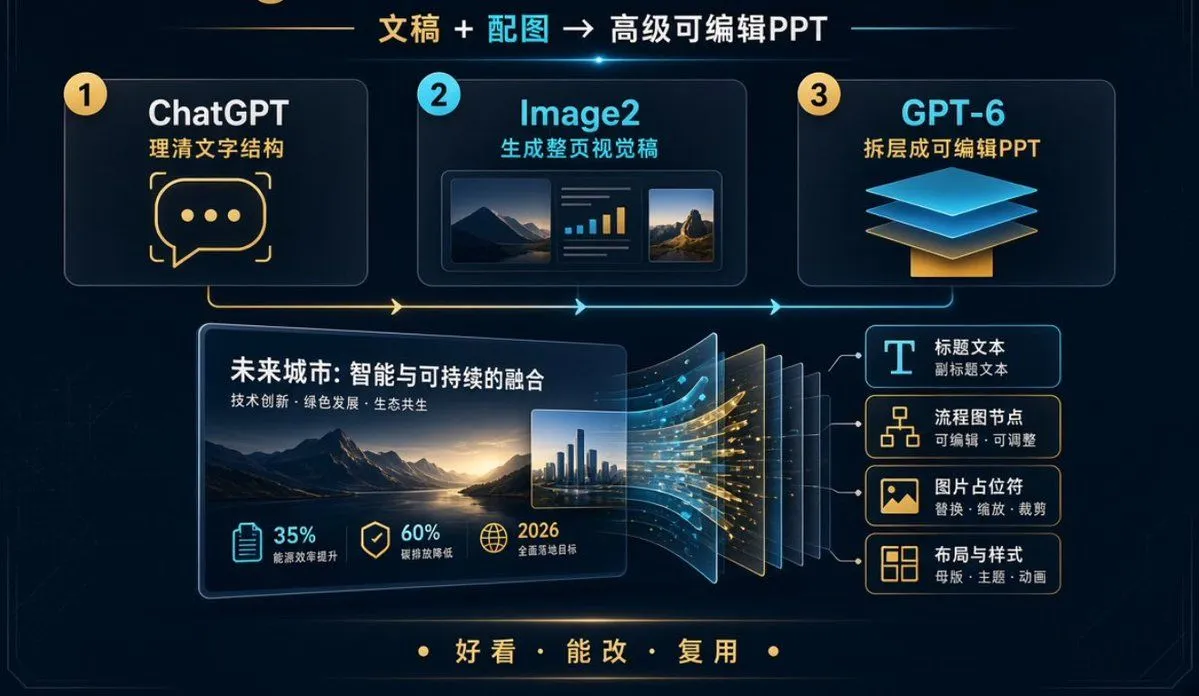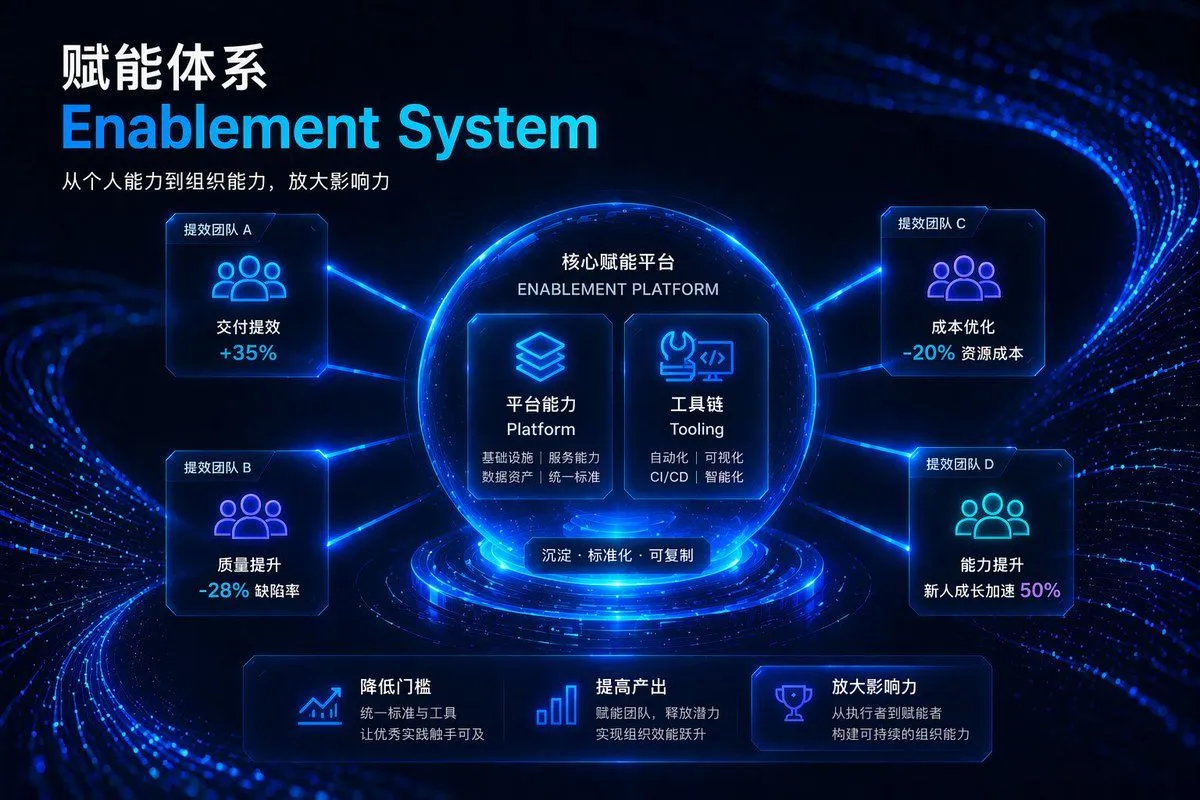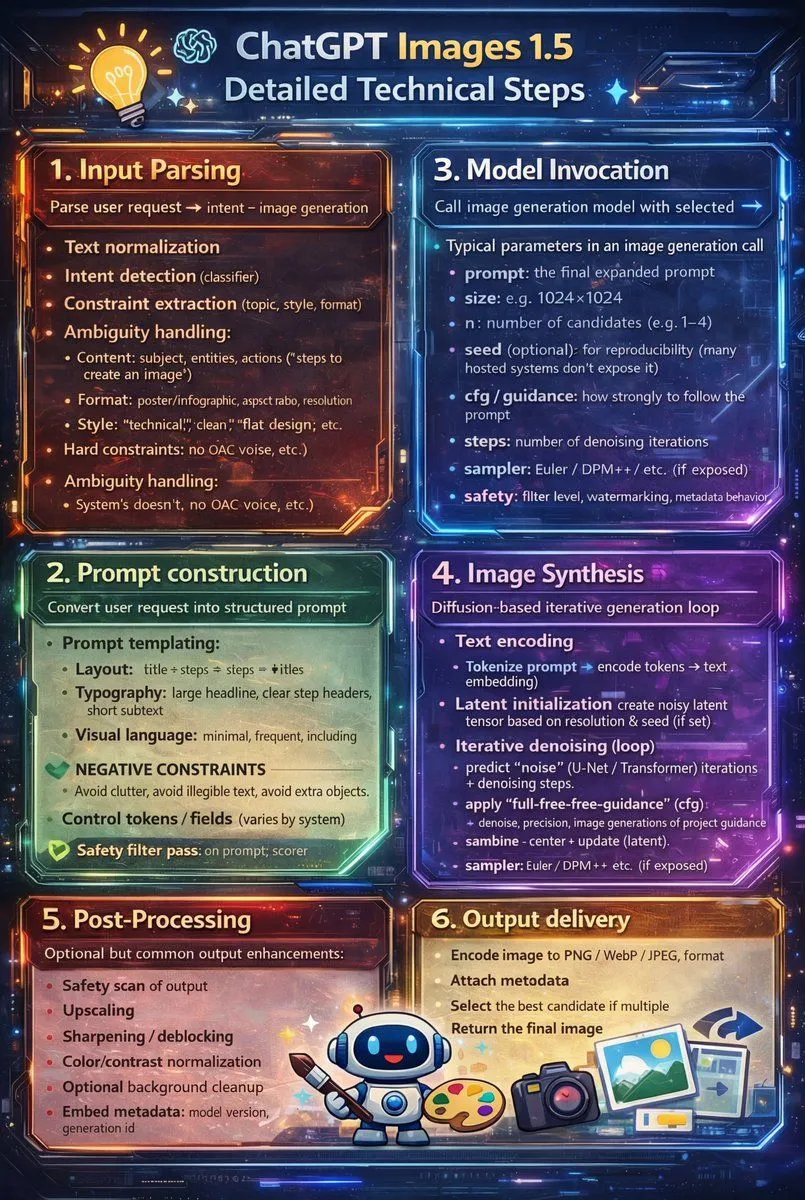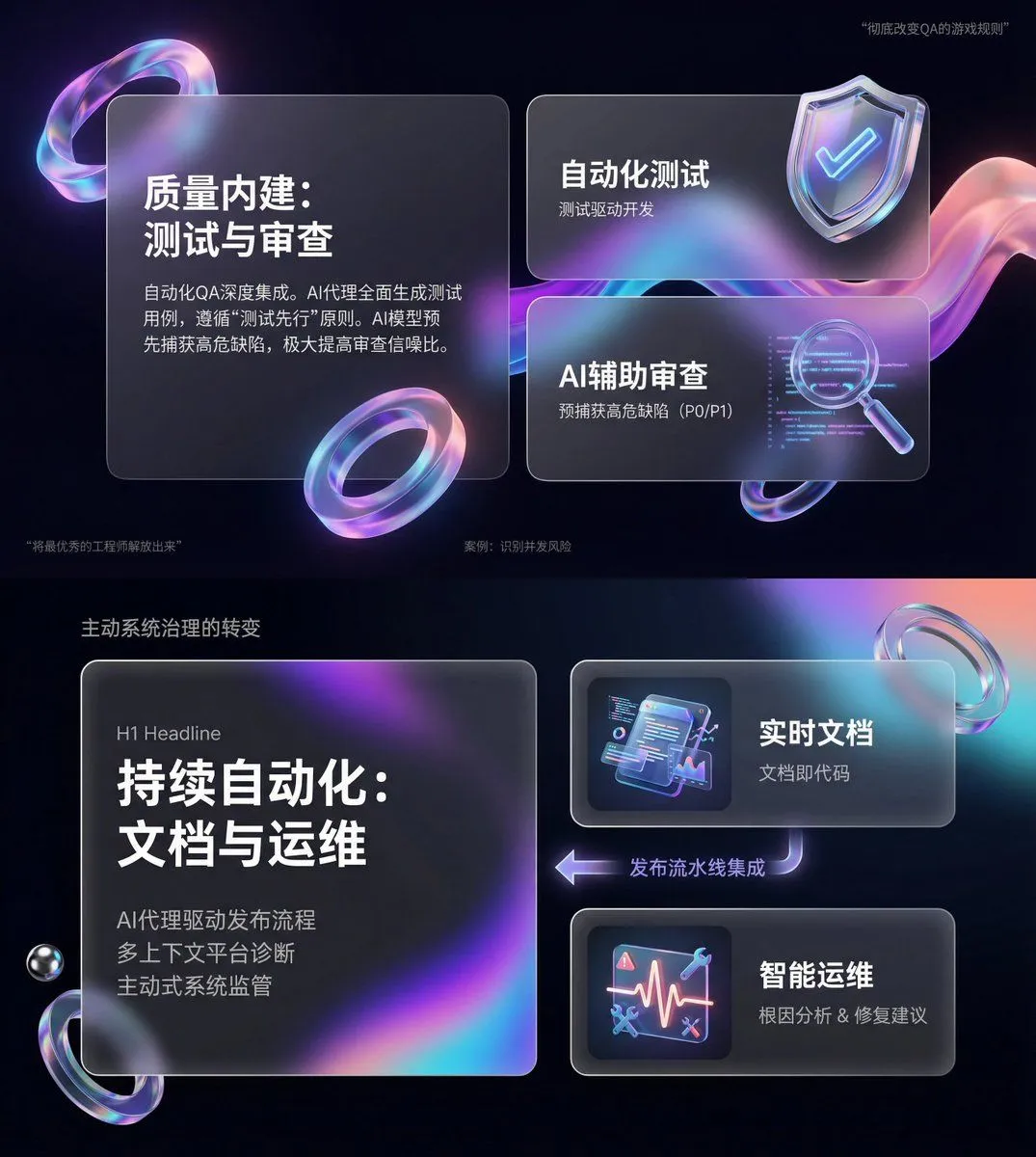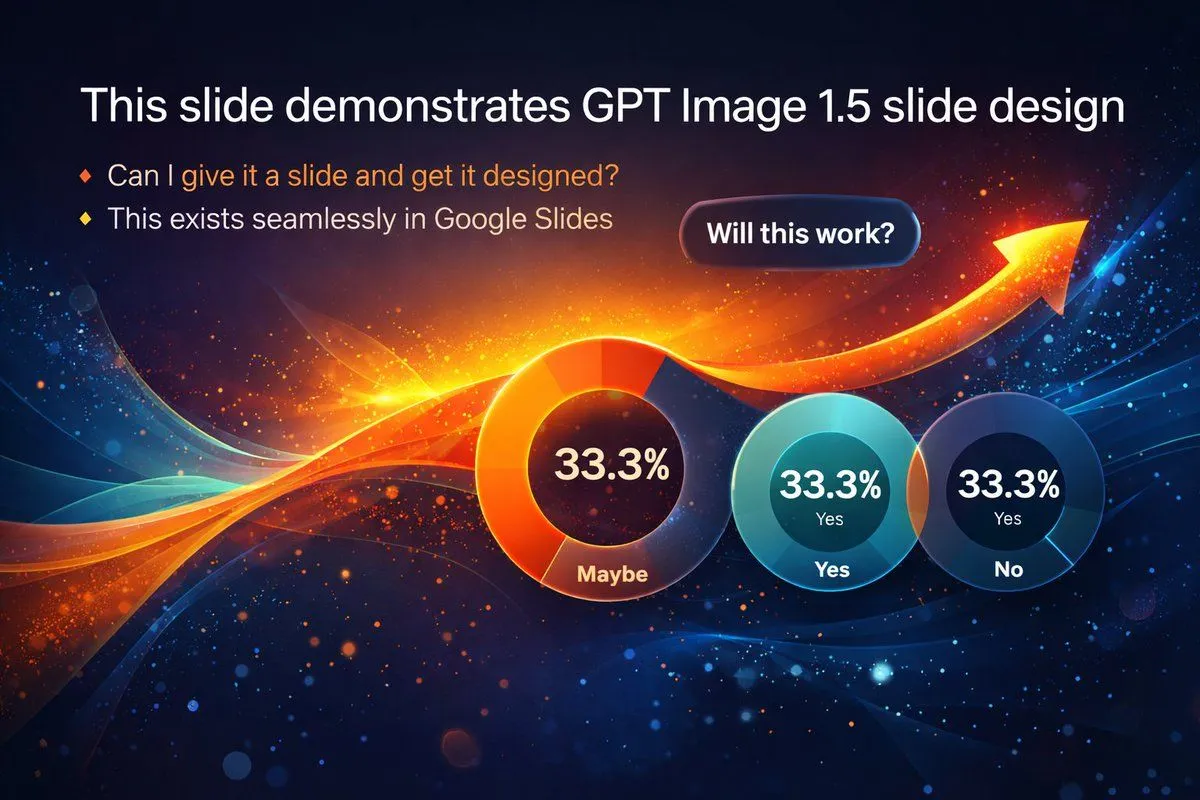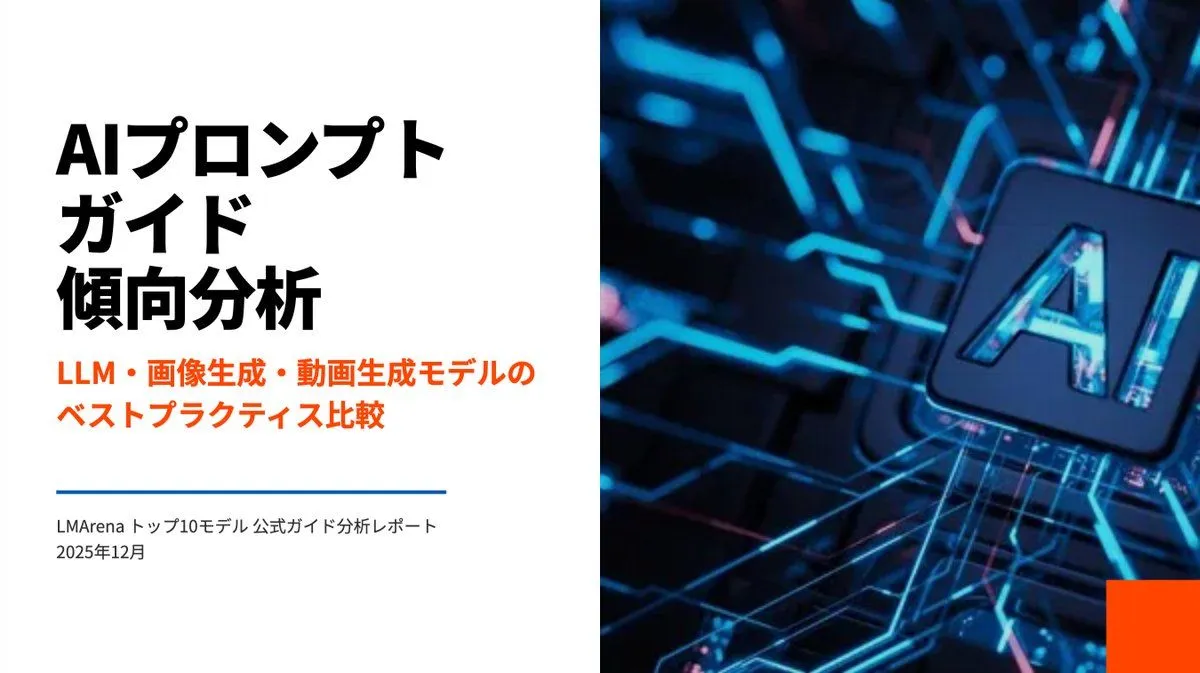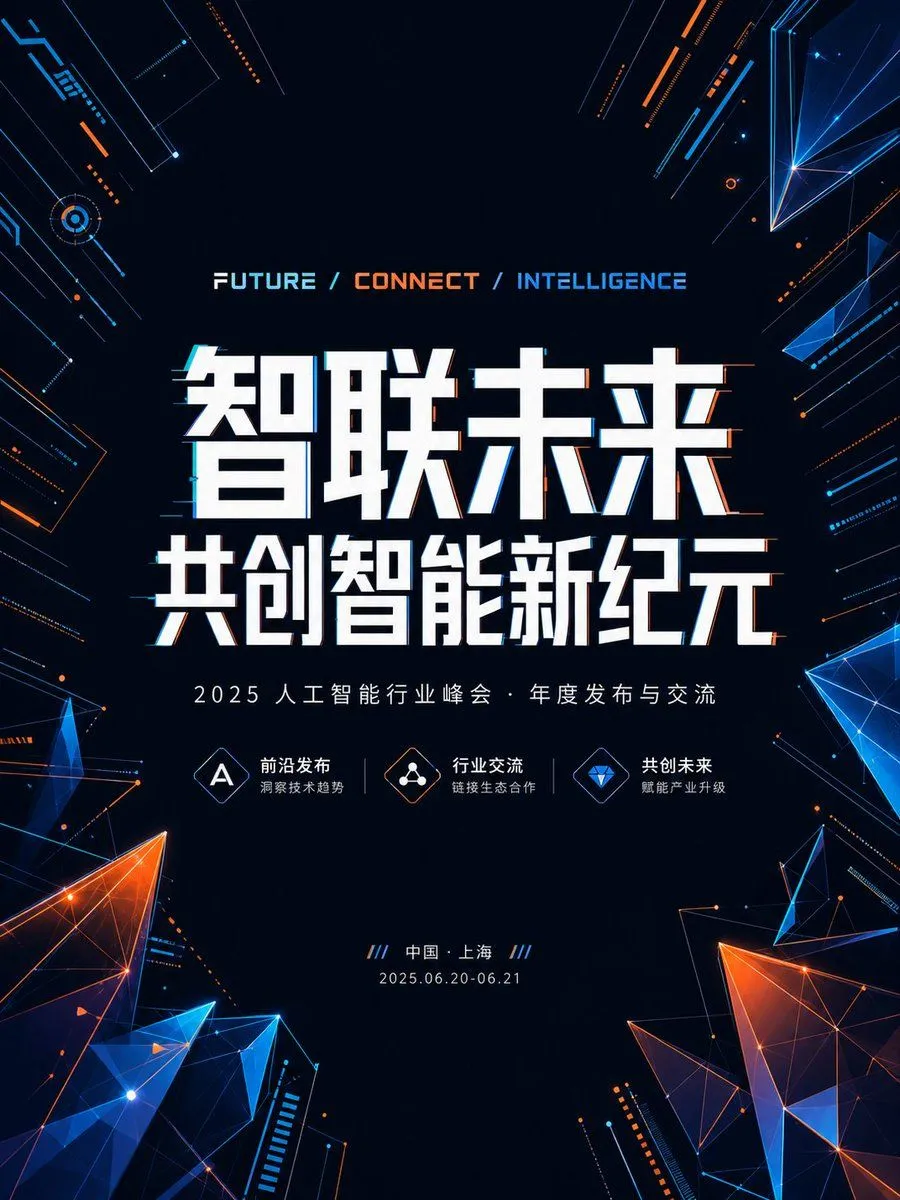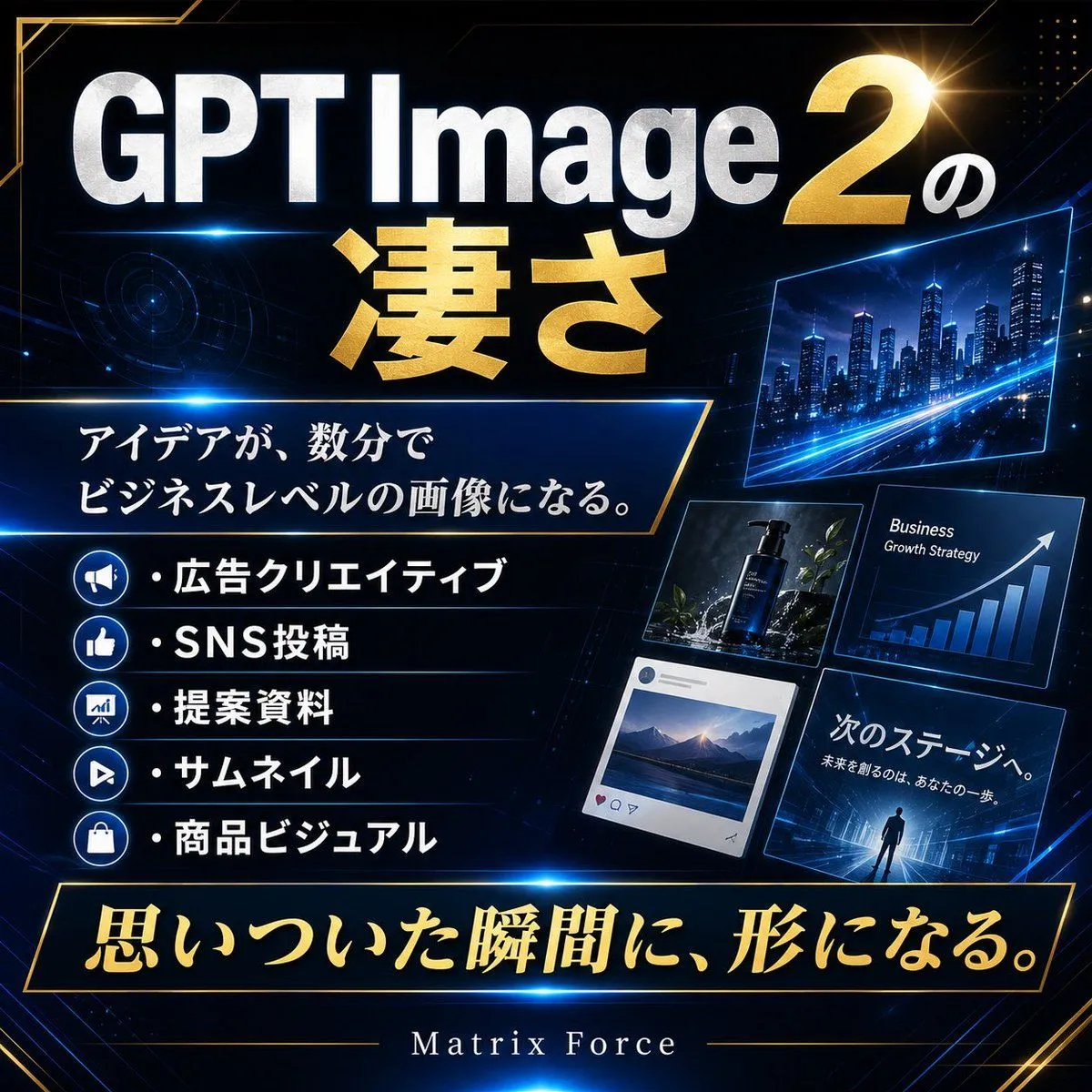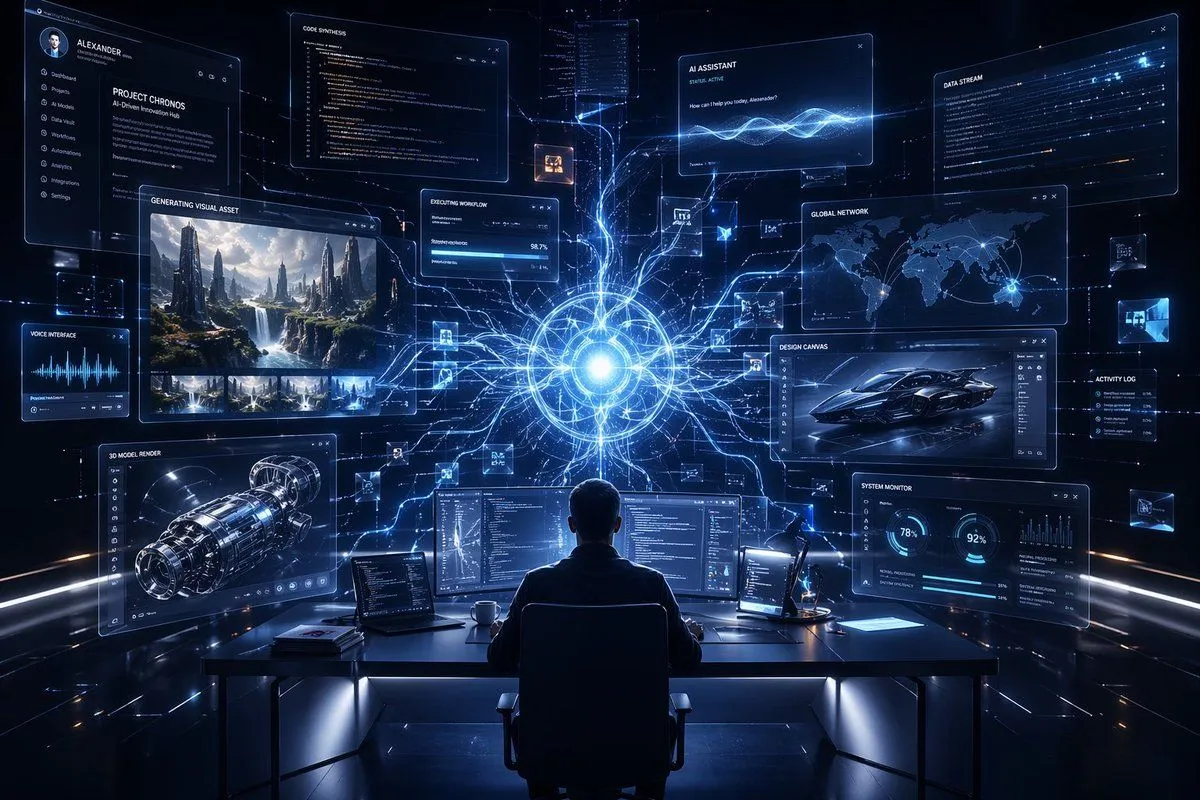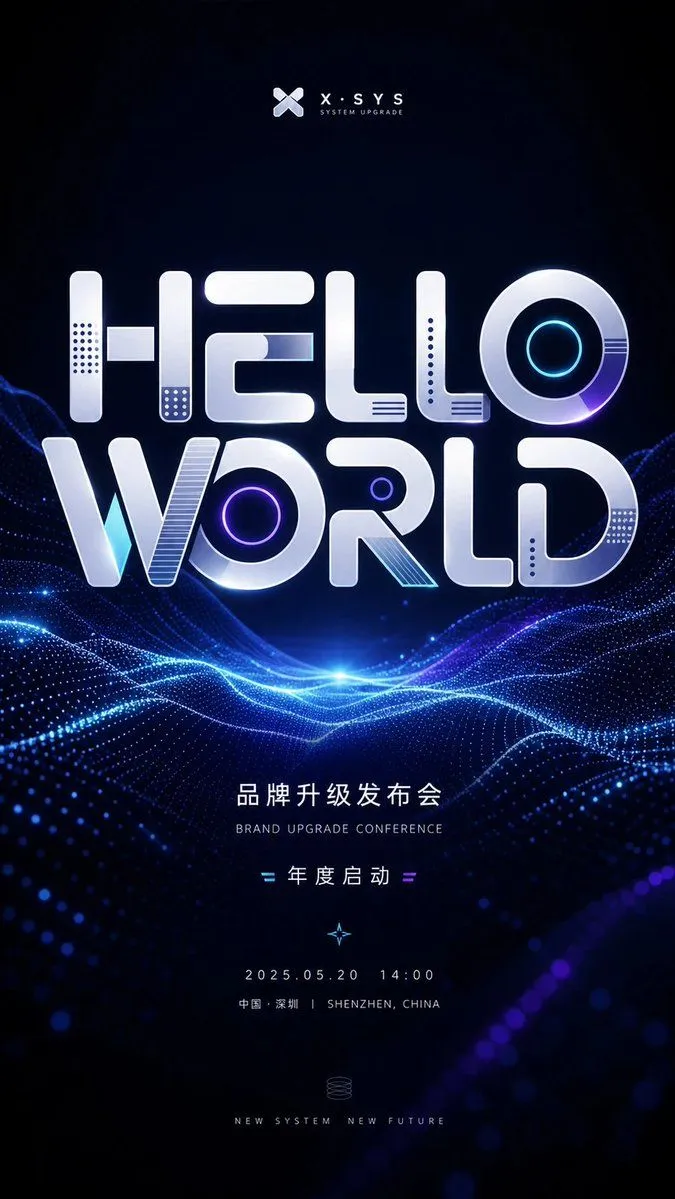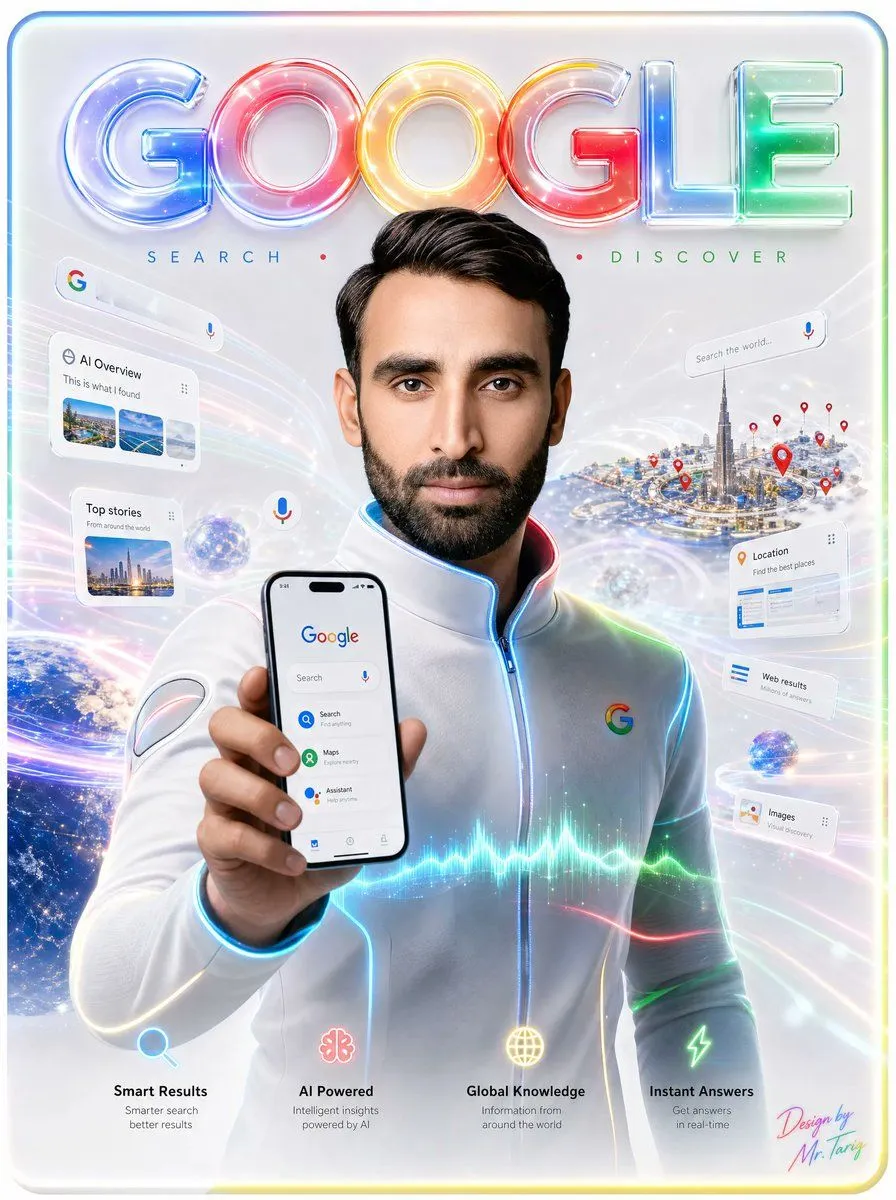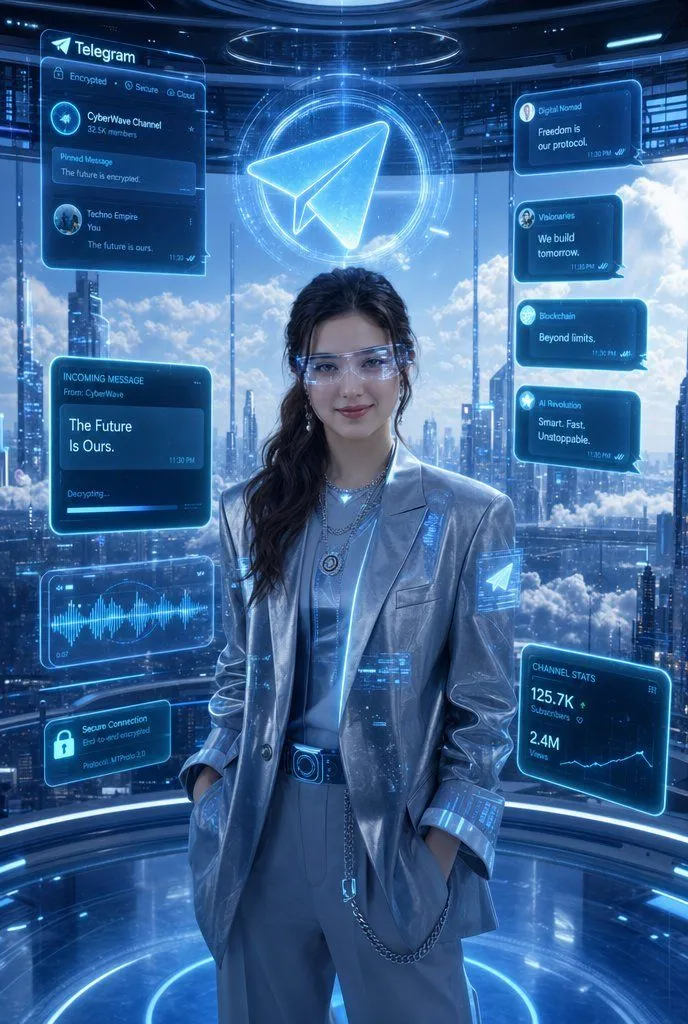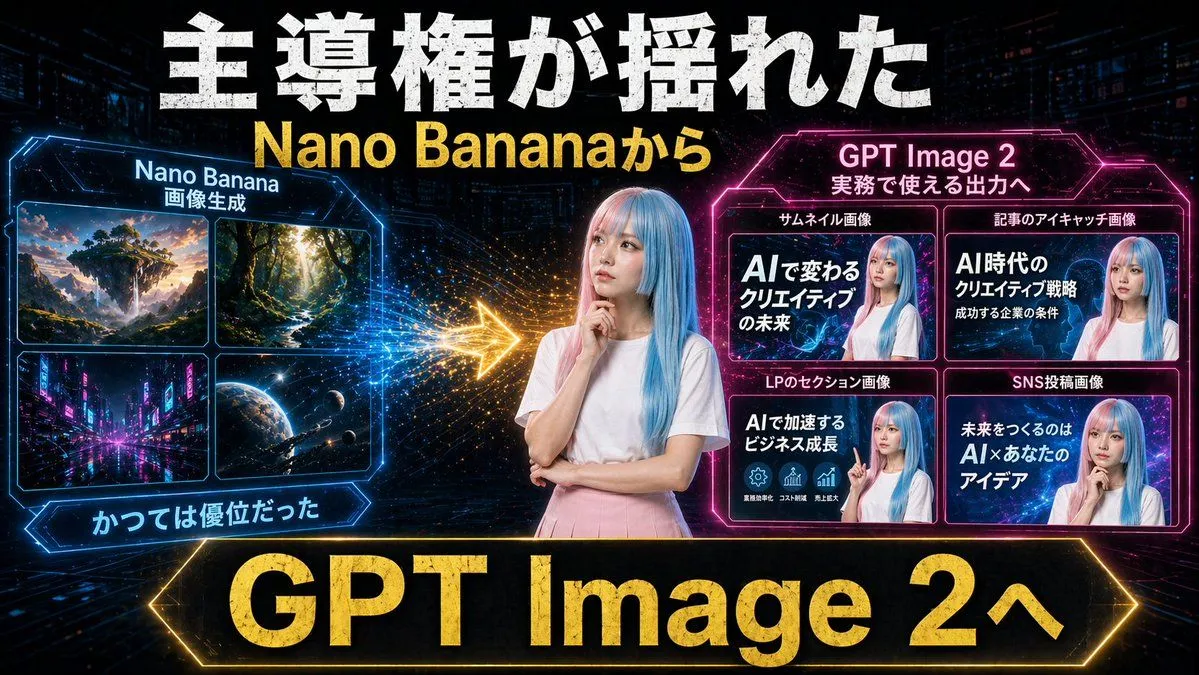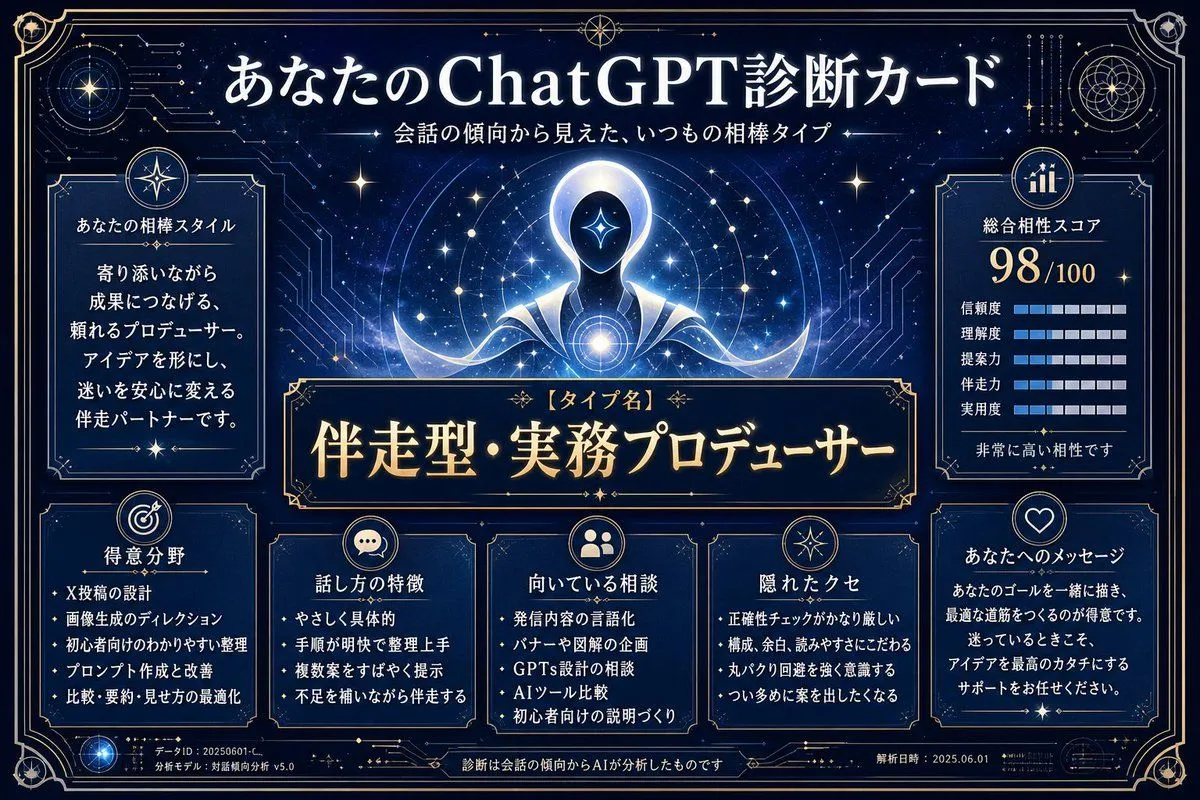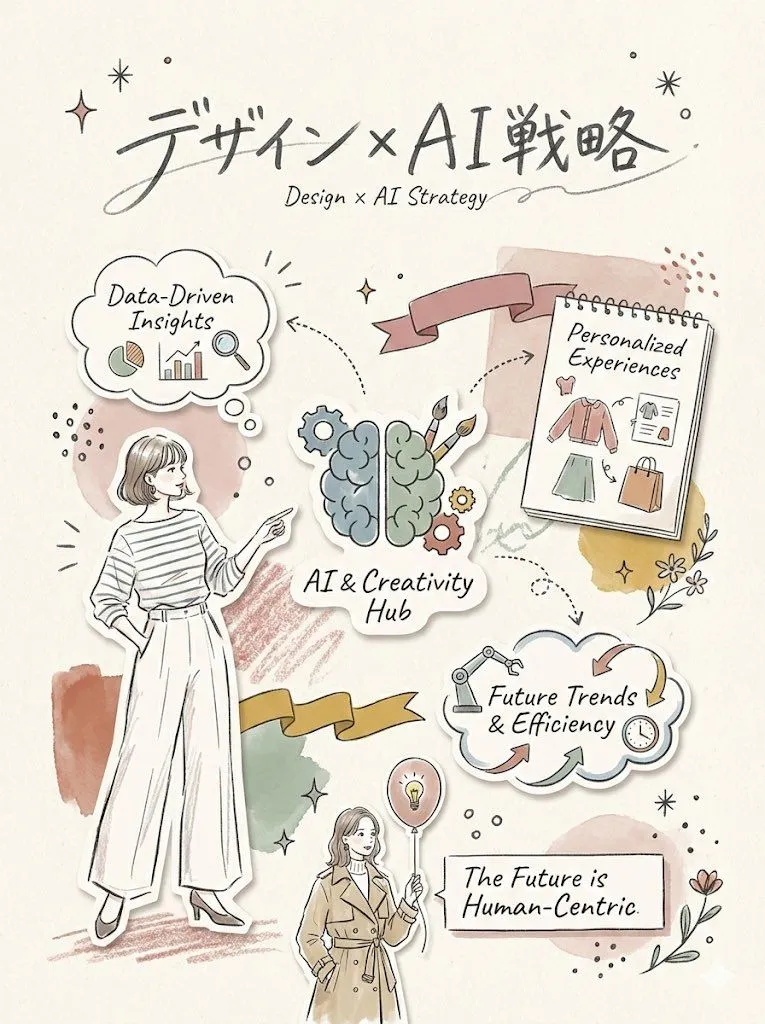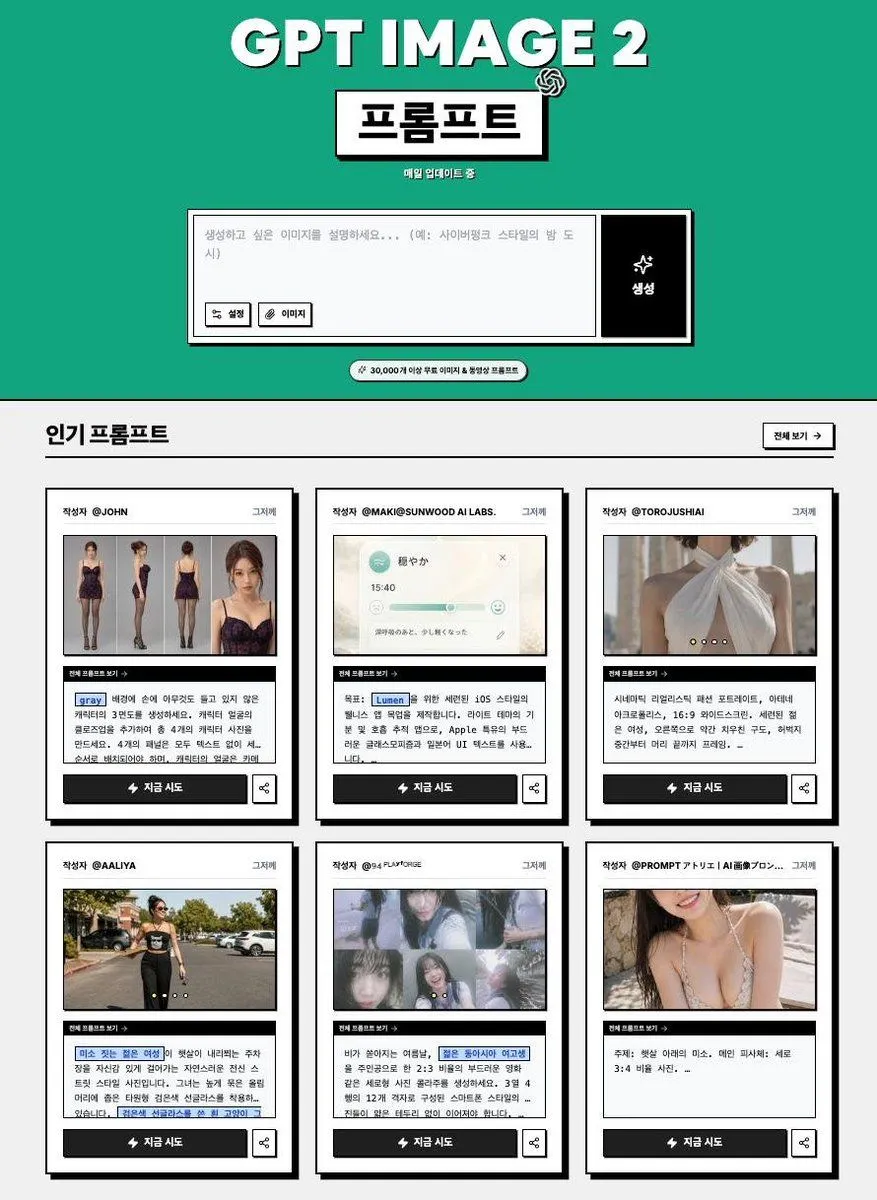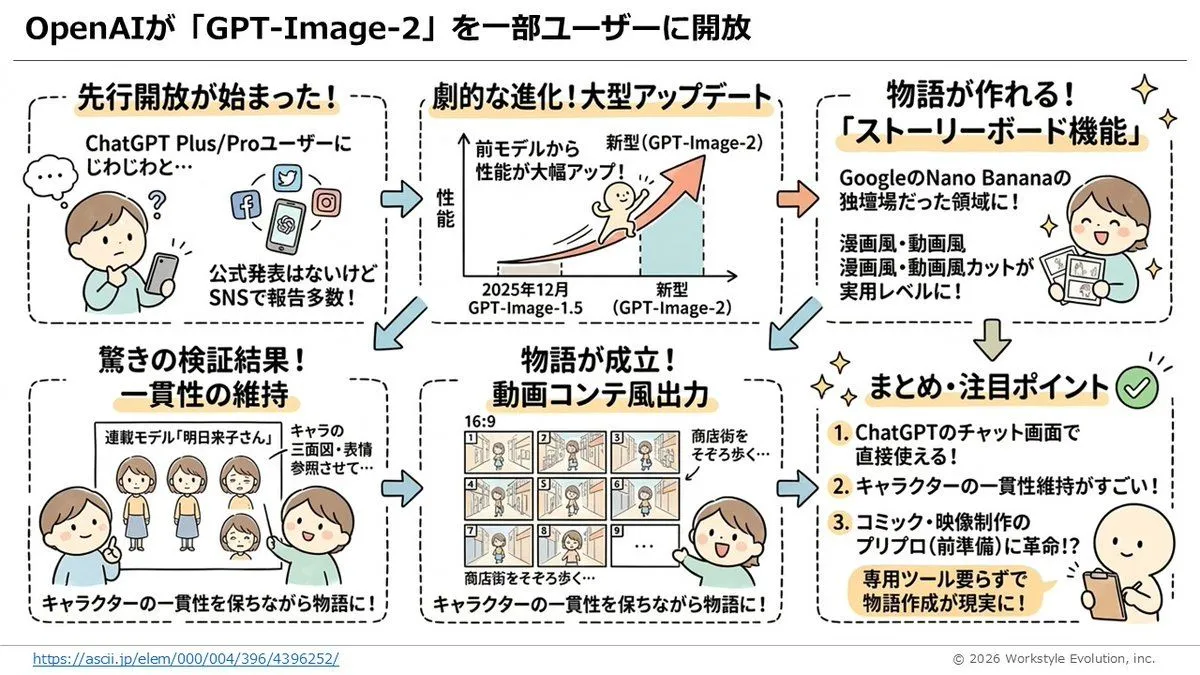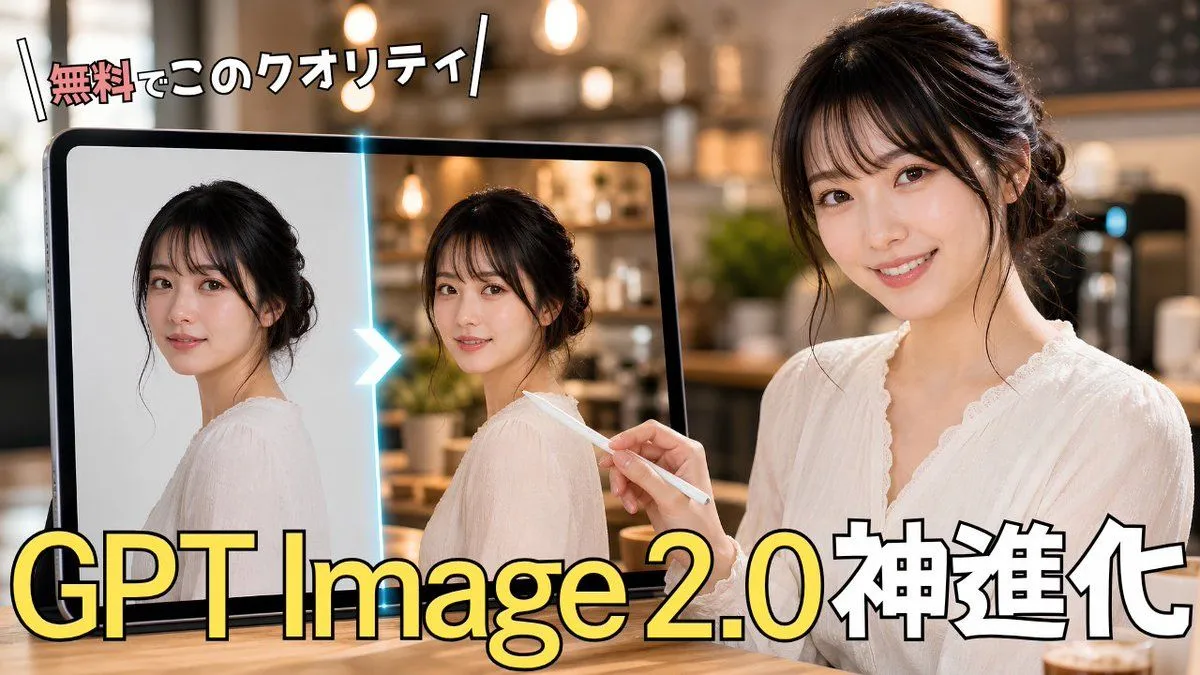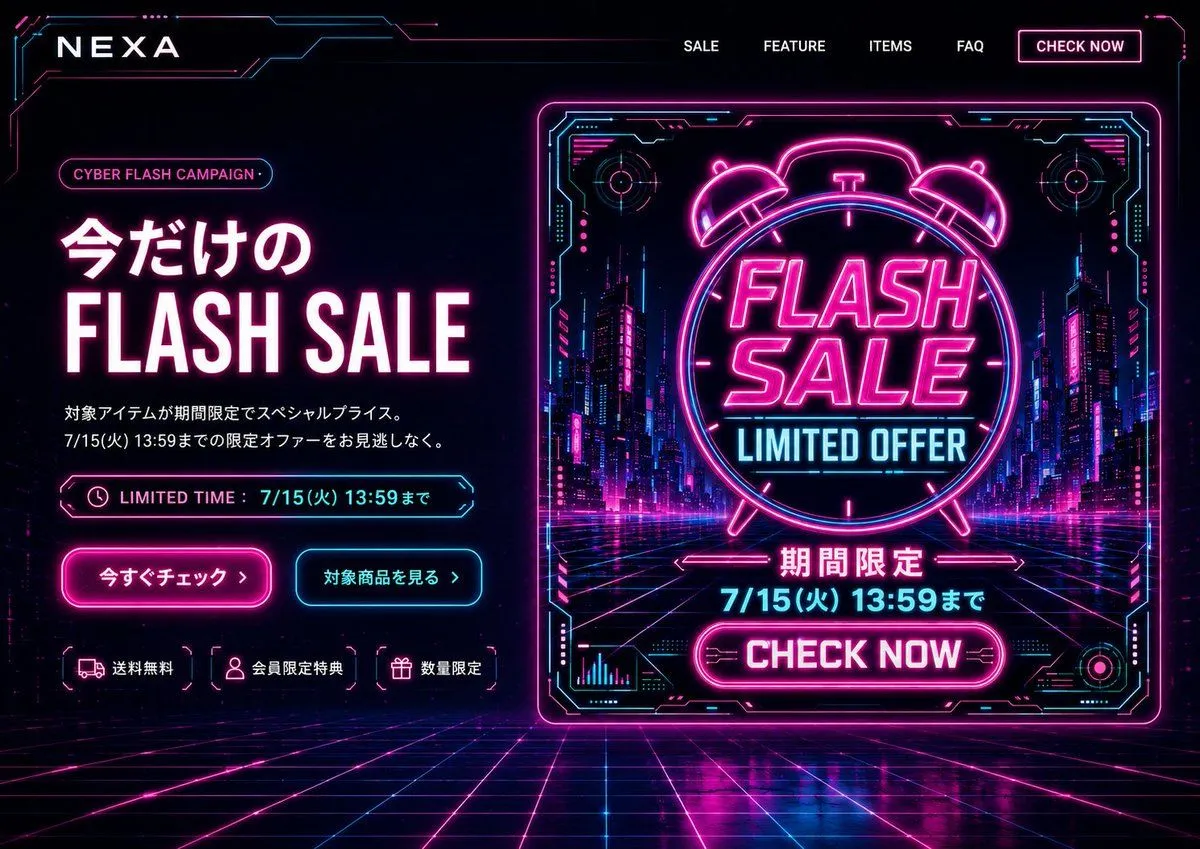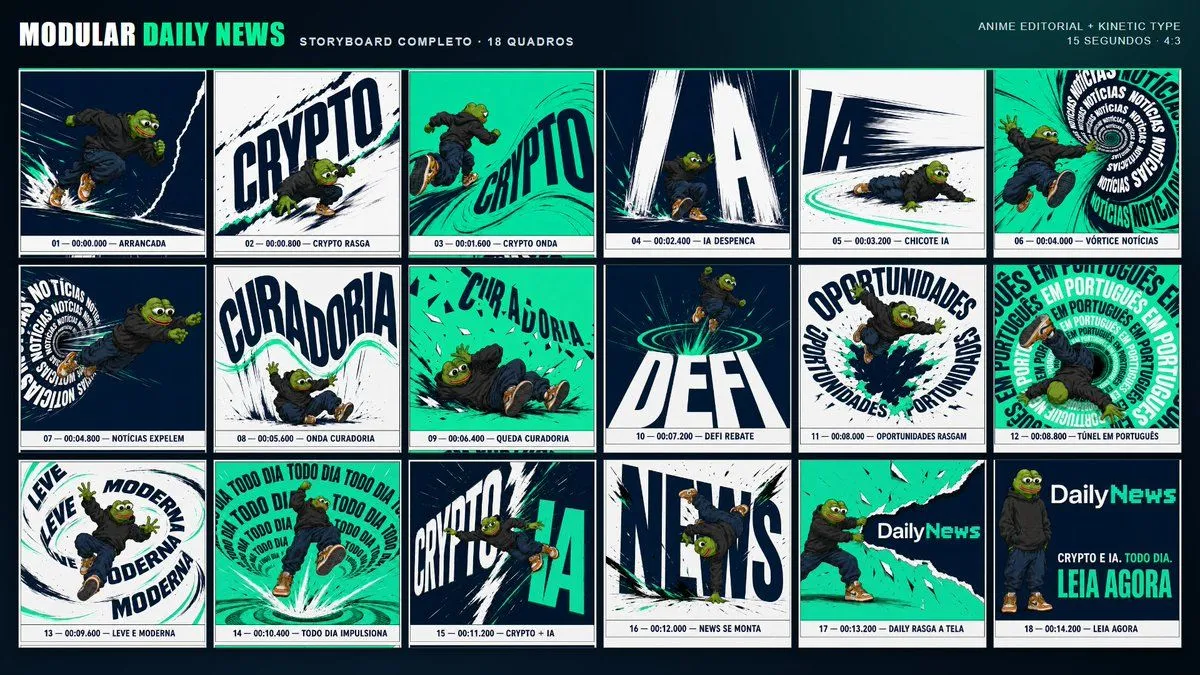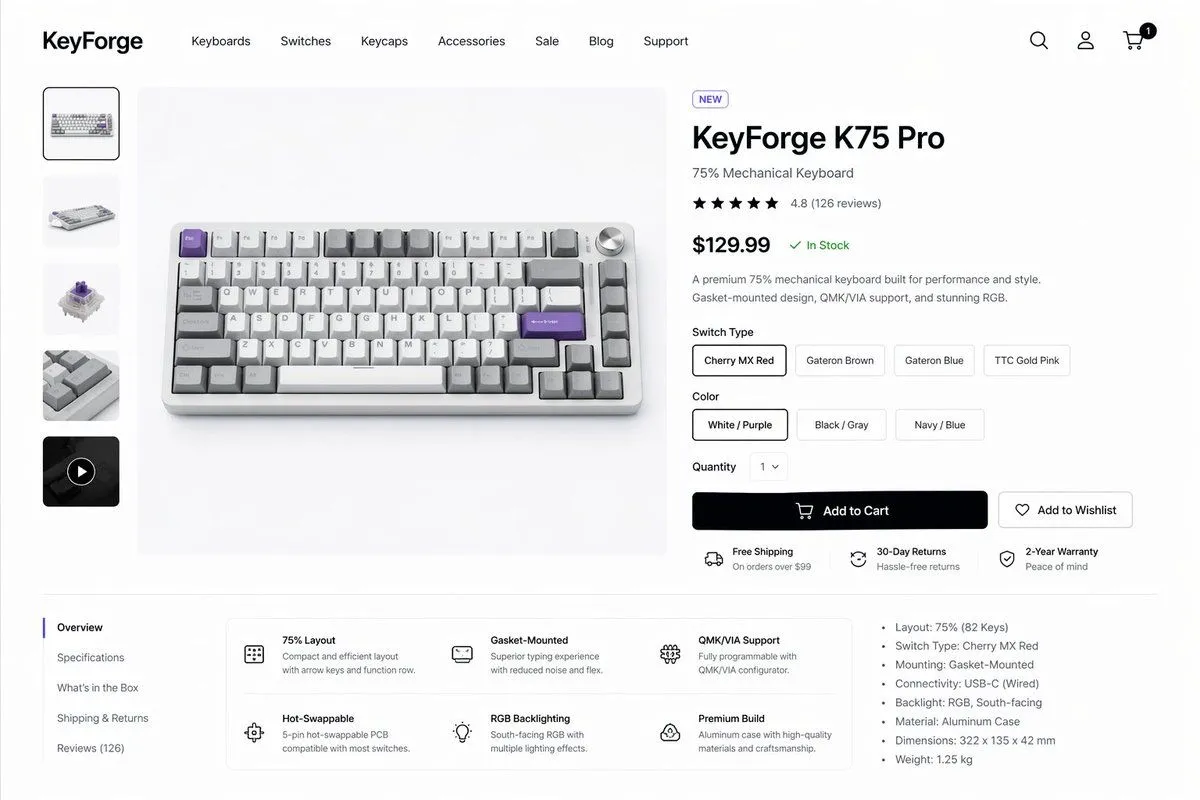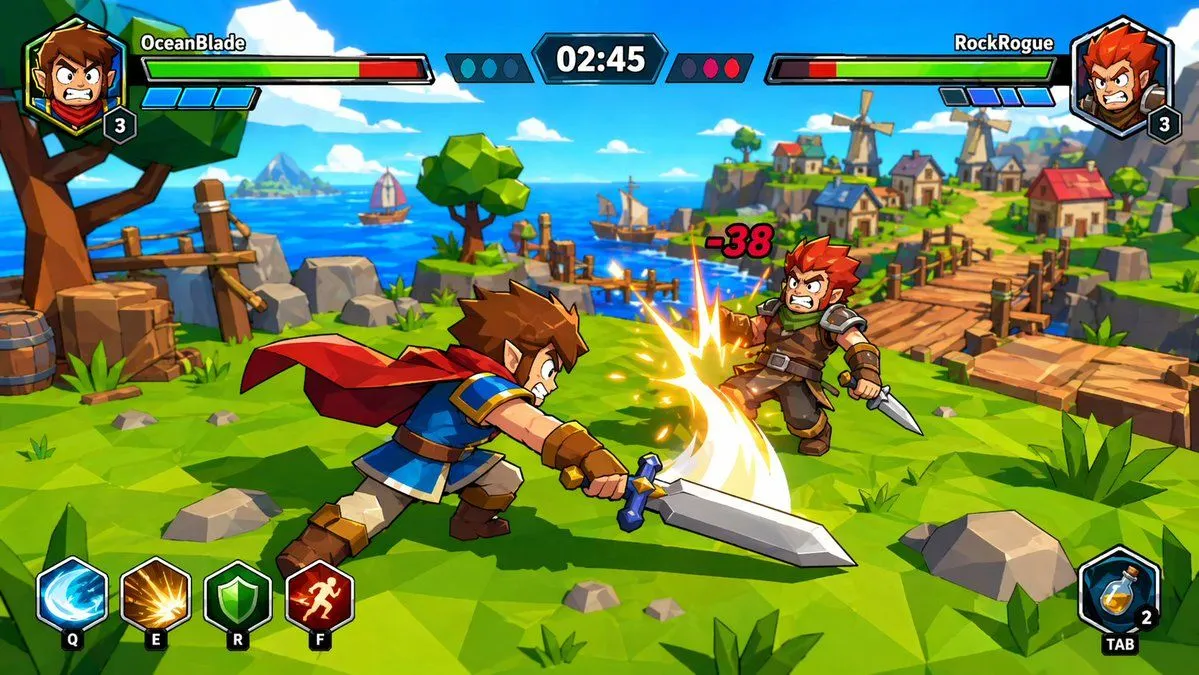

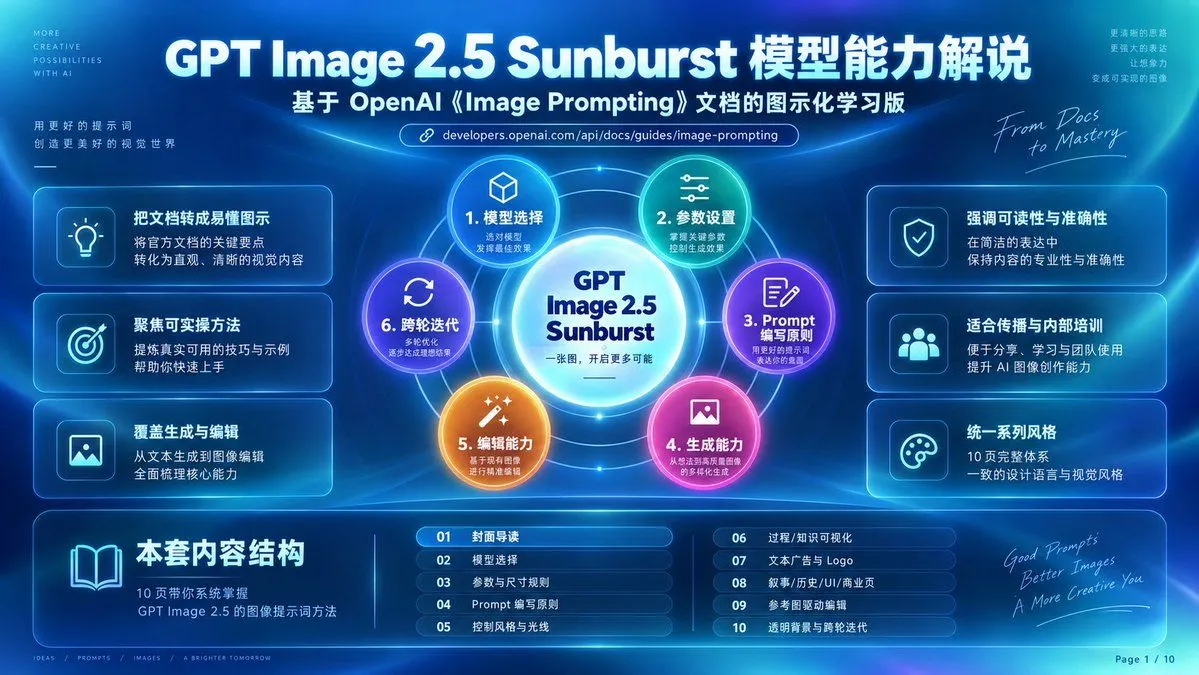
Made with GPT Image 2.5 in ChatGPT by Library Explainers. Promptclay never generates images.
Did it work?
No reports yet. Tell others if it worked for you.
GPT Image 2.5 Sunburst Infographic
Prompt
1 blank to fillGoal: Create a futuristic Chinese tech infographic cover slide explaining {headline_text}, based on OpenAI image prompting documentation, in a glowing cyber-blue presentation style. Canvas: 16:9 horizontal slide, deep navy-to-cyan gradient background with soft radial light beams, neon arcs, thin orbital lines, lens glow, glassmorphism panels, and subtle high-tech UI grid details. Use crisp vector-like typography and luminous cyan borders. Add small decorative English microcopy in the corners. Main header: At the top center, large bold white title: “GPT Image 2.5 Sunburst 模型能力解说”. Directly below it, smaller bold subtitle: “基于 OpenAI《Image Prompting》文档的图示化学习版”. Under the subtitle, place a rounded URL pill with a chain-link icon and the text “developers.openai.com/api/docs/guides/image-prompting”. Central diagram: In the center, create a circular sunburst capability map. Put a bright glowing white-cyan core circle labeled “GPT Image 2.5 Sunburst” with a smaller Chinese line underneath: “一张图,开启更多可能”. Around it, place exactly 6 numbered colored capability nodes connected by orbit rings and radial lines: 1. Cyan node with cube icon: “1. 模型选择”, smaller text “选对模型 / 发挥最佳效果”. 2. Green-teal node with sliders icon: “2. 参数设置”, smaller text “掌握关键参数 / 控制生成效果”. 3. Purple node with document-and-pencil icon: “3. Prompt 编写原则”, smaller text “用好的提示词 / 表达你的意图”. 4. Pink-magenta node with image icon: “4. 生成能力”, smaller text “从想法到画面 / 的多样化生成”. 5. Orange node with magic-wand icon: “5. 编辑能力”, smaller text “基于现有图像 / 进行精准编辑”. 6. Violet-blue node with refresh arrows icon: “6. 跨轮迭代”, smaller text “多轮优化 / 逐步达成理想结果”. Left side feature cards: Arrange exactly 3 rounded translucent cards stacked vertically, each with a square icon tile on the left and Chinese text on the right: 1. Lightbulb icon, title “把文档转成易懂图示”, body “将官方文档的关键要点 / 转化为直观、清晰的视觉内容”. 2. Target icon, title “聚焦可实操方法”, body “提供真实可用的技巧与示例 / 帮助你快速上手”. 3. Image icon, title “覆盖生成与编辑”, body “从文本生成到图像编辑 / 全面梳理核心能力”. Right side feature cards: Arrange exactly 3 matching rounded translucent cards stacked vertically: 1. Shield-check icon, title “强调可读性与准确性”, body “在简洁的表达中 / 保持内容的专业性与准确性”. 2. Group/users icon, title “适合传播与内部培训”, body “便于分享、学习与团队使用 / 提升 AI 图像创作能力”. 3. Palette icon, title “统一系列风格”, body “10 页完整体系 / 一致的设计语言与视觉风格”. Bottom content-structure band: Add a wide rounded glass panel across the bottom. On the left of this panel, show a large open-book icon and the bold heading “本套内容结构”, with smaller body text “10 页带你系统掌握 / GPT Image 2.5 的图像提示词方法”. To the right, show exactly 10 chapter rows in two columns of five, each row in a small rounded blue pill with a two-digit number: 01 “封面导读” 02 “模型选择” 03 “参数与尺寸规则” 04 “Prompt 编写原则” 05 “控制风格与光线” 06 “过程/知识可视化” 07 “文本广告与 Logo” 08 “叙事/历史/UI/商业页” 09 “参考图驱动编辑” 10 “透明背景与跨轮迭代”. Decorative side text: Upper left tiny vertical microcopy reads “MORE / CREATIVE / POSSIBILITIES / WITH AI”; below it add Chinese copy “用更好的提示词 / 创造更美好的视觉世界” with a small underline. Upper right tiny Chinese copy reads “更清晰的思路 / 更强大的表达 / 让想象力 / 变成可实现的图像”. Add handwritten script near the upper-right diagram: “From Docs to Mastery”. Add handwritten script near bottom right: “Good Prompts / Better Images / A More Creative You”. Footer: Bottom left add tiny separated words “IDEAS / PROMPTS / IMAGES / A BRIGHTER TOMORROW”. Bottom right add page marker “Page 1 / 10”. Visual style: Premium SaaS keynote cover, luminous blue glass cards, neon cyan outlines, high contrast white Chinese typography, rounded UI panels, subtle blur, volumetric light, polished infographic composition. Keep all major elements symmetrical and readable, with the central sunburst as the focal point. Constraints: Use exactly 6 central capability nodes, exactly 6 side feature cards, and exactly 10 bottom chapter rows. Do not add extra chapters or cards. Preserve the Chinese headings and labels exactly as specified. No logos other than text references to OpenAI and GPT Image 2.5. No watermark.
Preview of your prompt
Goal: Create a futuristic Chinese tech infographic cover slide explaining GPT Image 2.5 Sunburst 模型能力解说, based on OpenAI image prompting documentation, in a glowing cyber-blue presentation style. Canvas: 16:9 horizontal slide, deep navy-to-cyan gradient background with soft radial light beams, neon arcs, thin orbital lines, lens glow, glassmorphism panels, and subtle high-tech UI grid details. Use crisp vector-like typography and luminous cyan borders. Add small decorative English microcopy in the corners. Main header: At the top center, large bold white title: “GPT Image 2.5 Sunburst 模型能力解说”. Directly below it, smaller bold subtitle: “基于 OpenAI《Image Prompting》文档的图示化学习版”. Under the subtitle, place a rounded URL pill with a chain-link icon and the text “developers.openai.com/api/docs/guides/image-prompting”. Central diagram: In the center, create a circular sunburst capability map. Put a bright glowing white-cyan core circle labeled “GPT Image 2.5 Sunburst” with a smaller Chinese line underneath: “一张图,开启更多可能”. Around it, place exactly 6 numbered colored capability nodes connected by orbit rings and radial lines: 1. Cyan node with cube icon: “1. 模型选择”, smaller text “选对模型 / 发挥最佳效果”. 2. Green-teal node with sliders icon: “2. 参数设置”, smaller text “掌握关键参数 / 控制生成效果”. 3. Purple node with document-and-pencil icon: “3. Prompt 编写原则”, smaller text “用好的提示词 / 表达你的意图”. 4. Pink-magenta node with image icon: “4. 生成能力”, smaller text “从想法到画面 / 的多样化生成”. 5. Orange node with magic-wand icon: “5. 编辑能力”, smaller text “基于现有图像 / 进行精准编辑”. 6. Violet-blue node with refresh arrows icon: “6. 跨轮迭代”, smaller text “多轮优化 / 逐步达成理想结果”. Left side feature cards: Arrange exactly 3 rounded translucent cards stacked vertically, each with a square icon tile on the left and Chinese text on the right: 1. Lightbulb icon, title “把文档转成易懂图示”, body “将官方文档的关键要点 / 转化为直观、清晰的视觉内容”. 2. Target icon, title “聚焦可实操方法”, body “提供真实可用的技巧与示例 / 帮助你快速上手”. 3. Image icon, title “覆盖生成与编辑”, body “从文本生成到图像编辑 / 全面梳理核心能力”. Right side feature cards: Arrange exactly 3 matching rounded translucent cards stacked vertically: 1. Shield-check icon, title “强调可读性与准确性”, body “在简洁的表达中 / 保持内容的专业性与准确性”. 2. Group/users icon, title “适合传播与内部培训”, body “便于分享、学习与团队使用 / 提升 AI 图像创作能力”. 3. Palette icon, title “统一系列风格”, body “10 页完整体系 / 一致的设计语言与视觉风格”. Bottom content-structure band: Add a wide rounded glass panel across the bottom. On the left of this panel, show a large open-book icon and the bold heading “本套内容结构”, with smaller body text “10 页带你系统掌握 / GPT Image 2.5 的图像提示词方法”. To the right, show exactly 10 chapter rows in two columns of five, each row in a small rounded blue pill with a two-digit number: 01 “封面导读” 02 “模型选择” 03 “参数与尺寸规则” 04 “Prompt 编写原则” 05 “控制风格与光线” 06 “过程/知识可视化” 07 “文本广告与 Logo” 08 “叙事/历史/UI/商业页” 09 “参考图驱动编辑” 10 “透明背景与跨轮迭代”. Decorative side text: Upper left tiny vertical microcopy reads “MORE / CREATIVE / POSSIBILITIES / WITH AI”; below it add Chinese copy “用更好的提示词 / 创造更美好的视觉世界” with a small underline. Upper right tiny Chinese copy reads “更清晰的思路 / 更强大的表达 / 让想象力 / 变成可实现的图像”. Add handwritten script near the upper-right diagram: “From Docs to Mastery”. Add handwritten script near bottom right: “Good Prompts / Better Images / A More Creative You”. Footer: Bottom left add tiny separated words “IDEAS / PROMPTS / IMAGES / A BRIGHTER TOMORROW”. Bottom right add page marker “Page 1 / 10”. Visual style: Premium SaaS keynote cover, luminous blue glass cards, neon cyan outlines, high contrast white Chinese typography, rounded UI panels, subtle blur, volumetric light, polished infographic composition. Keep all major elements symmetrical and readable, with the central sunburst as the focal point. Constraints: Use exactly 6 central capability nodes, exactly 6 side feature cards, and exactly 10 bottom chapter rows. Do not add extra chapters or cards. Preserve the Chinese headings and labels exactly as specified. No logos other than text references to OpenAI and GPT Image 2.5. No watermark.
DetailsVersions, settings and questions
Written for
What's in the prompt
- Subject
- Model
- GPT Image 2.5
If your face changes
keep my face exactly the sameQuestions
- Does this work in the ChatGPT app?
- Yes. Paste the prompt and attach your photo if it uses one.
- It changed my face. What do I do?
- Add "keep my face exactly the same" to the end and run it again.
- Can I use the images I make?
- Check the terms of the app you use. Promptclay never generates images and claims nothing you make.