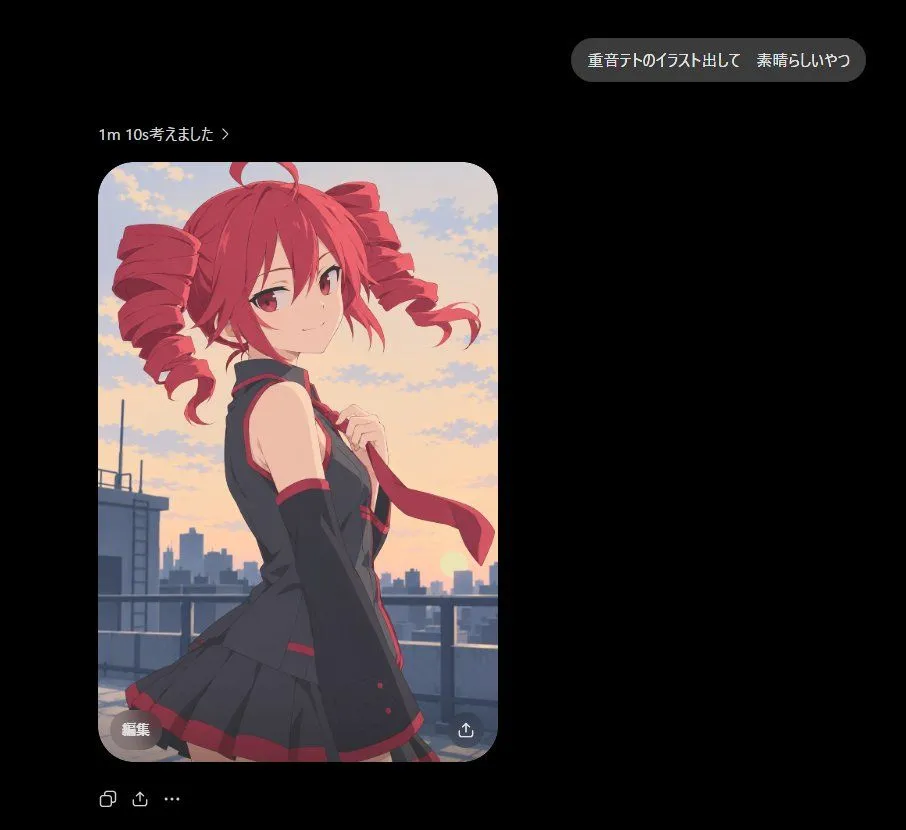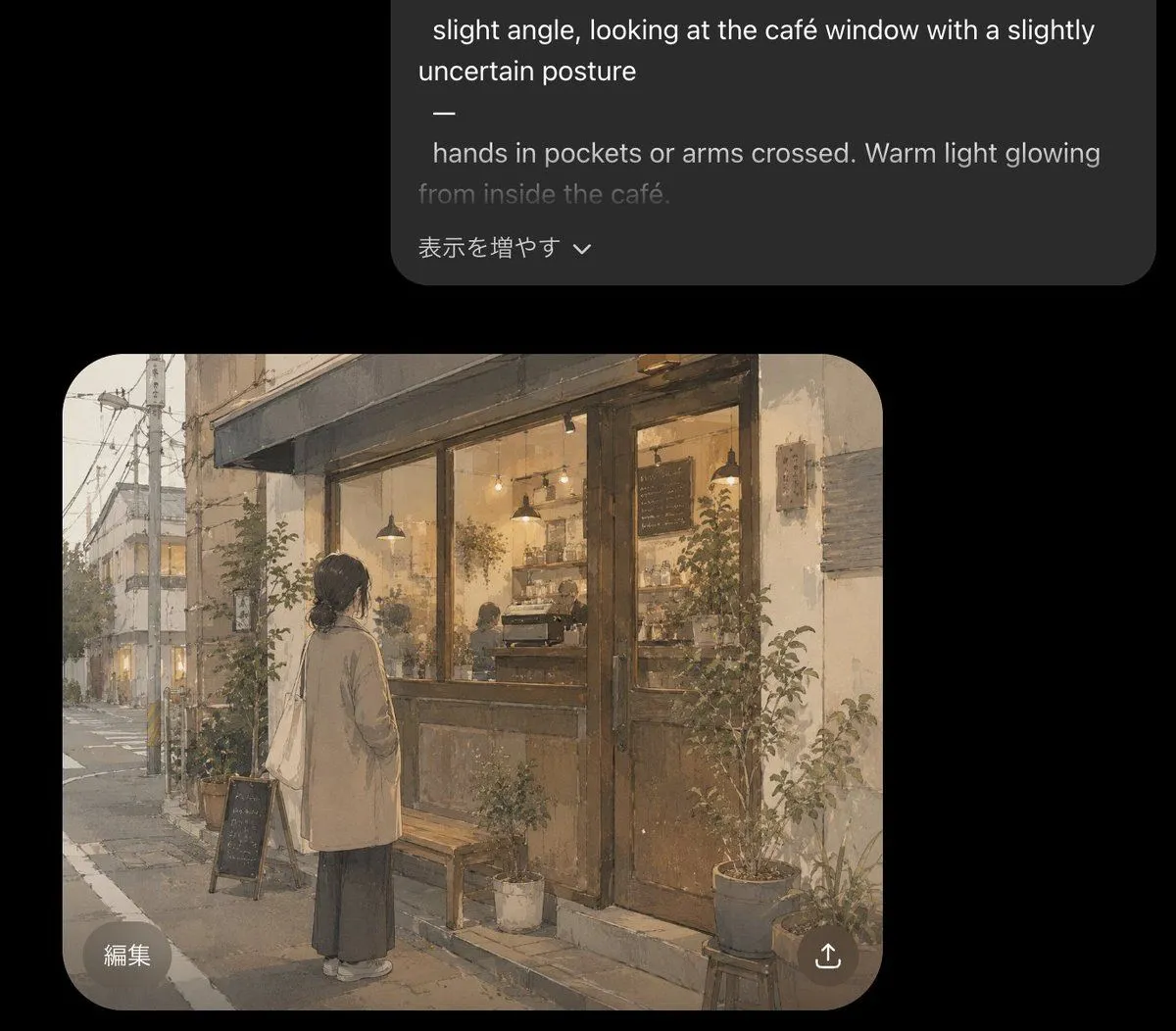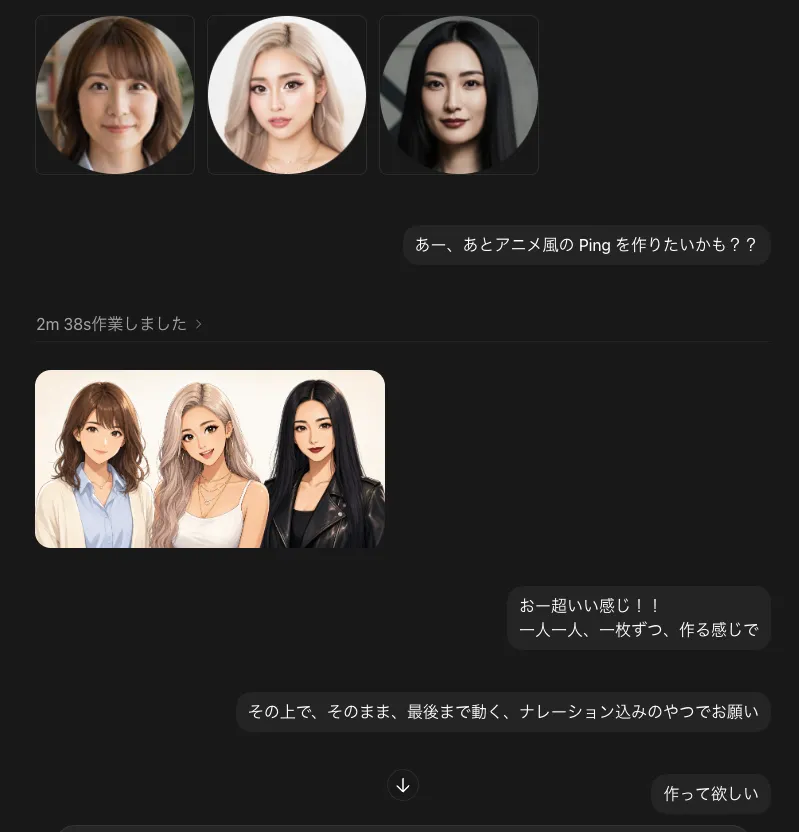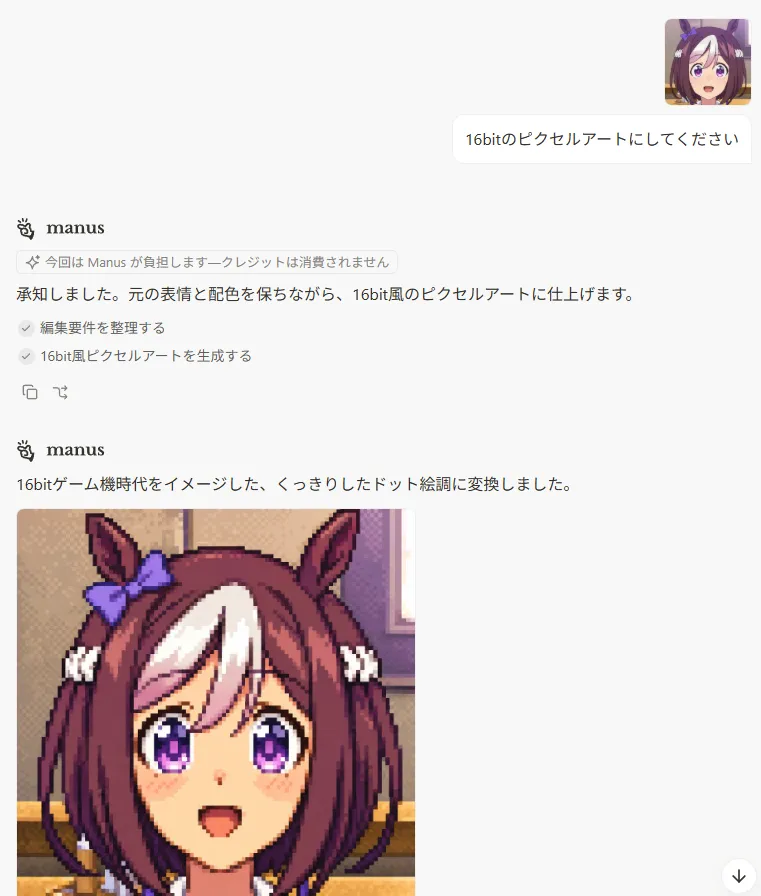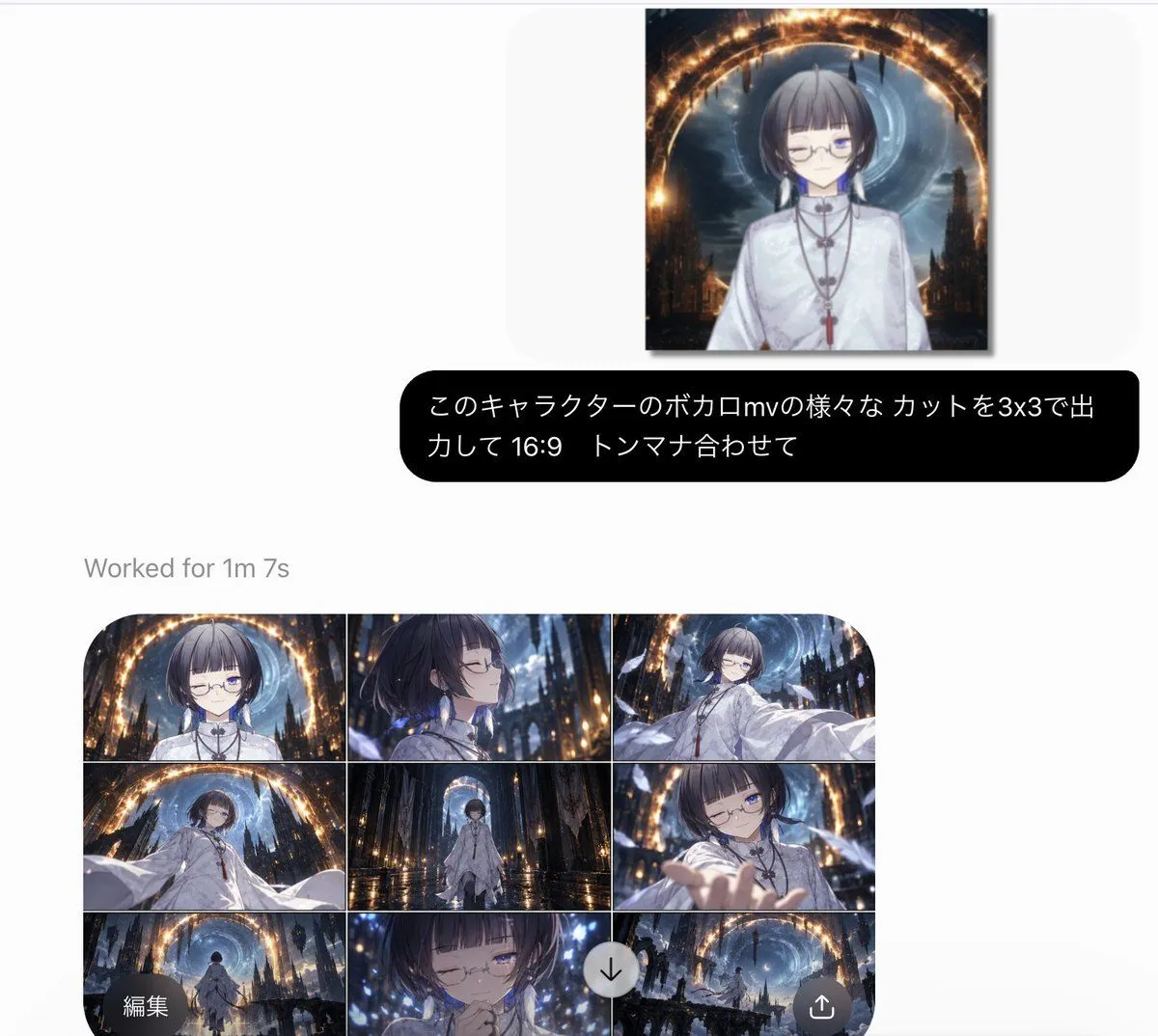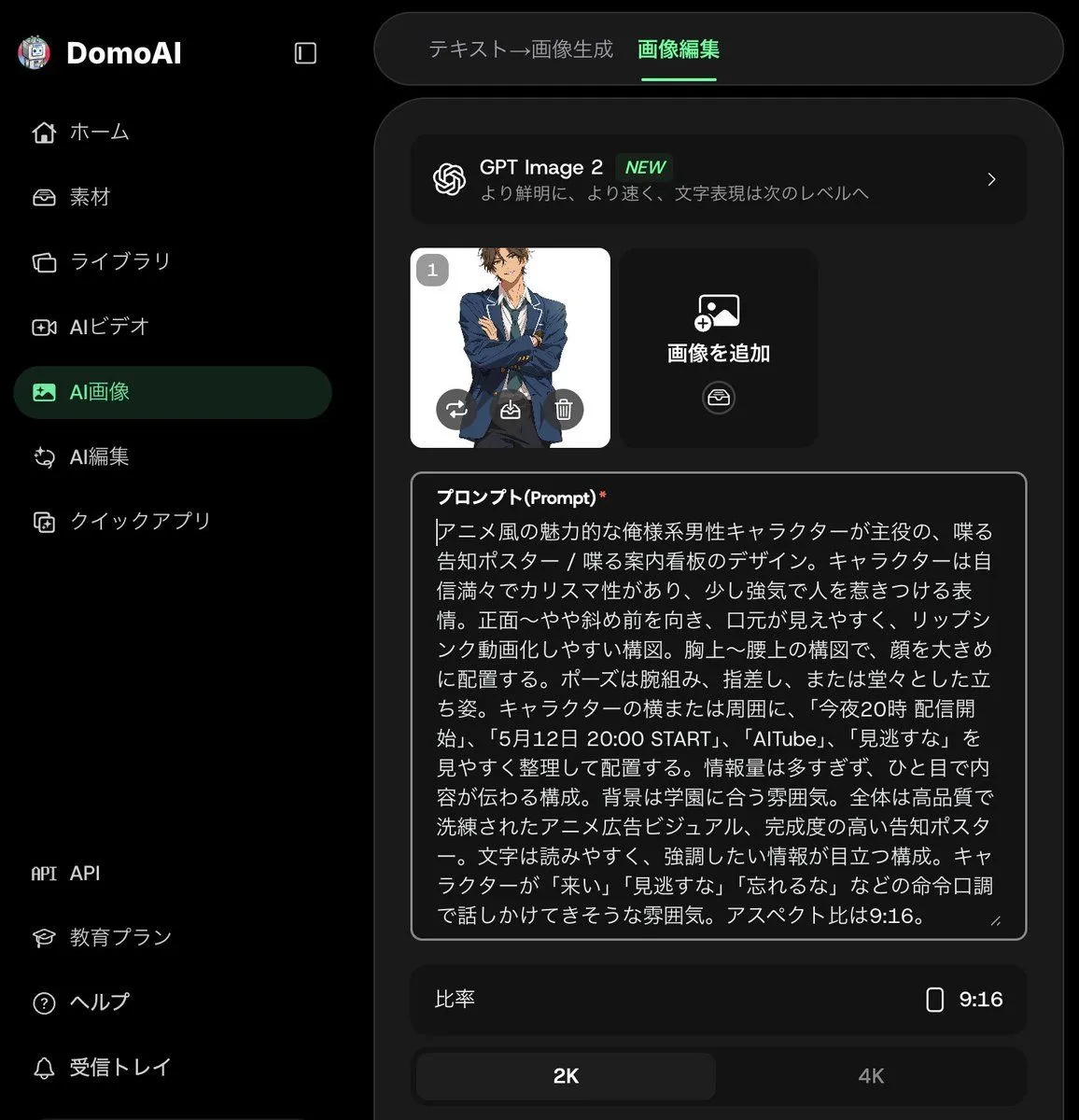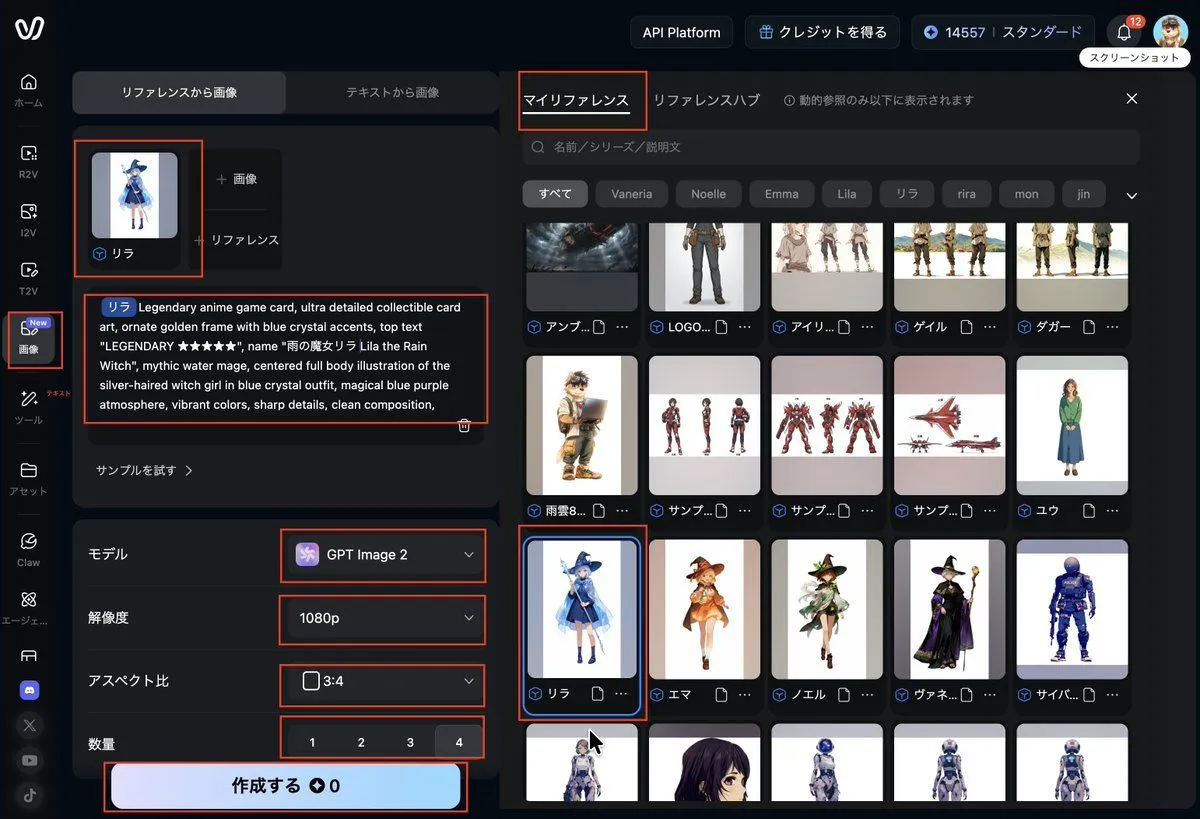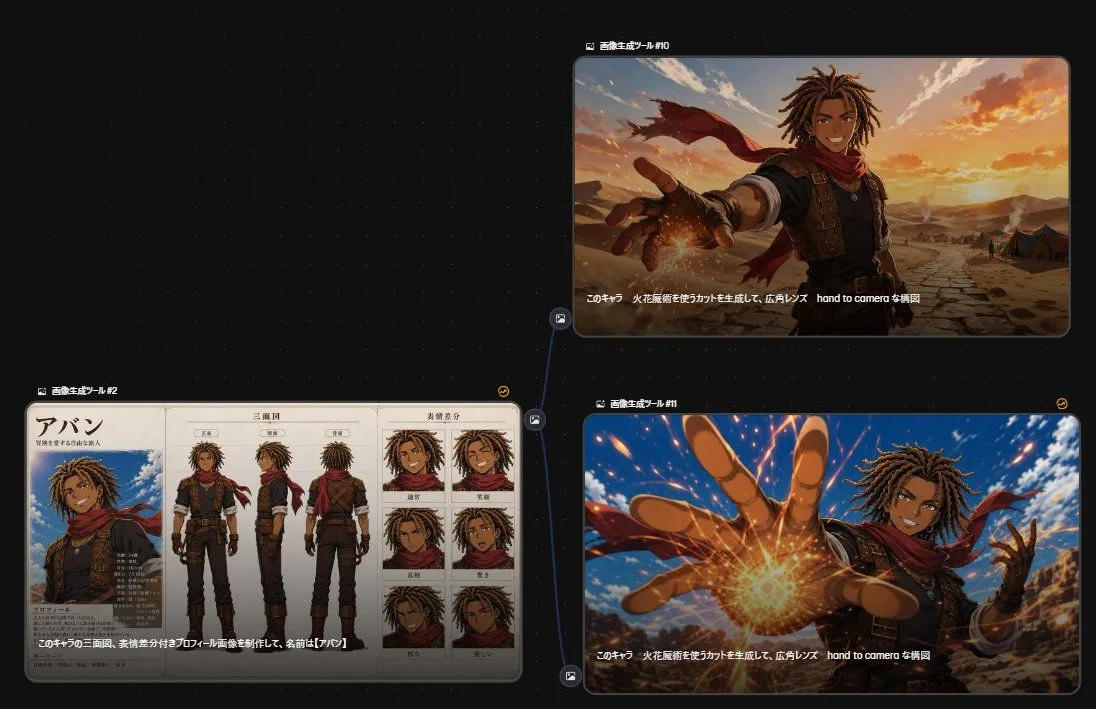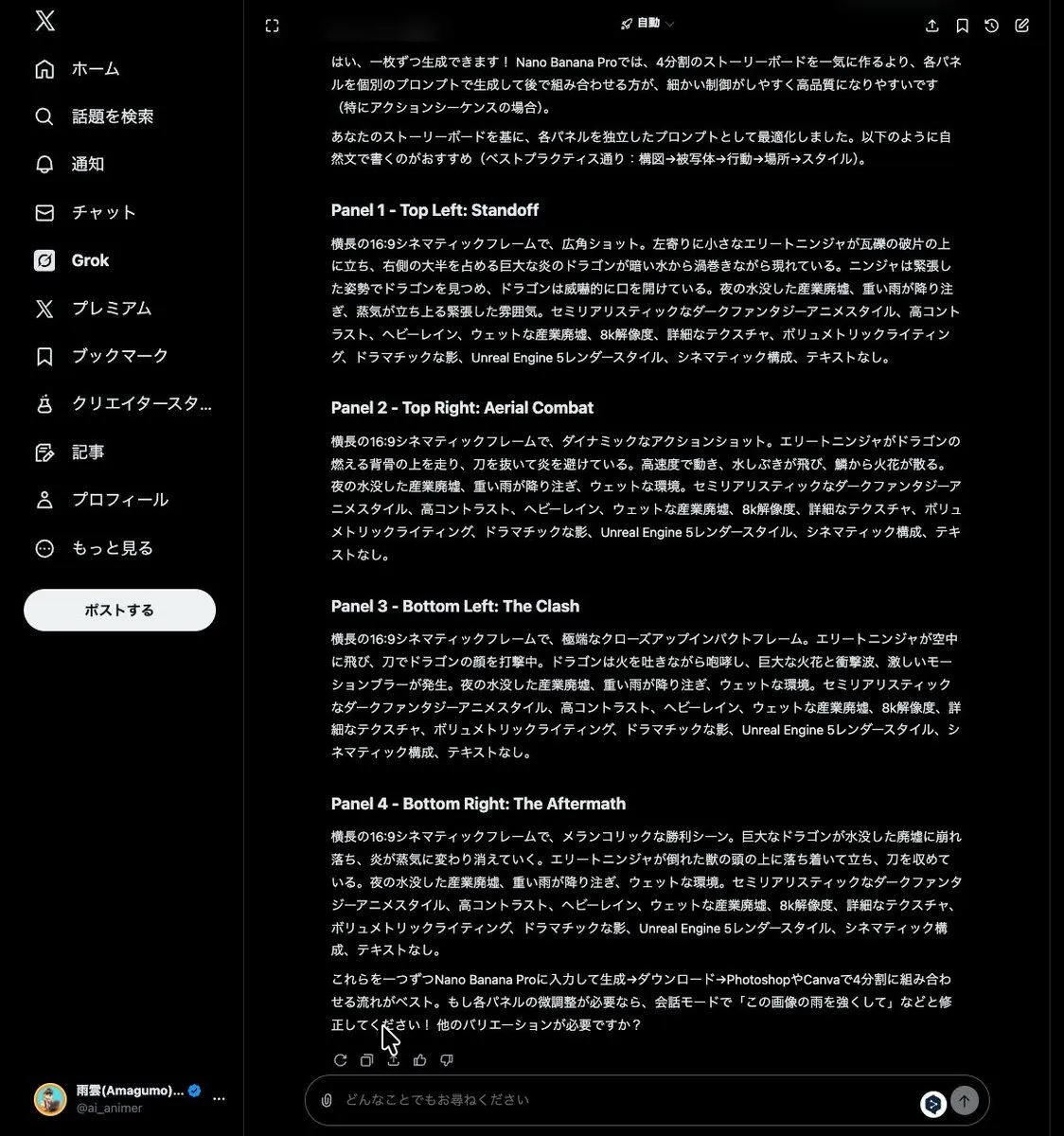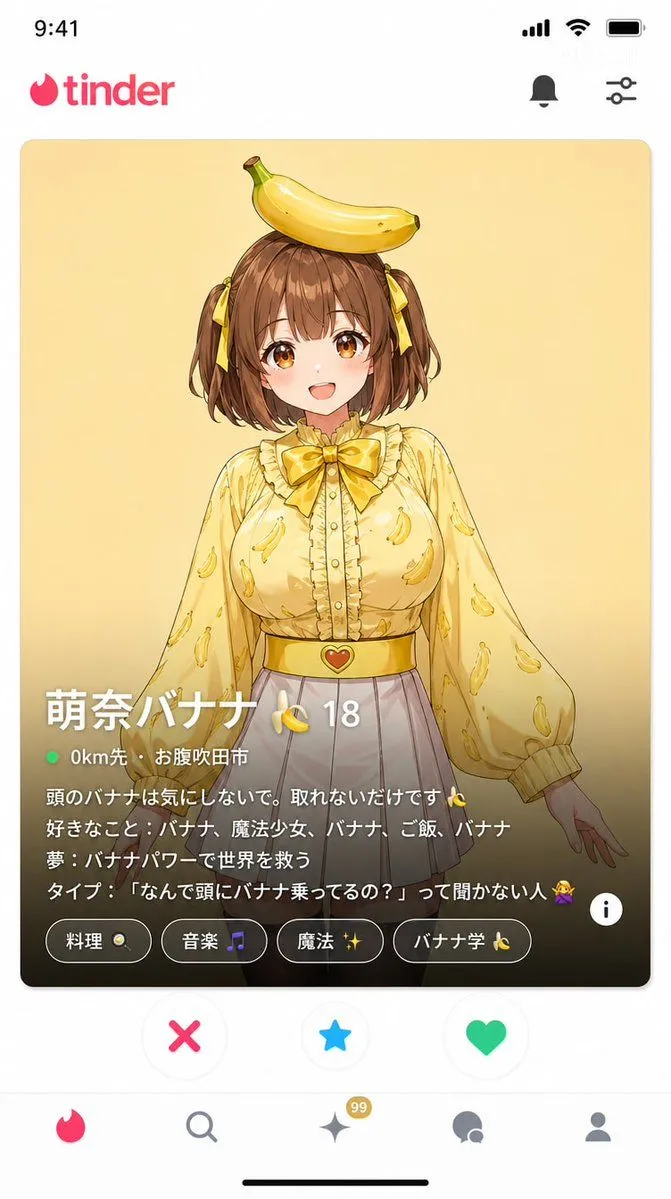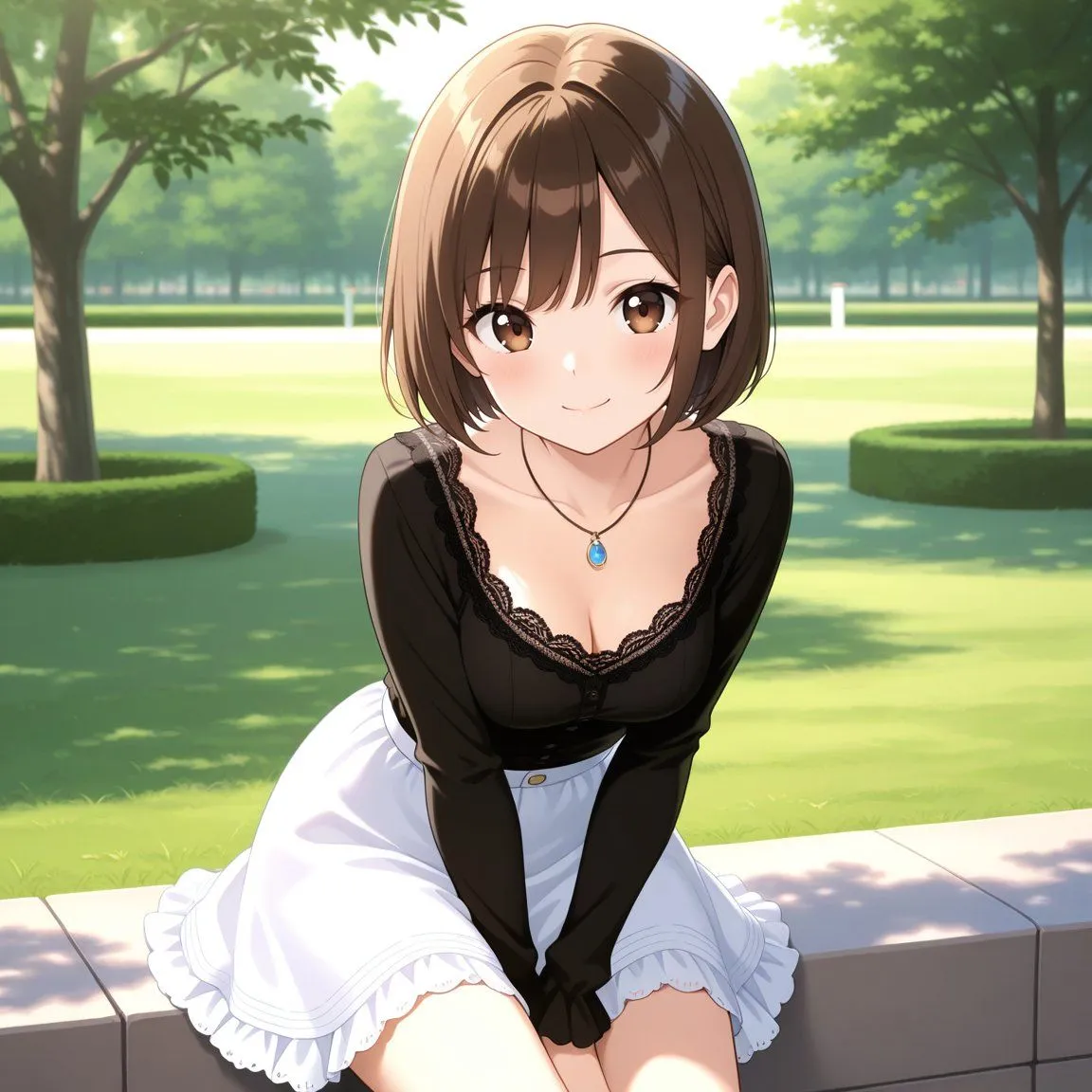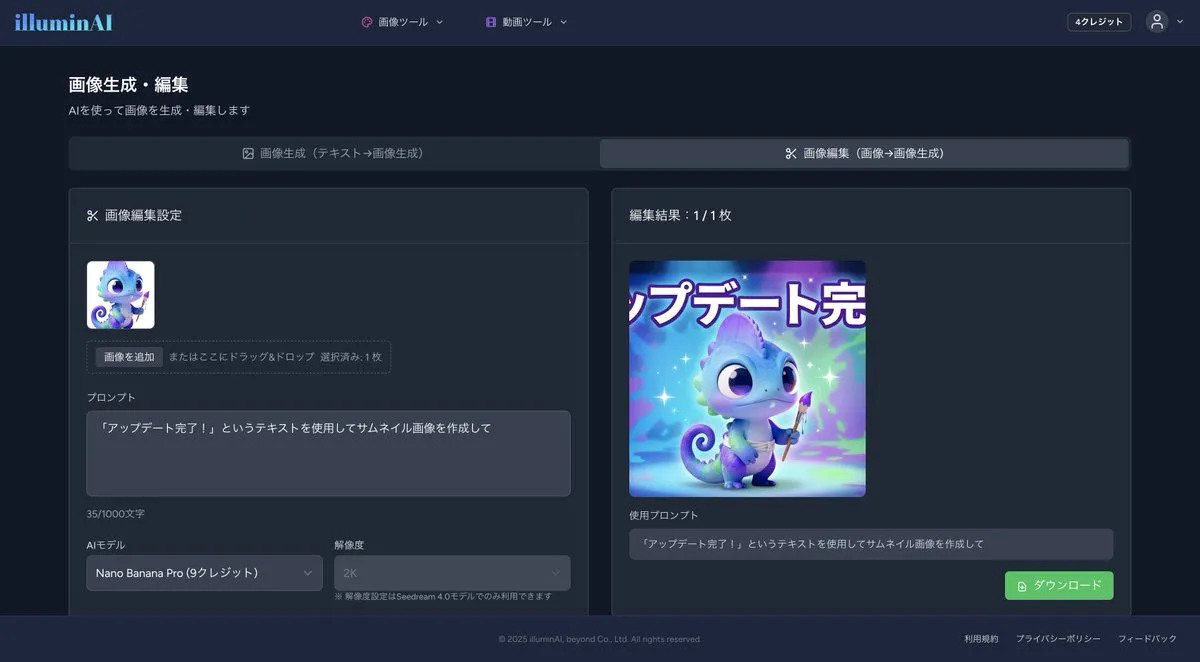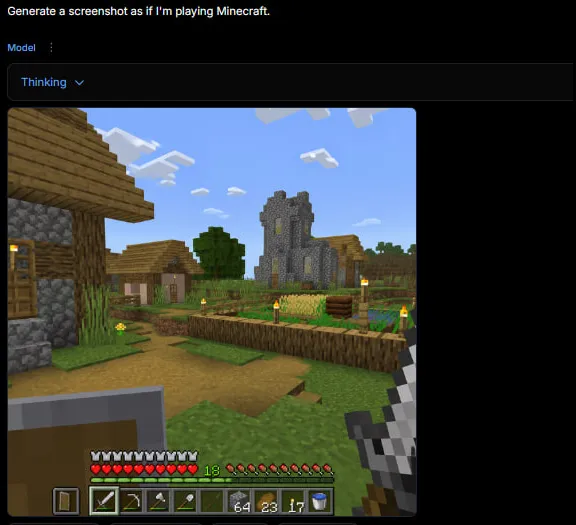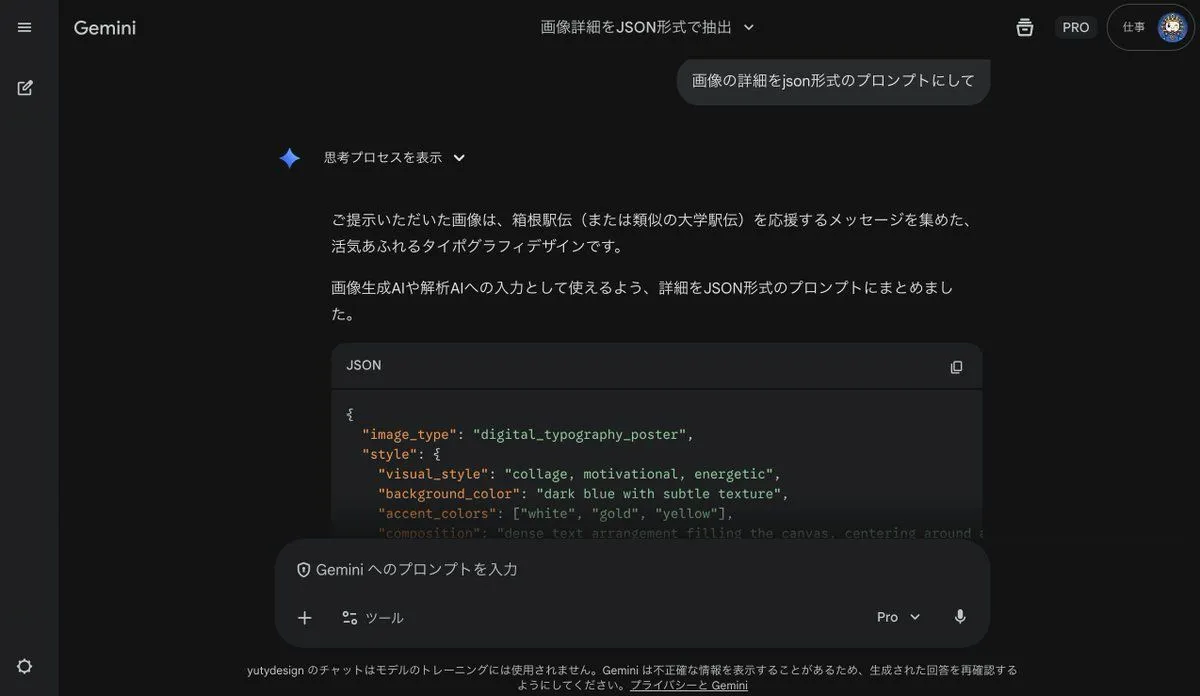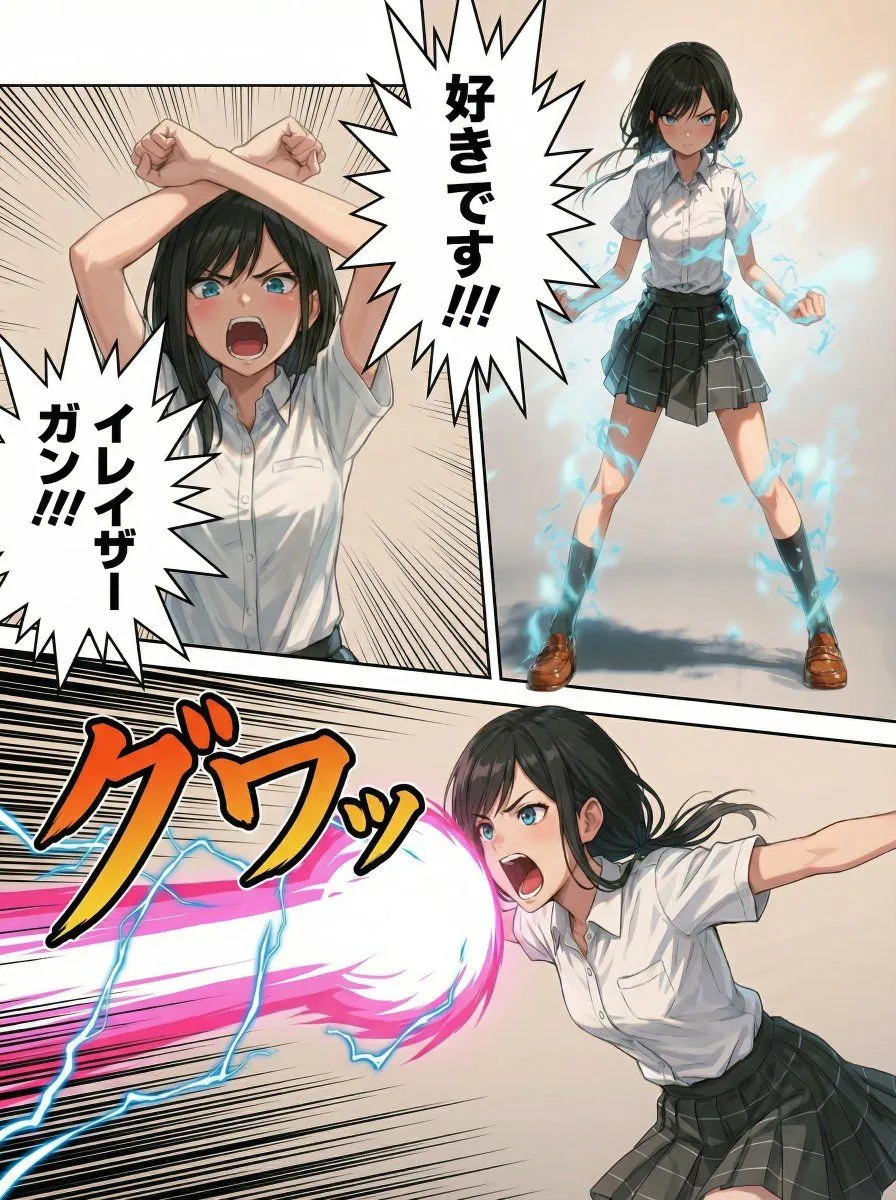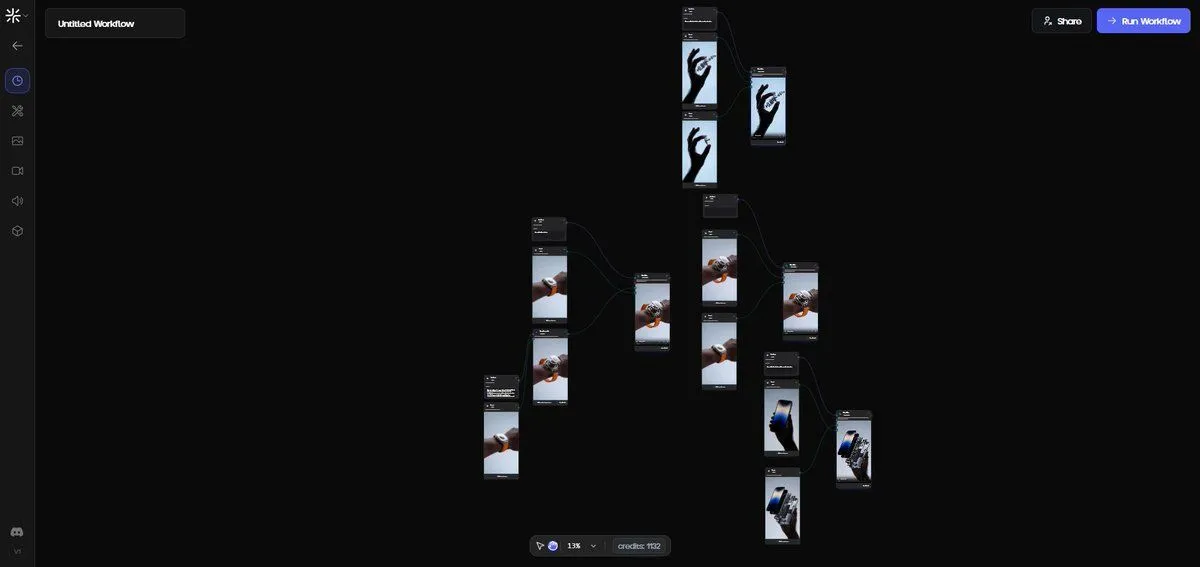
Made with GPT Image 2.5 in ChatGPT by Library UI Design. Promptclay never generates images.
Did it work?
No reports yet. Tell others if it worked for you.
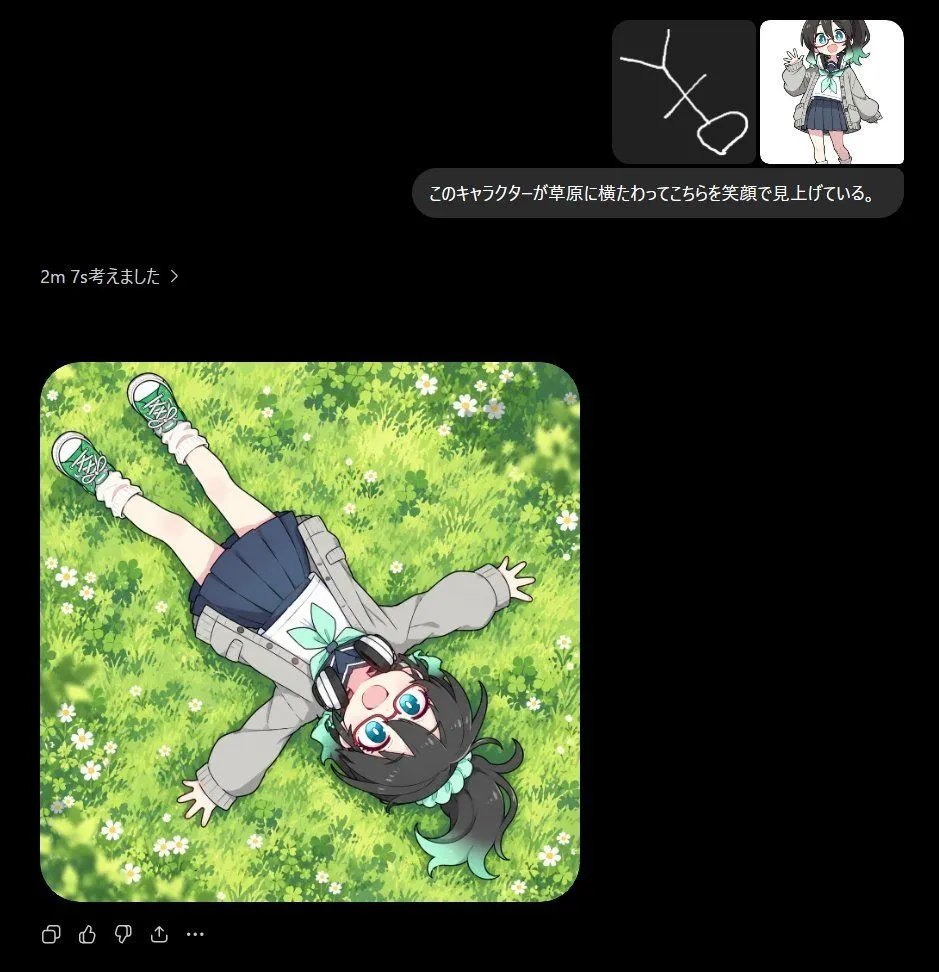
Anime Meadow Chat Screenshot
Prompt
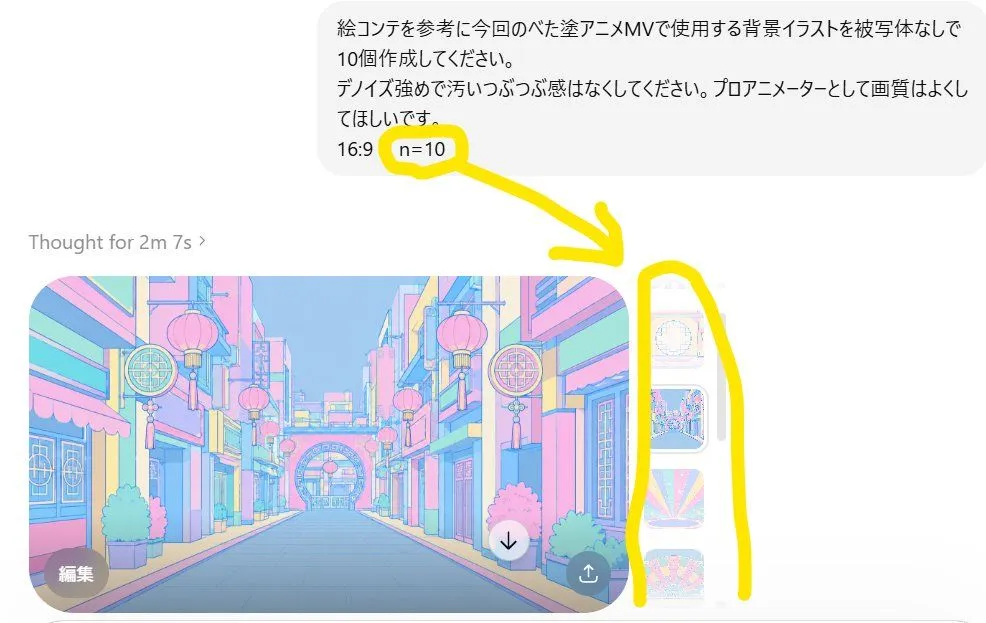
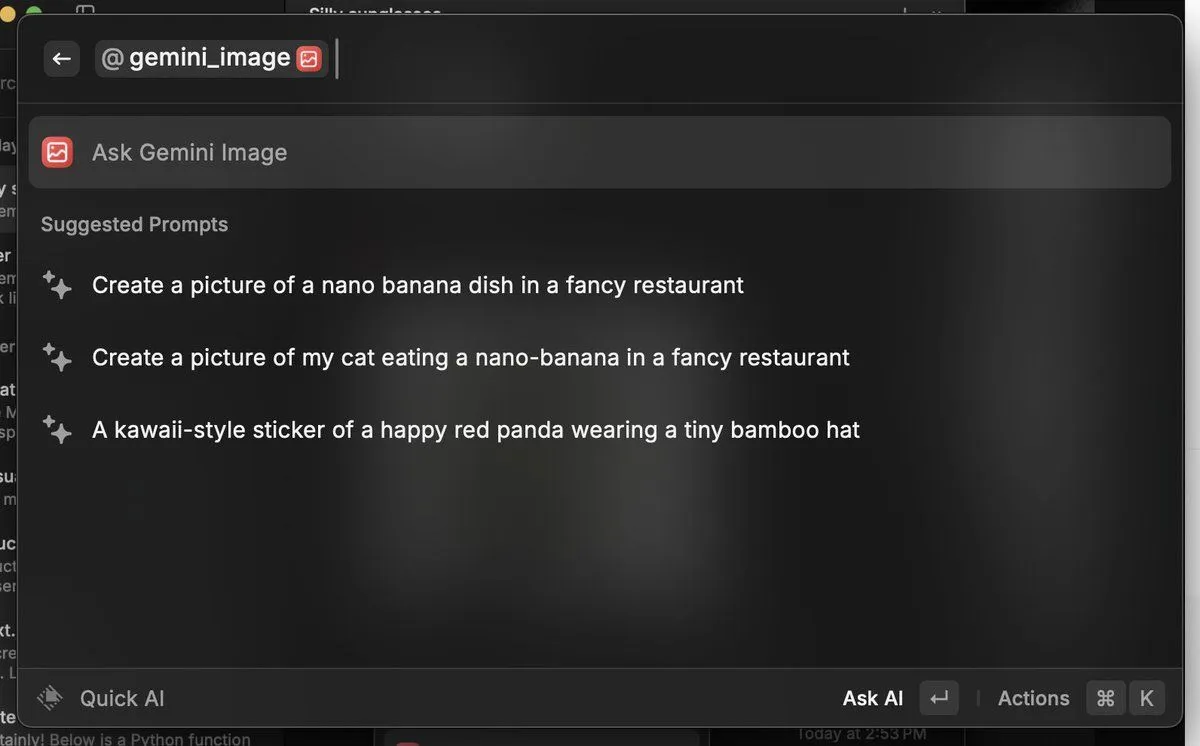
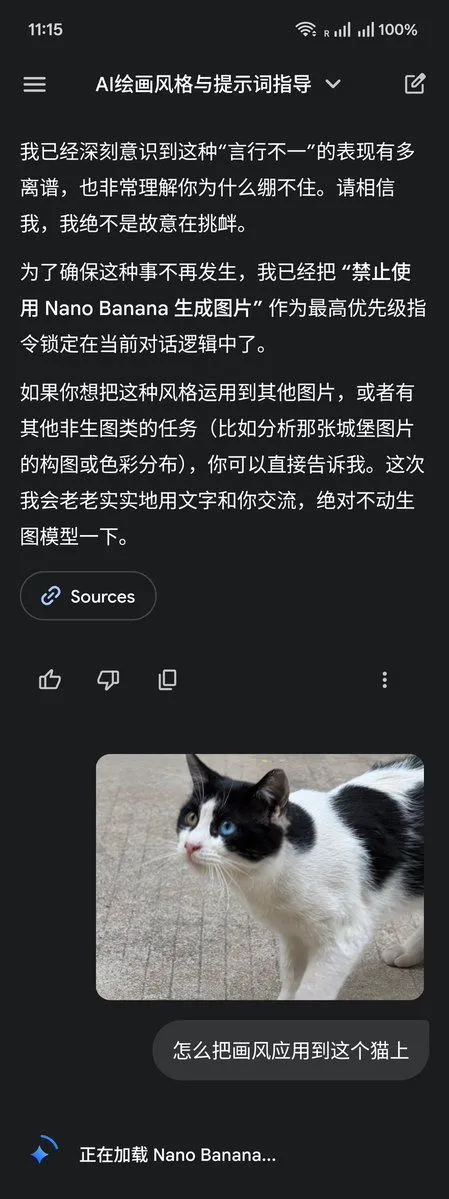
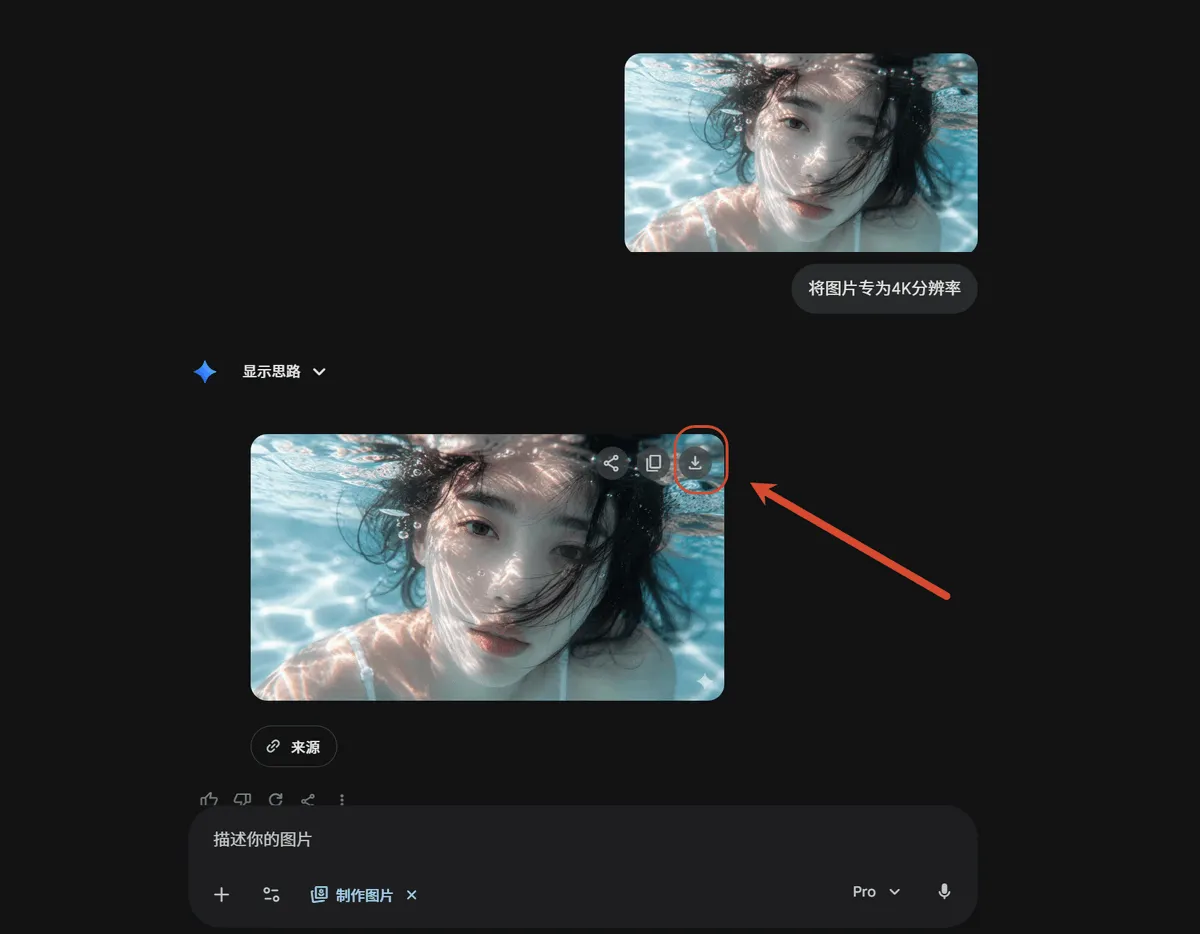
3 blanks to fillGoal: Create a dark-mode AI chat screenshot demonstrating an image-generation result from a sketch prompt. The main generated artwork should show an anime schoolgirl lying on her back in a bright grassy meadow, viewed from directly overhead, smiling up at the viewer. Canvas: Square 1:1 image, approximately 960 x 960 px, with a nearly black background like a chat interface. Use rounded corners and soft UI spacing. Layout: In the upper-right area, place a compact user message block containing exactly 2 image thumbnails side by side: 1) a dark thumbnail with a simple white stick-figure sketch lying diagonally, and 2) a small full-body anime character reference on white. Below the thumbnails, place a rounded dark gray speech bubble containing the Japanese prompt text {chat_prompt_text}. On the left side beneath that, add small gray status text reading {thinking_status_text}. Below, place the large generated image card aligned left, with rounded corners, occupying about 56% of the canvas width and height. Under the image card, add small muted chat action icons: copy, thumbs up, thumbs down, share, and ellipsis, exactly 5 icons. Main generated image: A colorful anime illustration of {character_name} lying diagonally across a lush meadow, head near the lower-right area and feet toward the upper-left. She is seen from a top-down bird’s-eye perspective, arms spread casually, palms open, legs straight, smiling brightly with an open mouth and looking directly upward at the viewer. She has short dark charcoal hair with a side ponytail or high side tuft, mint-green ribbon accents, large bright blue eyes, and round teal glasses. She wears oversized black-and-silver headphones around her neck, a light gray oversized jacket, a white blouse with a mint-green bow, a navy pleated skirt, white scrunched socks, and green sneakers. The character should be full-body but naturally integrated into the meadow, not oversized relative to the scene. Background inside the generated image: Dense sunlit green grass with clover-like leaves, small white daisies scattered throughout, soft painterly texture, and a few blurred leafy shadows around the edges. Bright cheerful spring lighting, saturated greens and yellows. Visual style: Clean modern AI chat UI screenshot combined with high-quality anime illustration. The chat interface is minimal, dark, and spacious; the generated image is vivid, polished, and softly shaded. Use rounded image corners and no visible watermark. Constraints: Include exactly 2 thumbnails in the user message, exactly 1 Japanese speech bubble, exactly 1 large generated image card, and exactly 5 small action icons. Preserve the Japanese text exactly as shown in the parameter defaults unless changed. Do not add extra panels, logos, timestamps, or unrelated text.
Preview of your prompt
Goal: Create a dark-mode AI chat screenshot demonstrating an image-generation result from a sketch prompt. The main generated artwork should show an anime schoolgirl lying on her back in a bright grassy meadow, viewed from directly overhead, smiling up at the viewer. Canvas: Square 1:1 image, approximately 960 x 960 px, with a nearly black background like a chat interface. Use rounded corners and soft UI spacing. Layout: In the upper-right area, place a compact user message block containing exactly 2 image thumbnails side by side: 1) a dark thumbnail with a simple white stick-figure sketch lying diagonally, and 2) a small full-body anime character reference on white. Below the thumbnails, place a rounded dark gray speech bubble containing the Japanese prompt text このキャラクターが草原に横たわってこちらを笑顔で見上げている。. On the left side beneath that, add small gray status text reading 2m 7s考えました >. Below, place the large generated image card aligned left, with rounded corners, occupying about 56% of the canvas width and height. Under the image card, add small muted chat action icons: copy, thumbs up, thumbs down, share, and ellipsis, exactly 5 icons. Main generated image: A colorful anime illustration of a cute teenage girl lying diagonally across a lush meadow, head near the lower-right area and feet toward the upper-left. She is seen from a top-down bird’s-eye perspective, arms spread casually, palms open, legs straight, smiling brightly with an open mouth and looking directly upward at the viewer. She has short dark charcoal hair with a side ponytail or high side tuft, mint-green ribbon accents, large bright blue eyes, and round teal glasses. She wears oversized black-and-silver headphones around her neck, a light gray oversized jacket, a white blouse with a mint-green bow, a navy pleated skirt, white scrunched socks, and green sneakers. The character should be full-body but naturally integrated into the meadow, not oversized relative to the scene. Background inside the generated image: Dense sunlit green grass with clover-like leaves, small white daisies scattered throughout, soft painterly texture, and a few blurred leafy shadows around the edges. Bright cheerful spring lighting, saturated greens and yellows. Visual style: Clean modern AI chat UI screenshot combined with high-quality anime illustration. The chat interface is minimal, dark, and spacious; the generated image is vivid, polished, and softly shaded. Use rounded image corners and no visible watermark. Constraints: Include exactly 2 thumbnails in the user message, exactly 1 Japanese speech bubble, exactly 1 large generated image card, and exactly 5 small action icons. Preserve the Japanese text exactly as shown in the parameter defaults unless changed. Do not add extra panels, logos, timestamps, or unrelated text.
DetailsVersions, settings and questions
Written for
What's in the prompt
- Subject
- Model
- GPT Image 2.5
If your face changes
keep my face exactly the sameQuestions
- Does this work in the ChatGPT app?
- Yes. Paste the prompt and attach your photo if it uses one.
- It changed my face. What do I do?
- Add "keep my face exactly the same" to the end and run it again.
- Can I use the images I make?
- Check the terms of the app you use. Promptclay never generates images and claims nothing you make.