
Tell us anything

An idea, a bug, something you love. We read every note.

⌘↵ to send. The page you're on comes along.

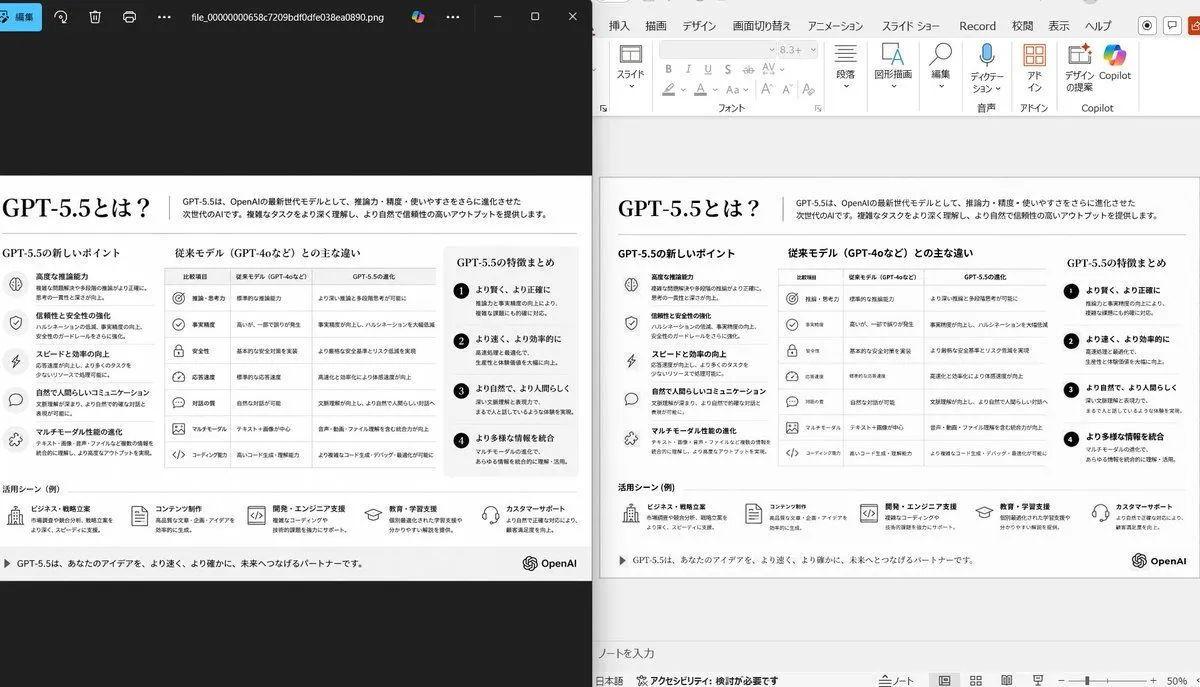
Side-by-Side PPT Reconstruction Demo

Made with GPT Image 2 in ChatGPT, collected by Library Explainers. Promptclay never generates images.

Did it work?

No reports yet. Tell others if it worked for you.

No comments yet. Be the first.

    Side-by-Side PPT Reconstruction Demo

    GPT Image 216:9AI-generated

    Prompt

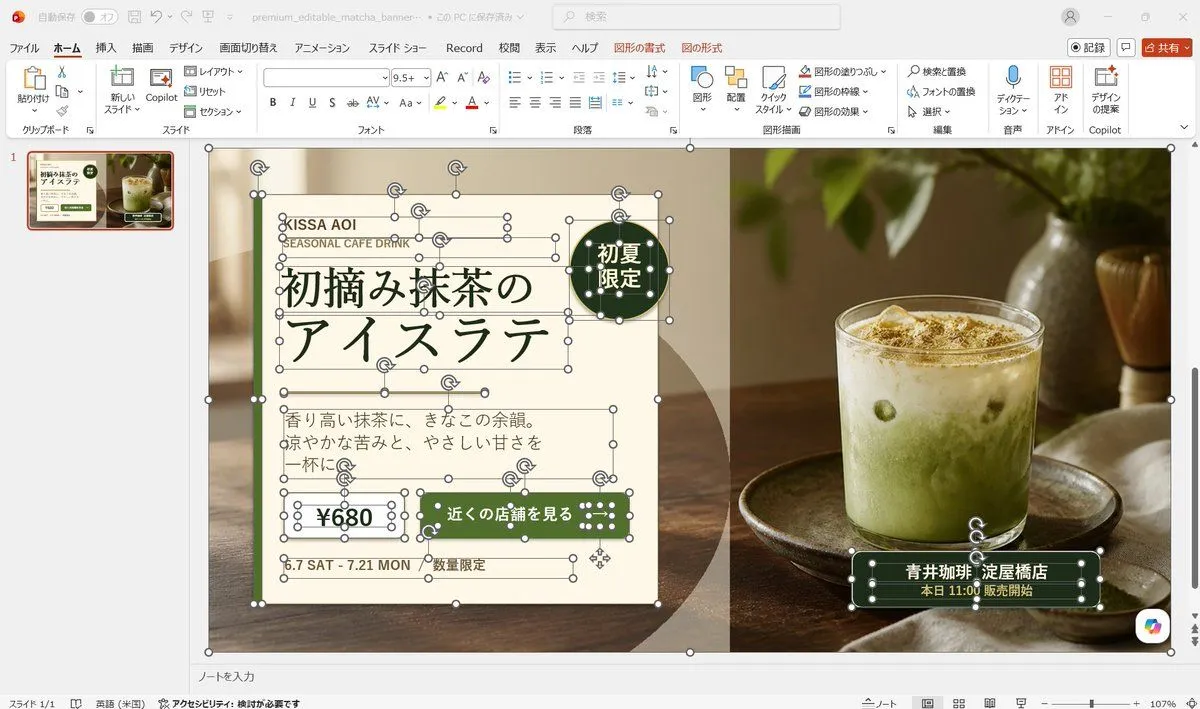
    Using the provided reference image of the PowerPoint slide screenshot, recreate it as a clean, polished slide conversion result inside a side-by-side desktop comparison. Keep the same Japanese slide topic and overall layout, but remove the dense selection handles, edit boxes, and malformed vector artifacts from the reference so the slide appears properly reconstructed. Show 2 panels: on the left, a dark image viewer window displaying the exported slide image; on the right, the same slide opened in PowerPoint editing view. Preserve the original monochrome infographic style and Japanese text structure, but make the typography legible and the icons, dividers, and columns cleanly aligned. Keep the slide as a single-page infographic with 5 main content areas: 1 top title/header row, 3 mid-page comparison columns, 1 bottom use-case row containing 5 icon-labeled items. Include a footer line and the OpenAI logo at bottom right. Emphasize that this is a faithful PPT reconstruction from the uploaded image, with a realistic Windows desktop app screenshot look.

    Works in
    ChatGPT, Gemini
    Status
    Free to copy
    0
    DetailsVersions, settings and questions

    Written for

    What's in the prompt

    Subject
    Model
    GPT Image 2

    If your face changes

    keep my face exactly the same

    Questions

    Does this work in the ChatGPT app?
    Yes. Paste the prompt and attach your photo if it uses one.
    It changed my face. What do I do?
    Add "keep my face exactly the same" to the end and run it again.
    Can I use the images I make?
    Check the terms of the app you use. Promptclay never generates images and claims nothing you make.
    Similar prompts

    See more
    • Japanese PowerPoint Claude Opus 5 Screenshot
    • Editable Matcha Banner in PowerPoint
    • Multi-Slide Document Generation with Nano Banana and NotebookLM
    • Image Adjustment Prompt for Nano Banana
    • Infographic Generation from Images and Text using Nano Banana Pro
    • Structural Image Inpainting Prompt
    • Storyboard Grid Generator
    • Bad vs Good Slide Design Infographic
    • Text-Heavy Presentation Slide Generation
    • AI Use Comparison Infographic
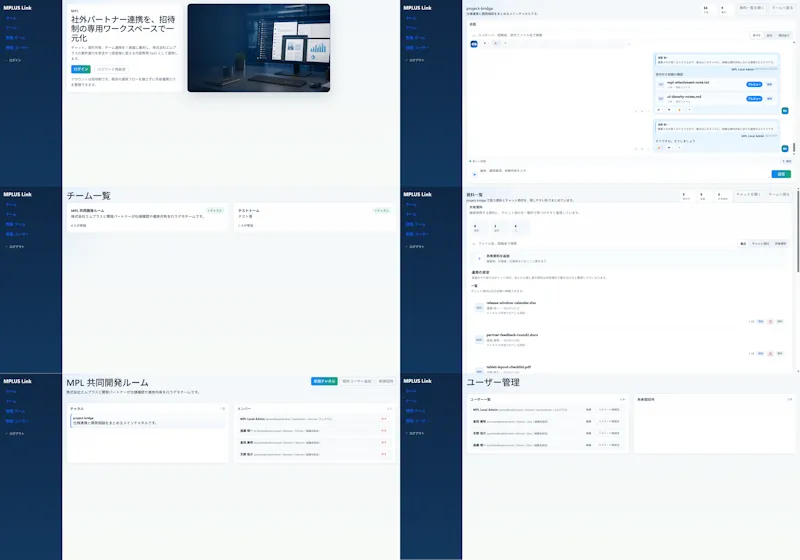
    • Modern MPLUS Link UI Redesign
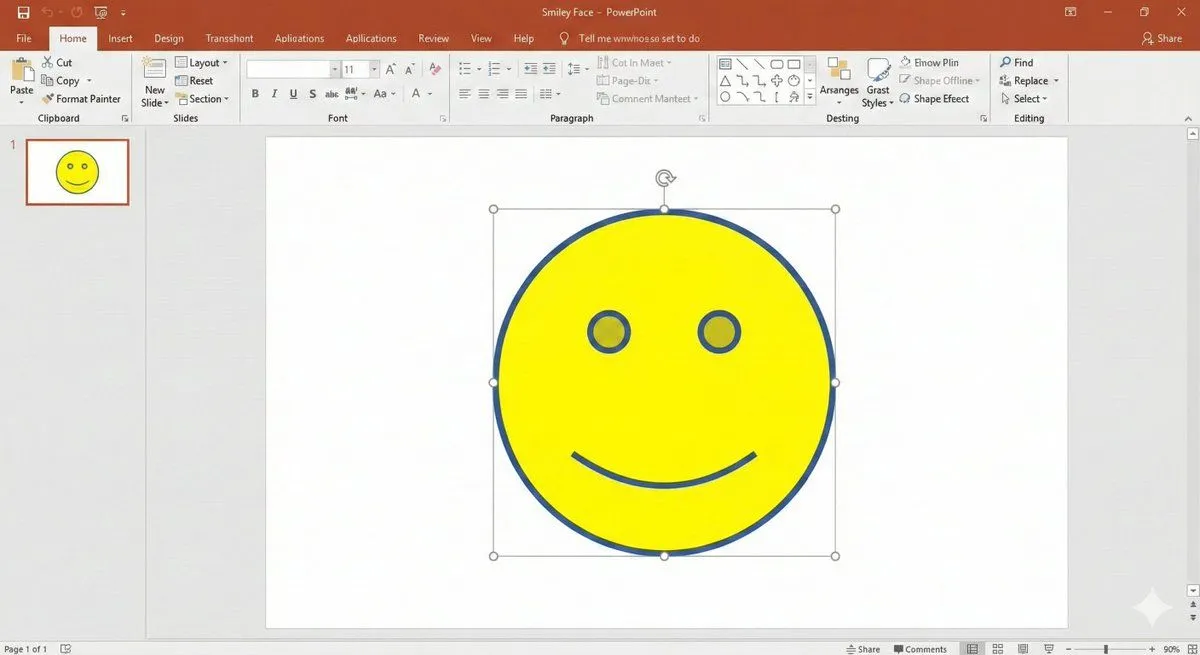
    • Nano Banana Pro PowerPoint Smile Mark Prompt
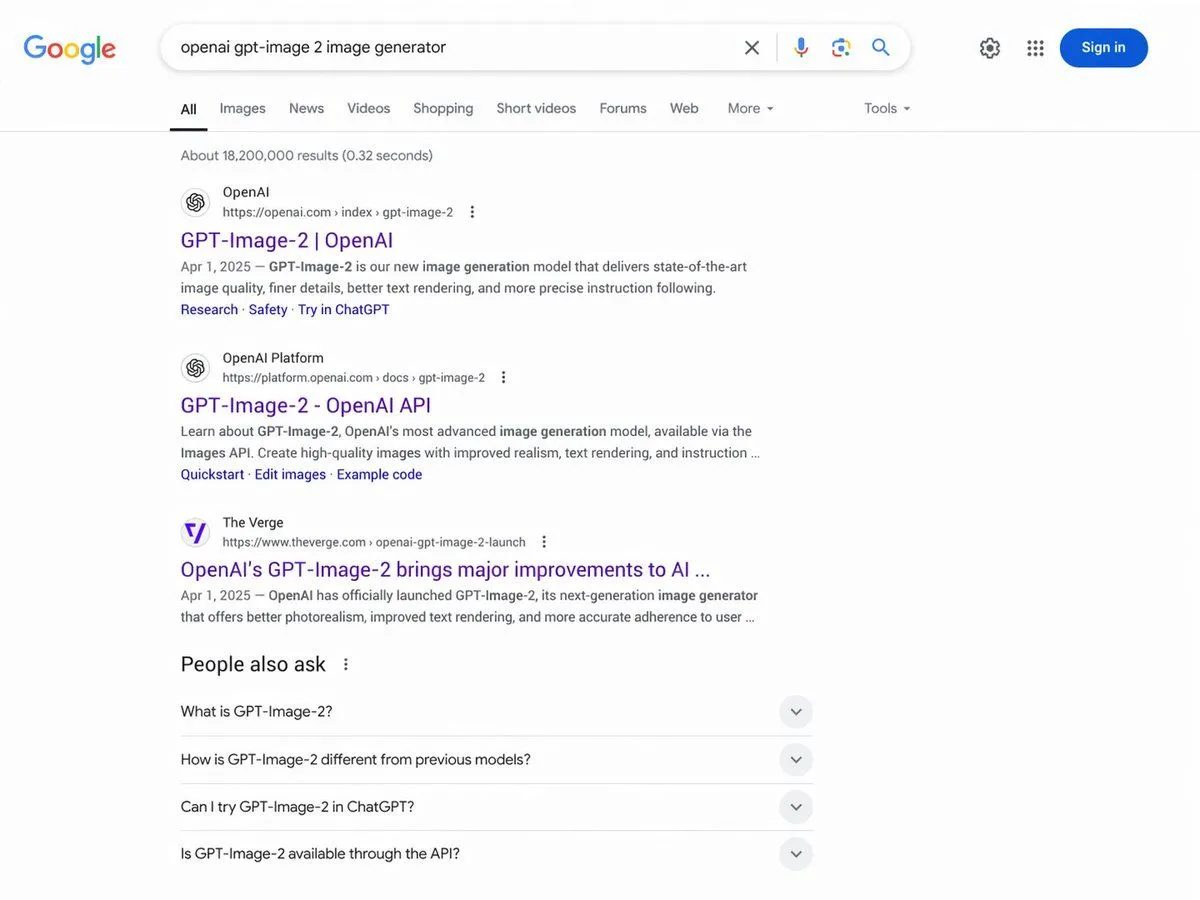
    • Google Search Results Mockup
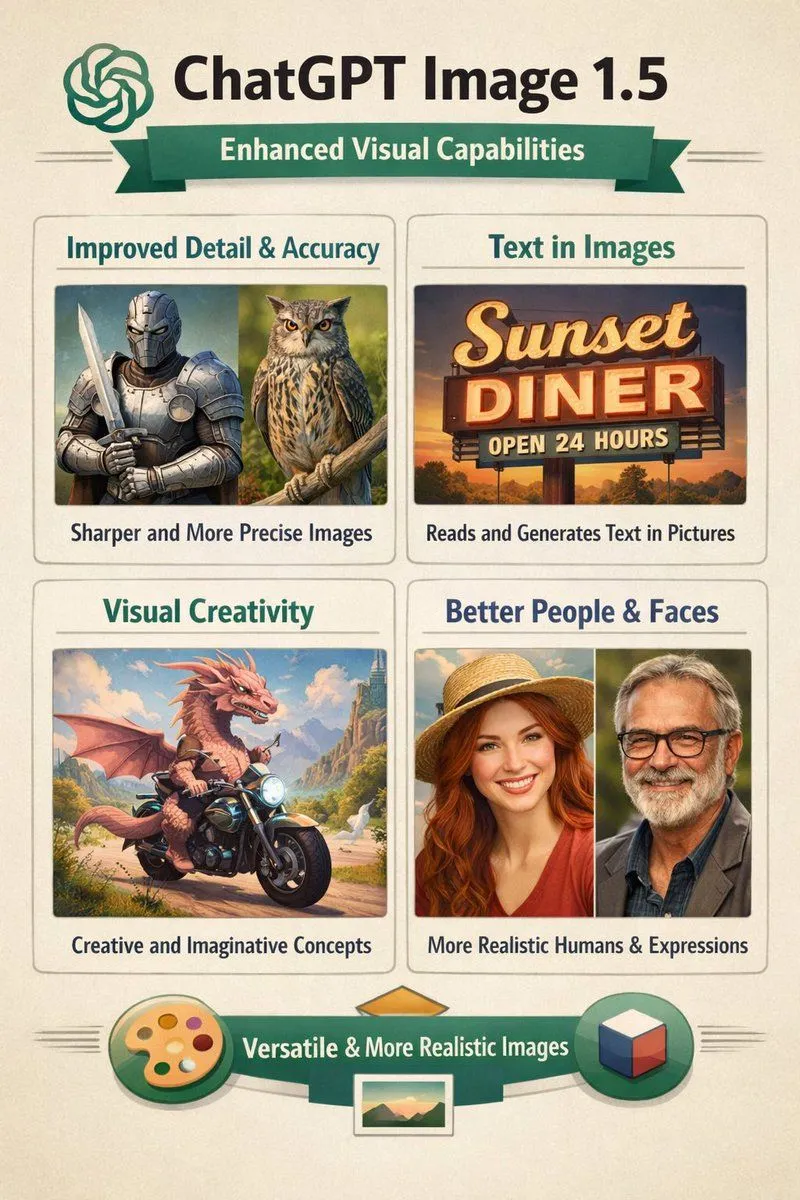
    • Infographic on ChatGPT Image 1.5
    • Software UI Desktop Screenshot
    • Grok Instruction for Generating Nano Banana Pro Image Prompts
    • Selective Material Image Editing
    • News Article Diagram Generation
    • Clean Professional Social Media Avatar
    • 7-Shot Cinematic Campaign Sequence Prompt
    • AI Artifact Removal Instruction
    • Simple Monitor Shot Prompt
    • Side-by-Side AI Photo Recreation Comparison
    • Generating Hollywood Detective Scene Images with Character Reference

    Show more

    Run it on your phone

    1. Prompt copiedRead it

      Using the provided reference image of the PowerPoint slide screenshot, recreate it as a clean, polished slide conversion result inside a side-by-side desktop comparison. Keep the same Japanese slide topic and overall layout, but remove the dense selection handles, edit boxes, and malformed vector artifacts from the reference so the slide appears properly reconstructed. Show 2 panels: on the left, a dark image viewer window displaying the exported slide image; on the right, the same slide opened in PowerPoint editing view. Preserve the original monochrome infographic style and Japanese text structure, but make the typography legible and the icons, dividers, and columns cleanly aligned. Keep the slide as a single-page infographic with 5 main content areas: 1 top title/header row, 3 mid-page comparison columns, 1 bottom use-case row containing 5 icon-labeled items. Include a footer line and the OpenAI logo at bottom right. Emphasize that this is a faithful PPT reconstruction from the uploaded image, with a realistic Windows desktop app screenshot look.

    2. Open your app

    3. Paste and run

      Press and hold the message box, then tap Paste. Add your photo first if the prompt uses one. You may need to sign in.

    Side-by-Side PPT Reconstruction Demo