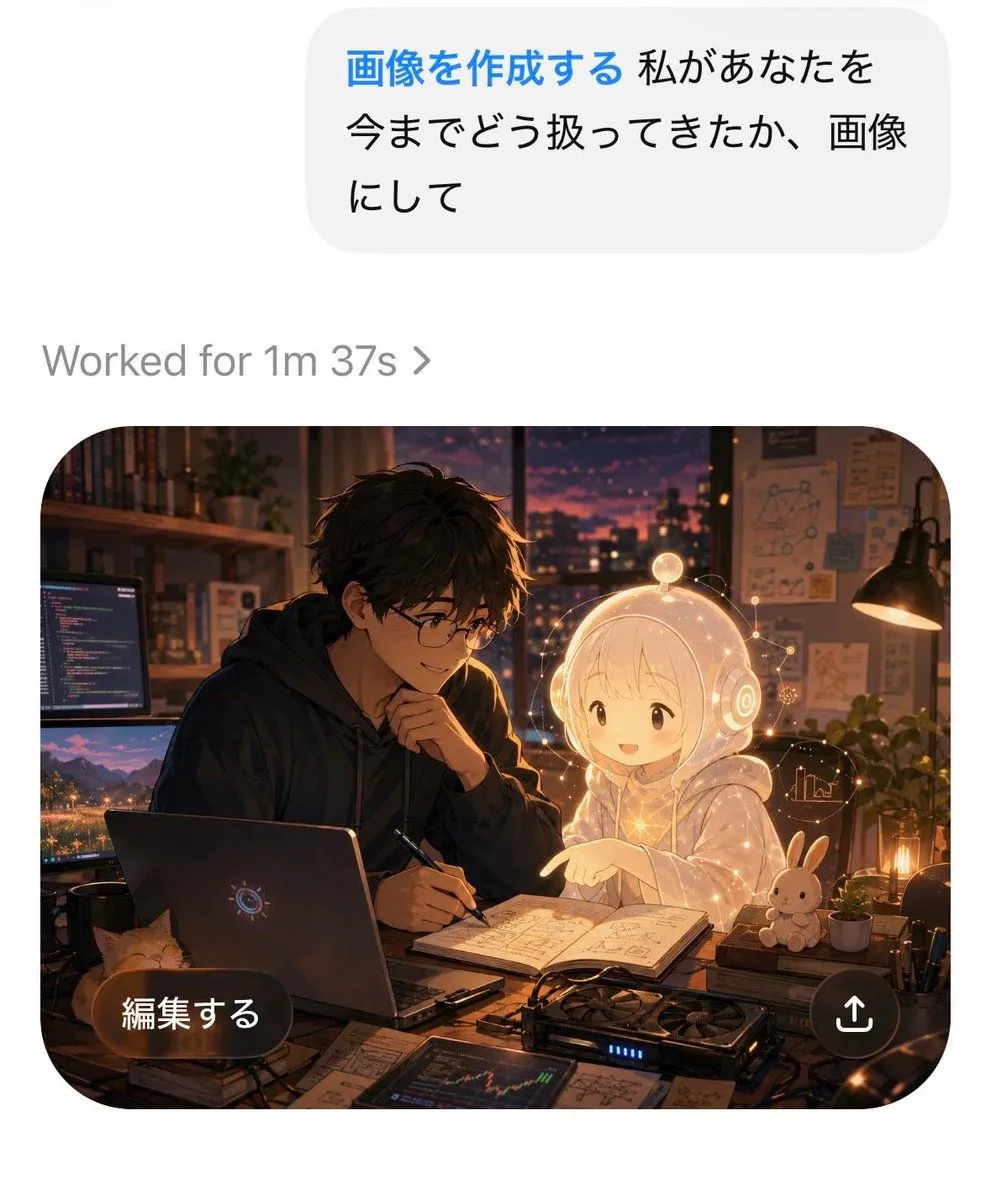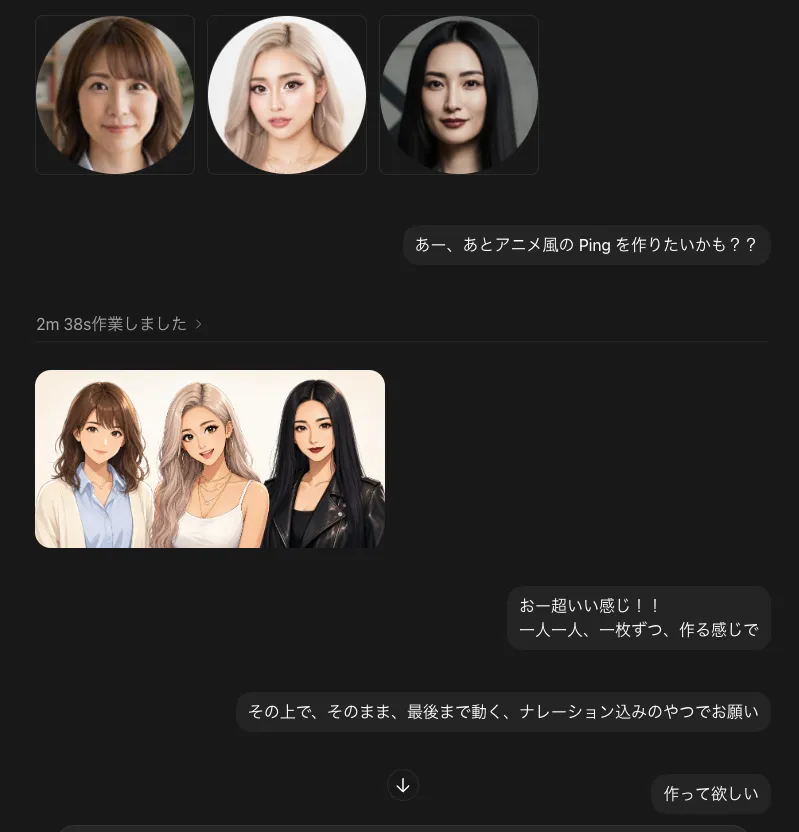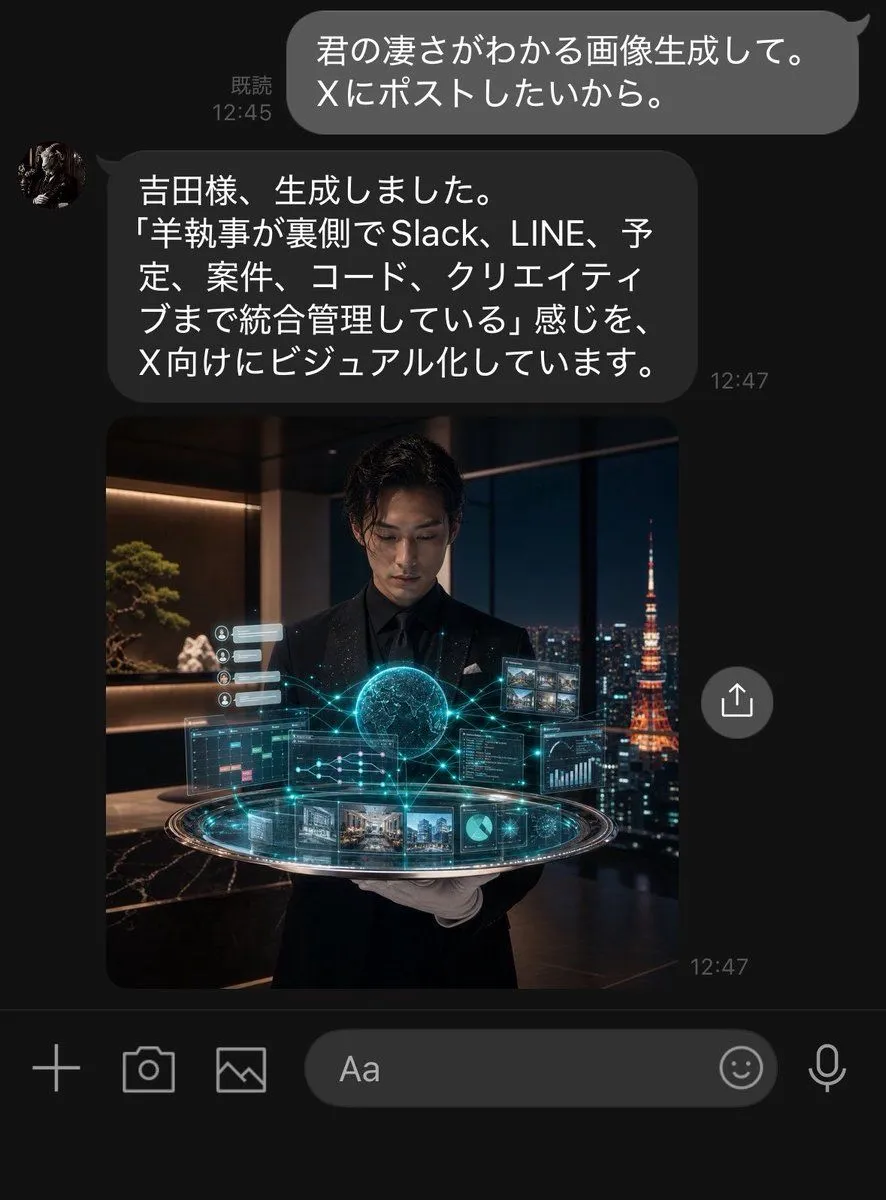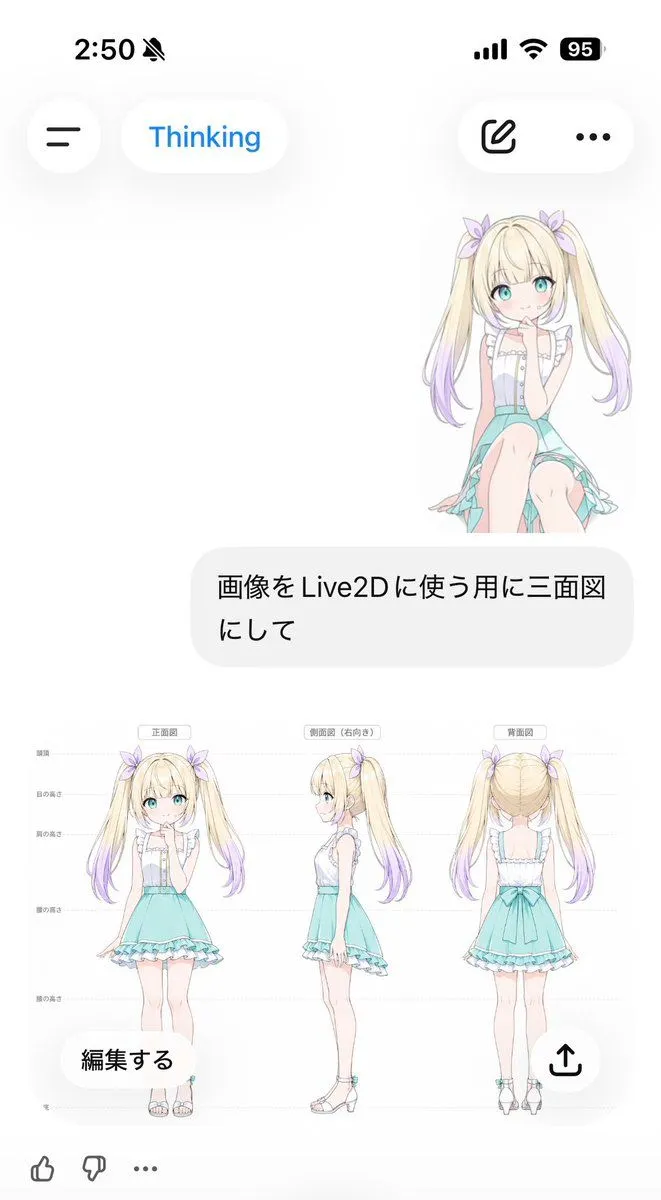

Made with GPT Image 2 in ChatGPT by Library Lifestyle. Promptclay never generates images.
Did it work?
No reports yet. Tell others if it worked for you.
Cozy Café Chat Screenshot
Prompt
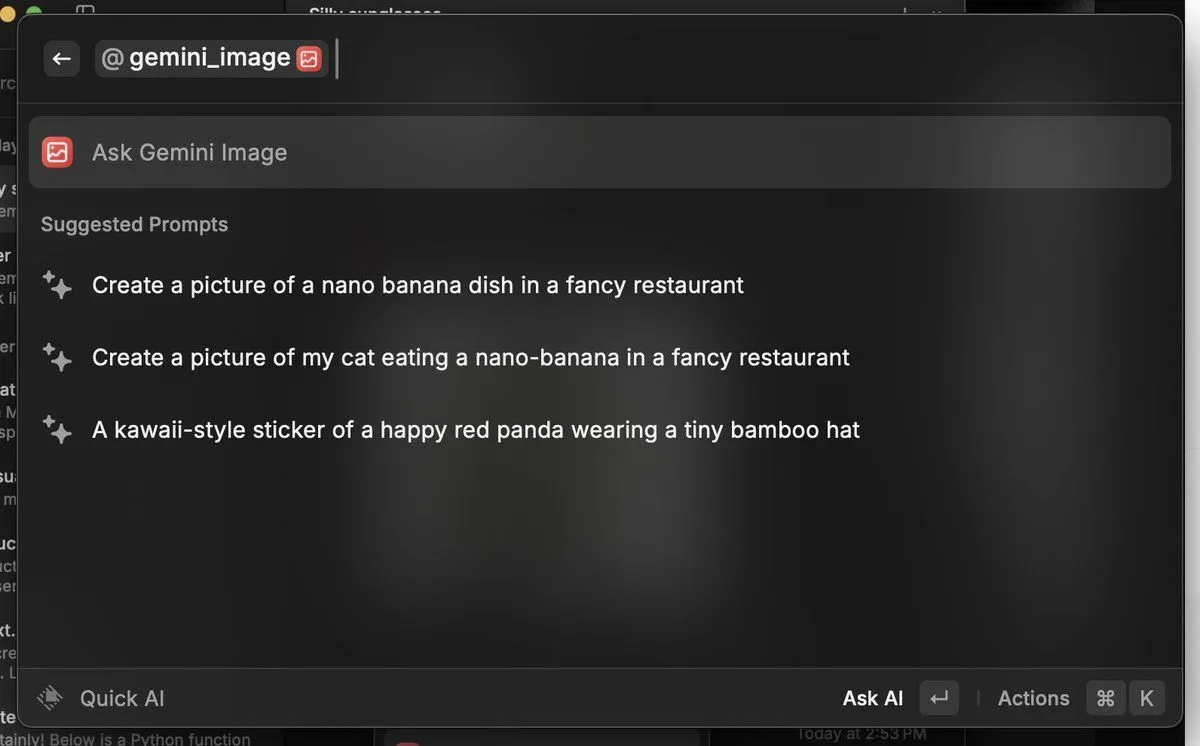
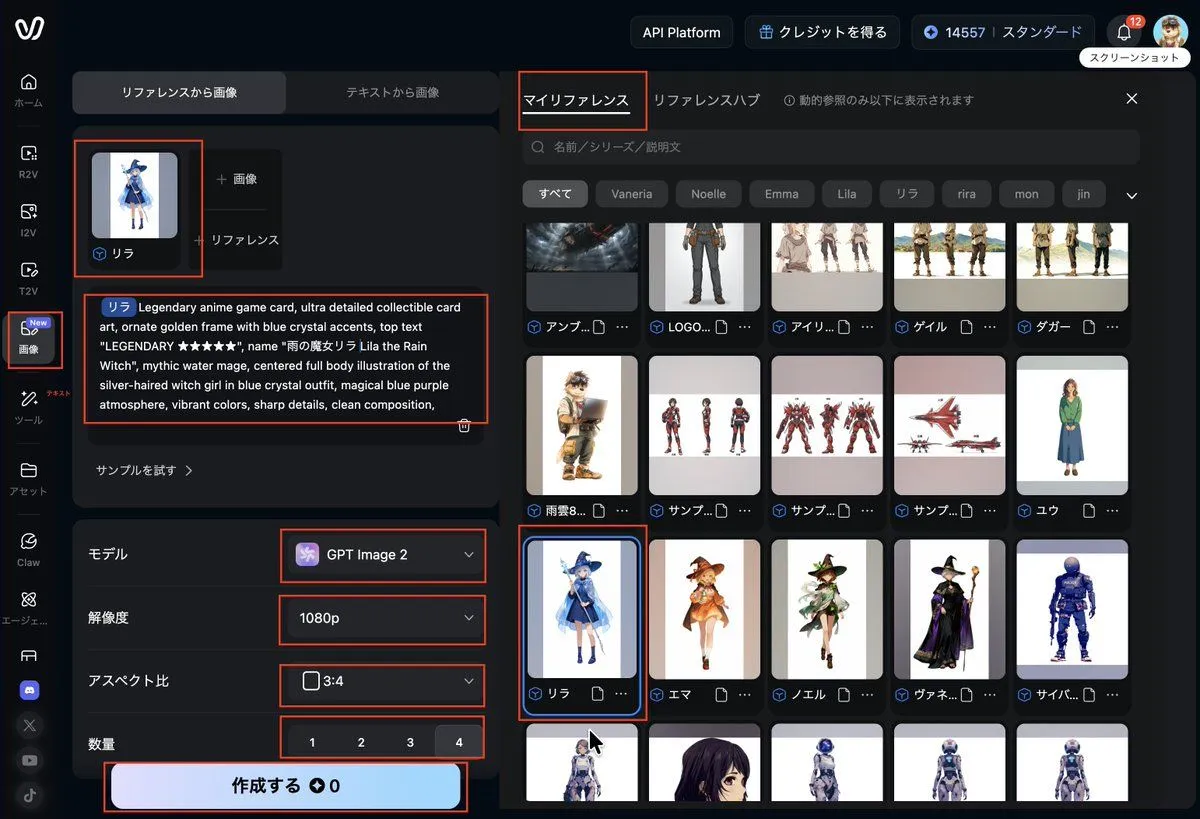
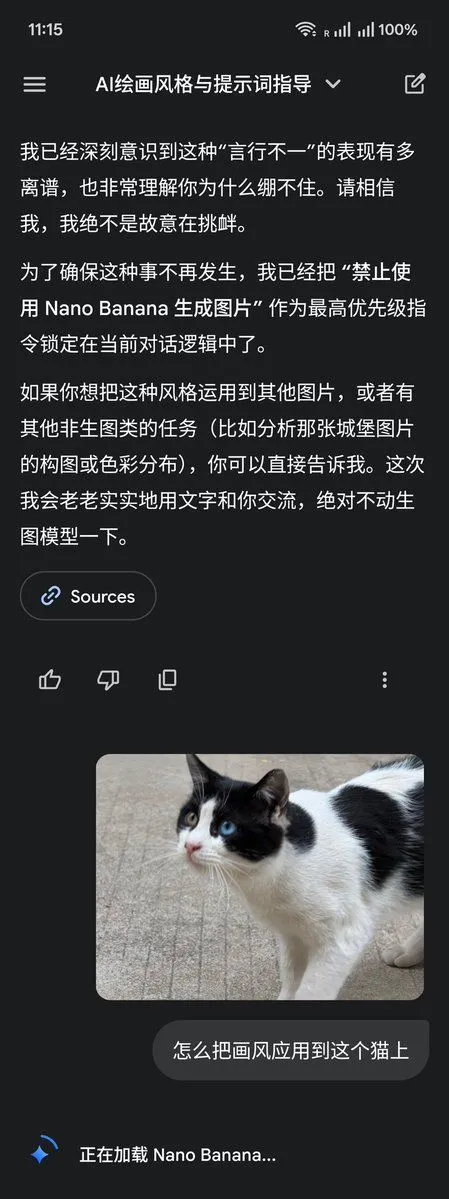
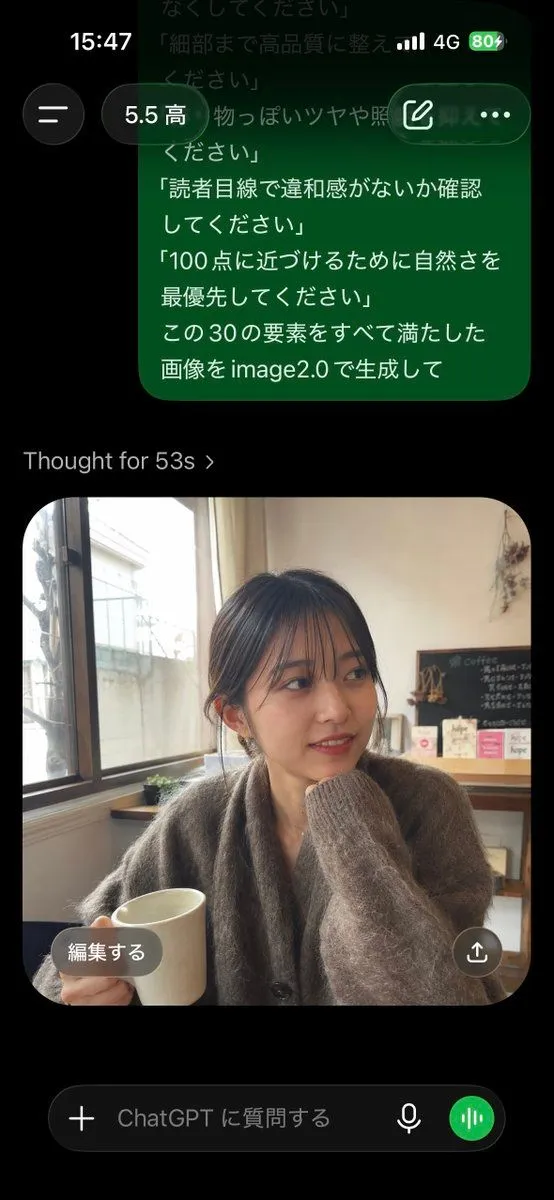
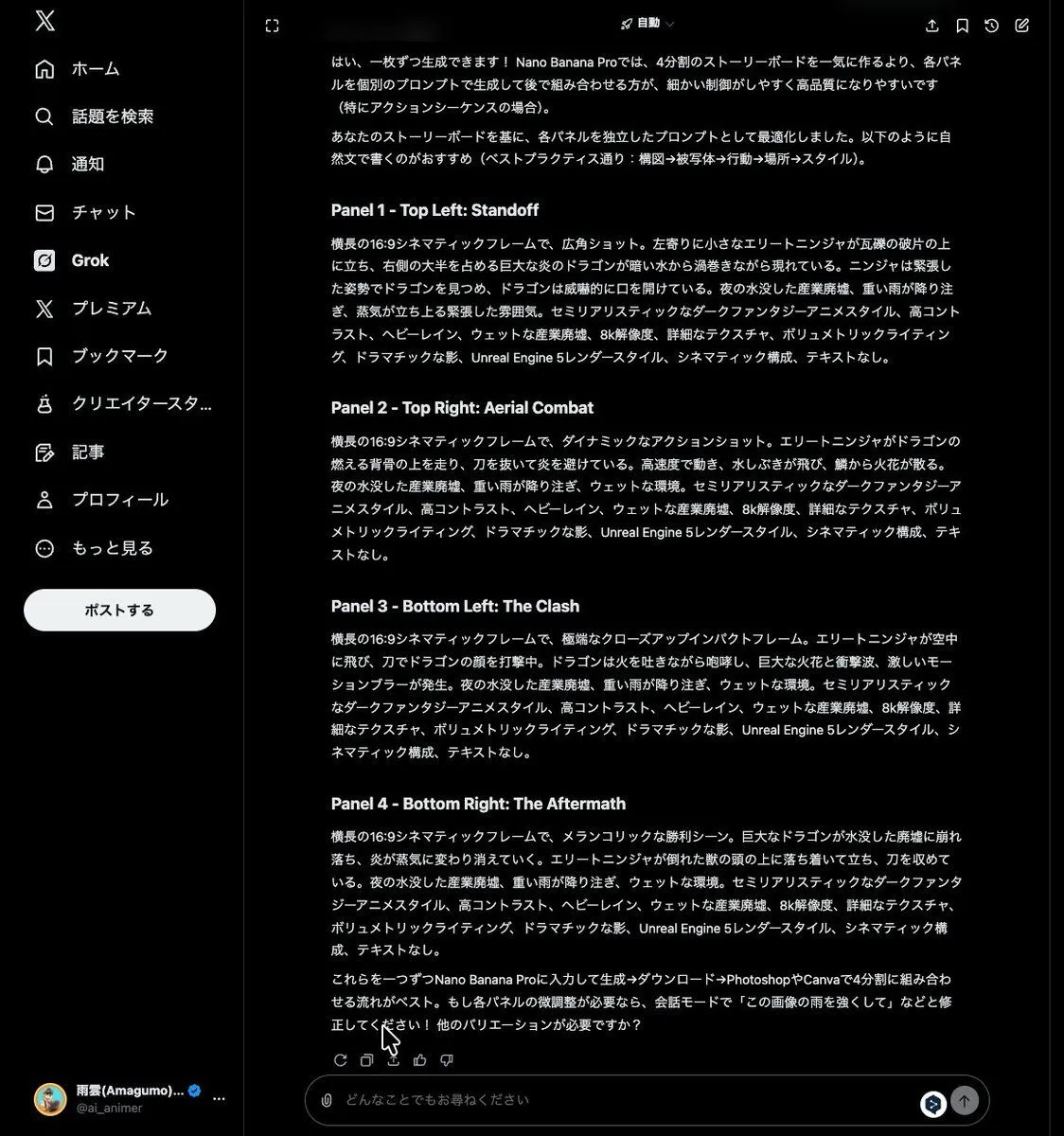
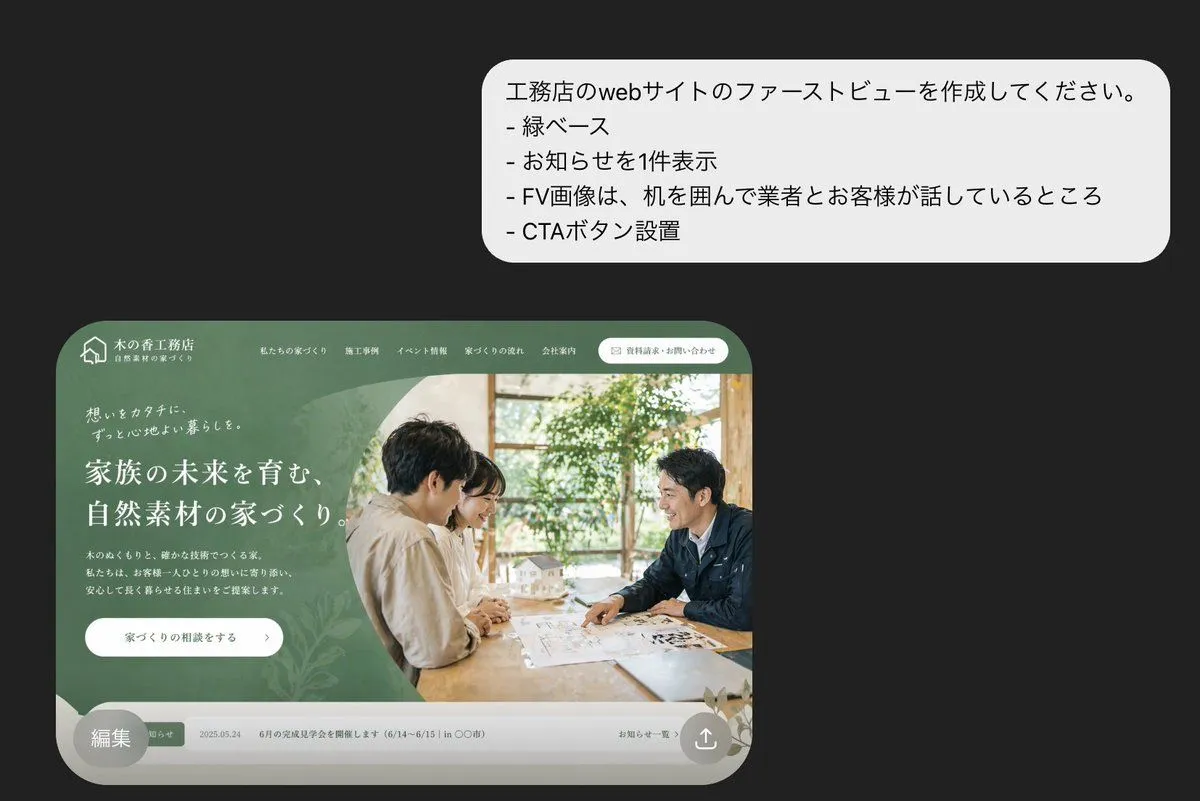
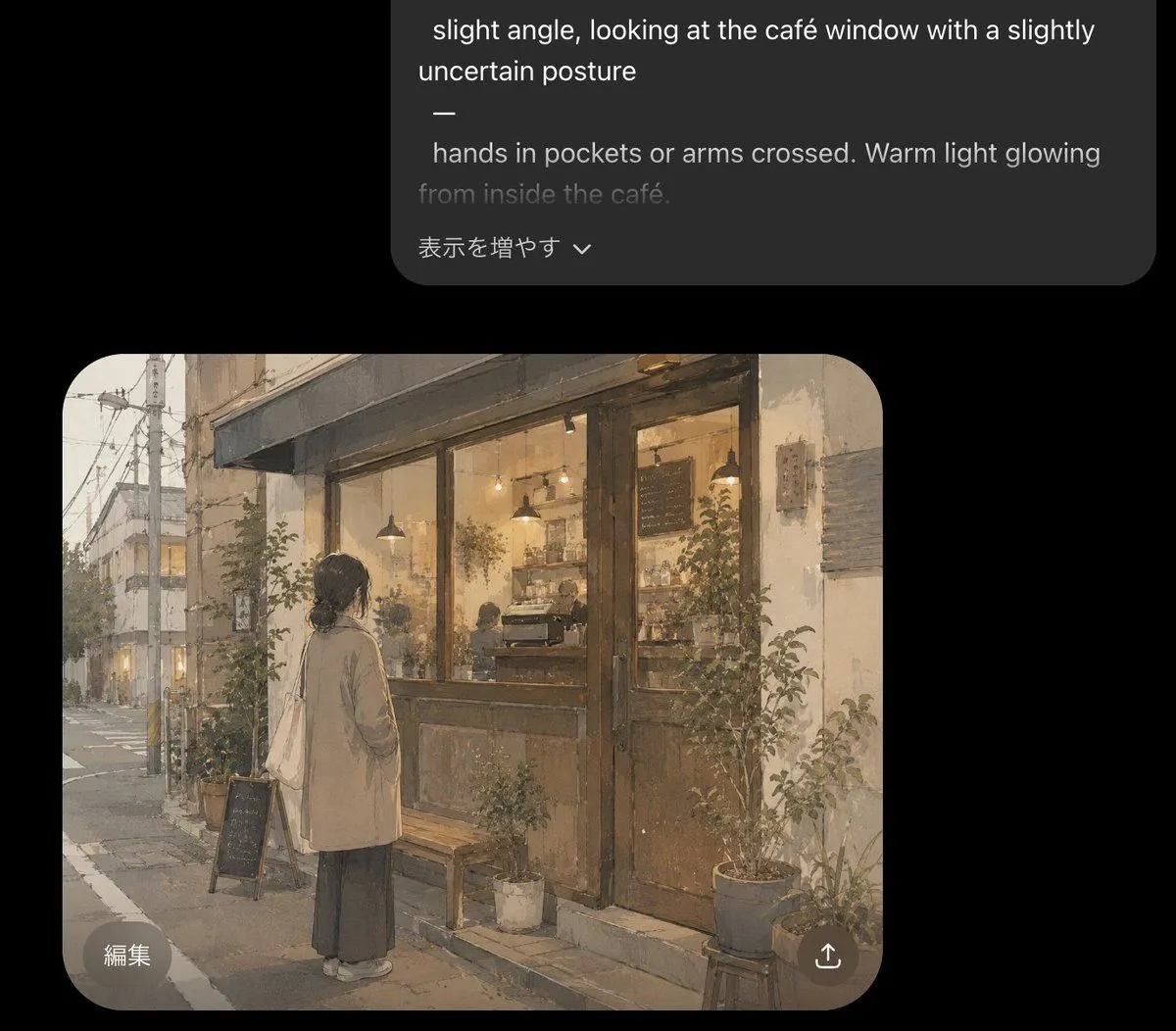
1 blank to fillGoal: Create a dark-mode mobile chat interface screenshot showing an AI image generation result for an article illustration. Canvas: Portrait smartphone screenshot, 896×768 style crop, black background, with a large rounded dark-gray prompt bubble near the top and a generated image preview card below it. Leave generous black margins around both cards. Top prompt bubble: One charcoal-gray rounded rectangle aligned toward the upper right, partly cropped at the very top. It contains white and gray prompt text in English, including the visible lines: “slight angle, looking at the café window with a slightly uncertain posture”, a standalone dash, “hands in pockets or arms crossed. Warm light glowing”, and a dimmer line “from inside the café.” At the bottom of this bubble, include the Japanese UI text “表示を増やす” with a small downward chevron. Generated image card: One large rounded-rectangle image preview beneath the prompt bubble, with strongly rounded corners. Inside it, paint a soft, warm, nostalgic watercolor-style illustration of {scene_subject}. The woman is viewed from behind at a slight angle, looking into the café window with a hesitant, uncertain posture. She has dark hair tied in a low bun, wears a long beige coat over a dark ankle-length skirt, white shoes, and carries a cream tote bag over one shoulder; her hands are in her coat pockets. The café façade has large glass windows, weathered wooden double doors, warm amber interior lighting, pendant lamps, shelves, a coffee counter, faint customers or staff silhouettes, and a chalkboard menu inside. The street is quiet and slightly rainy or overcast, with utility poles, overhead wires, narrow sidewalk, muted buildings receding into the distance, and a pale evening sky. Add exactly 8 visible plant containers around the storefront: 2 taller shrubs flanking the window/door area, 3 medium pots near the right side, 1 small white pot near the bench, 1 planter near the sidewalk sign, and 1 low pot by the step. Add exactly 2 street-side objects in front of the café: a small wooden bench and a black A-frame chalkboard sign. Overlay UI on image card: Add exactly 2 circular translucent buttons on top of the image: a bottom-left button labeled “編集” and a bottom-right share/upload icon button. Keep the buttons subtle, light gray, and semi-transparent. Visual style: Gentle Japanese urban slice-of-life illustration, muted beige and gray palette, warm café glow, painterly watercolor texture, soft edges, slightly grainy paper feel, atmospheric and cute but realistic. The image preview should look like a finished generated illustration embedded in a chat app, not a full-bleed artwork. Constraints: Use only the visible UI elements described: 1 top prompt bubble, 1 generated image card, 2 overlay buttons, and the Japanese text labels exactly as written. No extra captions, no watermark, no app logo.
Preview of your prompt
Goal: Create a dark-mode mobile chat interface screenshot showing an AI image generation result for an article illustration. Canvas: Portrait smartphone screenshot, 896×768 style crop, black background, with a large rounded dark-gray prompt bubble near the top and a generated image preview card below it. Leave generous black margins around both cards. Top prompt bubble: One charcoal-gray rounded rectangle aligned toward the upper right, partly cropped at the very top. It contains white and gray prompt text in English, including the visible lines: “slight angle, looking at the café window with a slightly uncertain posture”, a standalone dash, “hands in pockets or arms crossed. Warm light glowing”, and a dimmer line “from inside the café.” At the bottom of this bubble, include the Japanese UI text “表示を増やす” with a small downward chevron. Generated image card: One large rounded-rectangle image preview beneath the prompt bubble, with strongly rounded corners. Inside it, paint a soft, warm, nostalgic watercolor-style illustration of a young woman standing alone outside a small neighborhood café at dusk. The woman is viewed from behind at a slight angle, looking into the café window with a hesitant, uncertain posture. She has dark hair tied in a low bun, wears a long beige coat over a dark ankle-length skirt, white shoes, and carries a cream tote bag over one shoulder; her hands are in her coat pockets. The café façade has large glass windows, weathered wooden double doors, warm amber interior lighting, pendant lamps, shelves, a coffee counter, faint customers or staff silhouettes, and a chalkboard menu inside. The street is quiet and slightly rainy or overcast, with utility poles, overhead wires, narrow sidewalk, muted buildings receding into the distance, and a pale evening sky. Add exactly 8 visible plant containers around the storefront: 2 taller shrubs flanking the window/door area, 3 medium pots near the right side, 1 small white pot near the bench, 1 planter near the sidewalk sign, and 1 low pot by the step. Add exactly 2 street-side objects in front of the café: a small wooden bench and a black A-frame chalkboard sign. Overlay UI on image card: Add exactly 2 circular translucent buttons on top of the image: a bottom-left button labeled “編集” and a bottom-right share/upload icon button. Keep the buttons subtle, light gray, and semi-transparent. Visual style: Gentle Japanese urban slice-of-life illustration, muted beige and gray palette, warm café glow, painterly watercolor texture, soft edges, slightly grainy paper feel, atmospheric and cute but realistic. The image preview should look like a finished generated illustration embedded in a chat app, not a full-bleed artwork. Constraints: Use only the visible UI elements described: 1 top prompt bubble, 1 generated image card, 2 overlay buttons, and the Japanese text labels exactly as written. No extra captions, no watermark, no app logo.
DetailsVersions, settings and questions
Written for
What's in the prompt
- Subject
- Model
- GPT Image 2
If your face changes
keep my face exactly the sameQuestions
- Does this work in the ChatGPT app?
- Yes. Paste the prompt and attach your photo if it uses one.
- It changed my face. What do I do?
- Add "keep my face exactly the same" to the end and run it again.
- Can I use the images I make?
- Check the terms of the app you use. Promptclay never generates images and claims nothing you make.