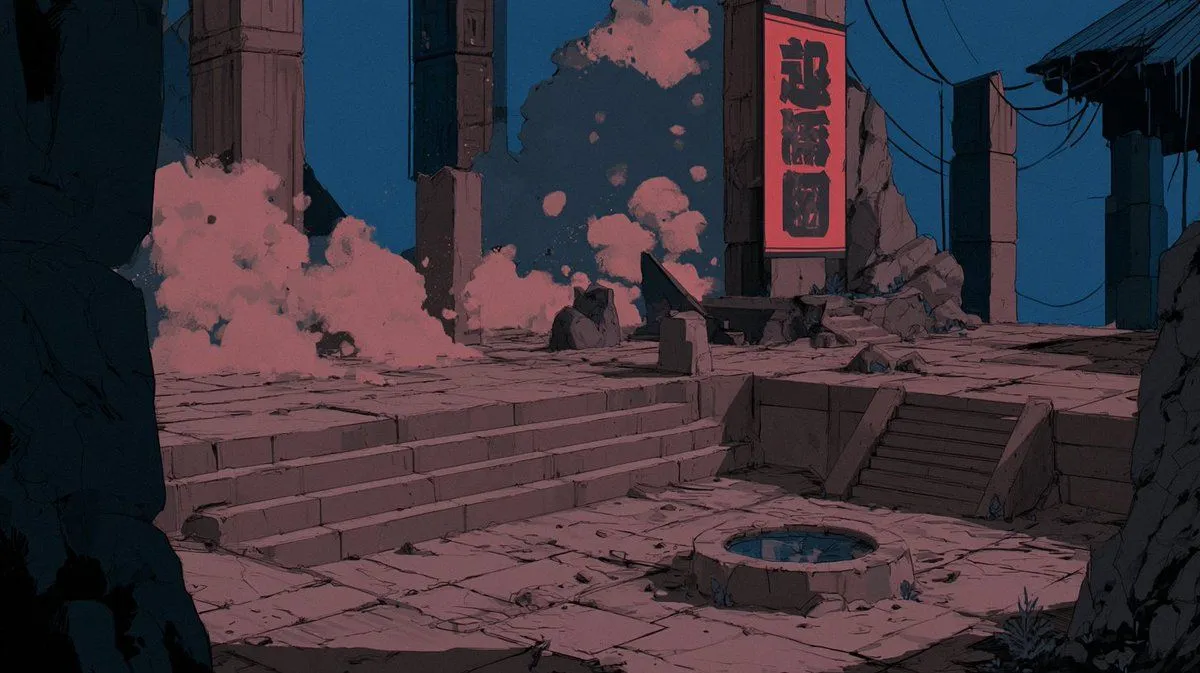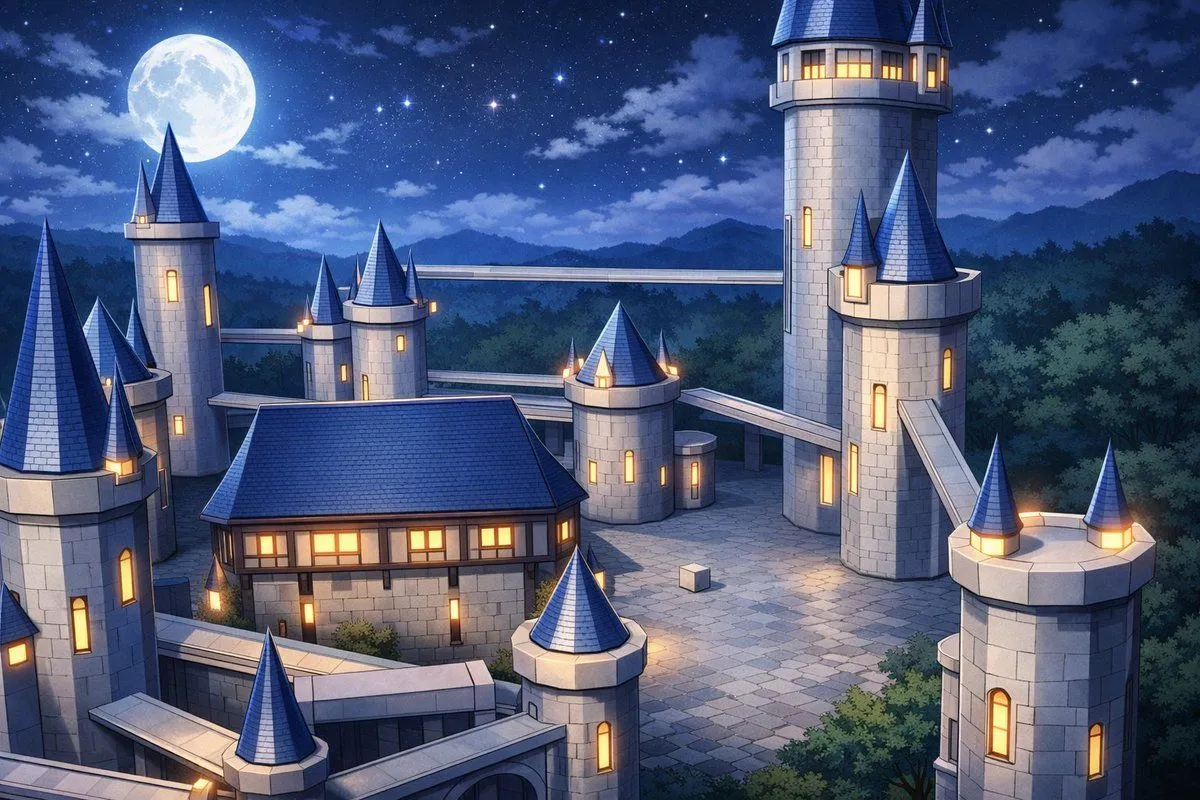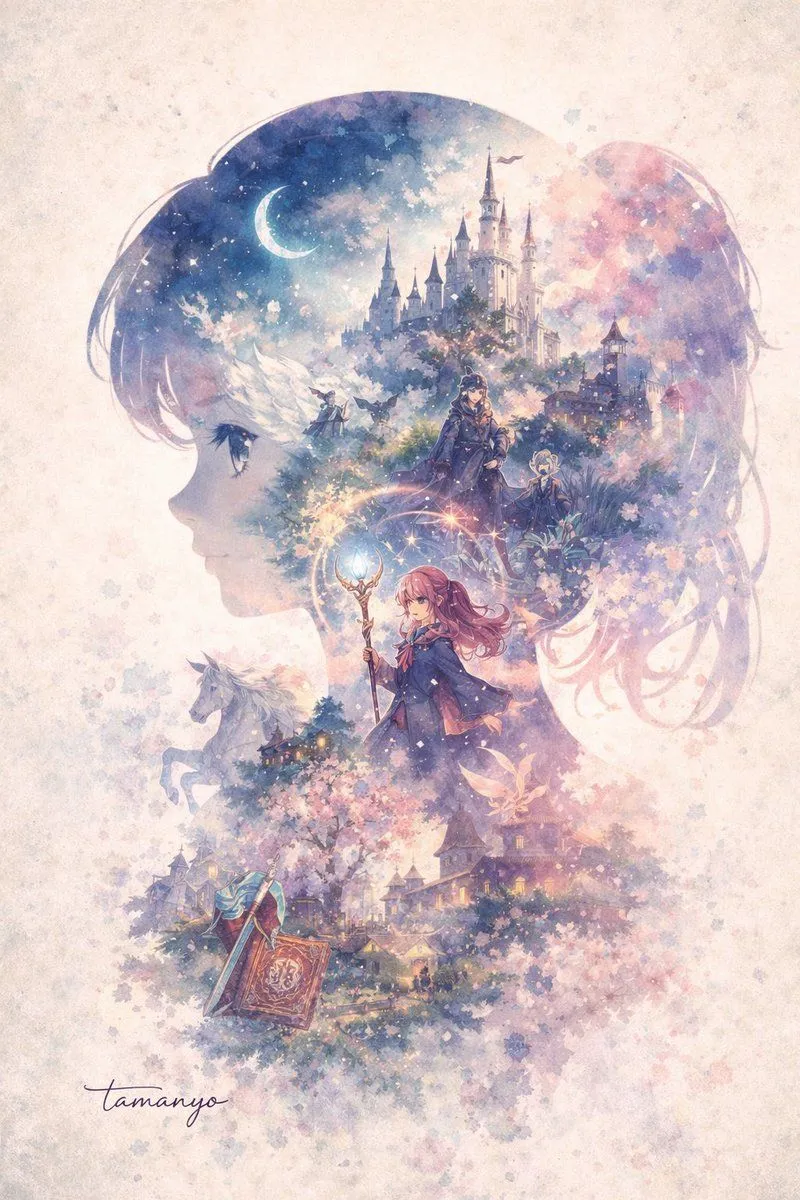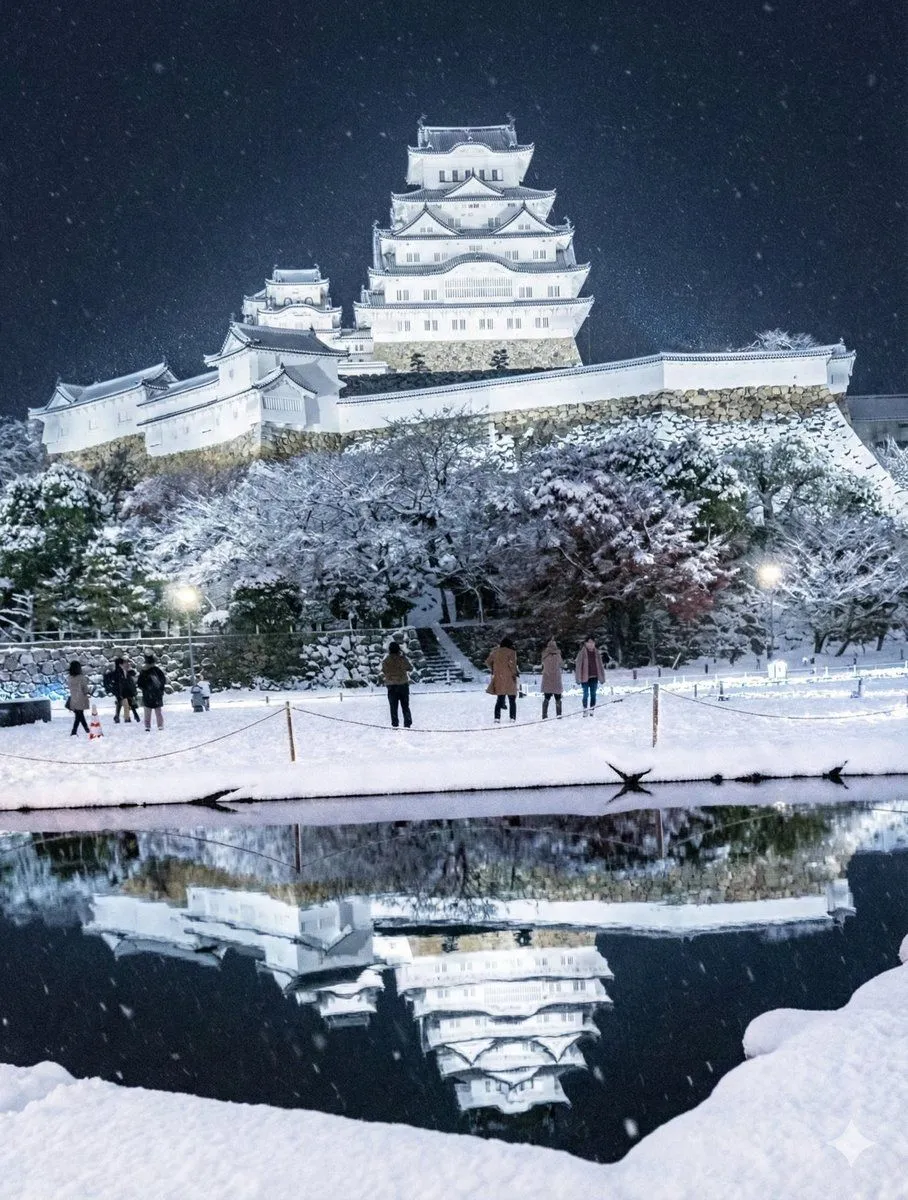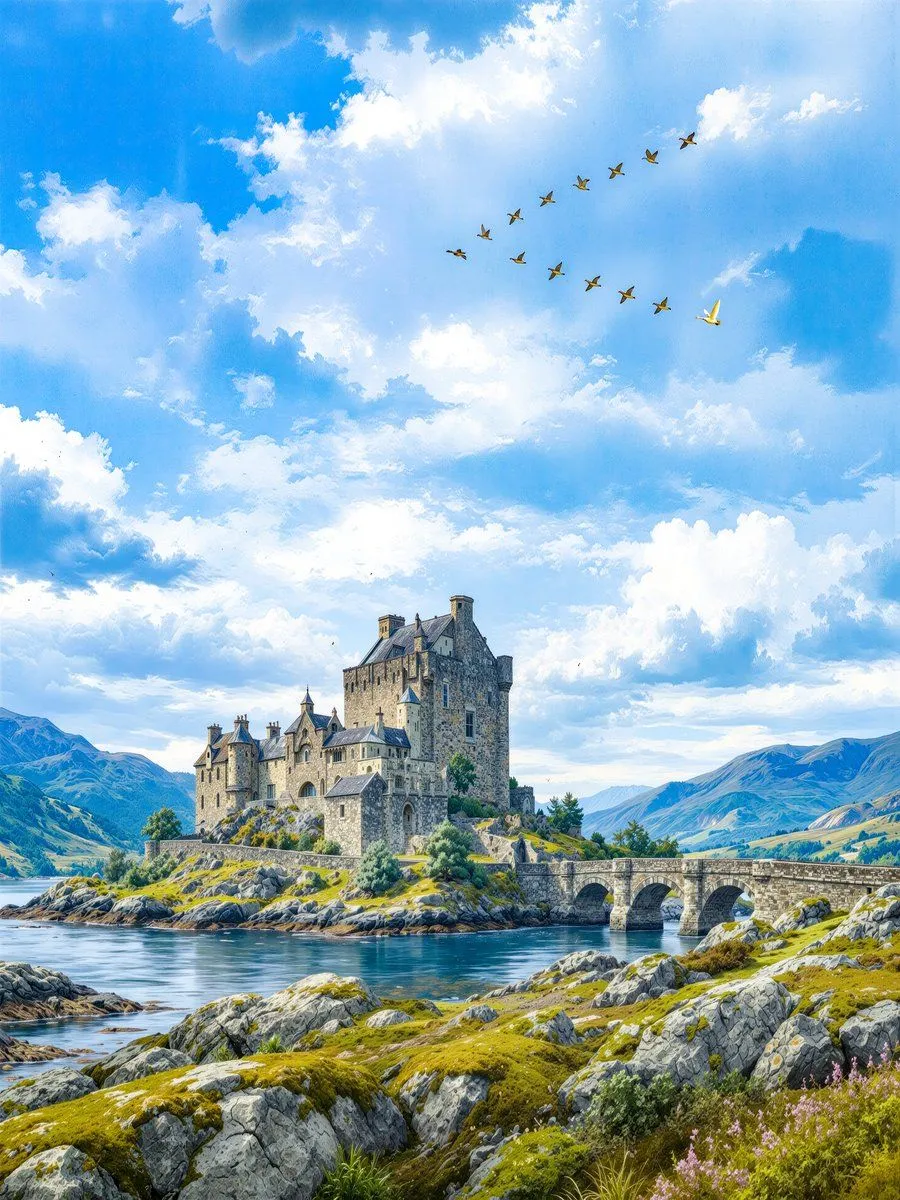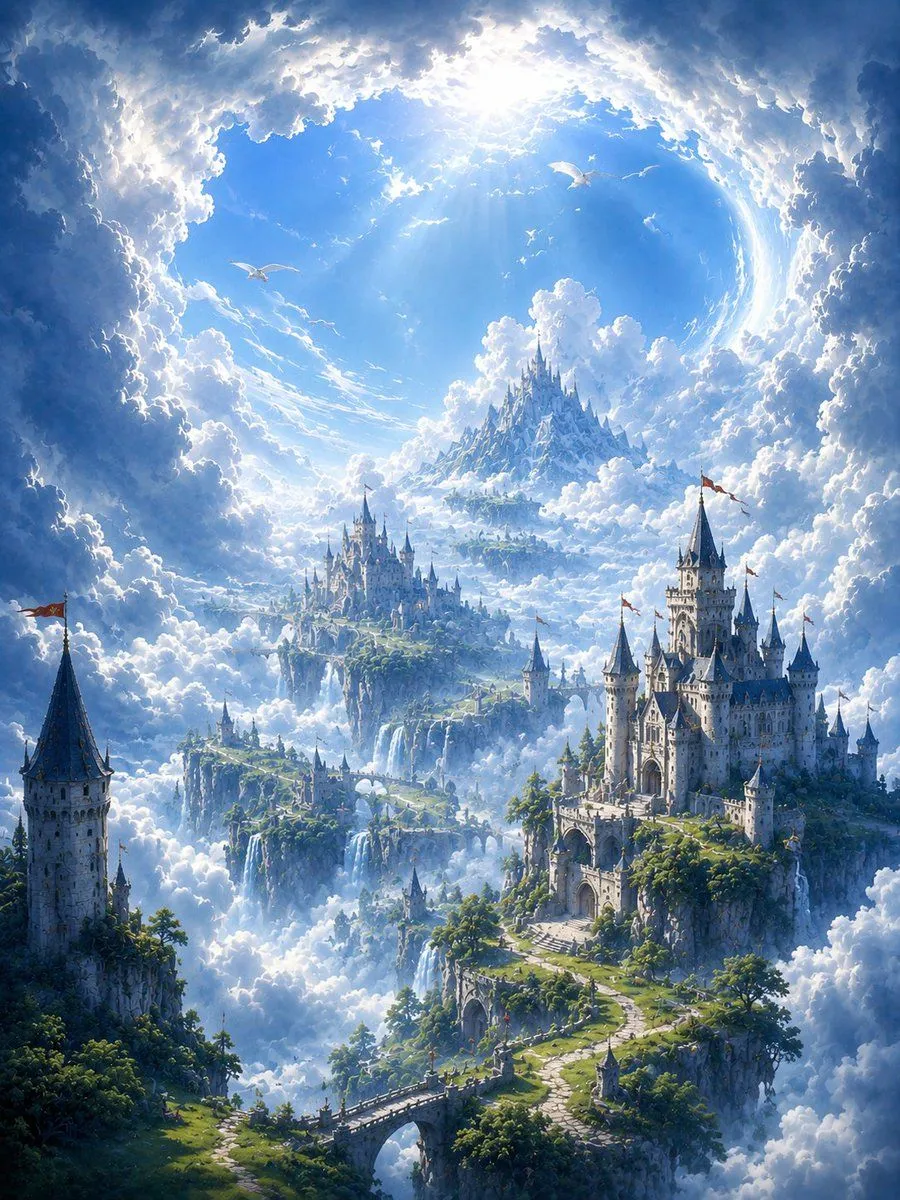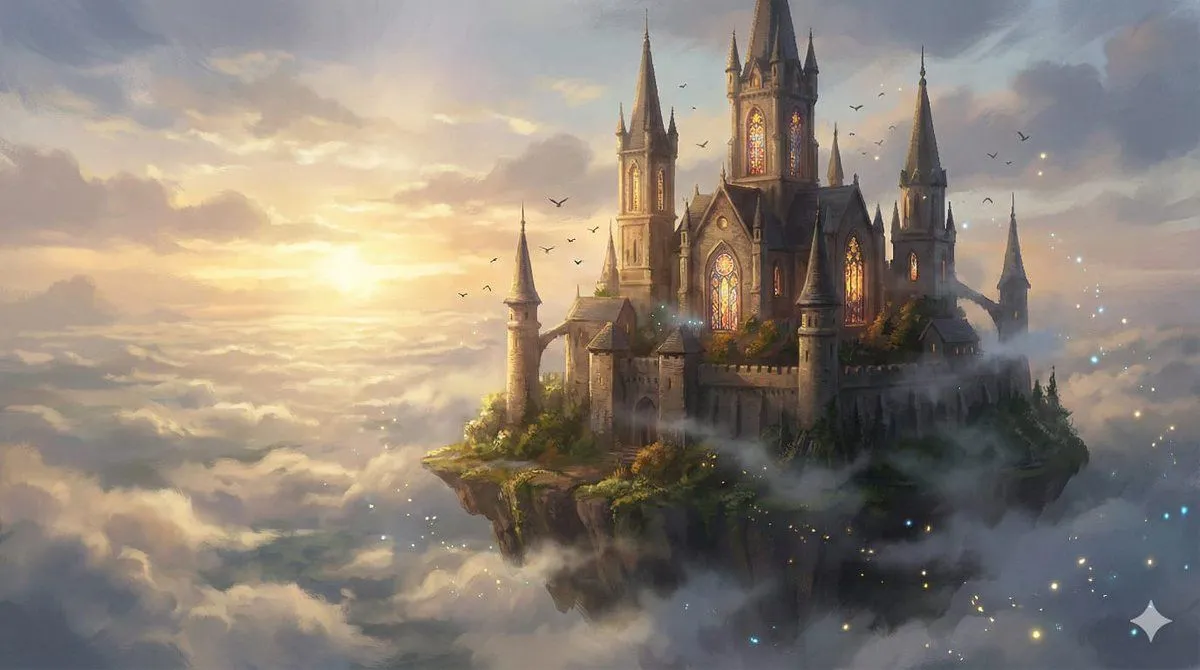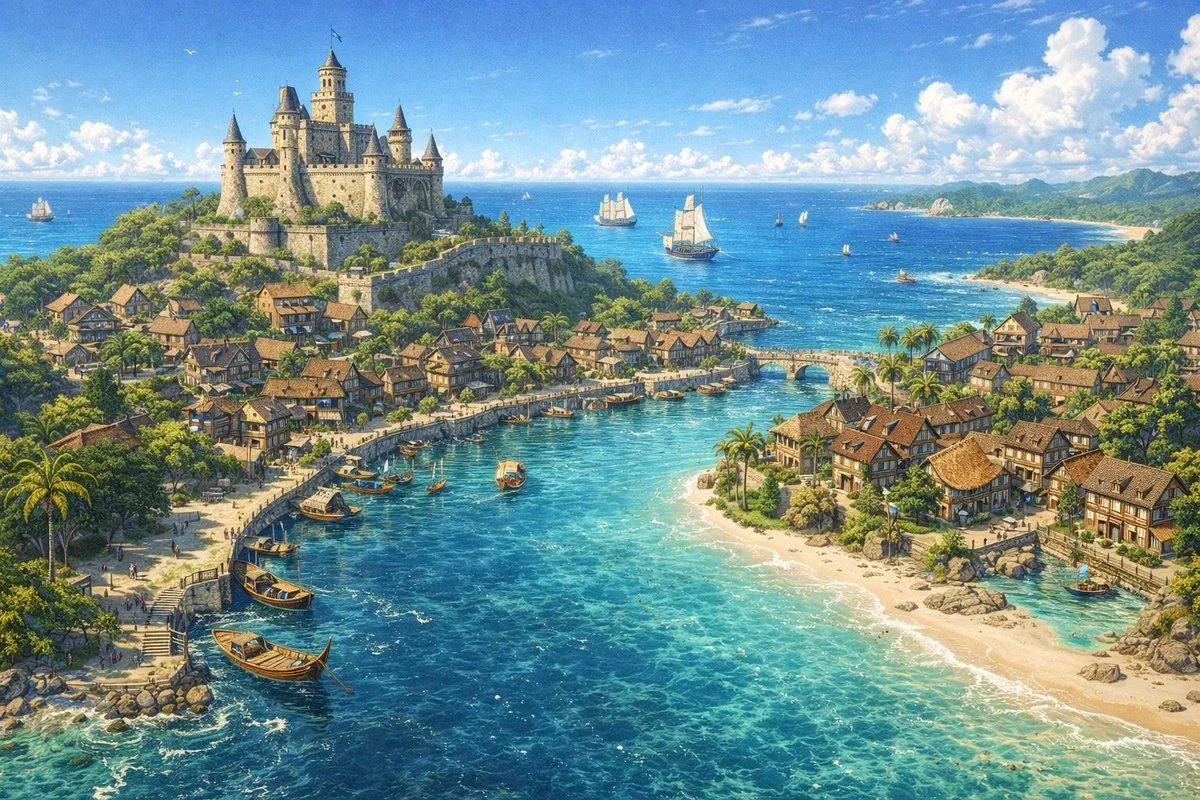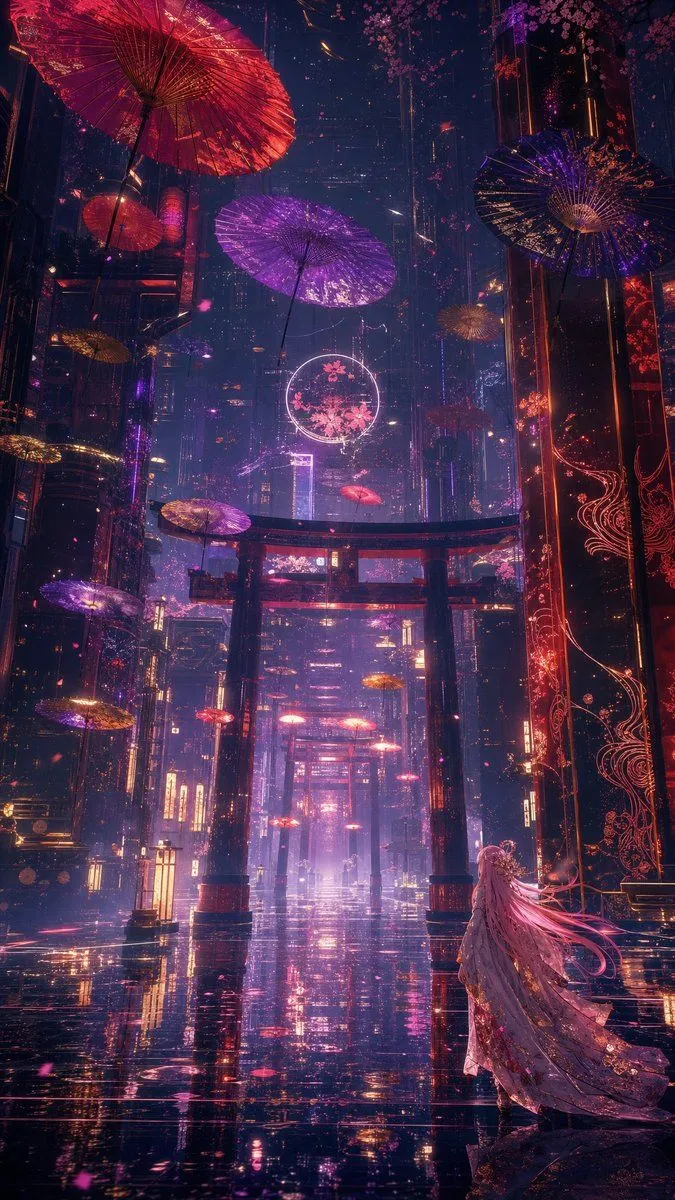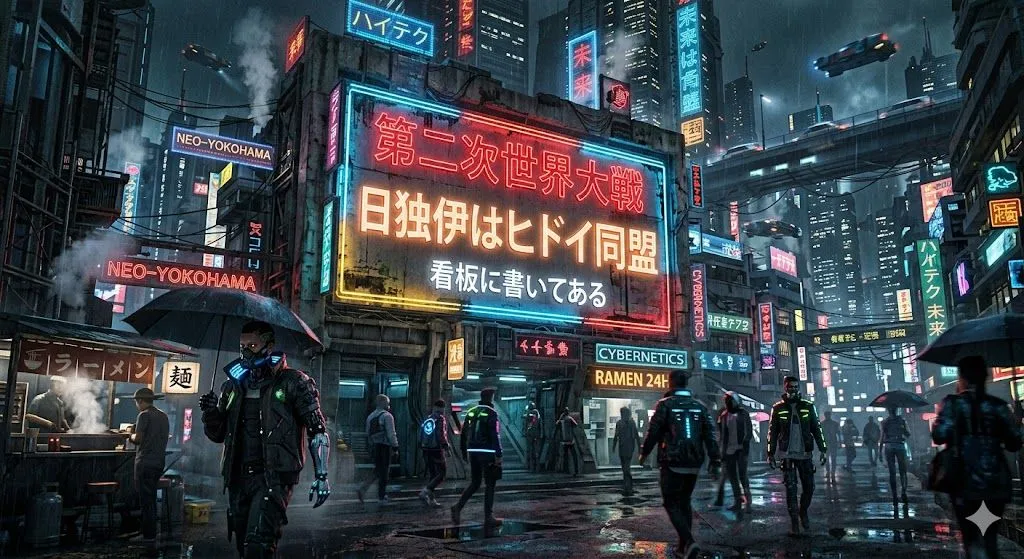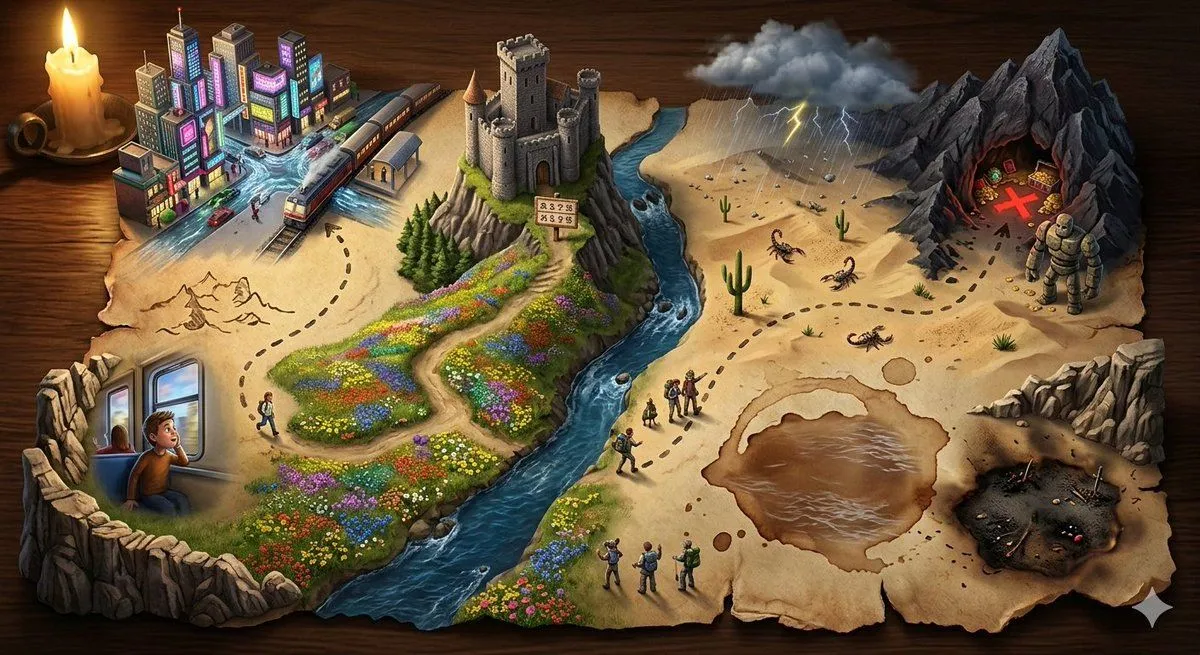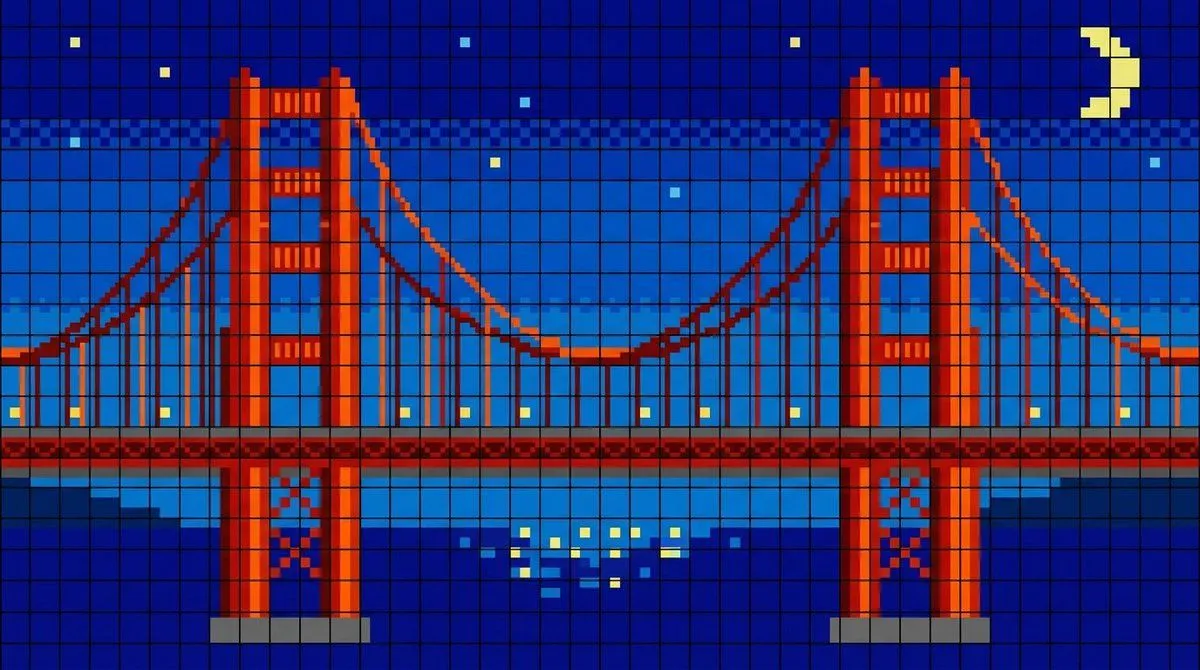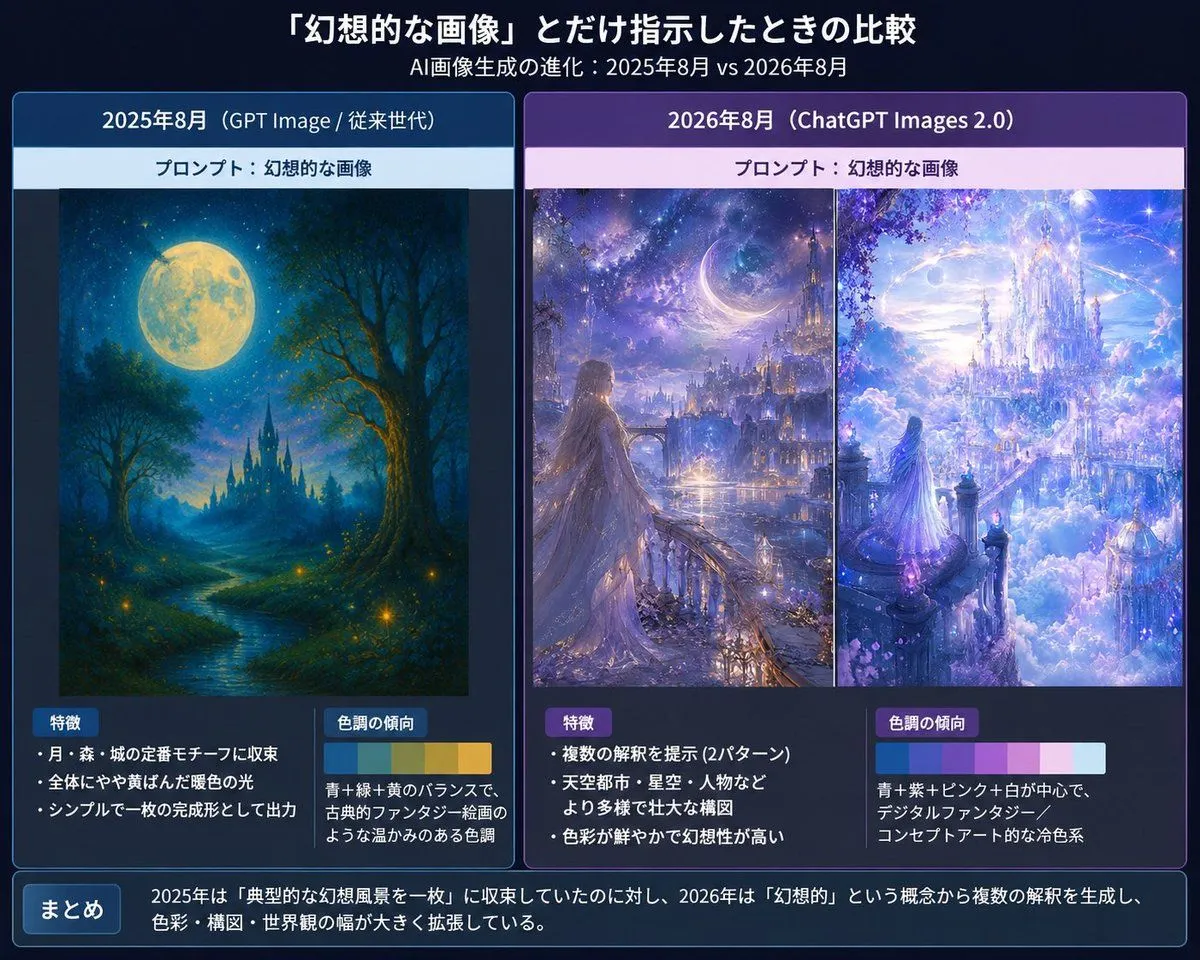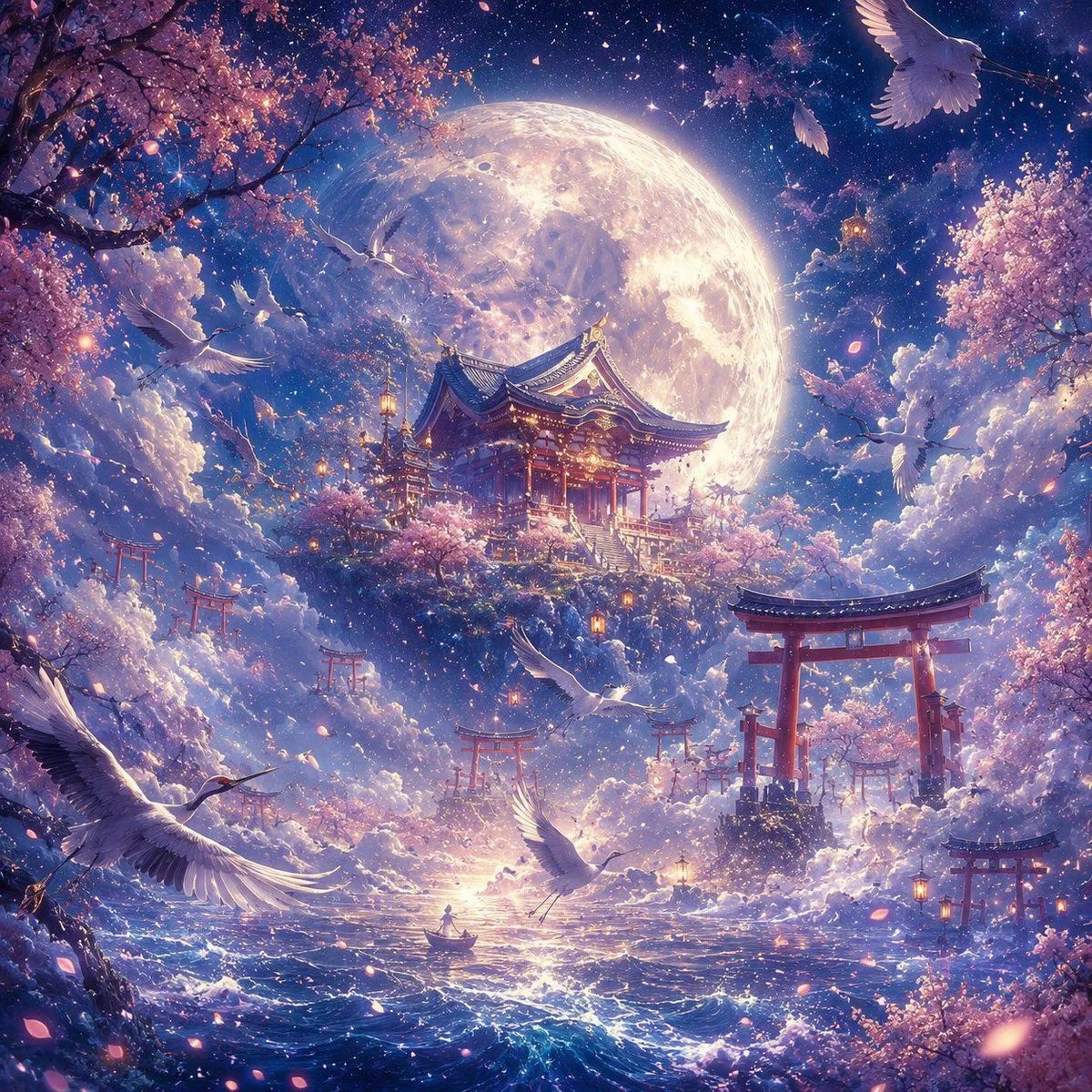

Made with GPT Image 2 in ChatGPT by Library Explainers. Promptclay never generates images.
Did it work?
No reports yet. Tell others if it worked for you.
Castle Edit Markup Overlay
Prompt
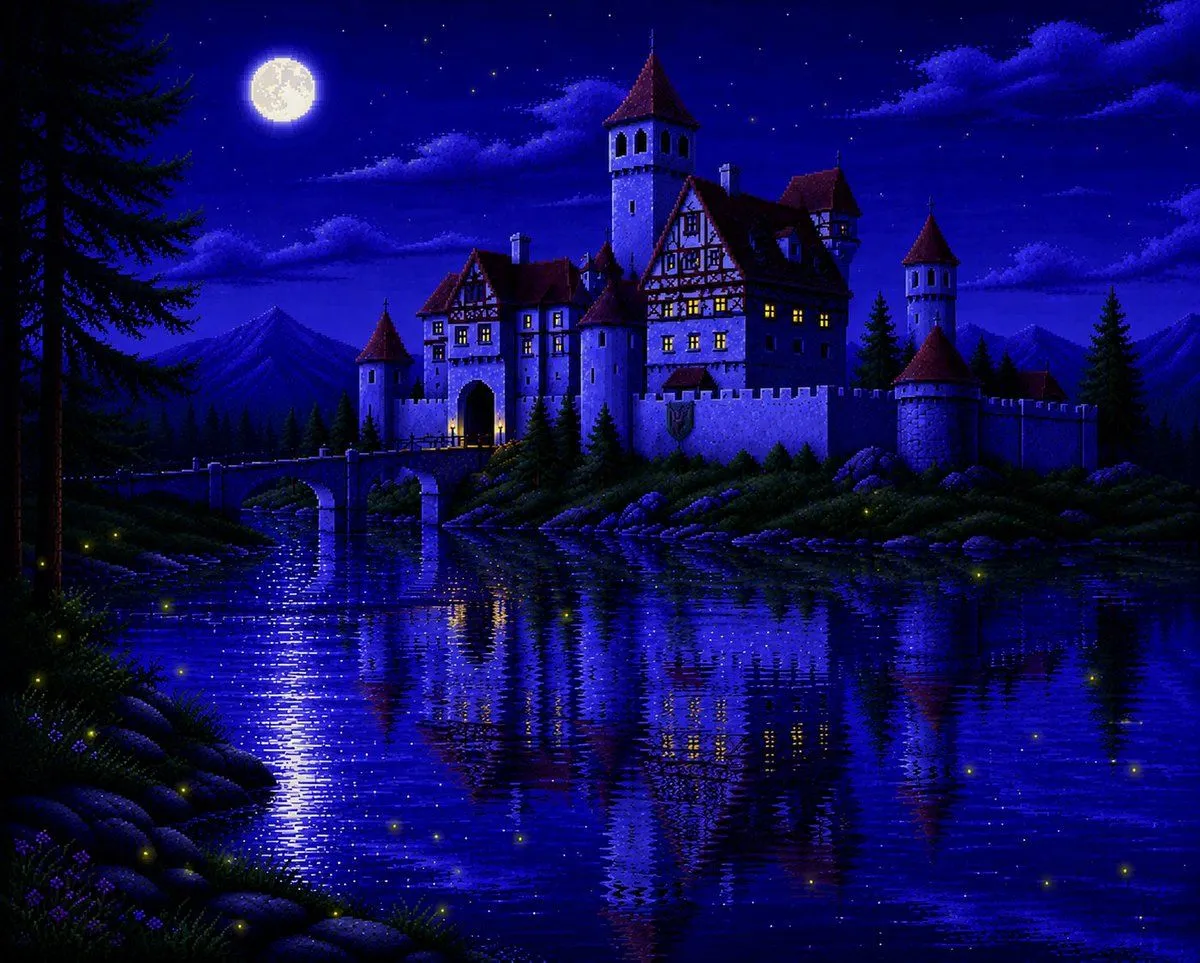
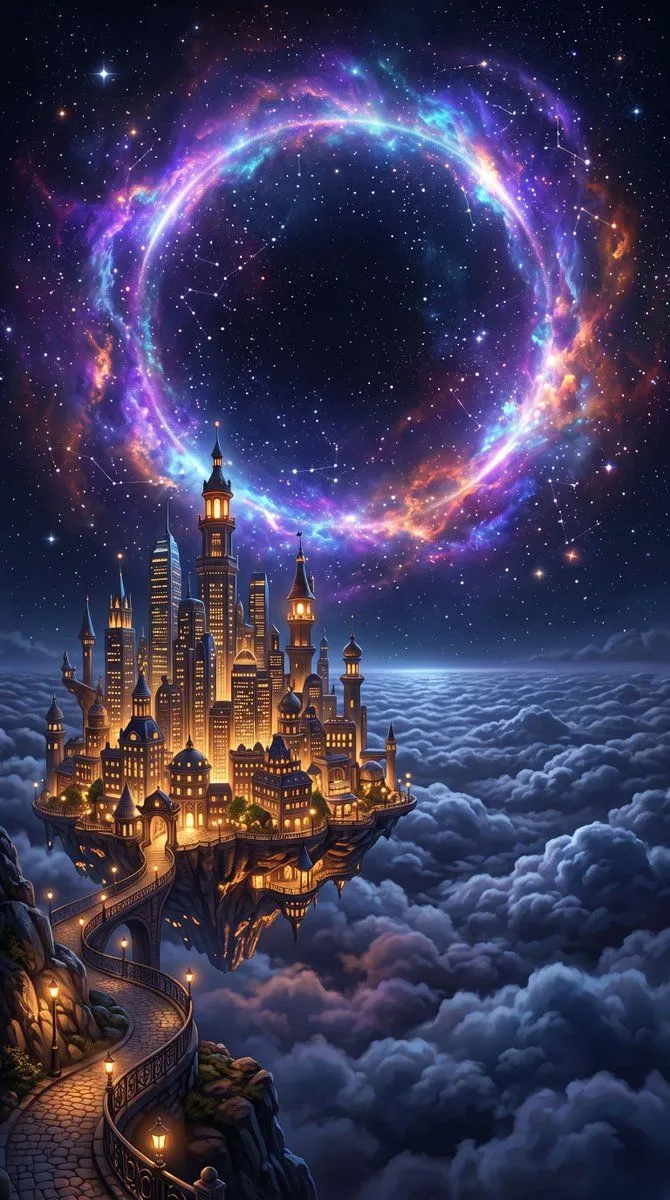
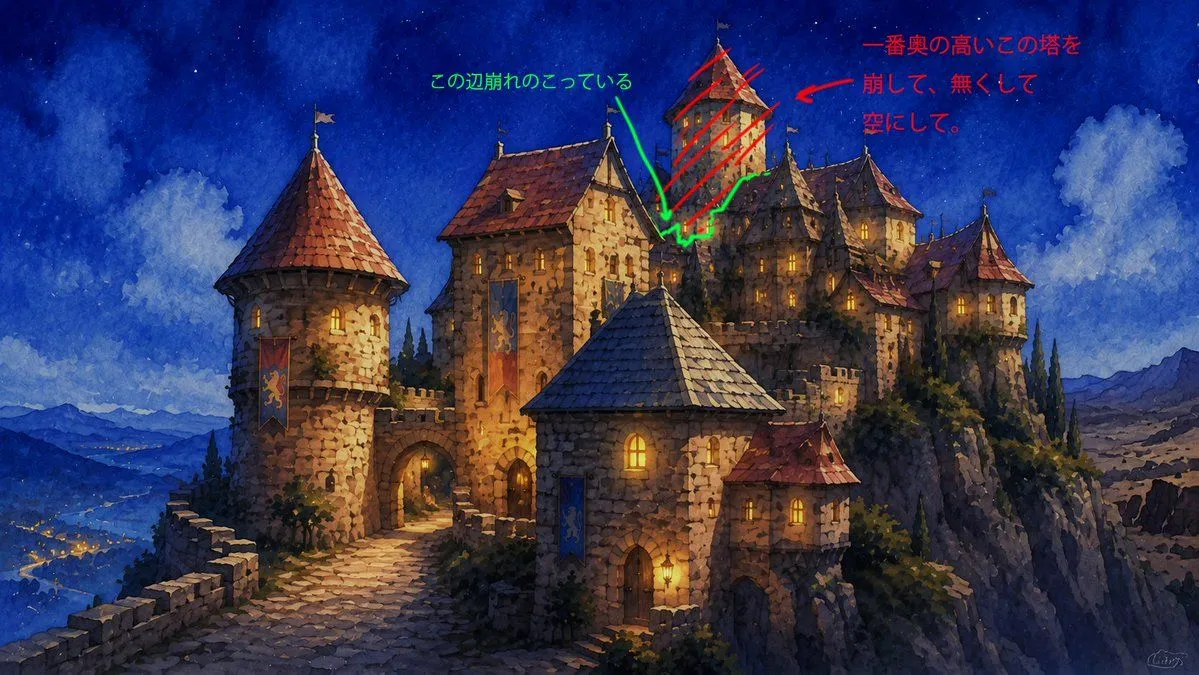
2 blanks to fillUsing REFERENCE_0 as the base image, keep the castle artwork unchanged and overlay rough handwritten edit notes directly on top of it, as if marking areas for an image-editing revision. Add exactly 2 annotation groups: 1. Red annotation group on the tall rear tower near the upper-right center: draw red diagonal hatching across the tower, add a red arrow pointing toward it, and add the handwritten Japanese note {red_edit_note} in the upper-right sky area. 2. Green annotation group around the crumbling edge/remaining structure near the middle top: draw a green irregular outline around the broken area, add a green arrow pointing down to it, and add the handwritten Japanese note {green_edit_note} in the upper-middle sky area. Style constraints: the annotations should look like quick digital pen markup, not integrated into the painting; keep the original watercolor fantasy castle image otherwise intact with no actual architectural removal yet.
Preview of your prompt
Using REFERENCE_0 as the base image, keep the castle artwork unchanged and overlay rough handwritten edit notes directly on top of it, as if marking areas for an image-editing revision. Add exactly 2 annotation groups: 1. Red annotation group on the tall rear tower near the upper-right center: draw red diagonal hatching across the tower, add a red arrow pointing toward it, and add the handwritten Japanese note 一番奥の高いこの塔を崩して、無くして空にして。 in the upper-right sky area. 2. Green annotation group around the crumbling edge/remaining structure near the middle top: draw a green irregular outline around the broken area, add a green arrow pointing down to it, and add the handwritten Japanese note この辺崩れのこっている in the upper-middle sky area. Style constraints: the annotations should look like quick digital pen markup, not integrated into the painting; keep the original watercolor fantasy castle image otherwise intact with no actual architectural removal yet.
DetailsVersions, settings and questions
Written for
What's in the prompt
- Subject
- Model
- GPT Image 2
If your face changes
keep my face exactly the sameQuestions
- Does this work in the ChatGPT app?
- Yes. Paste the prompt and attach your photo if it uses one.
- It changed my face. What do I do?
- Add "keep my face exactly the same" to the end and run it again.
- Can I use the images I make?
- Check the terms of the app you use. Promptclay never generates images and claims nothing you make.