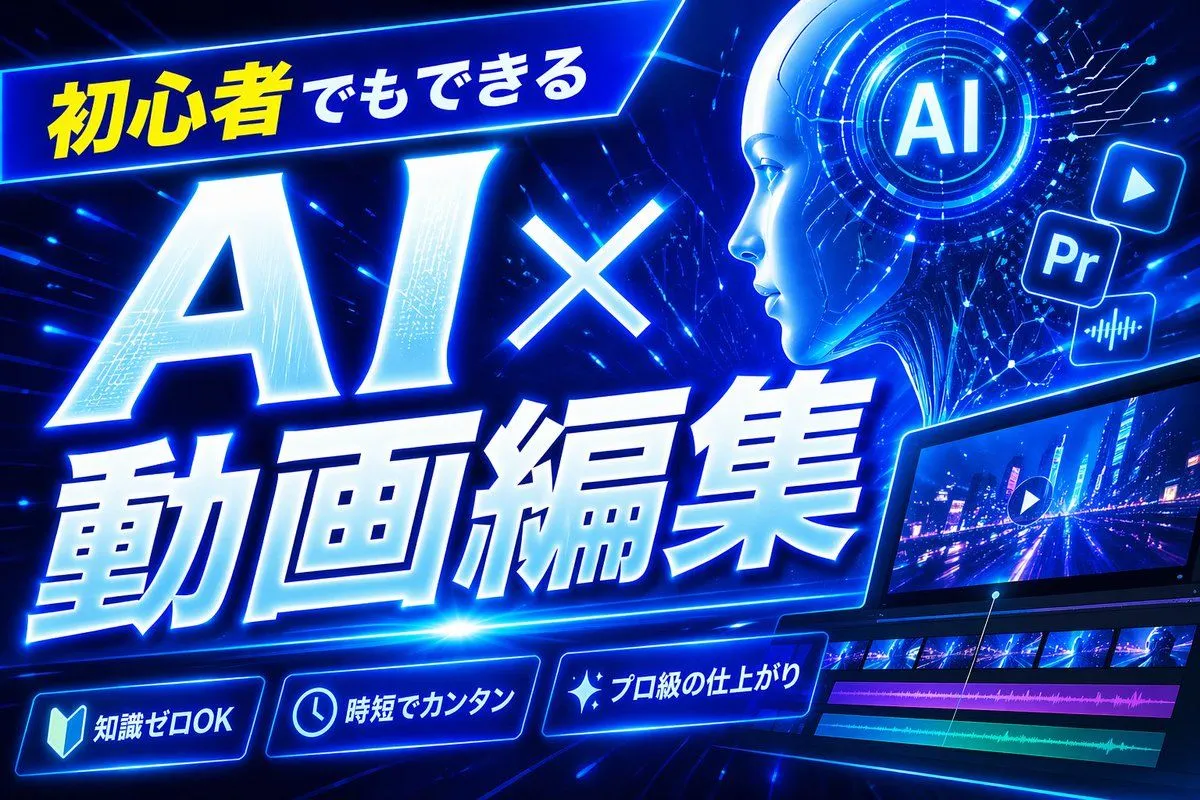
Neon Blue AI Video Editing Thumbnail
Create a bold Japanese YouTube thumbnail for the theme headline_text, in a futuristic neon-blue cyberpunk style. Use a wide 16:9 composition with a dark electric-blue background filled with glowing circuit lines, digital streaks, lens flares, and high-energy motion. Place a slanted glowing banner in the upper left containing the Japanese text top_banner_text, with the first part in bright yellow and the rest in white. Make the main headline dominate the left and center: gigantic white glowing text “AI×” above even larger white glowing text “動画編集”, with thick blue neon outer glow, slight italic forward motion, beveled 3D shading, and dramatic perspective. In the upper right, add a circular holographic interface with the letters ai_badge_text in the center, surrounded by concentric rings and tiny HUD marks. Near it, include exactly 3 floating app-style icons: a play button icon, a square “Pr” icon, and an audio waveform icon, all glowing blue. Across the lower right, show a sleek angled video editing monitor displaying a neon city night road scene with a play symbol overlay; beneath the preview, include a timeline with exactly 4 visible tracks: 2 rows of video thumbnails and 2 colored audio bars, one magenta and one cyan-green. Along the bottom, add exactly 3 glowing rounded feature badges with icons and Japanese text: a book icon with “知識ゼロOK”, a clock icon with “時短でカンタン”, and a sparkle icon with “プロ級の仕上がり”. Add a tall solid blue vertical rectangle near the top center-right as a placeholder block. Overall design should feel dynamic, high-contrast, polished, techy, and optimized for maximum click-through as a modern AI and video-editing tutorial thumbnail.