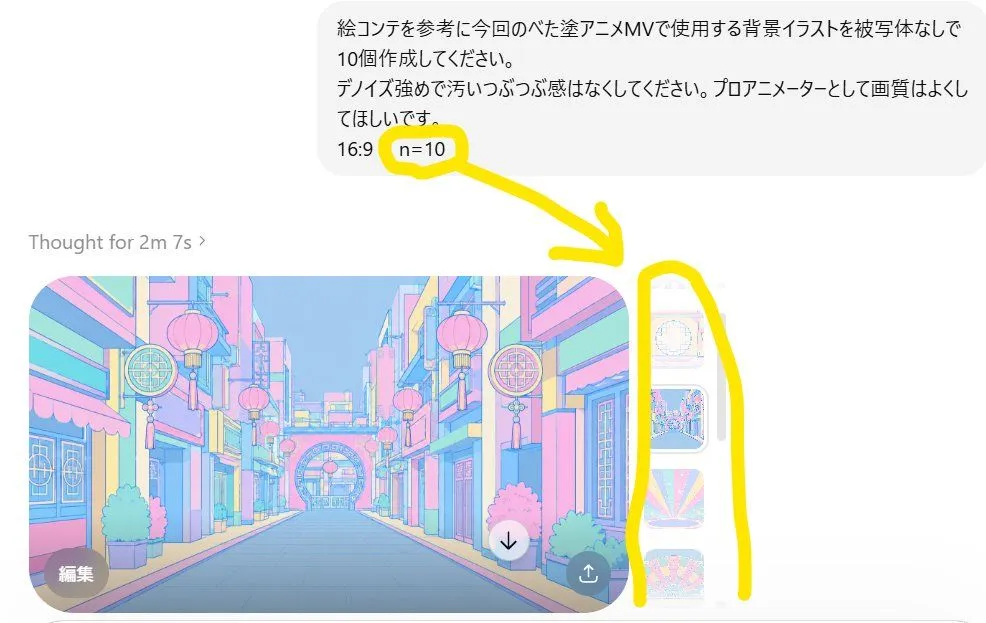
Annotated ChatGPT Multiple Image Outputs
Goal: Create a realistic screenshot-style image of a ChatGPT image generation interface demonstrating multiple image outputs from one request. Canvas: Landscape 16:9 screenshot crop, white background, resembling a mobile or narrow desktop chat interface. Keep the composition slightly zoomed in so the right edge of the image carousel is visible. Layout: At the top right, place one rounded light-gray user message bubble containing Japanese text. Beneath it on the left, show the status line “Thought for 2m 7s ›” in light gray. Below that, show one large generated image preview with rounded corners, and a narrow strip of additional generated thumbnails on the right side. Text content: The user bubble should read: “絵コンテを参考に今回のベた塗アニメMVで使用する背景イラストを被写体なしで10個作成してください。\nテイスト強めで汚らしっぷつぷ感はなくしてください。プロアニメーターとして画質はよくしてほしいです。\n16:9 n=10”. Highlight the “n=10” part as the key detail. Generated image preview: The main preview is a pastel anime background illustration of an empty stylized street with no characters, inspired by a colorful East Asian shopping district. Use soft cel-shaded anime line art, bright pastel blue, pink, yellow, and mint tones, lanterns hanging from buildings, decorative circular signs, shopfronts on both sides, a centered vanishing point, and a decorative archway in the distance. The image should look like a professional anime MV background, 16:9, clean and polished. Discrete visible elements to include: exactly 1 user message bubble; exactly 1 status line; exactly 1 large main generated image; exactly 3 narrow vertical thumbnails partially visible on the right, each showing a different pastel anime background; exactly 2 circular overlay buttons on the main preview, one dark “編集” edit button at bottom left and one white downward arrow download button near bottom right; exactly 1 small dark share/upload icon button at the lower-right corner of the main preview. Annotation: Add thick hand-drawn yellow marker annotations over the screenshot: exactly 1 yellow circle around “n=10”, exactly 1 thick yellow arrow pointing from the circled “n=10” down toward the right-side thumbnail strip, and exactly 1 tall yellow bracket-like outline encircling the vertical thumbnail strip. The yellow marker should look casual and drawn by hand. Style: Clean UI screenshot aesthetic with subtle antialiasing, light gray interface elements, Japanese text rendered legibly, and bright yellow annotation marks. Use main_annotation_text as the highlighted parameter in the chat message. Keep the screenshot realistic, not a poster or infographic.