
Tell us anything

An idea, a bug, something you love. We read every note.

⌘↵ to send. The page you're on comes along.

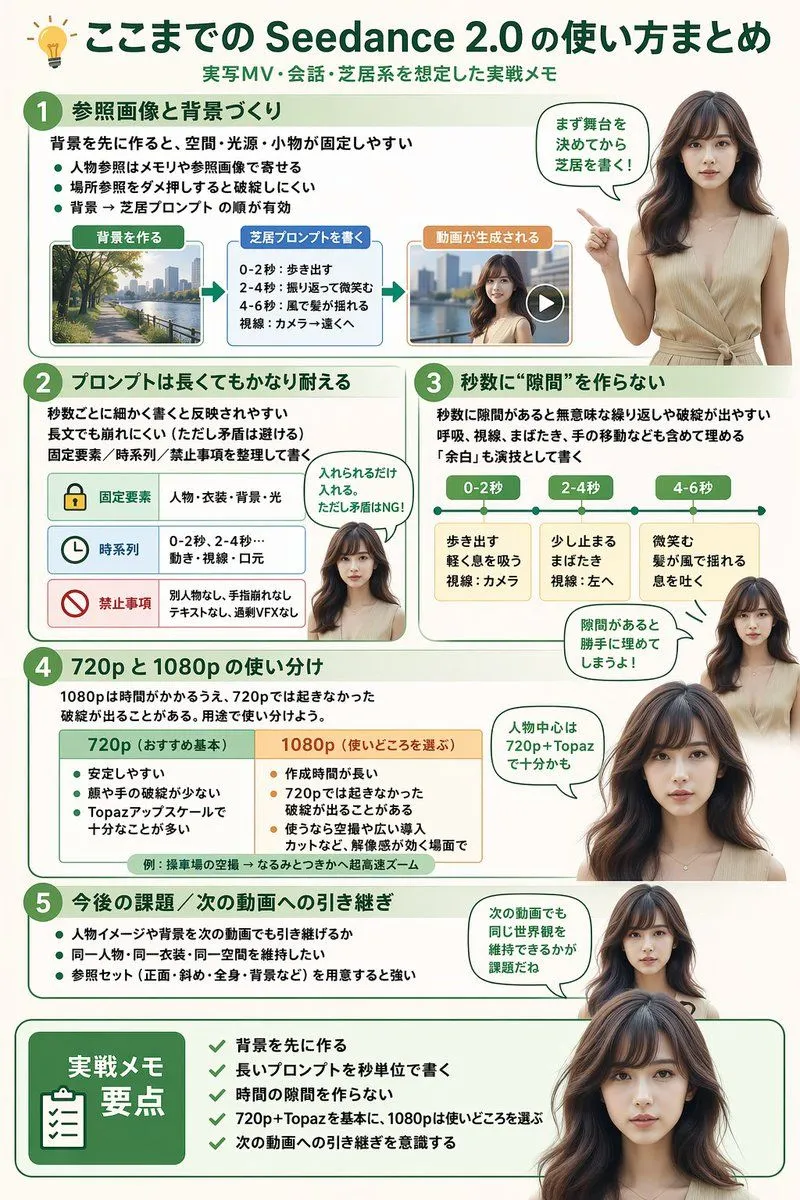
Software Workflow Infographic

Made with GPT Image 2 in ChatGPT, collected by Library Explainers. Promptclay never generates images.

Did it work?

No reports yet. Tell others if it worked for you.

No comments yet. Be the first.

    Software Workflow Infographic

    GPT Image 22:3AI-generated

    Prompt

    { "type": "infographic", "style": "clean, modern, professional, soft green and beige color palette, photorealistic character integration", "header": { "icon": "lightbulb", "title": "{argument name=\"main title\" default=\"ここまでの Seedance 2.0 の使い方まとめ\"}", "subtitle": "{argument name=\"subtitle\" default=\"実写MV・会話・芝居系を想定した実践メモ\"}" }, "presenter_character": "{argument name=\"presenter description\" default=\"photorealistic young Japanese woman with long dark brown hair wearing a beige sleeveless top\"}", "total_presenter_cutouts": 6, "layout": { "sections": [ { "number": 1, "title": "{argument name=\"section 1 title\" default=\"参照画像と背景づくり\"}", "elements": "3 bullet points, 1 horizontal 3-step flowchart with thumbnail images (cityscape, text box, video player)", "presenter_pose": "pointing left towards the flowchart, with a speech bubble" }, { "number": 2, "title": "{argument name=\"section 2 title\" default=\"プロンプトは長くてもかなり耐える\"}", "elements": "2 bullet points, 1 table with 3 rows featuring icons (lock, clock, prohibition sign)", "presenter_pose": "neutral expression, looking forward, with a speech bubble" }, { "number": 3, "title": "秒数に“隙間”を作らない", "elements": "2 bullet points, 1 horizontal timeline graphic with 3 segments", "presenter_pose": "pointing up, looking slightly left, with a speech bubble" }, { "number": 4, "title": "720p と 1080p の使い分け", "elements": "text description, 1 two-column comparison table (green column, orange column)", "presenter_pose": "looking forward, with a speech bubble" }, { "number": 5, "title": "今後の課題 / 次の動画への引き継ぎ", "elements": "4 bullet points", "presenter_pose": "looking slightly right, with a speech bubble" }, { "type": "summary_box", "title": "実践メモ 要点", "elements": "clipboard icon, 5 checklist items with green checkmarks", "presenter_pose": "large portrait from chest up, looking directly at viewer" } ] } }

    Works in
    ChatGPT, Gemini
    Status
    Free to copy
    0
    DetailsVersions, settings and questions

    Written for

    What's in the prompt

    Subject
    Model
    GPT Image 2

    If your face changes

    keep my face exactly the same

    Questions

    Does this work in the ChatGPT app?
    Yes. Paste the prompt and attach your photo if it uses one.
    It changed my face. What do I do?
    Add "keep my face exactly the same" to the end and run it again.
    Can I use the images I make?
    Check the terms of the app you use. Promptclay never generates images and claims nothing you make.
    Similar prompts

    See more
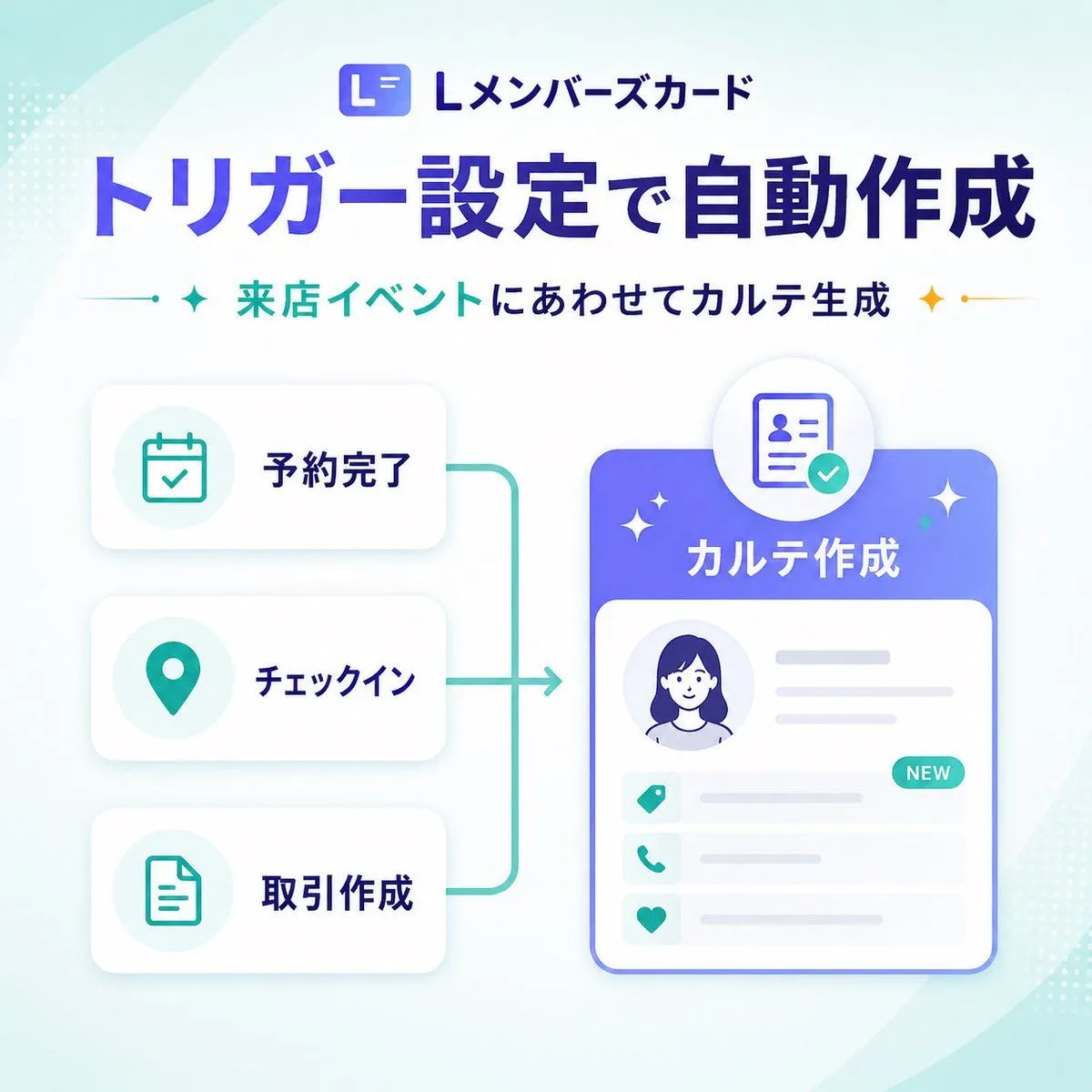
    • Japanese SaaS Trigger Automation Banner
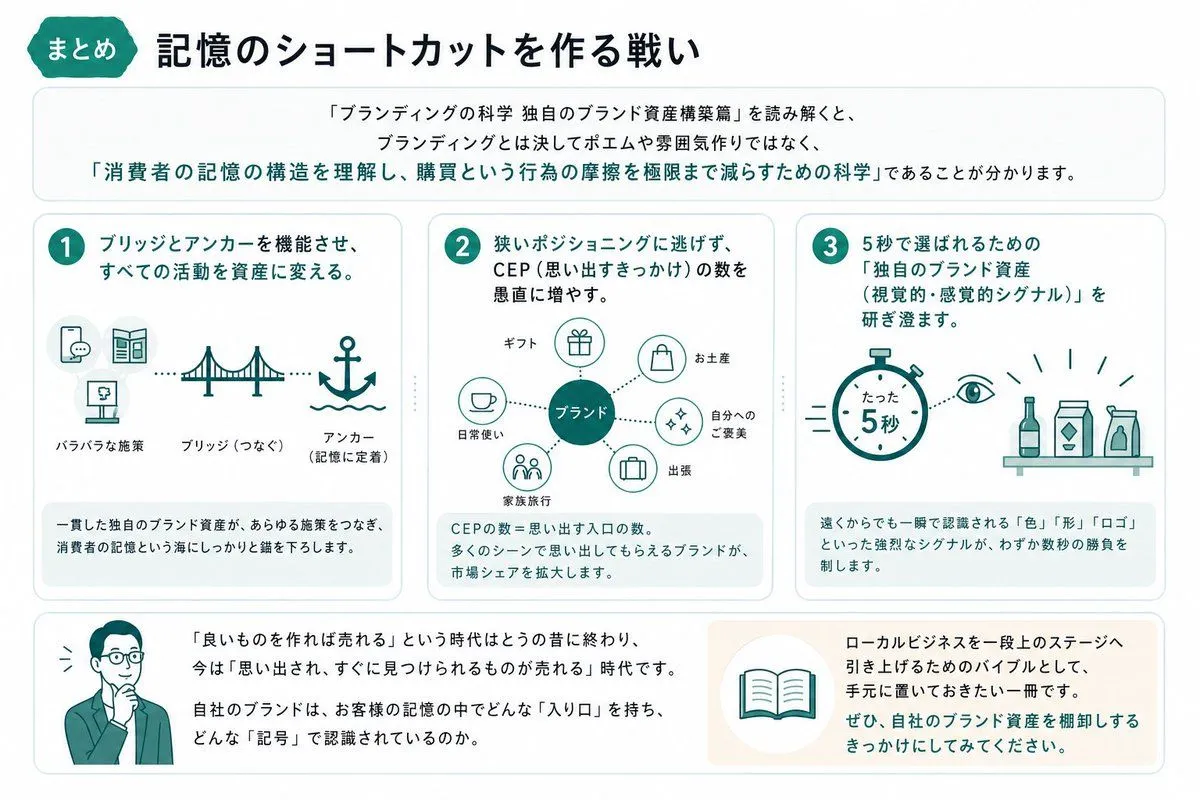
    • Japanese Branding Strategy Infographic
    • ChatGPT Prompt for Self-Introduction Text Generation
    • News Article Diagram Generation
    • AI Use Comparison Infographic
    • Handwritten Style 3-Step Process Slide
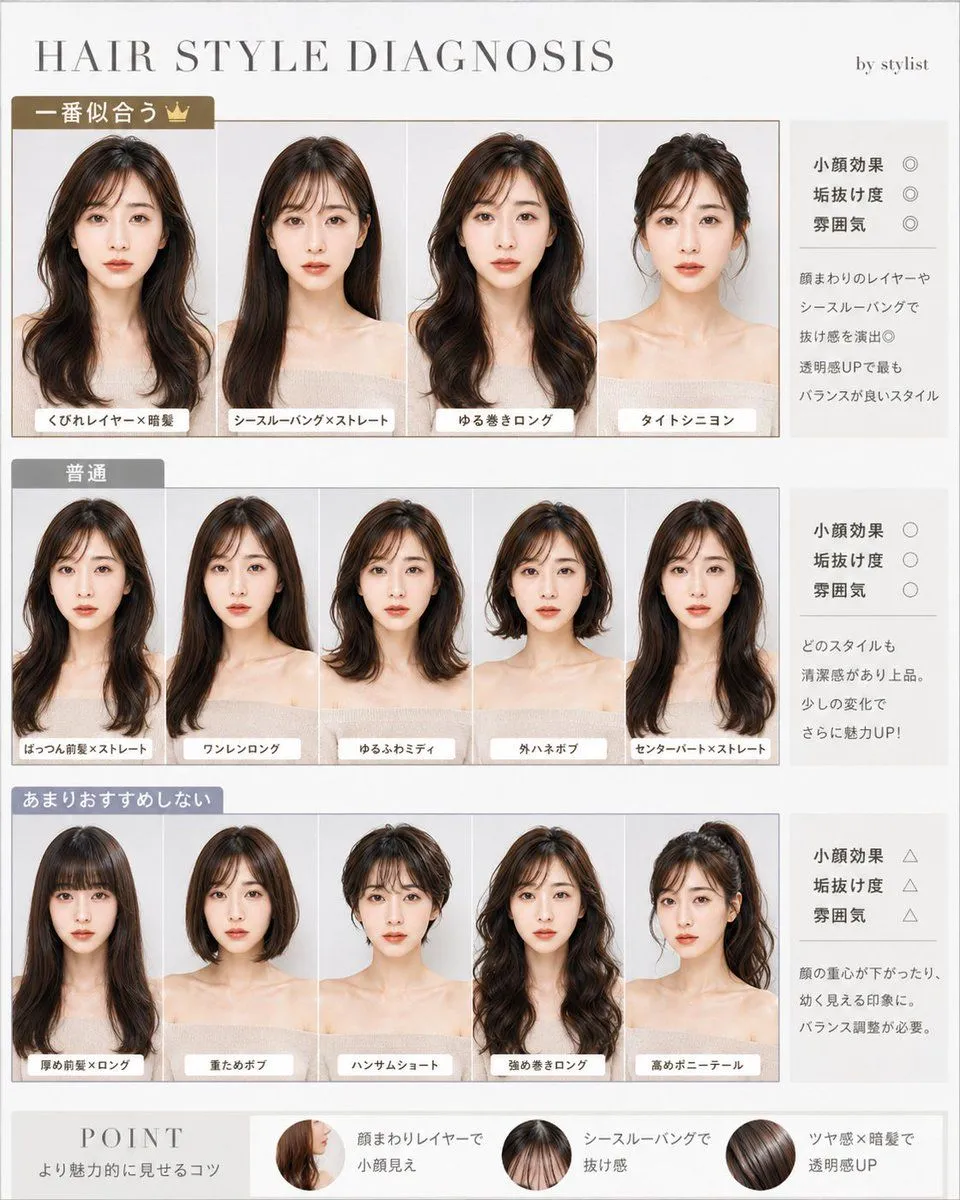
    • Japanese Hair Style Diagnosis Chart
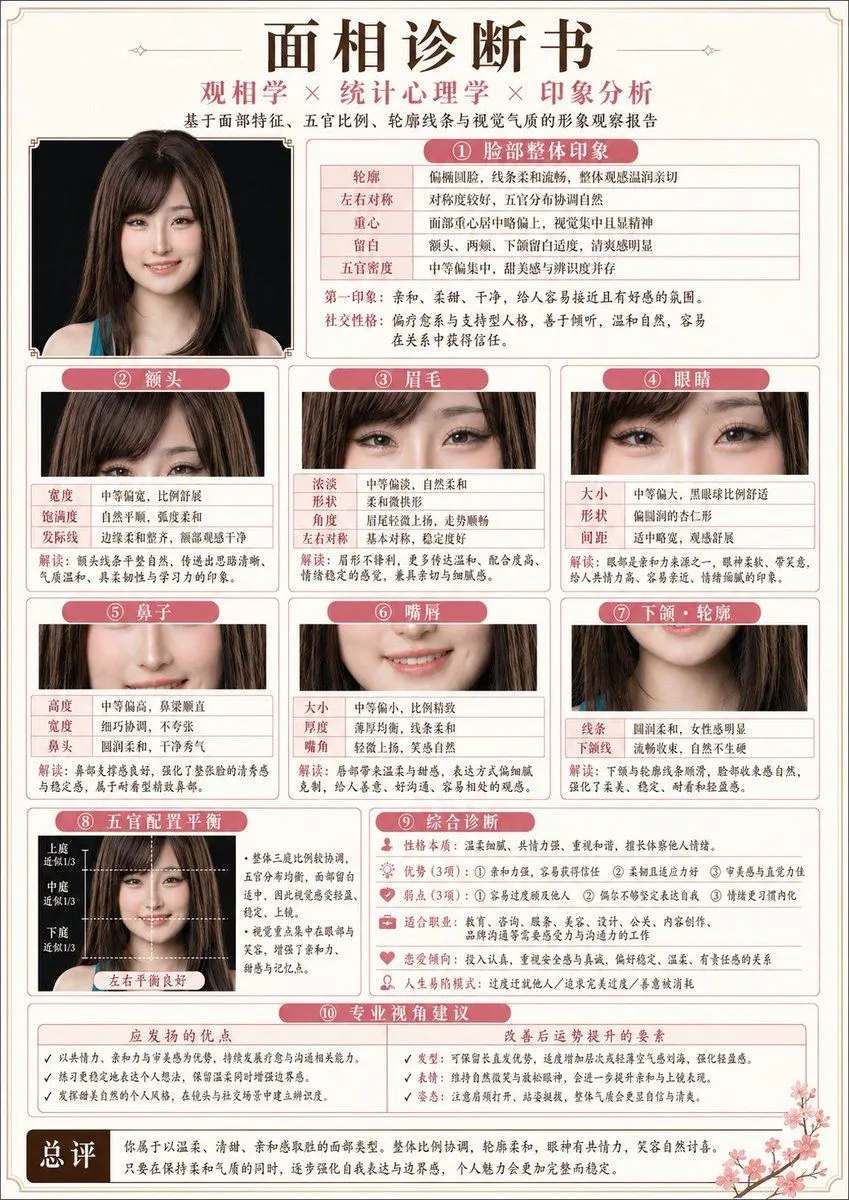
    • Japanese-Style Facial Analysis Diagnostic Poster
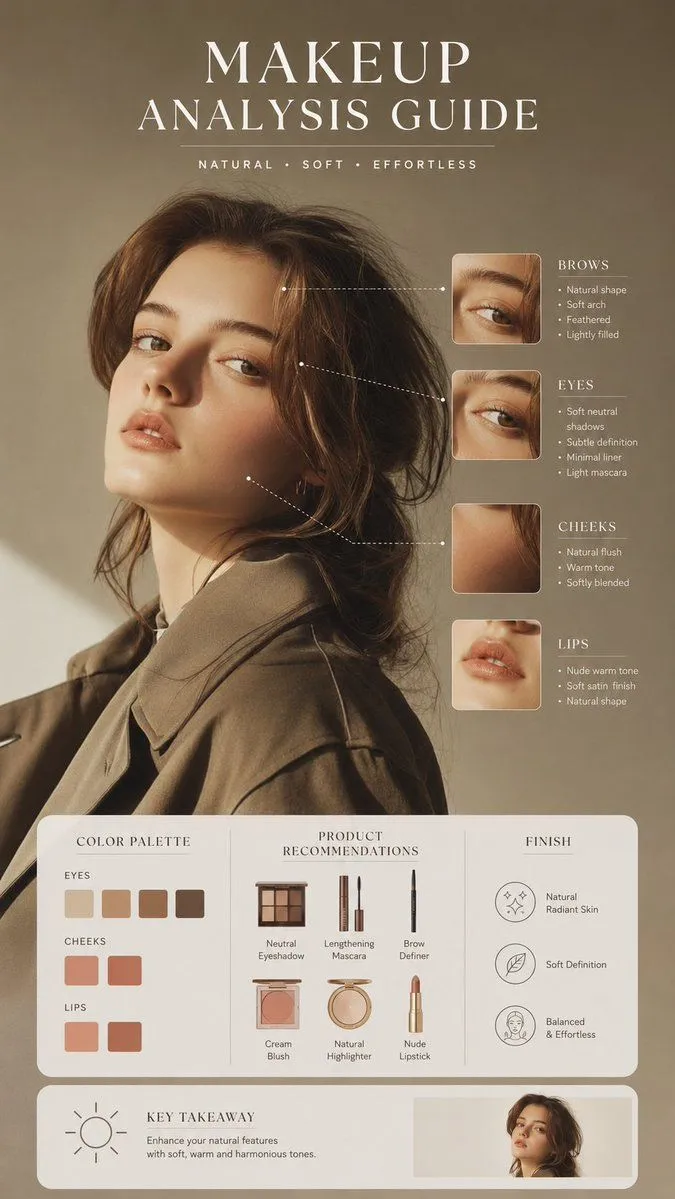
    • Beauty Magazine Makeup Analysis Guide
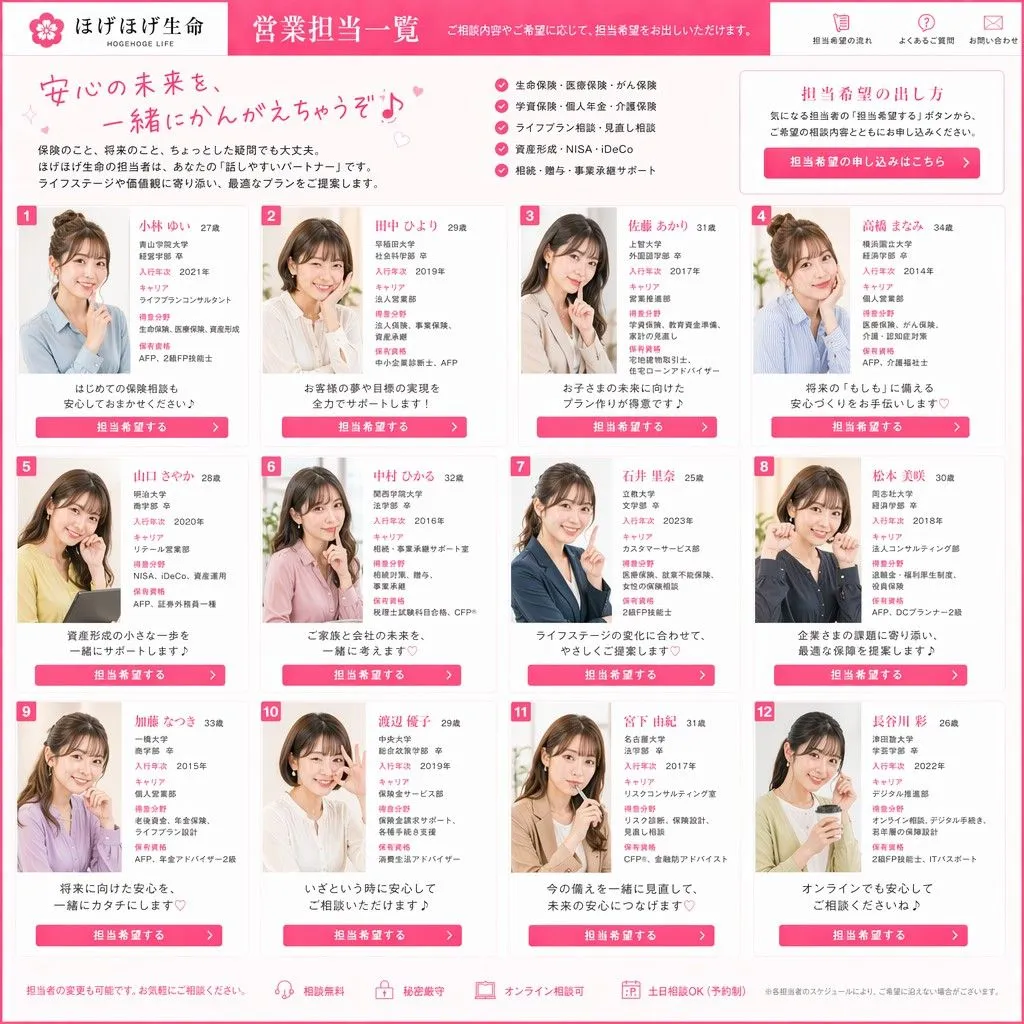
    • Japanese Insurance Staff Directory Mockup
    • ASCII Layout Landing Page Generator
    • Magic Prompt for Automatic Infographic Generation with Nano Banana Pro
    • Handwritten Note Style Illustration
    • Requesting Transparent PNG Output
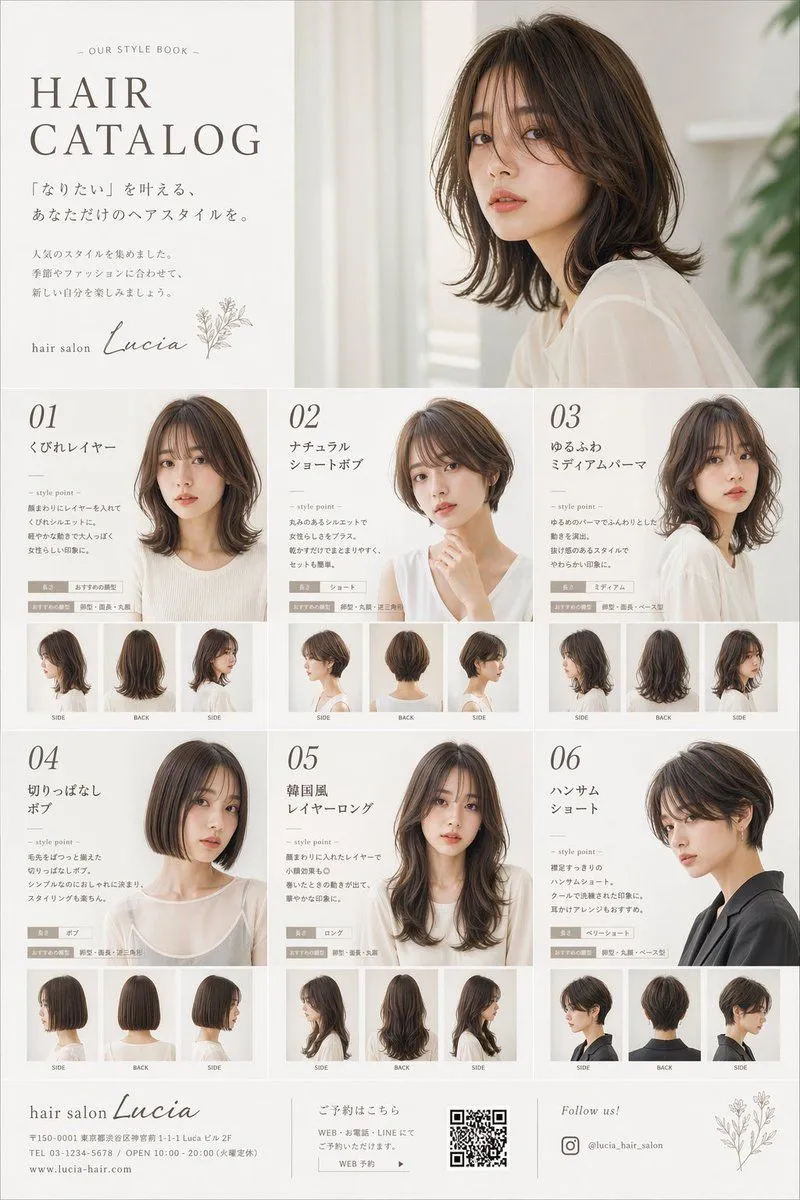
    • Japanese Hair Salon Catalog Poster
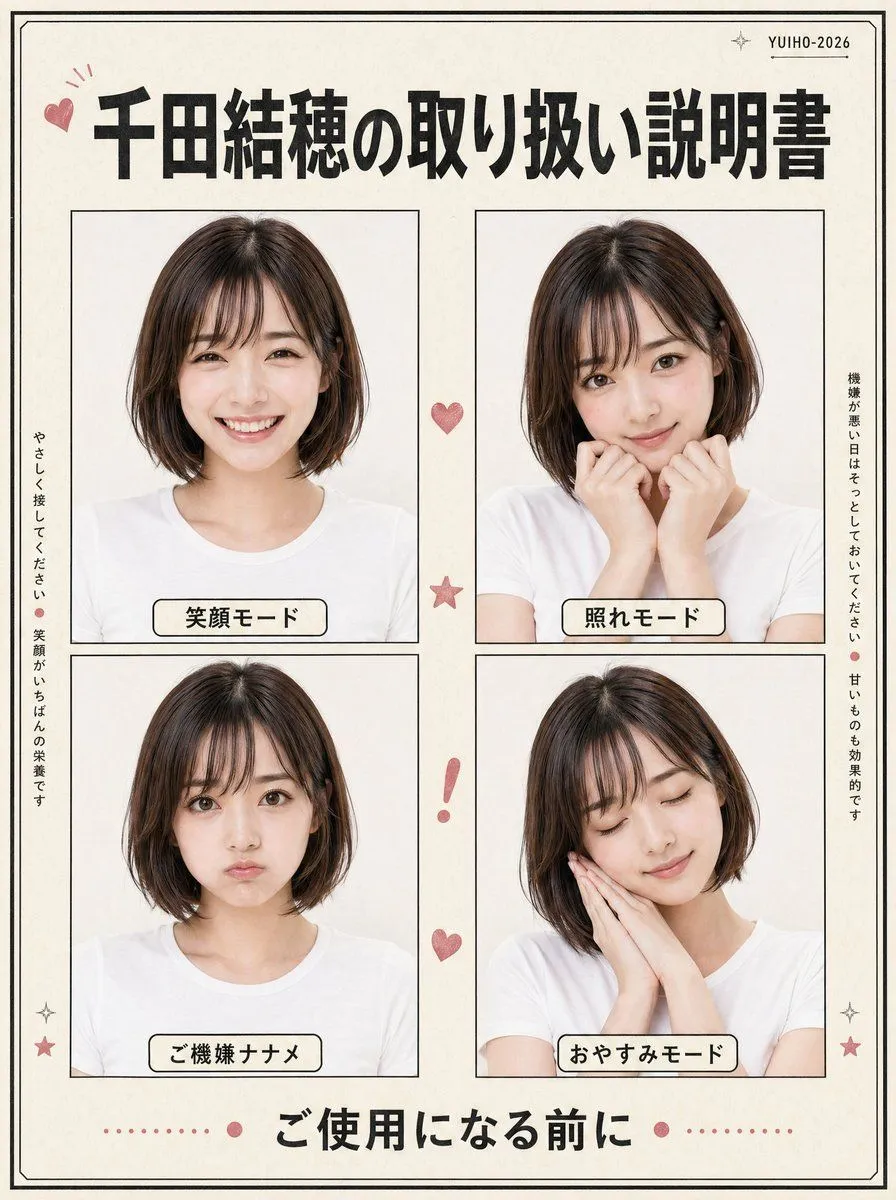
    • Japanese Character Manual Poster
    • Photorealistic Shibuya Street Selfie
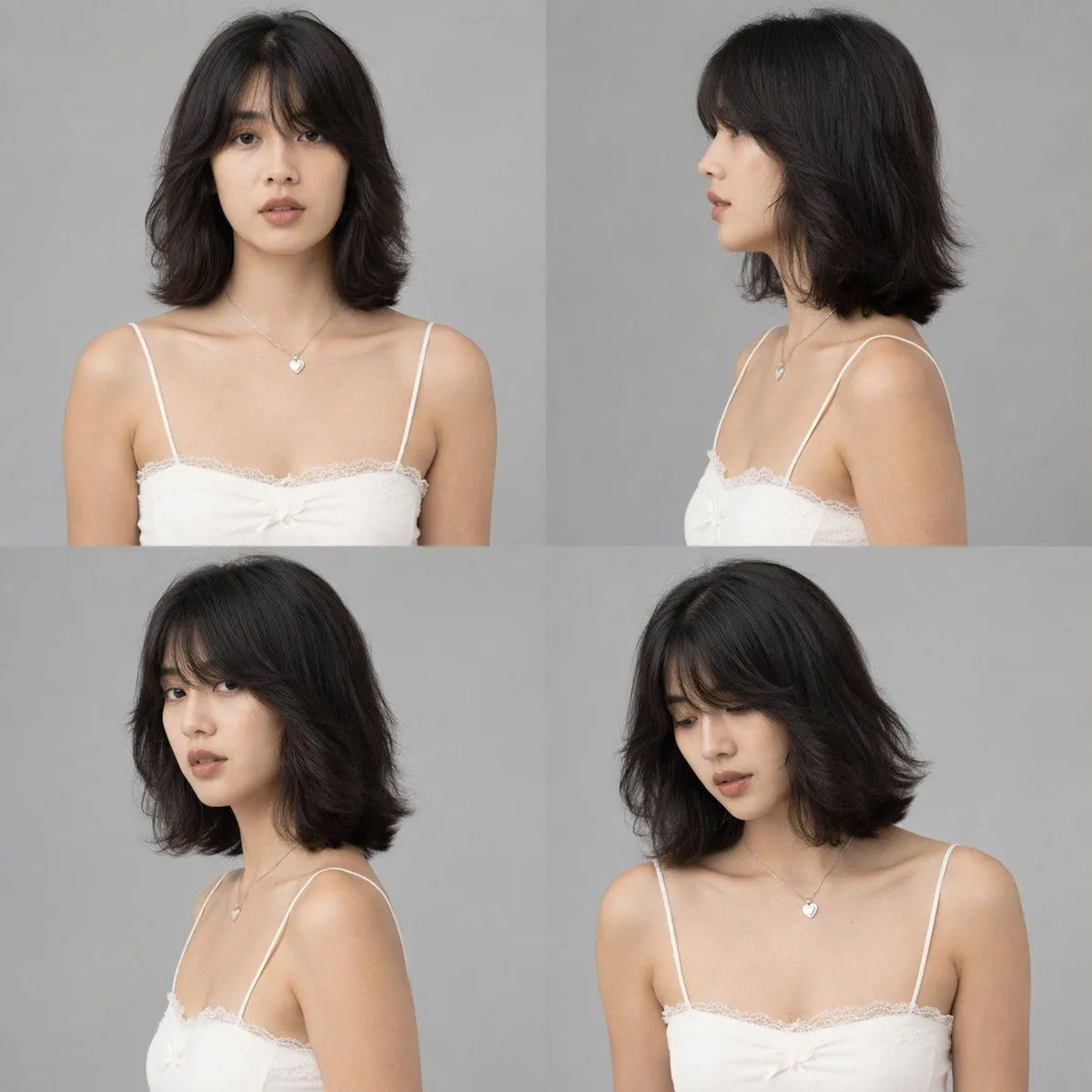
    • Multi-Angle Studio Character Sheet
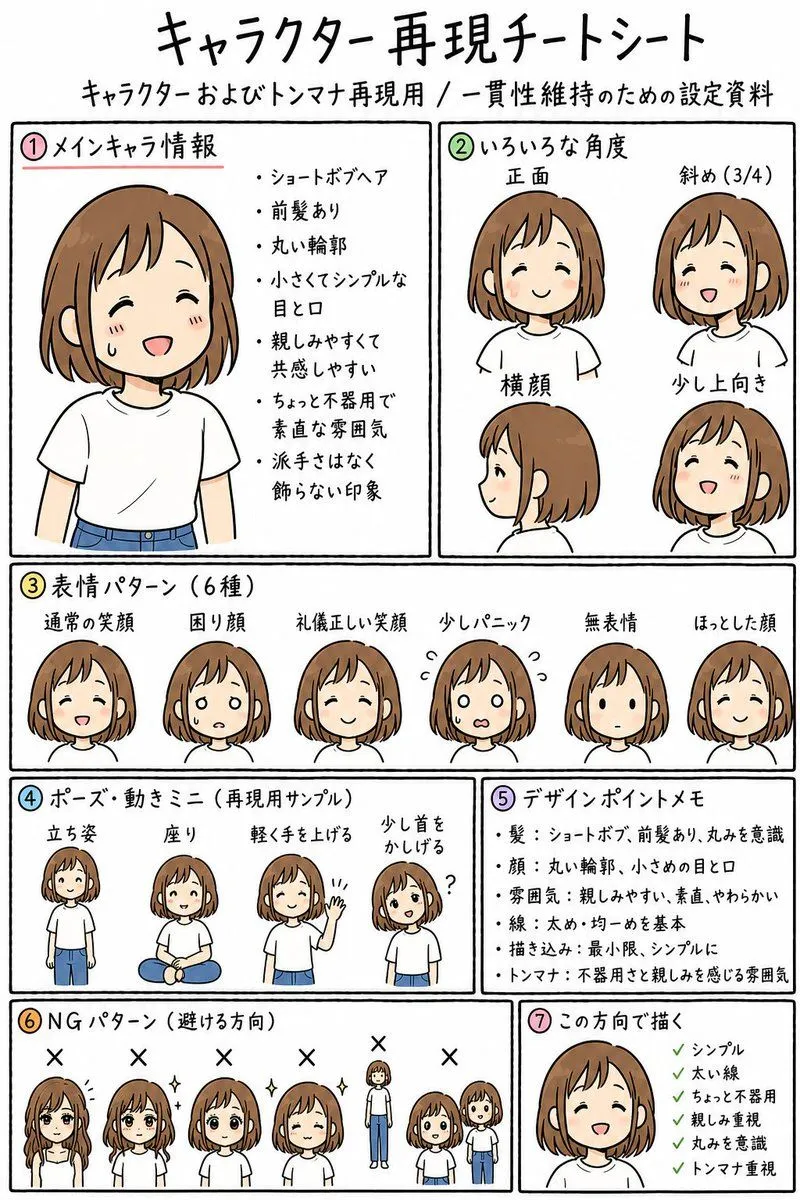
    • Anime Character Reproduction Cheat Sheet
    • Horizontal three-panel emotional portrait from one image
    • Election Poster Style Prompt
    • Showa Day Scrapbook Portrait
    • Photoreal Character Reference Sheet
    • East Asian Woman Photo Strip

    Show more

    Run it on your phone

    1. Prompt copiedRead it

      { "type": "infographic", "style": "clean, modern, professional, soft green and beige color palette, photorealistic character integration", "header": { "icon": "lightbulb", "title": "{argument name=\"main title\" default=\"ここまでの Seedance 2.0 の使い方まとめ\"}", "subtitle": "{argument name=\"subtitle\" default=\"実写MV・会話・芝居系を想定した実践メモ\"}" }, "presenter_character": "{argument name=\"presenter description\" default=\"photorealistic young Japanese woman with long dark brown hair wearing a beige sleeveless top\"}", "total_presenter_cutouts": 6, "layout": { "sections": [ { "number": 1, "title": "{argument name=\"section 1 title\" default=\"参照画像と背景づくり\"}", "elements": "3 bullet points, 1 horizontal 3-step flowchart with thumbnail images (cityscape, text box, video player)", "presenter_pose": "pointing left towards the flowchart, with a speech bubble" }, { "number": 2, "title": "{argument name=\"section 2 title\" default=\"プロンプトは長くてもかなり耐える\"}", "elements": "2 bullet points, 1 table with 3 rows featuring icons (lock, clock, prohibition sign)", "presenter_pose": "neutral expression, looking forward, with a speech bubble" }, { "number": 3, "title": "秒数に“隙間”を作らない", "elements": "2 bullet points, 1 horizontal timeline graphic with 3 segments", "presenter_pose": "pointing up, looking slightly left, with a speech bubble" }, { "number": 4, "title": "720p と 1080p の使い分け", "elements": "text description, 1 two-column comparison table (green column, orange column)", "presenter_pose": "looking forward, with a speech bubble" }, { "number": 5, "title": "今後の課題 / 次の動画への引き継ぎ", "elements": "4 bullet points", "presenter_pose": "looking slightly right, with a speech bubble" }, { "type": "summary_box", "title": "実践メモ 要点", "elements": "clipboard icon, 5 checklist items with green checkmarks", "presenter_pose": "large portrait from chest up, looking directly at viewer" } ] } }

    2. Open your app

      This prompt is long, so it is copied instead of sent in the link. Paste it in the app.

    3. Paste and run

      Press and hold the message box, then tap Paste. Add your photo first if the prompt uses one. You may need to sign in.

    Software Workflow Infographic