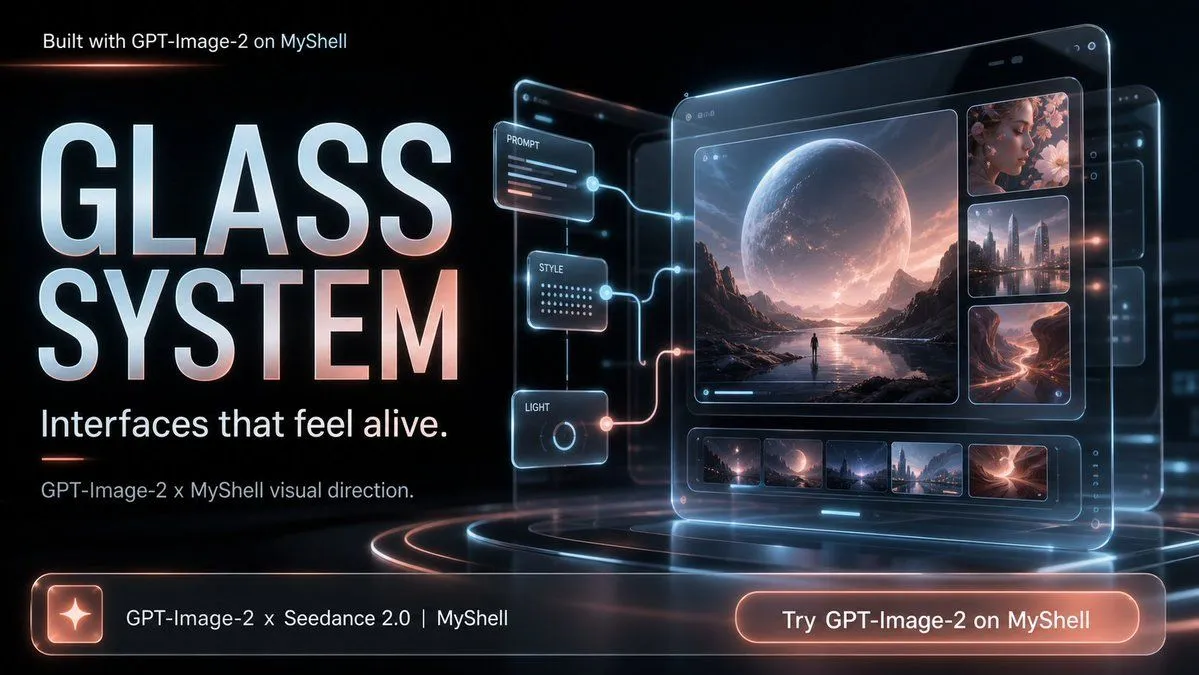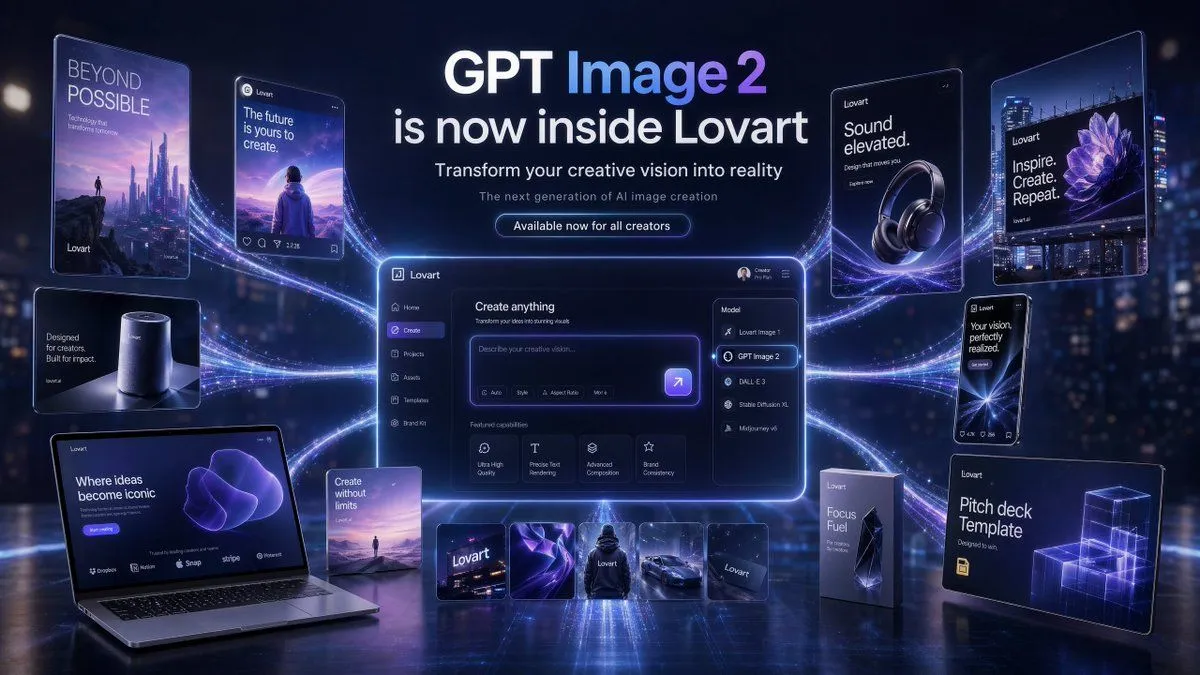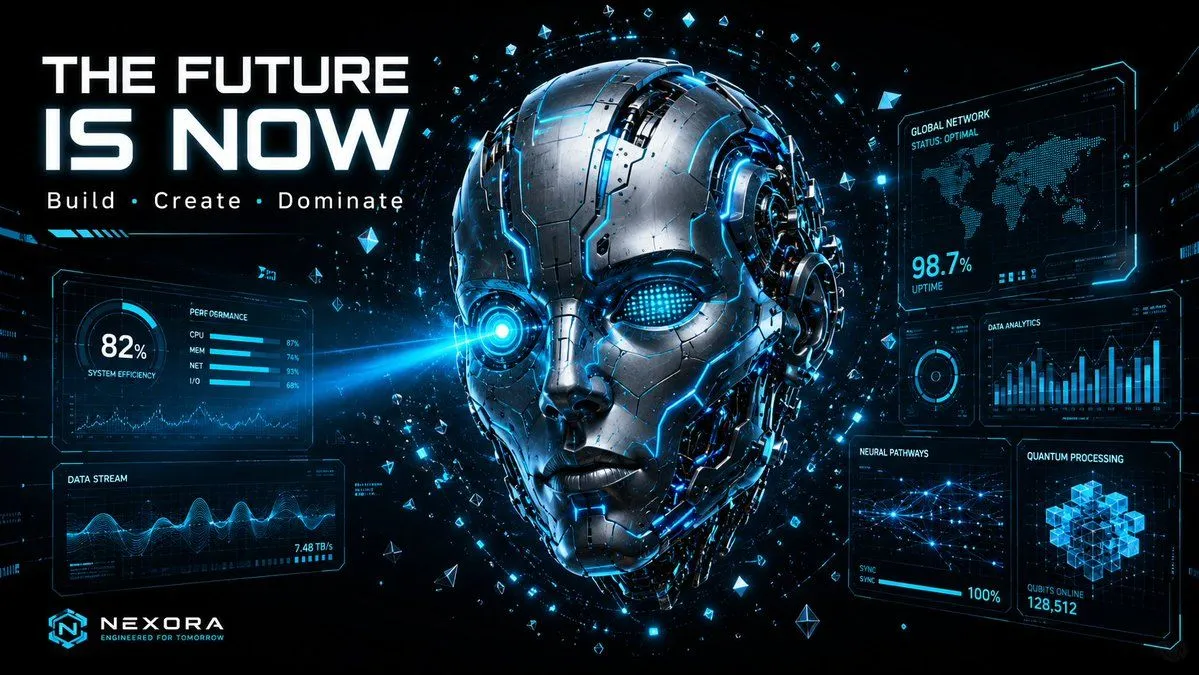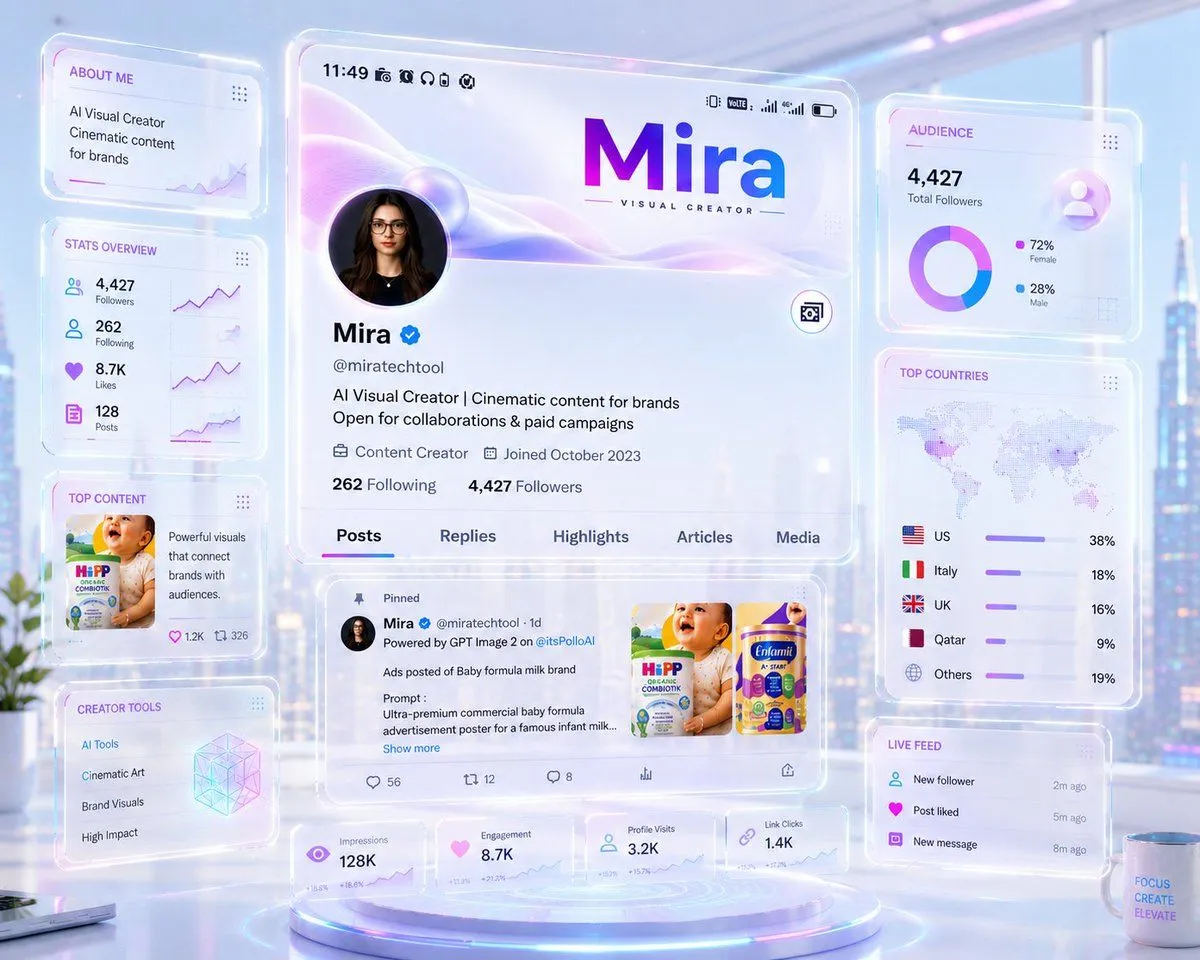

Made with GPT Image 2 in ChatGPT by Library Brand. Promptclay never generates images.
Did it work?
No reports yet. Tell others if it worked for you.
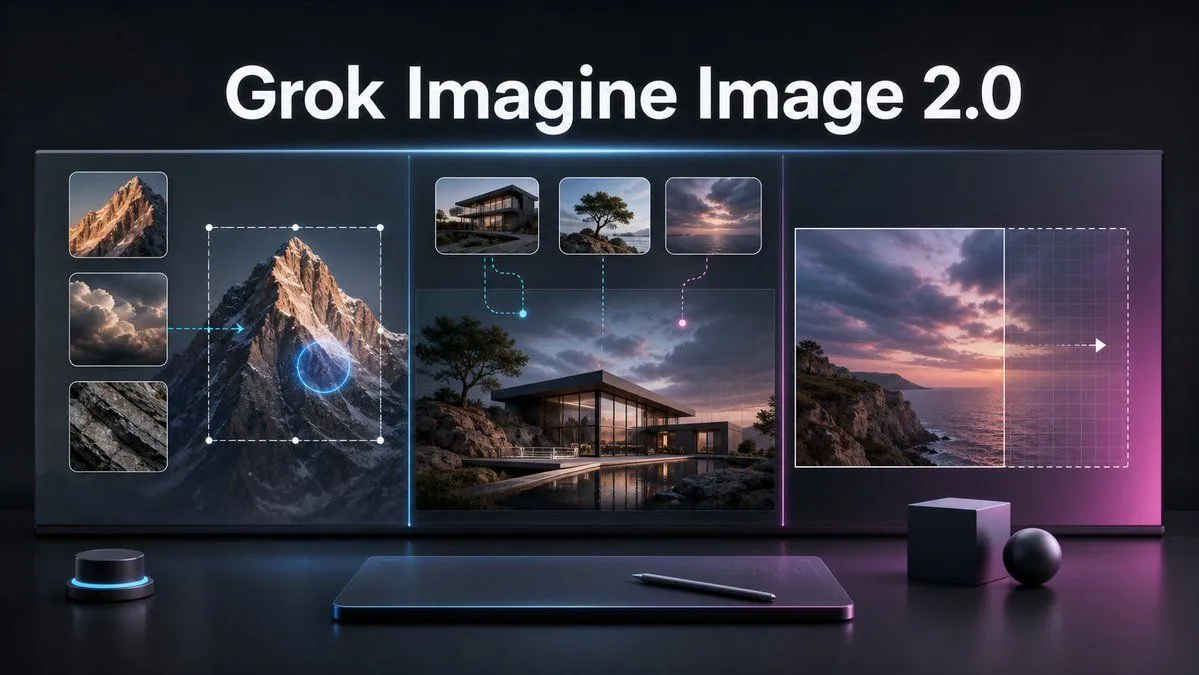
Grok Imagine Image 2.0 Launch Banner
Prompt
1 blank to fillGoal: Create a cinematic dark tech launch banner for {product_name}, showing an advanced AI image editing workflow on a large futuristic display. Canvas: Wide 16:9 horizontal composition, glossy black studio environment, high contrast, premium product-announcement style. Use a deep charcoal background with subtle blue and magenta rim lighting, reflections on a polished desk surface, and a soft neon glow around interface elements. Layout: Place a large bold white headline centered at the top reading “{product_name}”. Below it, create one continuous widescreen glass UI display divided into exactly 3 vertical sections by thin glowing separators: cyan separator between the left and center sections, magenta separator between the center and right sections. Left section: Show local image editing. Include exactly 3 stacked reference thumbnails on the far left: 1) sunlit mountain peak, 2) dramatic clouds, 3) gray rock texture. To the right of these thumbnails, show a large mountain image with a dashed rectangular selection box, white corner/edge handles, and a glowing blue circular edit target over the mountain. Add a cyan arrow pointing from the cloud thumbnail area toward the mountain, implying guided editing. Center section: Show multi-image reference generation. Use a large realistic image of a modern glass house on a rocky coastal landscape at dusk, with a pool reflection in the foreground. Above it, include exactly 3 small rounded reference cards: 1) modern house exterior, 2) lone windswept tree on rocks, 3) pink-purple sunset sky over water. Connect the first card with a cyan dashed curved line ending in a glowing cyan dot, connect the second card with a vertical dotted line, and connect the third card with a magenta dashed curved line ending in a glowing magenta dot. Right section: Show intelligent resizing or outpainting. Include a sunset seascape image on the left side of the panel, a vertical boundary line at its right edge, and a larger dashed rectangular extension area to the right with a faint grid overlay. Add a white arrow pointing right across the extension area to indicate expansion. The right side should fade into a magenta glow. Foreground objects: On the desk below the display, include exactly 4 objects: 1) a small black cylindrical control puck with a cyan light ring on the left, 2) a slim dark drawing tablet centered with a soft blue rim glow, 3) a black stylus lying diagonally on the tablet, 4) two matte geometric props on the right consisting of one cube and one sphere. Visual style: Ultra-polished 3D render mixed with realistic UI mockup, dramatic cinematic lighting, glass panels, crisp rounded thumbnails, subtle grid textures, neon cyan and magenta accents, shallow reflections, high-resolution product keynote aesthetic. Keep the typography clean, bold, and sans-serif. No extra logos, watermarks, people, or additional text.
Preview of your prompt
Goal: Create a cinematic dark tech launch banner for Grok Imagine Image 2.0, showing an advanced AI image editing workflow on a large futuristic display. Canvas: Wide 16:9 horizontal composition, glossy black studio environment, high contrast, premium product-announcement style. Use a deep charcoal background with subtle blue and magenta rim lighting, reflections on a polished desk surface, and a soft neon glow around interface elements. Layout: Place a large bold white headline centered at the top reading “Grok Imagine Image 2.0”. Below it, create one continuous widescreen glass UI display divided into exactly 3 vertical sections by thin glowing separators: cyan separator between the left and center sections, magenta separator between the center and right sections. Left section: Show local image editing. Include exactly 3 stacked reference thumbnails on the far left: 1) sunlit mountain peak, 2) dramatic clouds, 3) gray rock texture. To the right of these thumbnails, show a large mountain image with a dashed rectangular selection box, white corner/edge handles, and a glowing blue circular edit target over the mountain. Add a cyan arrow pointing from the cloud thumbnail area toward the mountain, implying guided editing. Center section: Show multi-image reference generation. Use a large realistic image of a modern glass house on a rocky coastal landscape at dusk, with a pool reflection in the foreground. Above it, include exactly 3 small rounded reference cards: 1) modern house exterior, 2) lone windswept tree on rocks, 3) pink-purple sunset sky over water. Connect the first card with a cyan dashed curved line ending in a glowing cyan dot, connect the second card with a vertical dotted line, and connect the third card with a magenta dashed curved line ending in a glowing magenta dot. Right section: Show intelligent resizing or outpainting. Include a sunset seascape image on the left side of the panel, a vertical boundary line at its right edge, and a larger dashed rectangular extension area to the right with a faint grid overlay. Add a white arrow pointing right across the extension area to indicate expansion. The right side should fade into a magenta glow. Foreground objects: On the desk below the display, include exactly 4 objects: 1) a small black cylindrical control puck with a cyan light ring on the left, 2) a slim dark drawing tablet centered with a soft blue rim glow, 3) a black stylus lying diagonally on the tablet, 4) two matte geometric props on the right consisting of one cube and one sphere. Visual style: Ultra-polished 3D render mixed with realistic UI mockup, dramatic cinematic lighting, glass panels, crisp rounded thumbnails, subtle grid textures, neon cyan and magenta accents, shallow reflections, high-resolution product keynote aesthetic. Keep the typography clean, bold, and sans-serif. No extra logos, watermarks, people, or additional text.
DetailsVersions, settings and questions
Written for
What's in the prompt
- Subject
- Model
- GPT Image 2
If your face changes
keep my face exactly the sameQuestions
- Does this work in the ChatGPT app?
- Yes. Paste the prompt and attach your photo if it uses one.
- It changed my face. What do I do?
- Add "keep my face exactly the same" to the end and run it again.
- Can I use the images I make?
- Check the terms of the app you use. Promptclay never generates images and claims nothing you make.