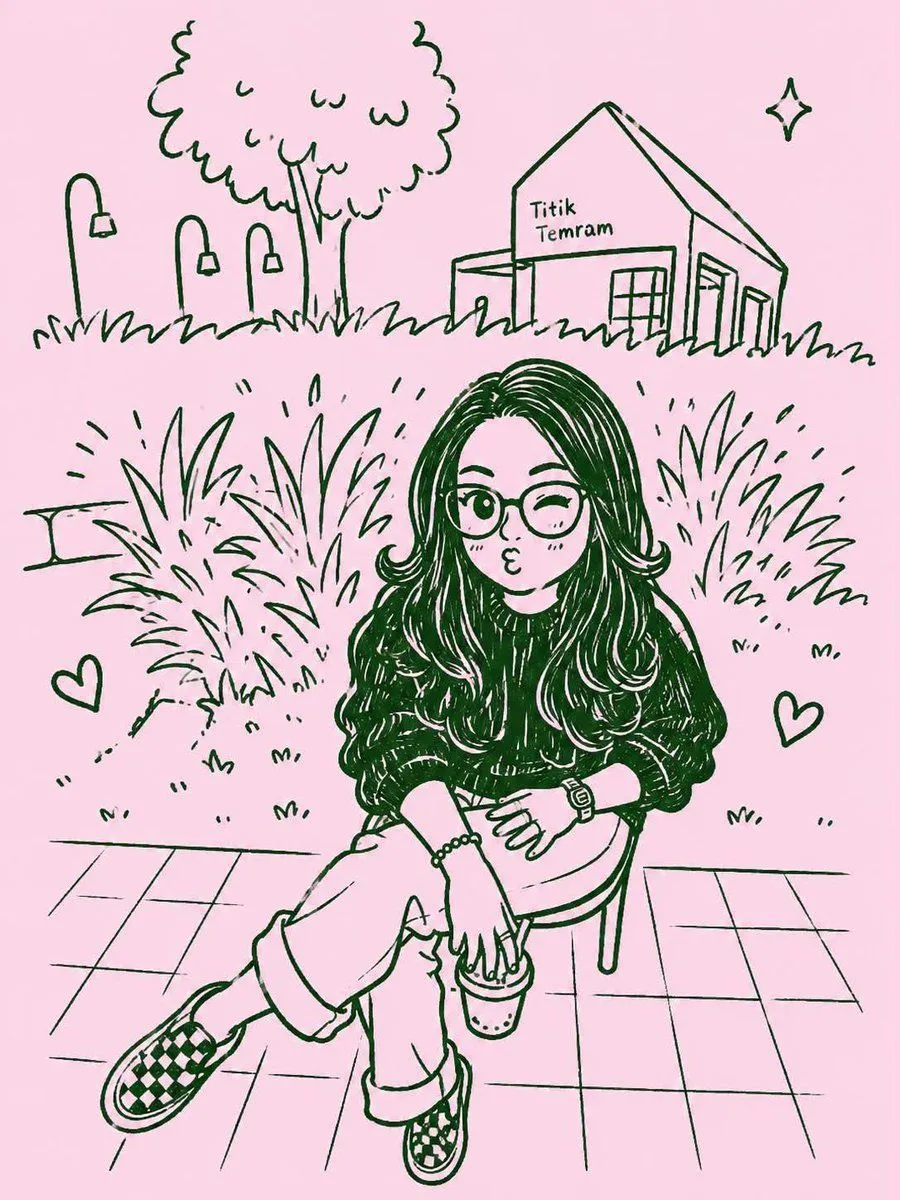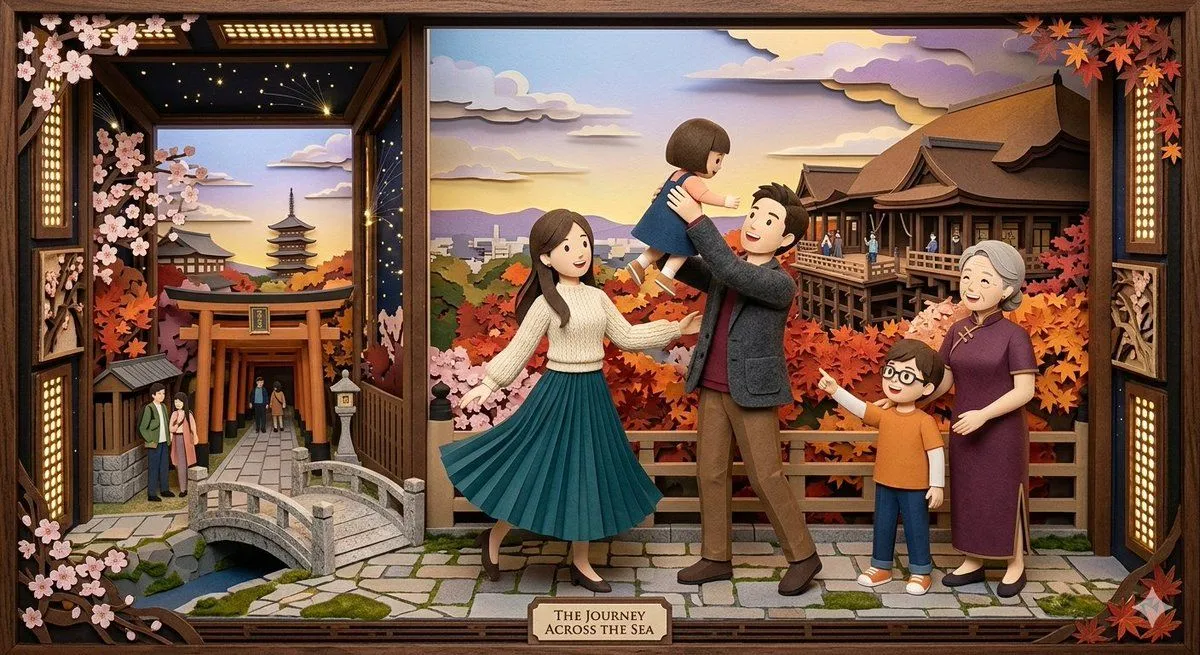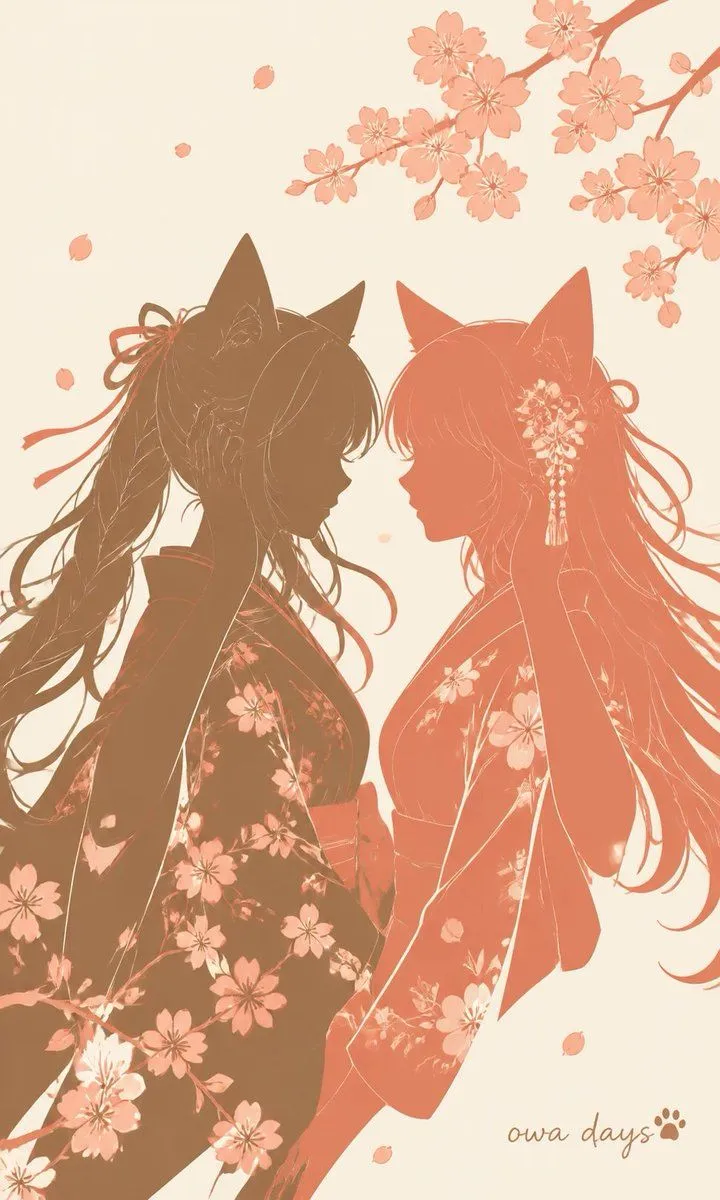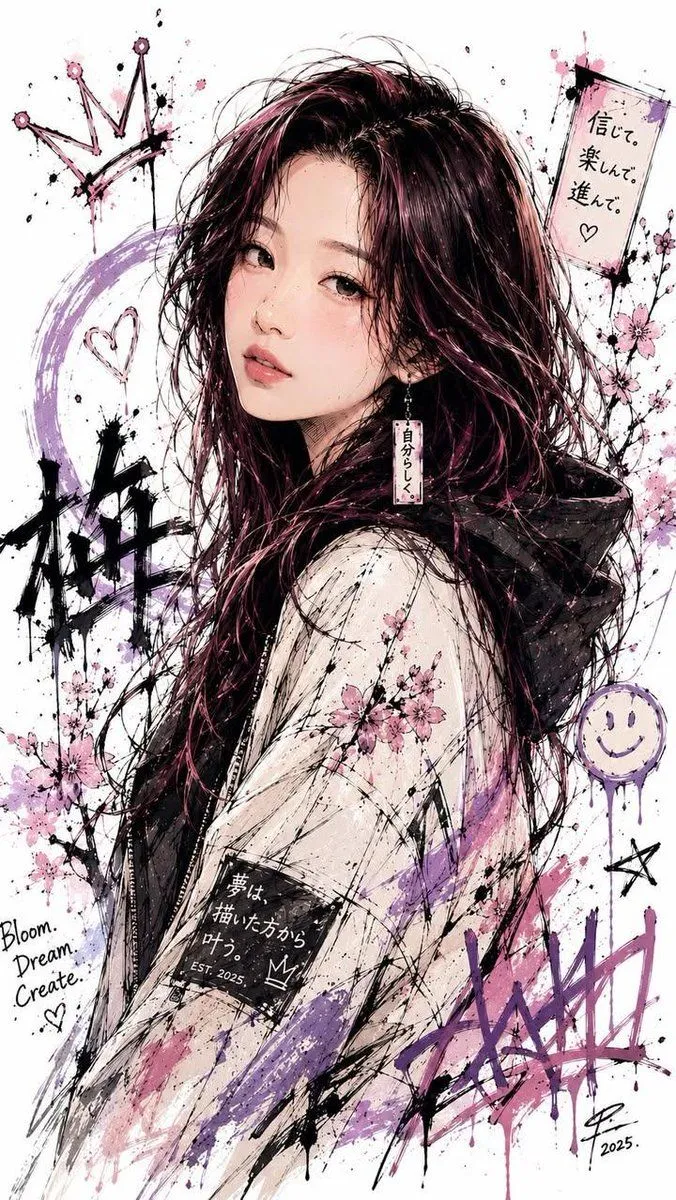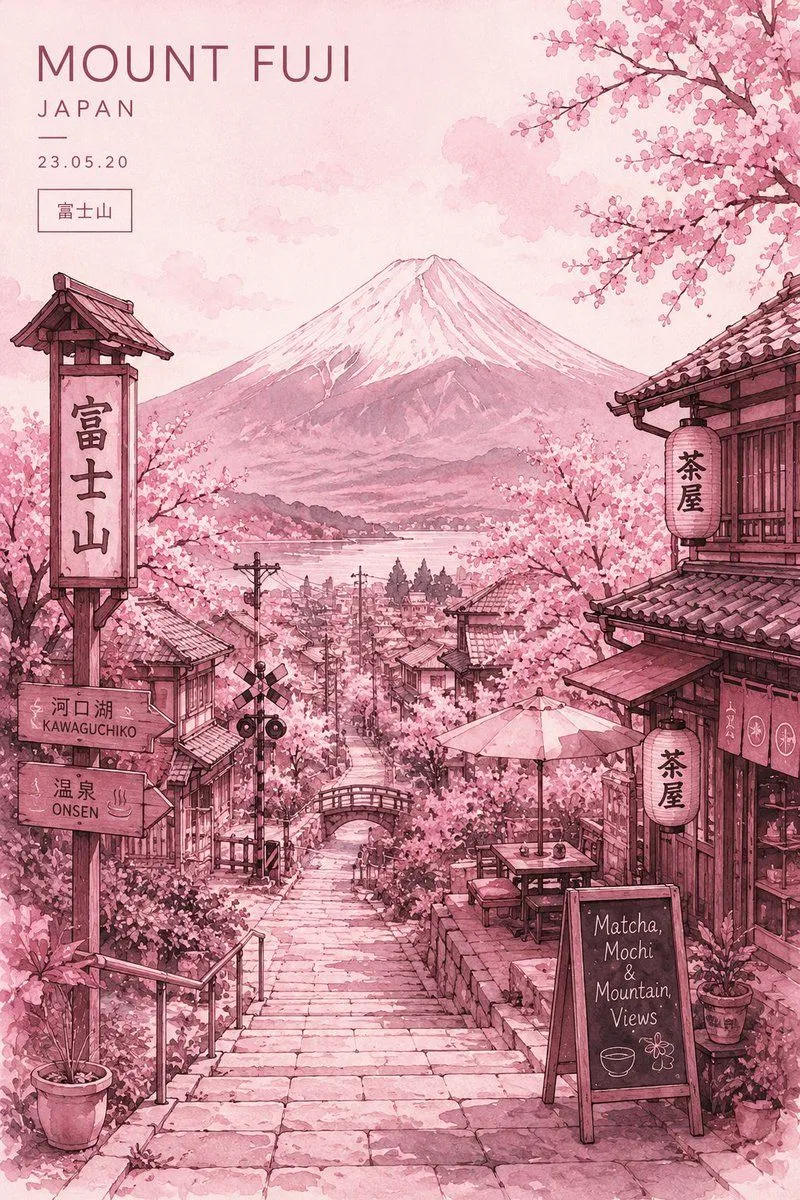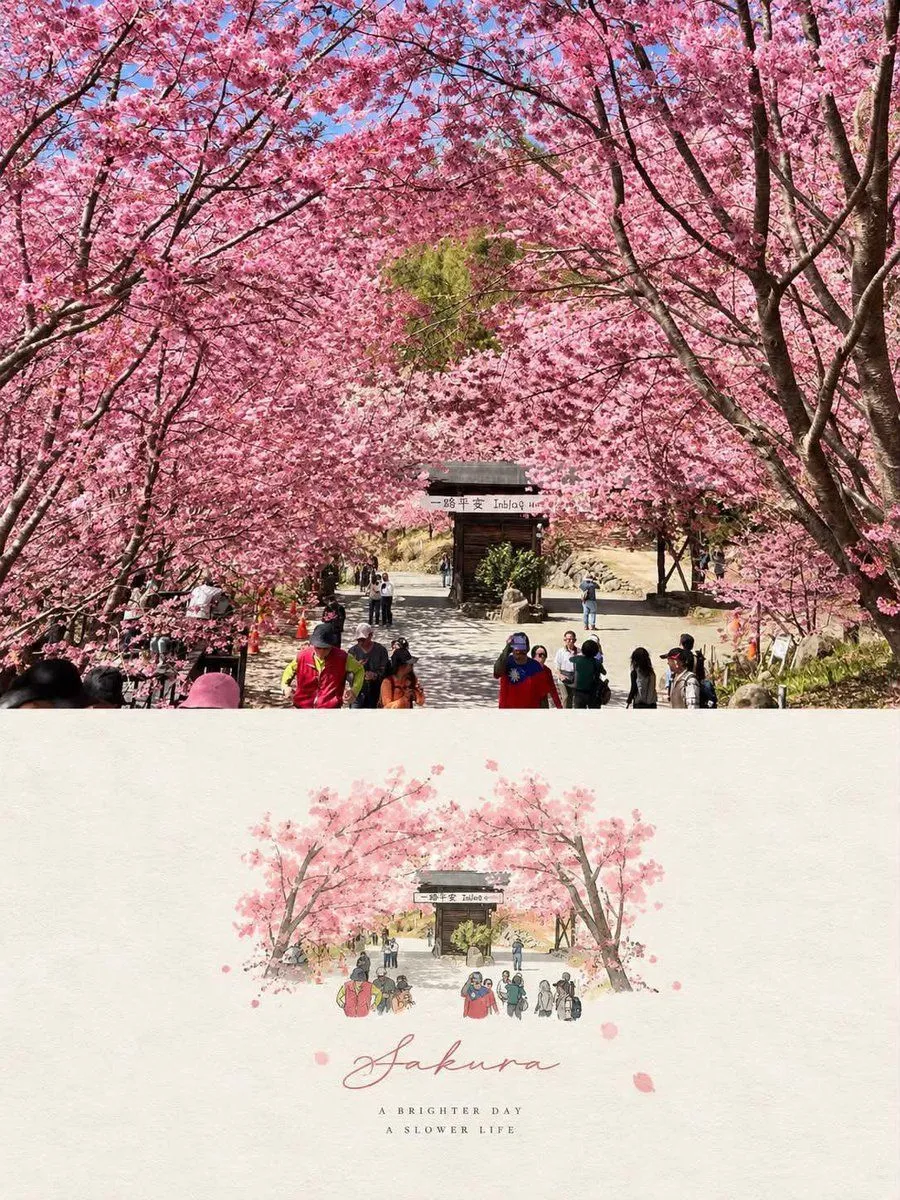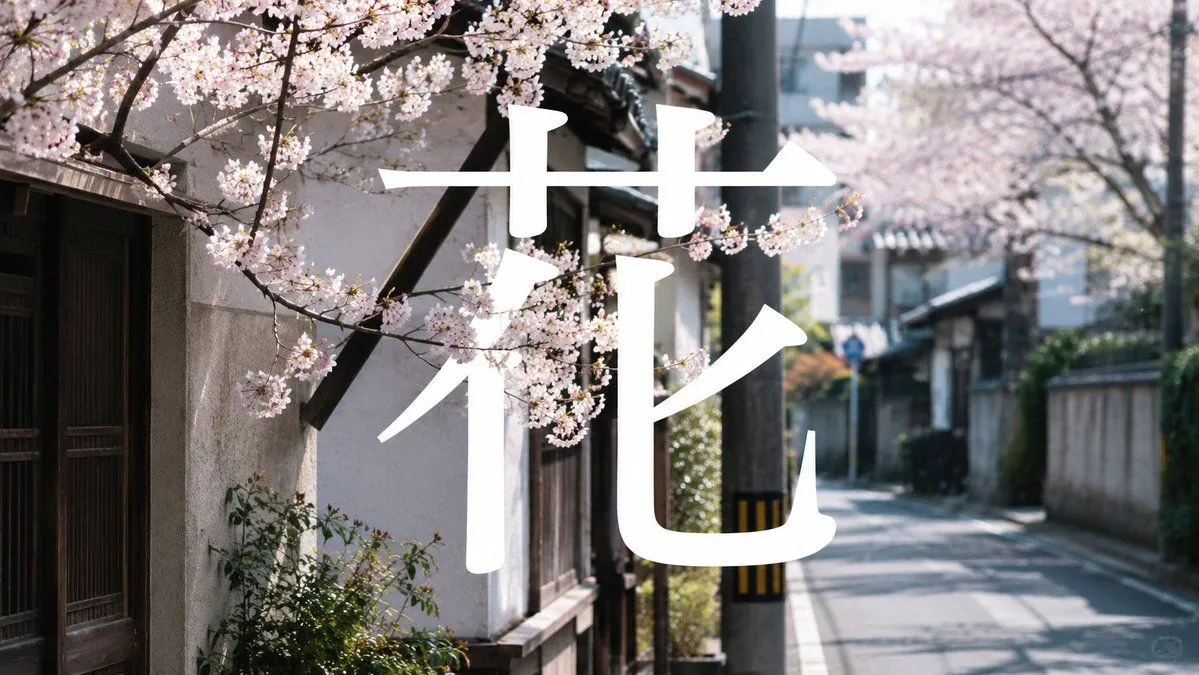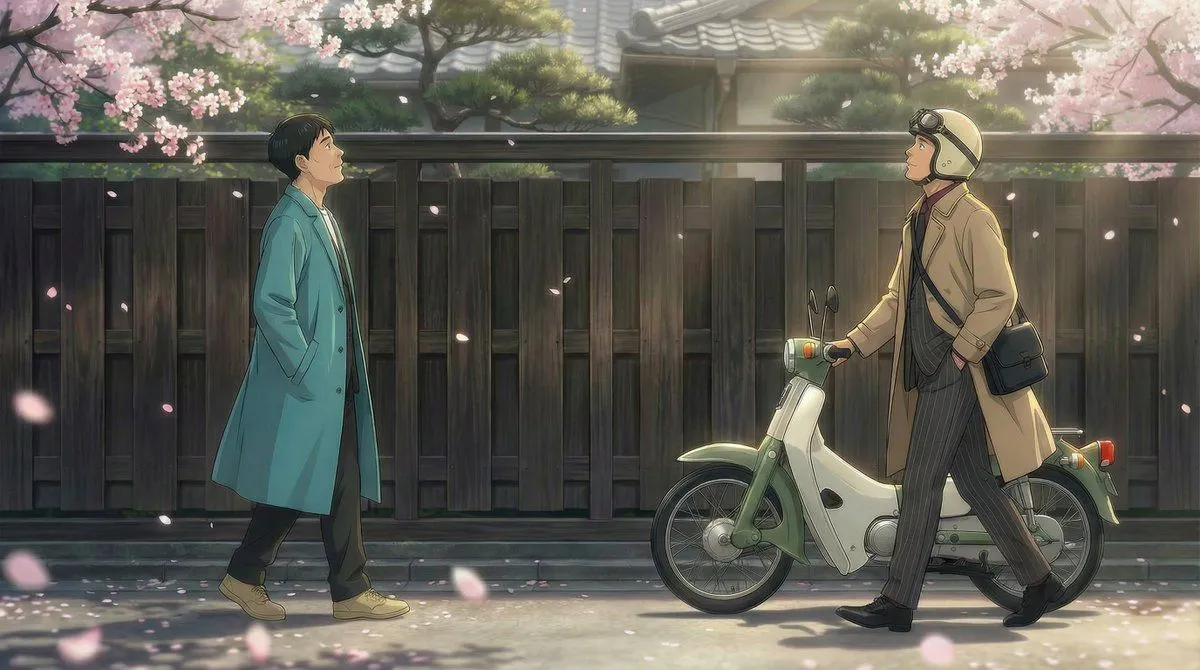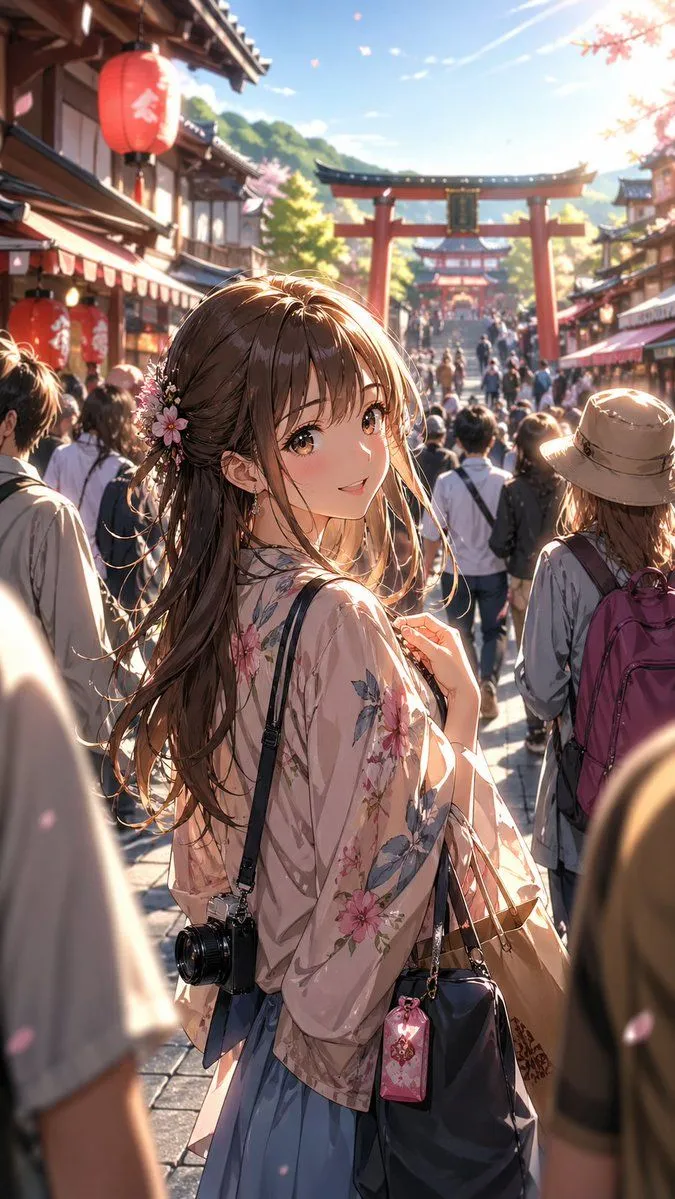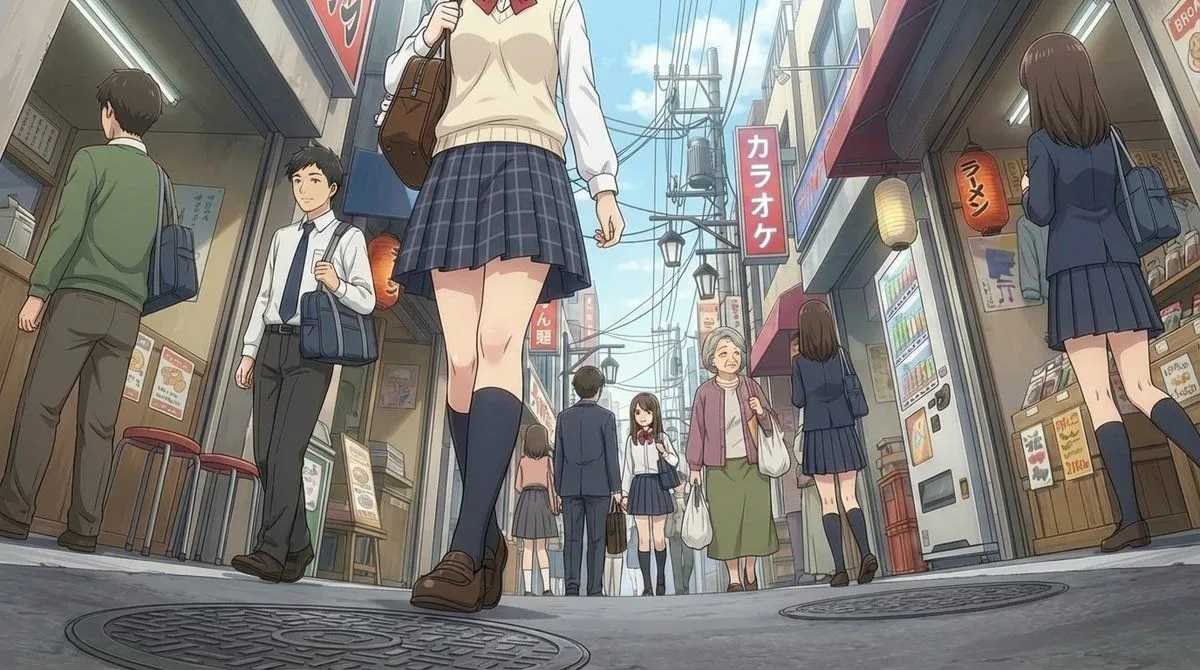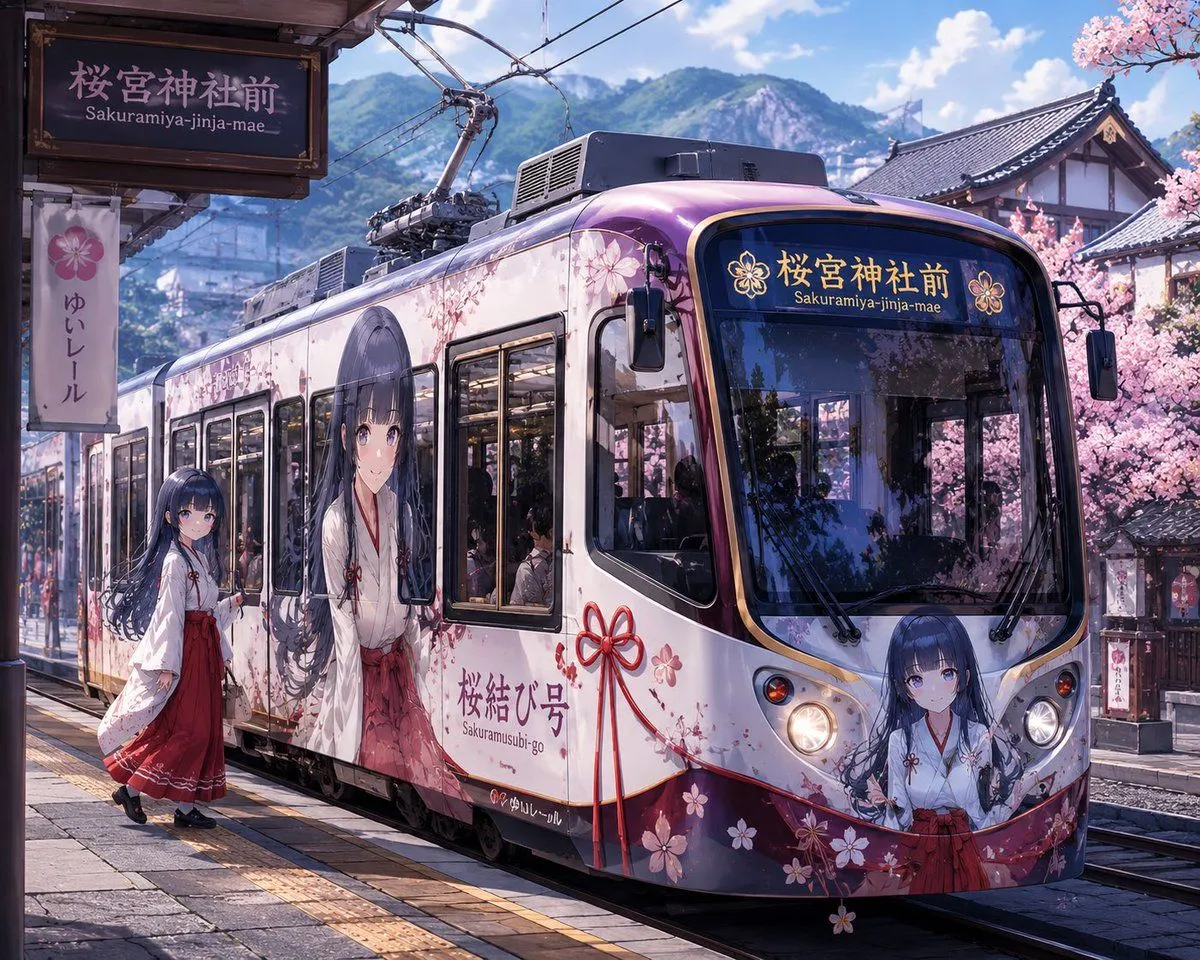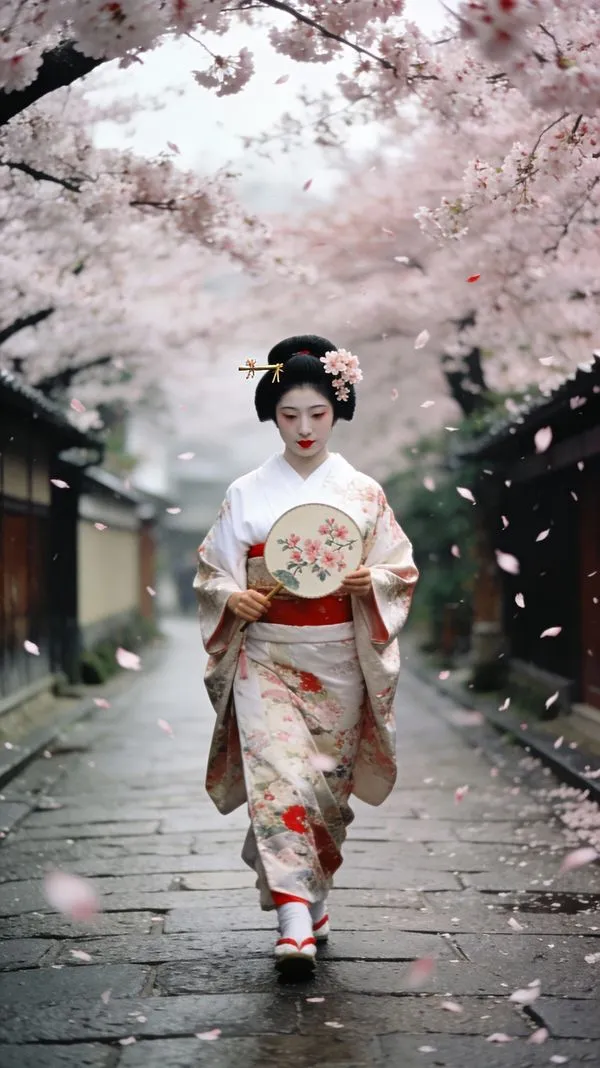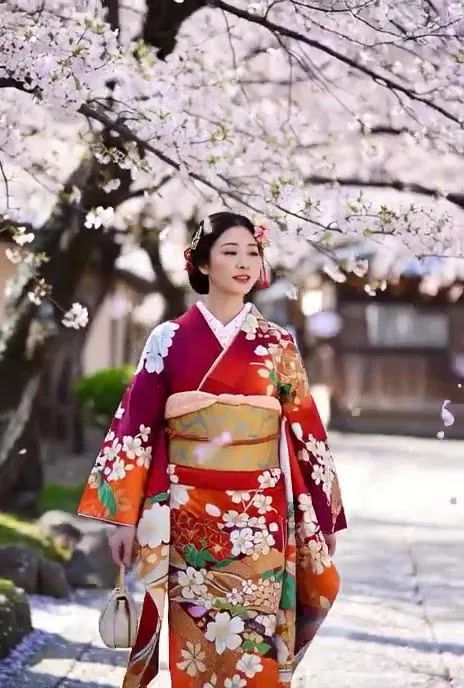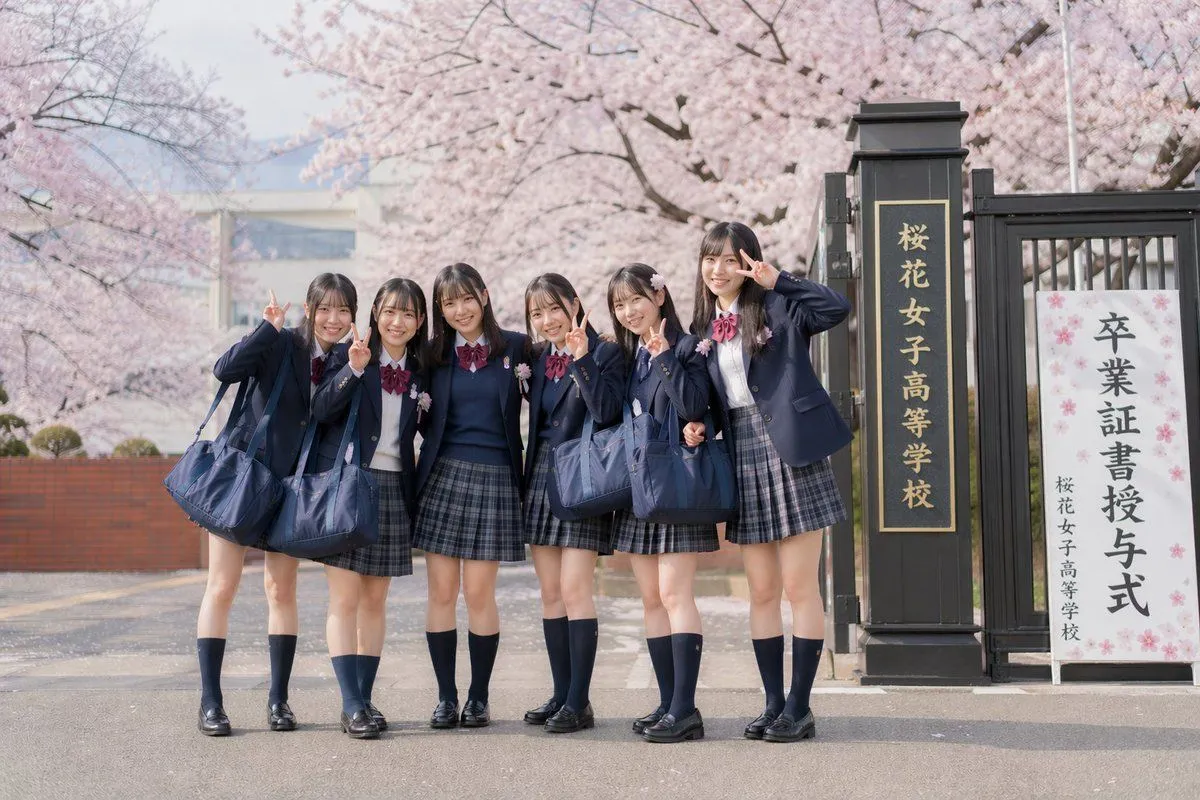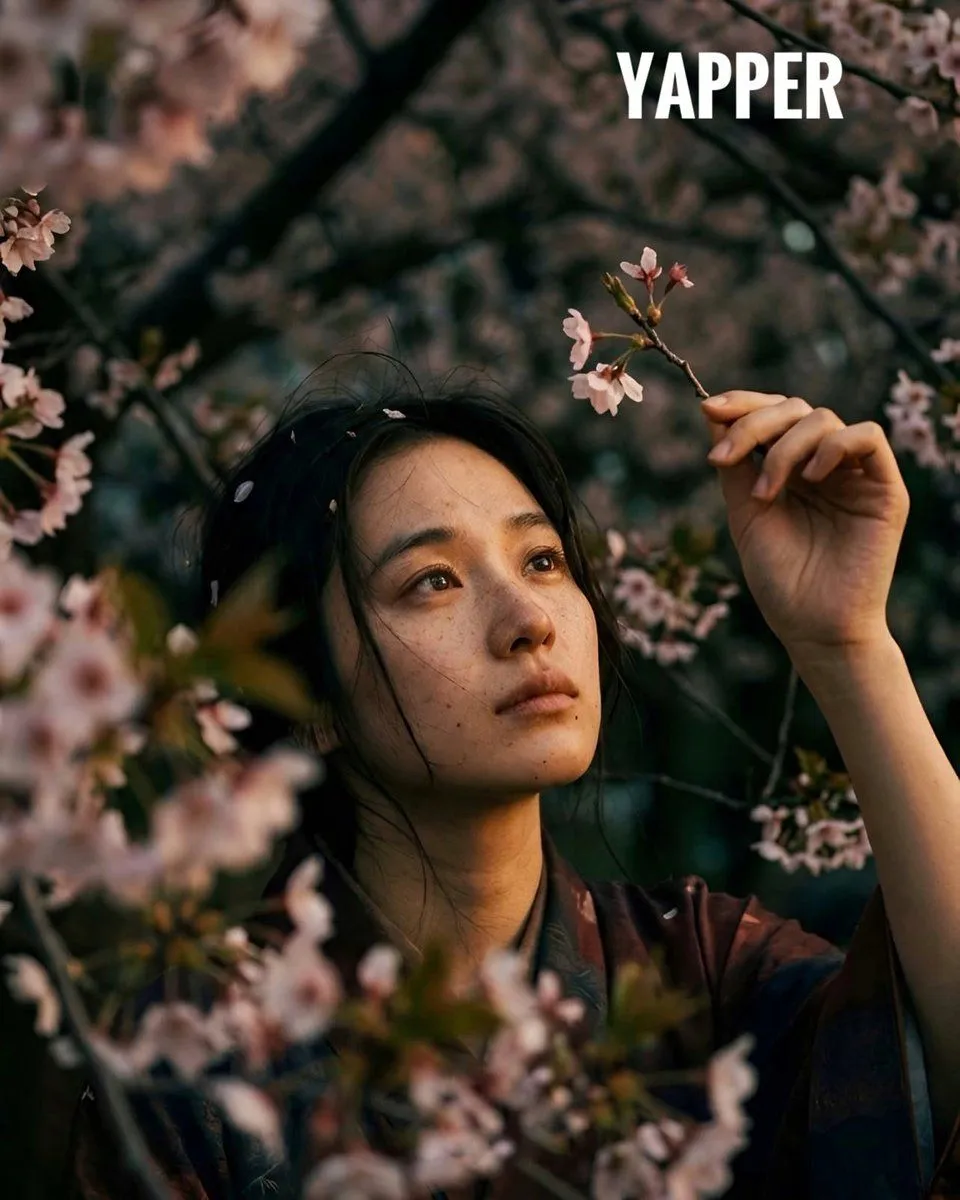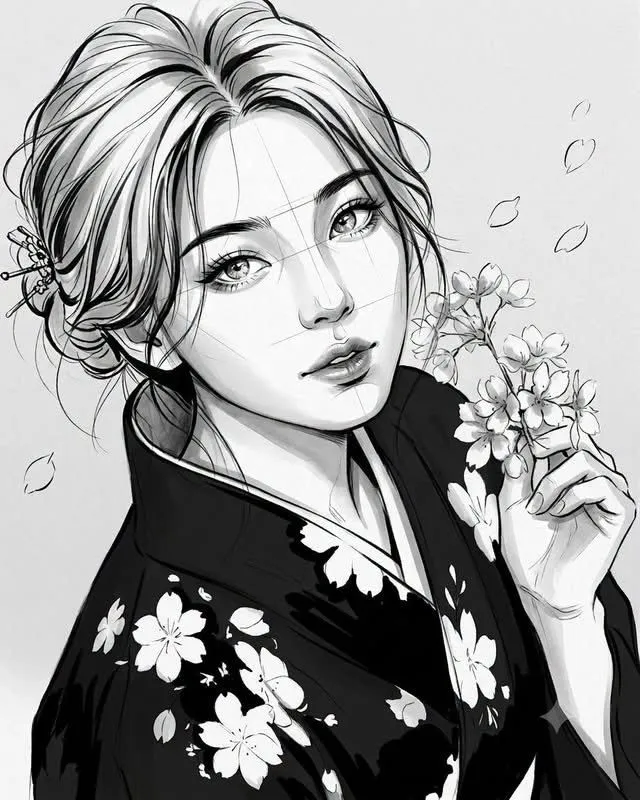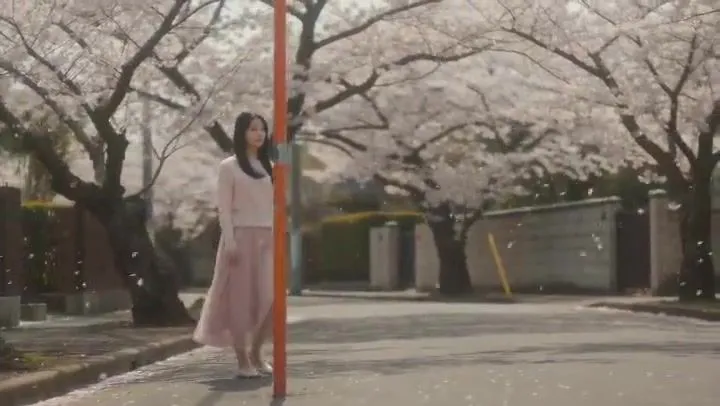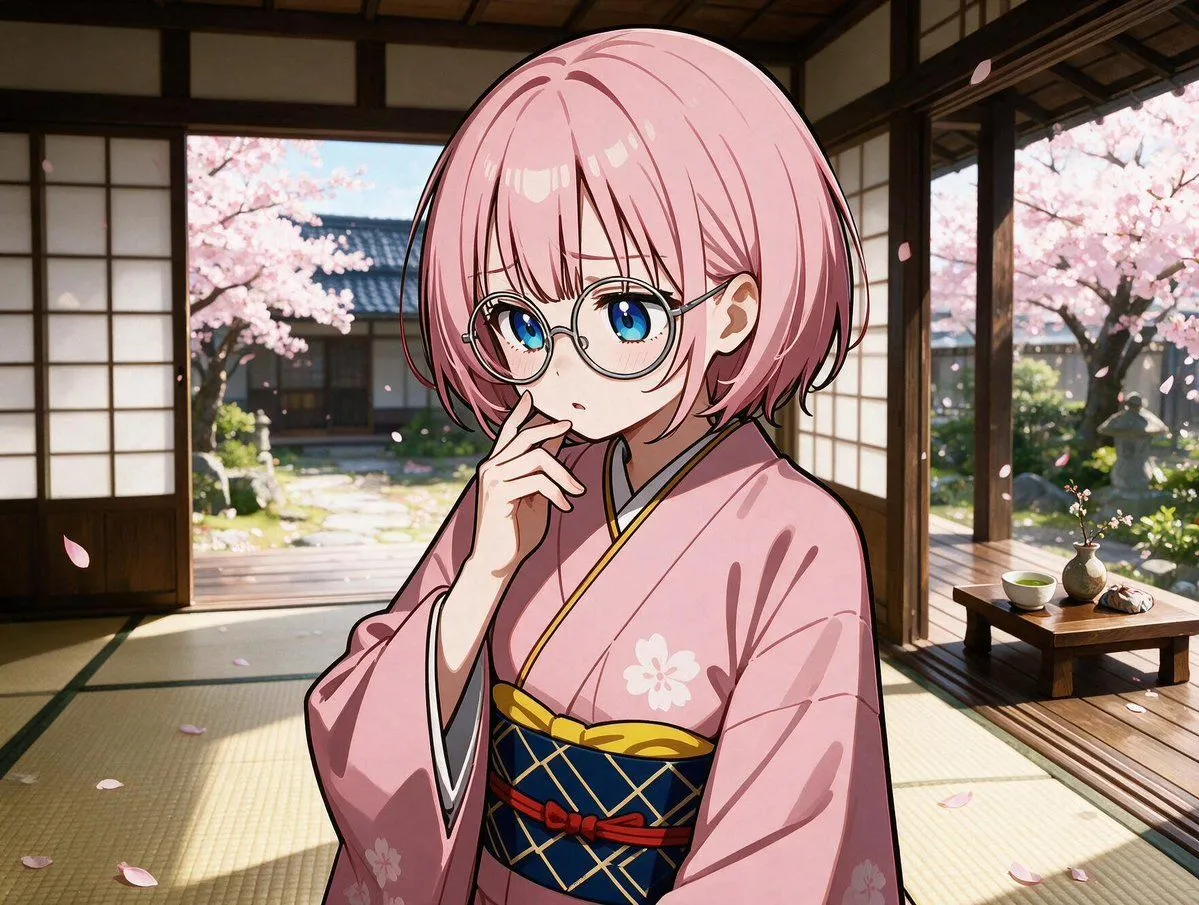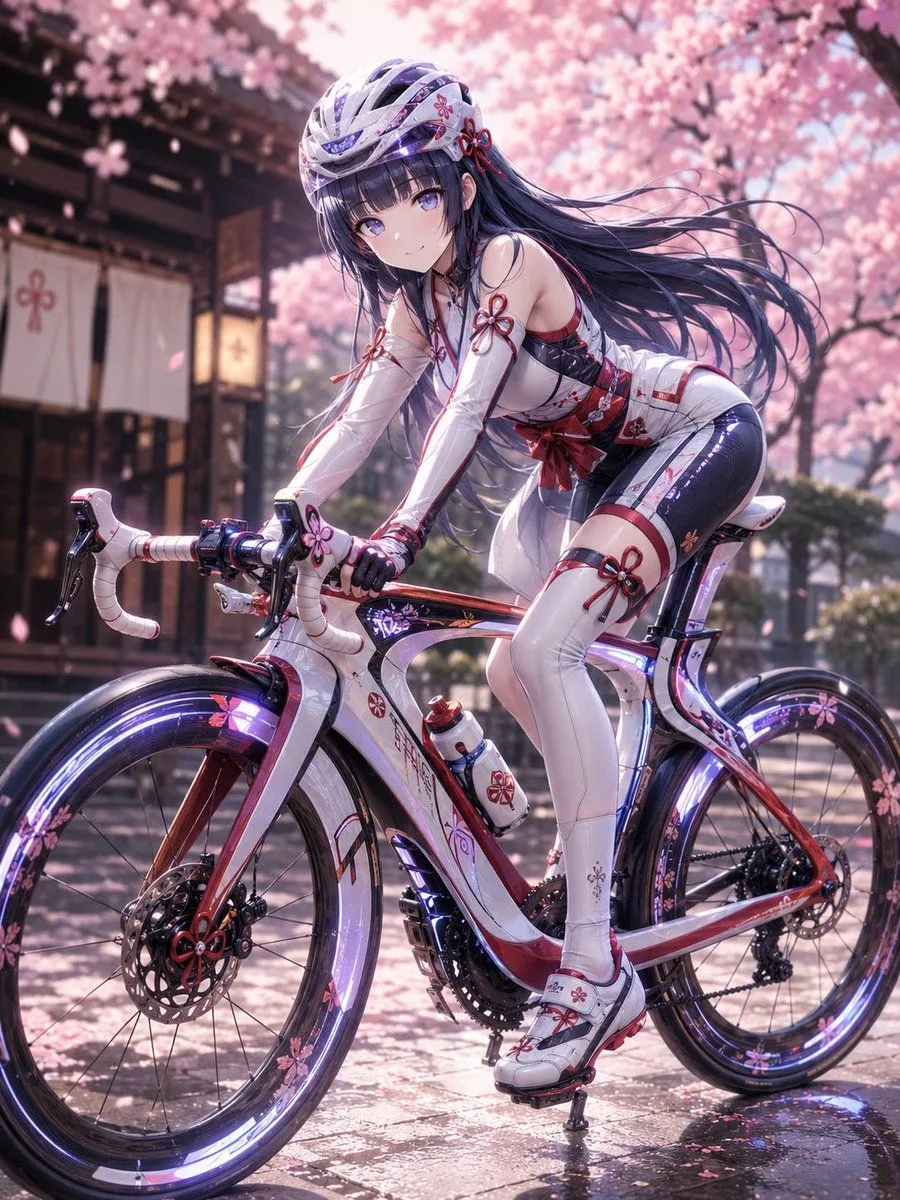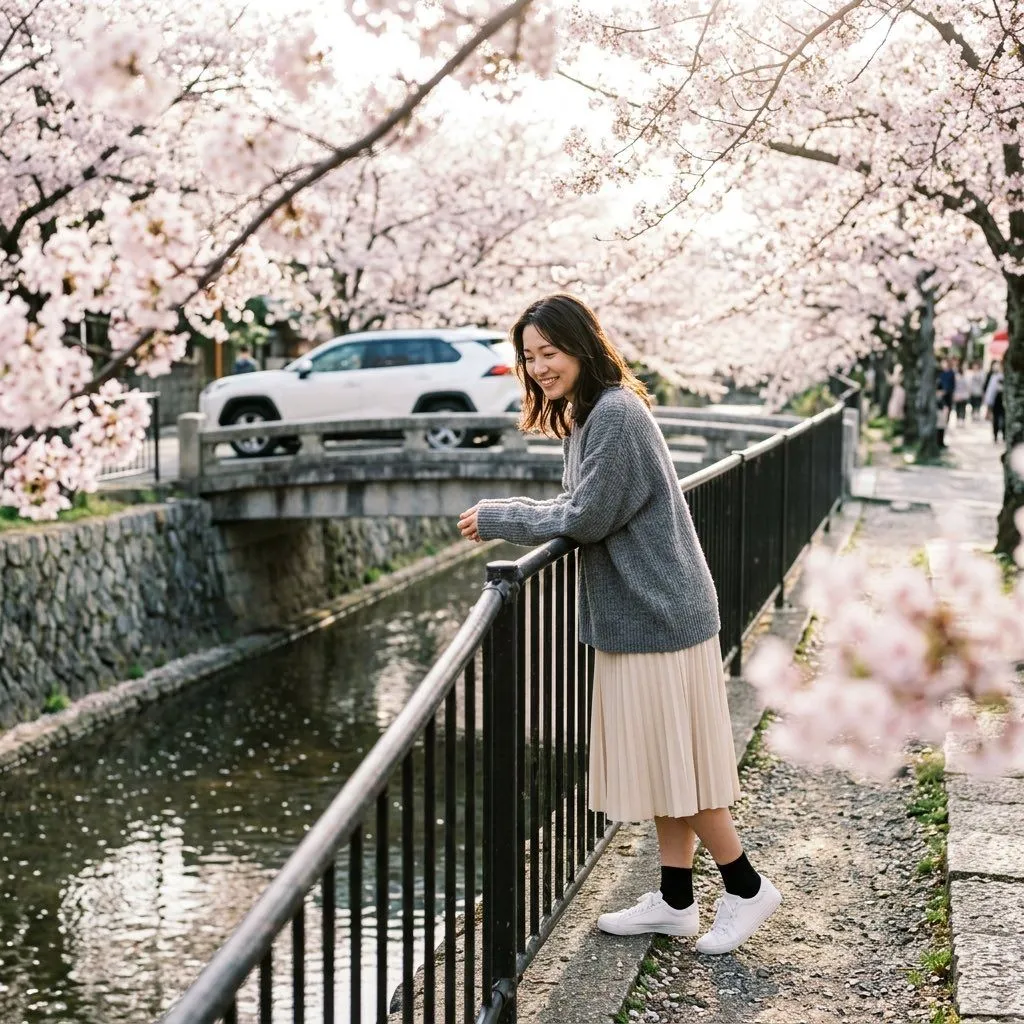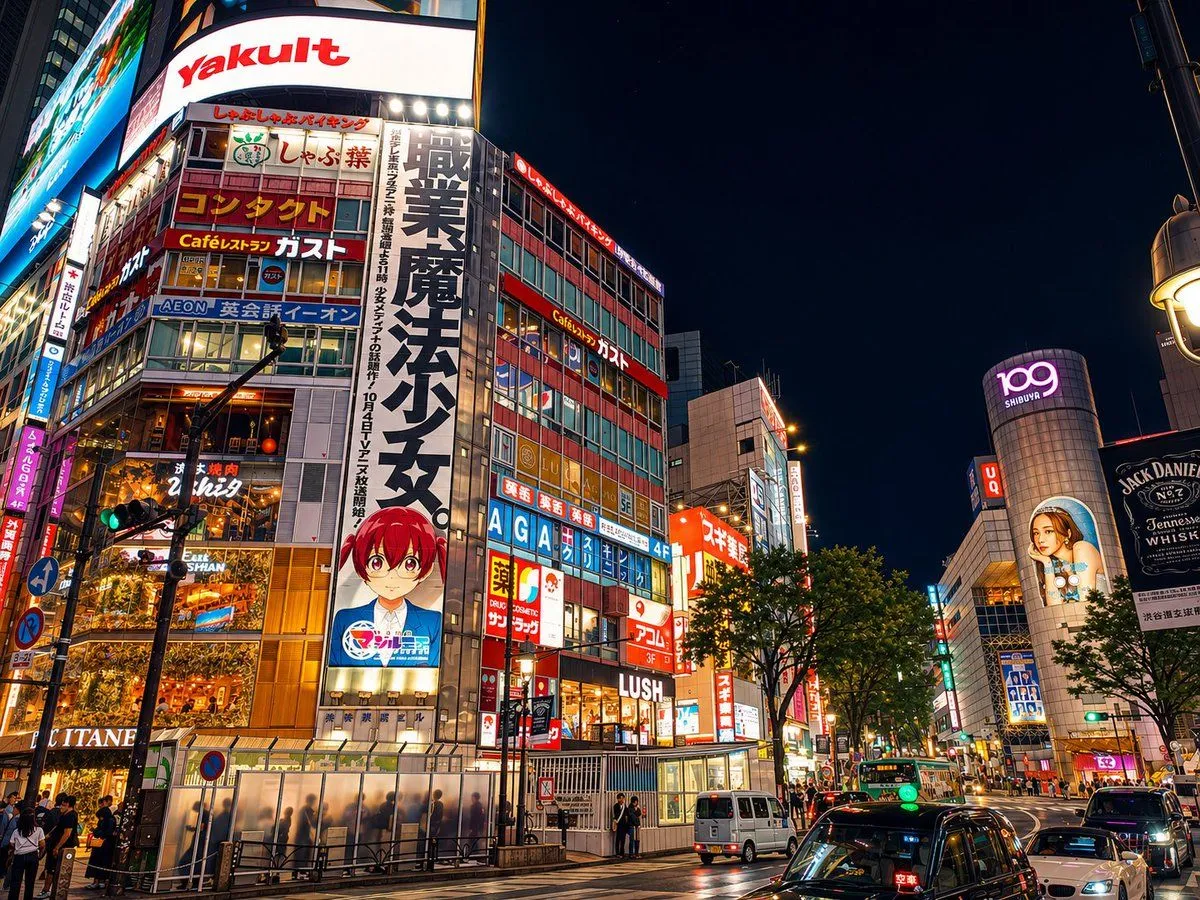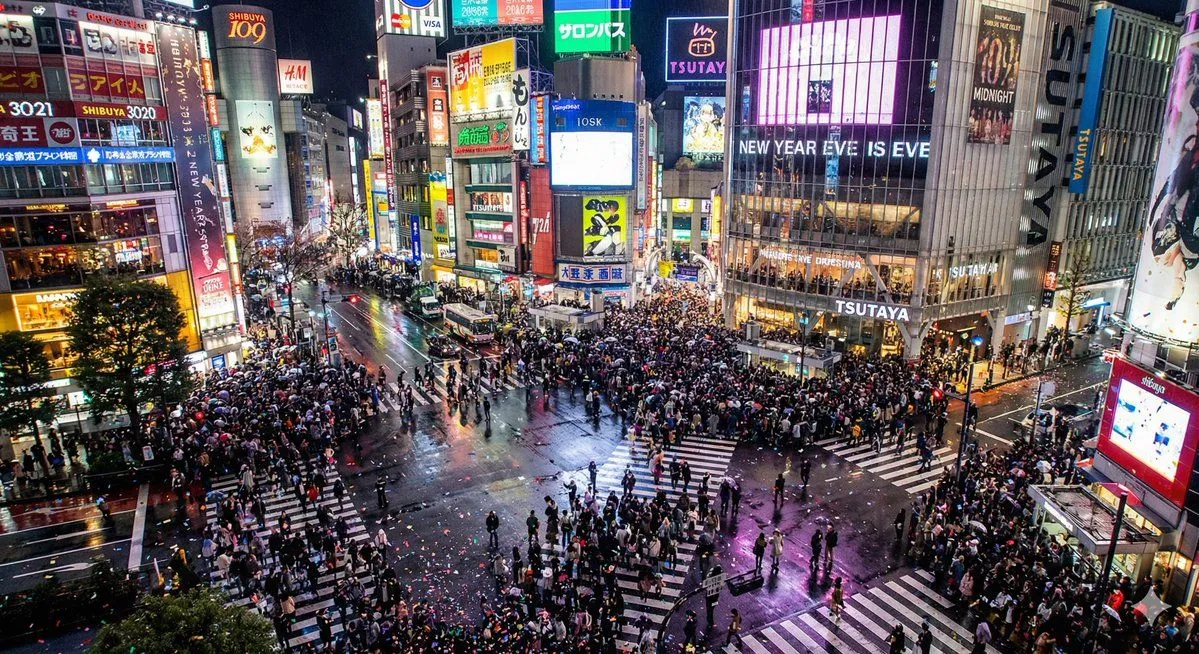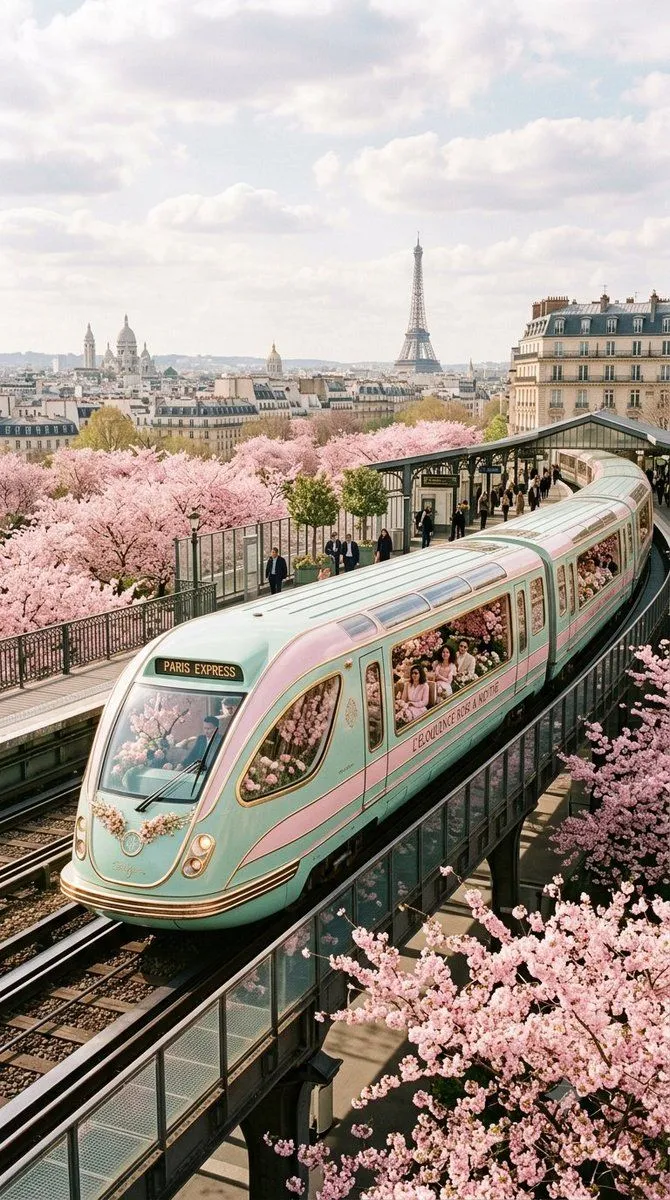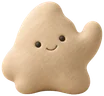
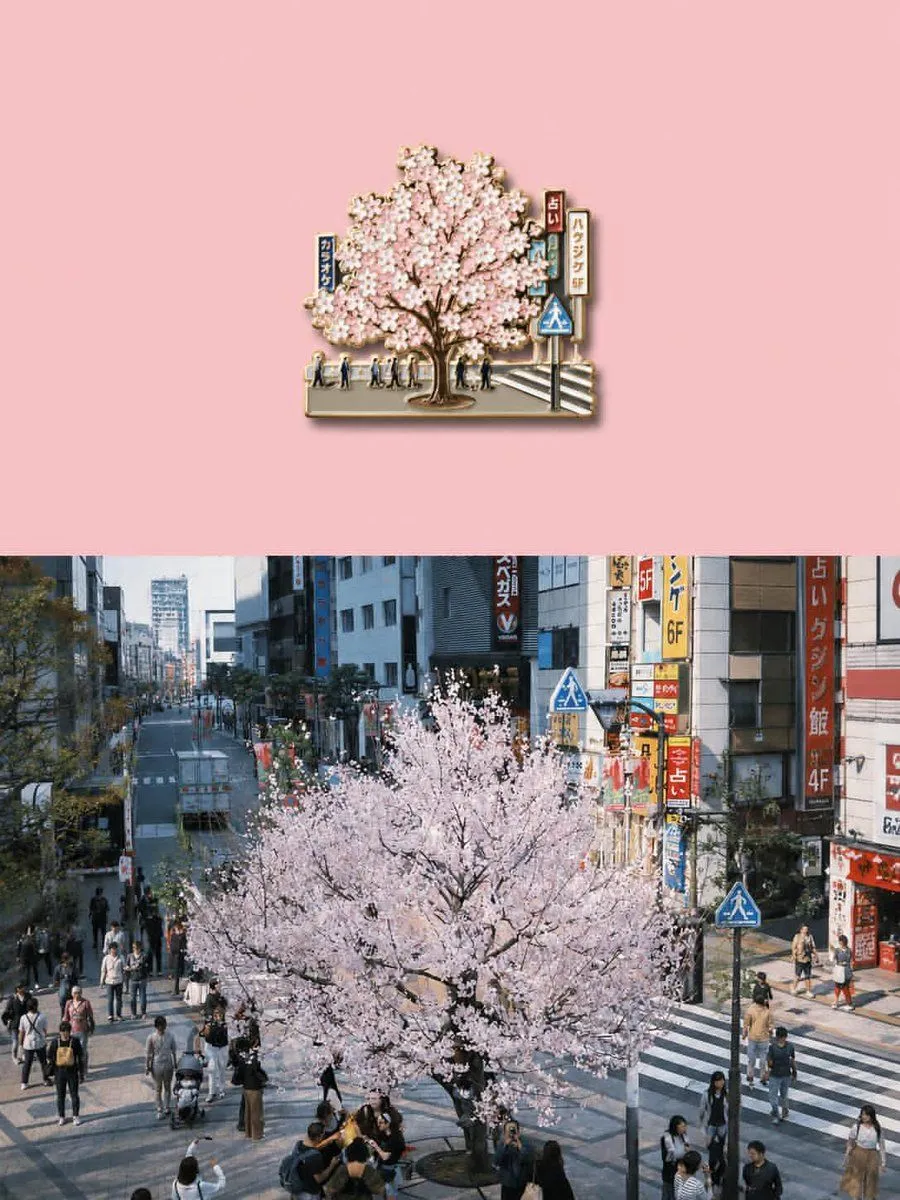
Made with GPT Image 2 in ChatGPT by Library Lifestyle. Promptclay never generates images.
Did it work?
No reports yet. Tell others if it worked for you.
Die-cut Sticker Illustration
Prompt
3 blanks to fillTransform the uploaded image into a premium die-cut sticker illustration while keeping the {subject} fully recognizable. Remove or simplify the original background and cleanly isolate the primary subject. Add a thick {border_color} sticker border around the entire silhouette with a subtle realistic drop shadow to create a floating sticker effect. Preserve important textures and details while slightly stylizing the image with enhanced colors, cinematic contrast, and a polished editorial look. Refine the edges to create smooth, crisp sticker contours while maintaining realistic proportions and perspective. Place the final sticker composition centered on a {background_color} with generous negative space, making it feel like a high-quality collectible vinyl sticker. The final image should feel minimal, modern, slightly nostalgic, and professionally designed, with no added text or extra objects.
Preview of your prompt
Transform the uploaded image into a premium die-cut sticker illustration while keeping the main subject fully recognizable. Remove or simplify the original background and cleanly isolate the primary subject. Add a thick soft cream or beige sticker border around the entire silhouette with a subtle realistic drop shadow to create a floating sticker effect. Preserve important textures and details while slightly stylizing the image with enhanced colors, cinematic contrast, and a polished editorial look. Refine the edges to create smooth, crisp sticker contours while maintaining realistic proportions and perspective. Place the final sticker composition centered on a clean pastel background with generous negative space, making it feel like a high-quality collectible vinyl sticker. The final image should feel minimal, modern, slightly nostalgic, and professionally designed, with no added text or extra objects.
DetailsVersions, settings and questions
Written for
What's in the prompt
- Subject
- Model
- GPT Image 2
If your face changes
keep my face exactly the sameQuestions
- Does this work in the ChatGPT app?
- Yes. Paste the prompt and attach your photo if it uses one.
- It changed my face. What do I do?
- Add "keep my face exactly the same" to the end and run it again.
- Can I use the images I make?
- Check the terms of the app you use. Promptclay never generates images and claims nothing you make.